How to Fix Apps Not Opening After Permissions Denied (Easy Guide)
Introduction
You tap an app… and nothing happens. Or worse, it crashes instantly. Sound familiar? You’re not alone.
Many users face this frustrating issue where apps stop working after denying permissions like storage, camera, or location. The good news? It’s usually easy to fix.
In this guide, we’ll show you How to Fix Apps Not Opening After Permissions Denied using simple, step-by-step solutions that actually work. Whether you’re on Android or iPhone, these fixes will help you get your apps back up and running quickly.
Table of Contents
- What is the Problem?
- Why Does This Problem Happen?
- How to Fix Apps Not Opening After Permissions Denied
- Advanced Fixes
- Prevent This Problem in the Future
- Common FAQs
- Conclusion
What is the Problem?
When you deny permissions to an app, it may lose access to critical features it needs to function properly.
Common Symptoms:
- App won’t open or crashes immediately
- Blank or frozen screen
- Features not working (camera, GPS, storage)
- Error messages like “Permission required”
- App keeps restarting
Some apps depend heavily on permissions. If you deny them, the app may simply stop working.
Why Does This Problem Happen?
Understanding the cause helps you fix it faster. Here’s what’s going on:
1. Essential Permissions Are Blocked
Apps need permissions like:
- Storage (to save/load data)
- Camera (for scanning or photos)
- Location (for maps or delivery apps)
Denying these can break functionality.
2. App Not Designed to Handle Denials
Some poorly optimized apps crash instead of showing a warning.
3. System Restrictions
Your phone may automatically block permissions due to:
- Privacy settings
- Battery saver mode
- Background restrictions
4. Corrupted App Data
If permissions were changed suddenly, app data might become unstable.
5. OS or App Bugs
After updates, permission handling may glitch.
How to Fix Apps Not Opening After Permissions Denied
Here’s what works. Follow these steps one by one.
1. Re-enable App Permissions (Quick Fix)
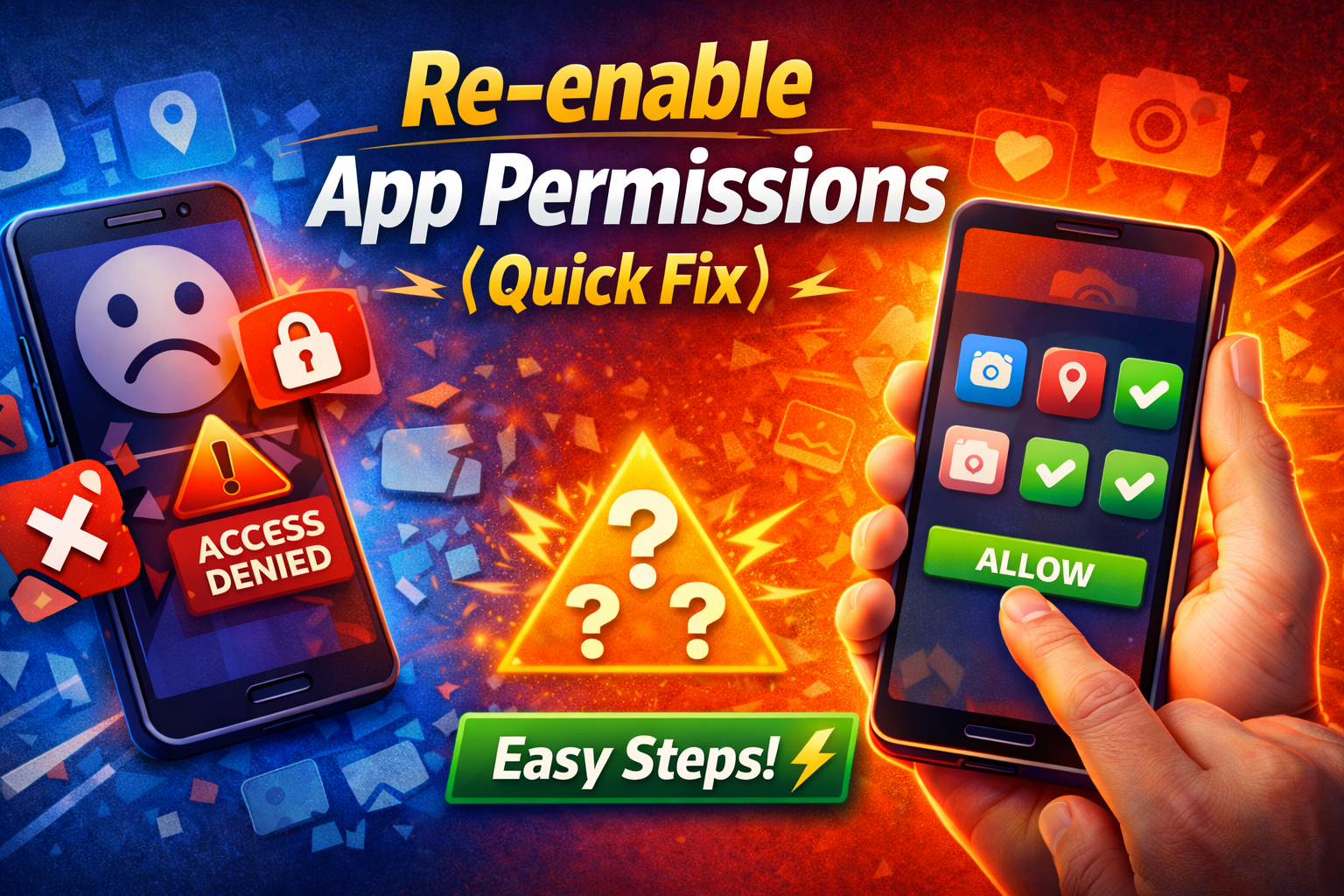
This is the most important step.
On Android:
- Go to Settings
- Tap Apps
- Select the app
- Tap Permissions
- Allow required permissions
On iPhone:
- Go to Settings
- Scroll to the app
- Enable needed permissions
💡 Pro Tip: If you’re unsure, allow all permissions temporarily to test.
2. Restart Your Device
Sometimes the system just needs a refresh.
- Hold the power button
- Tap Restart
This clears temporary glitches affecting permissions.
3. Clear App Cache (Android Only)

Cache issues can prevent apps from opening.
Steps:
- Go to Settings > Apps
- Select the app
- Tap Storage
- Tap Clear Cache
⚠️ Don’t tap Clear Data unless necessary (it removes login info).
4. Update the App
Outdated apps may not handle permissions properly.
- Open Google Play Store or App Store
- Search for the app
- Tap Update
👉 Here’s what works: Developers often fix permission bugs in updates.
5. Reinstall the App
If the app is still not opening:
- Uninstall the app
- Restart your phone
- Reinstall from official store
- Grant permissions during setup
This resets everything cleanly.
6. Check System Permissions Manager
Sometimes permissions are blocked globally.
On Android:
- Go to Settings > Privacy > Permission Manager
- Check categories like Camera, Storage, Location
- Ensure the app is allowed
7. Disable Battery Saver or Restrictions
Battery optimization can block permissions.
Steps:
- Go to Settings > Battery
- Turn off Battery Saver
- Check App Battery Settings
- Set app to Unrestricted
8. Reset App Preferences (Android Only)
This resets all permissions and app settings.
Steps:
- Go to Settings > Apps
- Tap 3-dot menu
- Select Reset App Preferences
⚠️ This won’t delete your data but resets defaults.
Advanced Fixes (Optional)
If basic fixes don’t work, try these:
1. Update Your Operating System
- Go to Settings > System Update
- Install latest version
Outdated OS can cause permission conflicts.
2. Check for Conflicting Apps
Security or cleaner apps may block permissions.
- Disable or uninstall suspicious apps
- Restart your device
3. Use Safe Mode (Android)
Boot into Safe Mode to test:
- If app works → another app is causing conflict
4. Factory Reset (Last Resort)
⚠️ Only if nothing works.
- Backup your data
- Go to Settings > Reset
- Perform factory reset
Prevent This Problem in the Future
Avoid dealing with this issue again by following these tips:
✅ Grant Permissions Carefully
- Don’t deny critical permissions blindly
- Read what the app needs
✅ Keep Apps Updated
- Enable auto-updates
- Fix bugs early
✅ Avoid Force-Stopping Apps Frequently
- It can break background permissions
✅ Use Trusted Apps Only
- Poorly coded apps cause more issues
✅ Review Permissions Regularly
- Go to settings and audit access
💡 Pro Insight: If an app stops working after denying permission, it’s often because that permission is essential—not optional.
Common FAQs
1. Why do apps crash after denying permissions?
Because they rely on those permissions to function. Without access, the app may fail to load properly.
2. Is it safe to allow all permissions?
Not always. Only allow what’s necessary. However, temporarily allowing all can help troubleshoot.
3. How do I know which permission is causing the issue?
Check the app’s features. For example:
- Camera app → needs camera permission
- Maps → needs location
4. Will reinstalling fix permission issues?
Yes, in most cases. It resets permissions and clears corrupted data.
5. Can system updates break permissions?
Yes. Sometimes updates reset or change permission settings, causing apps to stop working.
Conclusion
Dealing with apps that won’t open after denying permissions can be frustrating—but it’s usually easy to fix.
Here’s a quick recap:
- Re-enable permissions (most important)
- Restart your device
- Clear cache or reinstall the app
- Check system and battery settings
You’re not alone, and these solutions work for most users.
👉 Try the steps above and get your apps working again in minutes.
If this guide helped you, feel free to share it or explore more app problem solutions. Got questions? Drop them in the comments—we’re here to help! 🚀
