How to Fix Apps Showing Network Error on Mobile (Easy Guide)
Introduction
You’re trying to open your favorite app—maybe WhatsApp, Facebook, or YouTube—and suddenly you see a frustrating message: “Network Error. Please try again.” 😩
You’re not alone. This is one of the most common issues mobile users face today.
The good news? Most of the time, it’s not a serious problem—and you can fix it in minutes.
In this guide, you’ll learn how to fix apps showing network error on mobile with simple, step-by-step solutions that actually work. Whether you’re using Android or iPhone, we’ve got you covered.
Table of Contents
- What is the Problem?
- Why Does This Problem Happen?
- How to Fix Apps Showing Network Error on Mobile
- Advanced Fixes (Optional)
- Prevent This Problem in the Future
- Common FAQs
- Conclusion
What is the Problem?
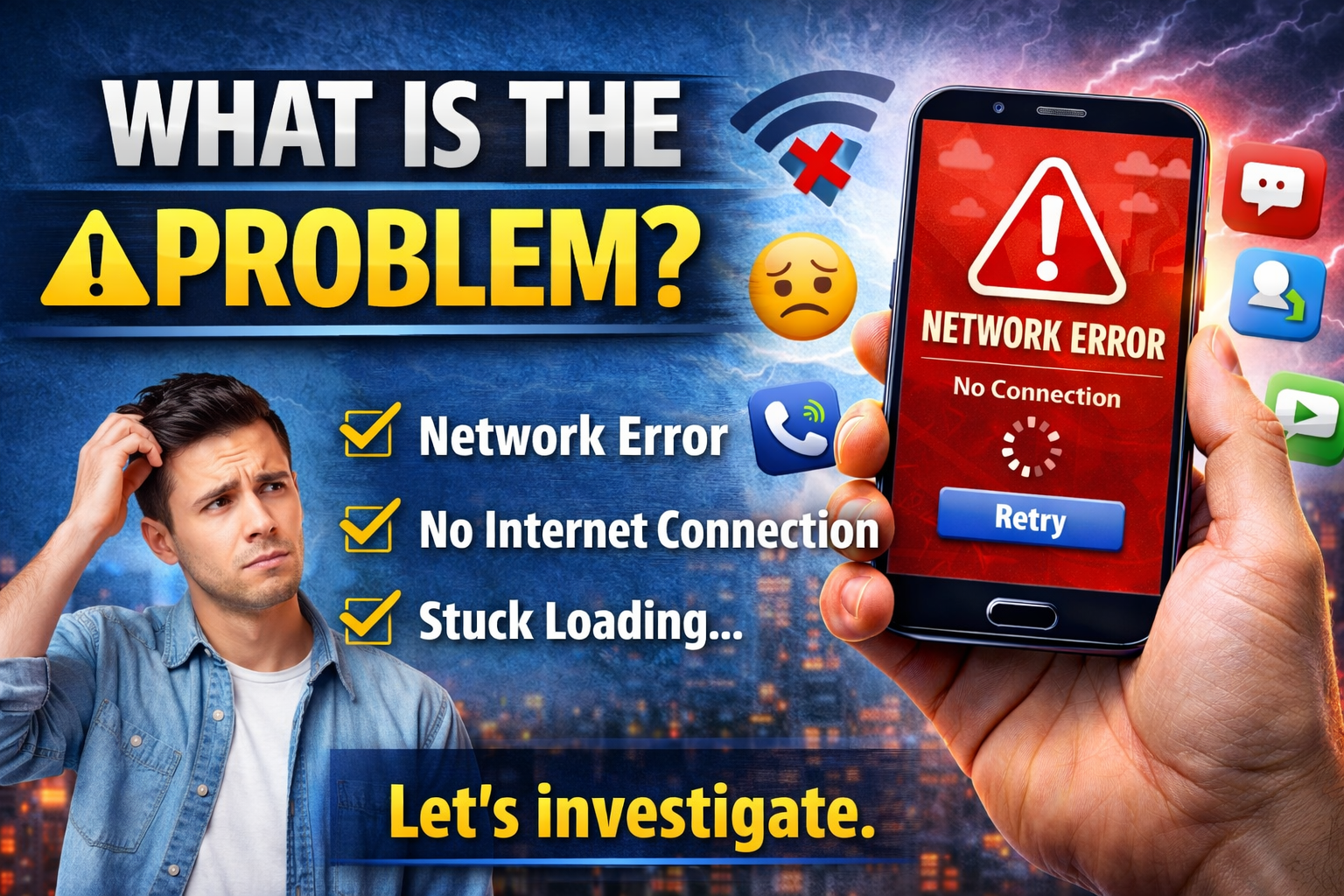
When apps show a network error, it means the app cannot connect to the internet or its servers.
Common Symptoms
- App displays “Network Error” or “No Internet Connection”
- Content won’t load (feeds, messages, videos)
- App stuck on loading screen
- Login or refresh fails
- Notifications stop working
Even if your Wi-Fi or mobile data seems fine, the app may still fail to connect.
Why Does This Problem Happen?
There isn’t just one cause. This issue can happen due to several reasons:
1. Weak or Unstable Internet
- Poor Wi-Fi signal
- Slow mobile data connection
2. App Server Issues
- The app’s server might be down temporarily
3. Incorrect Network Settings
- Misconfigured DNS or APN settings
4. App Bugs or Outdated Version
- Older versions may not connect properly
5. Cache or Data Corruption
- Temporary files can interfere with connectivity
6. VPN or Firewall Restrictions
- VPN apps may block certain connections
7. Background Data Disabled
- App can’t use internet in the background
How to Fix Apps Showing Network Error on Mobile
Here’s what works. Follow these quick and effective fixes step by step:
1. Check Your Internet Connection (Quick Fix)
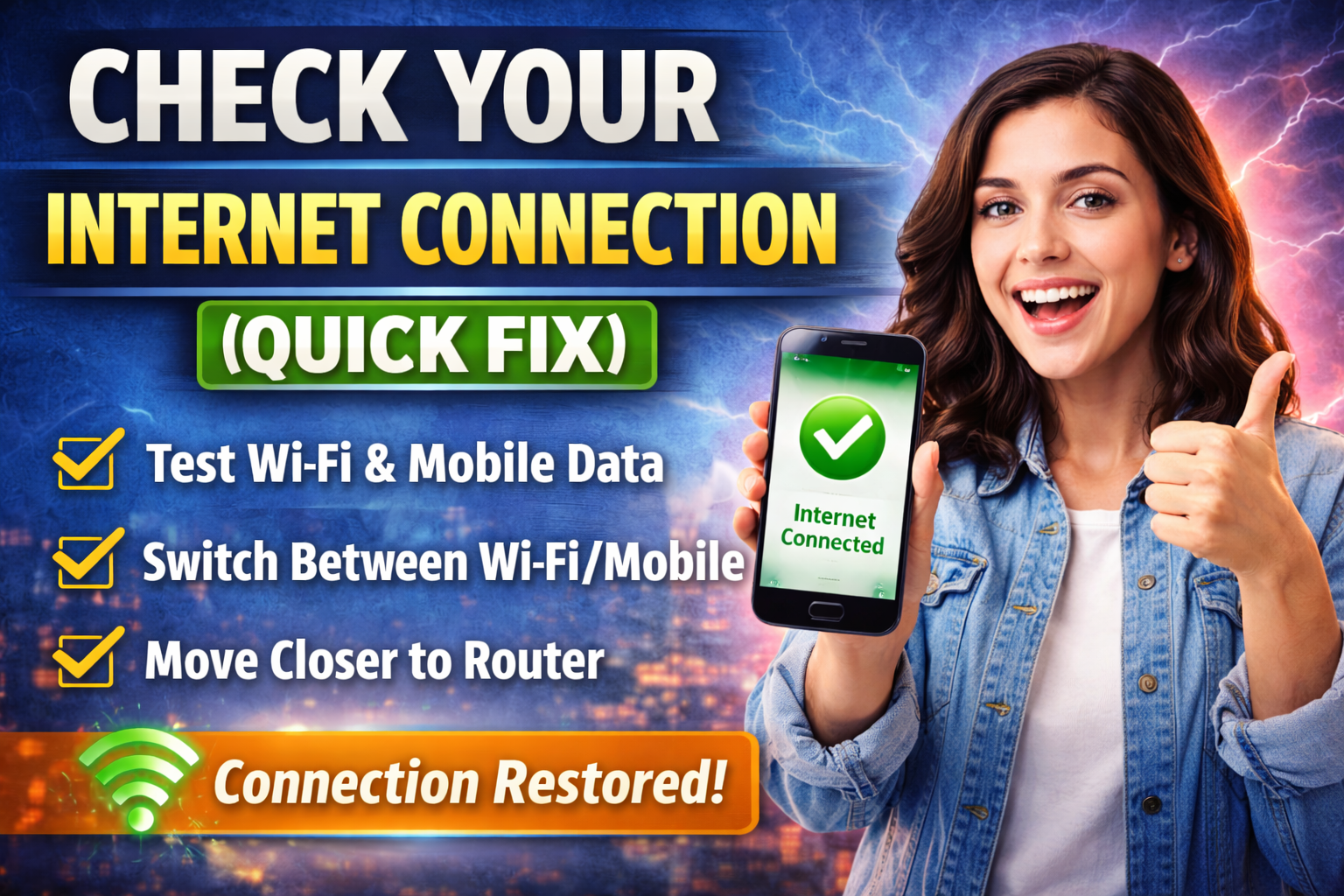
Before anything else, confirm your internet is working.
Try this:
- Open a browser and load a website
- Switch between Wi-Fi and mobile data
- Move closer to your router
👉 If nothing loads, the problem is your internet—not the app.
2. Turn Airplane Mode ON & OFF
This simple trick refreshes your network.
Steps:
- Turn ON Airplane Mode
- Wait 10–15 seconds
- Turn it OFF
💡 This resets your connection instantly.
3. Restart Your Phone
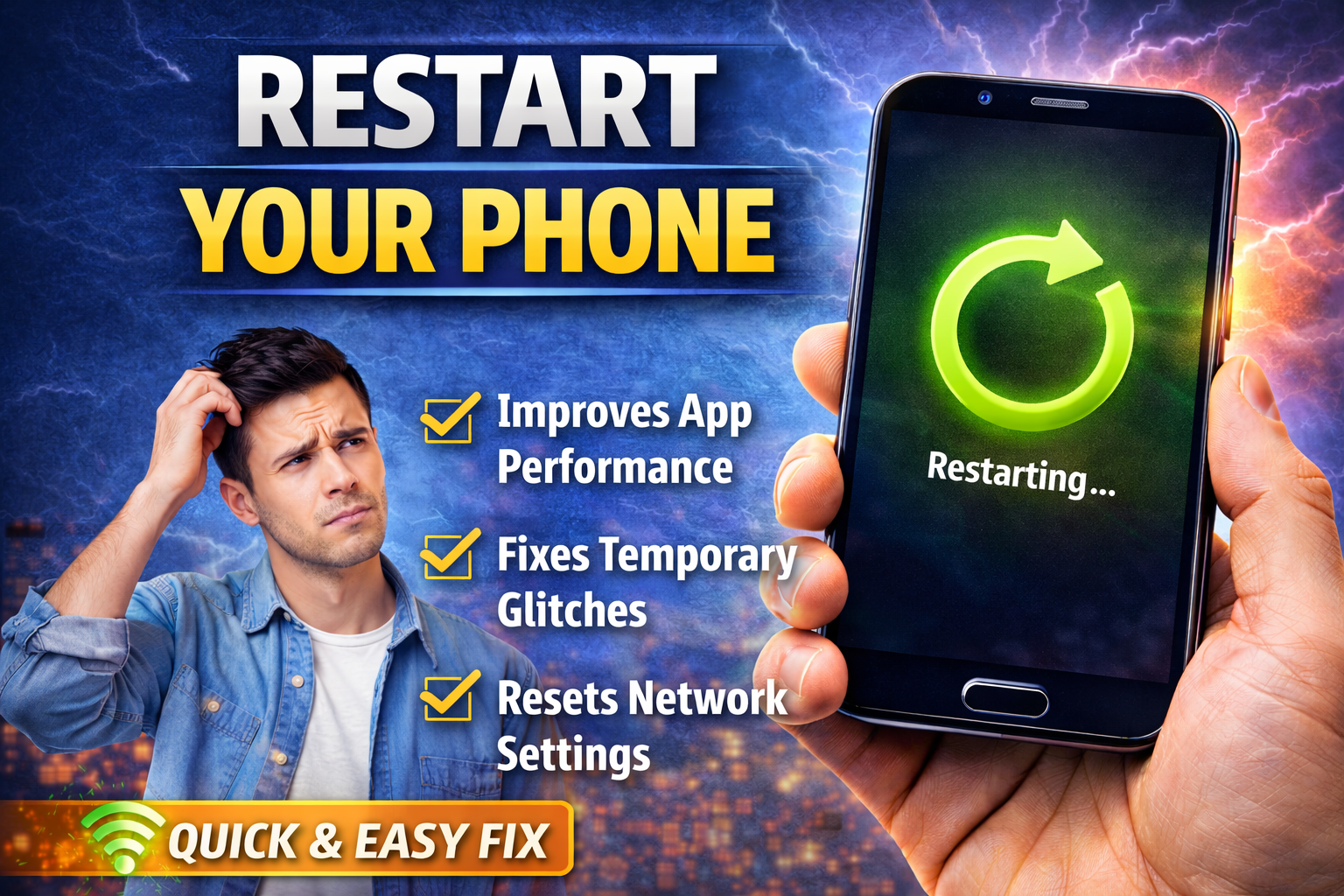
It sounds basic, but it works surprisingly well.
- Clears temporary glitches
- Refreshes network services
👉 Many users fix network errors with this step alone.
4. Clear App Cache and Data (Android)
Corrupted cache is a common cause.
Steps:
- Go to Settings > Apps
- Select the affected app
- Tap Storage
- Tap Clear Cache
- (Optional) Tap Clear Data
⚠️ Clearing data may log you out of the app.
5. Update the App
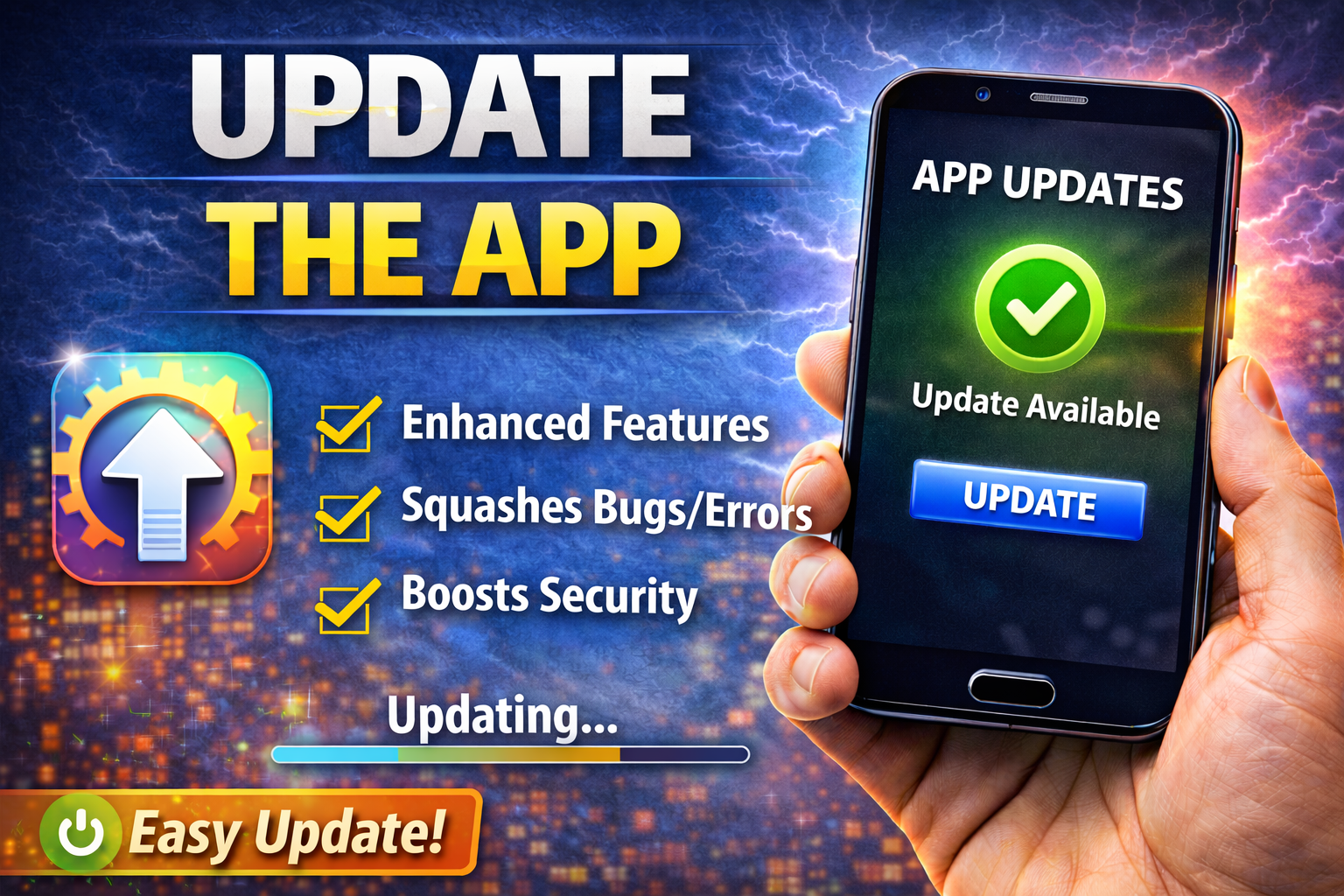
Outdated apps often cause connection issues.
Steps:
- Open Google Play Store / App Store
- Search for the app
- Tap Update
👉 Developers fix bugs in updates—don’t skip this.
6. Disable VPN or Proxy
VPNs can block or slow connections.
Steps:
- Turn off any VPN apps
- Disable proxy settings
💡 Try opening the app again after disabling.
7. Check App Permissions
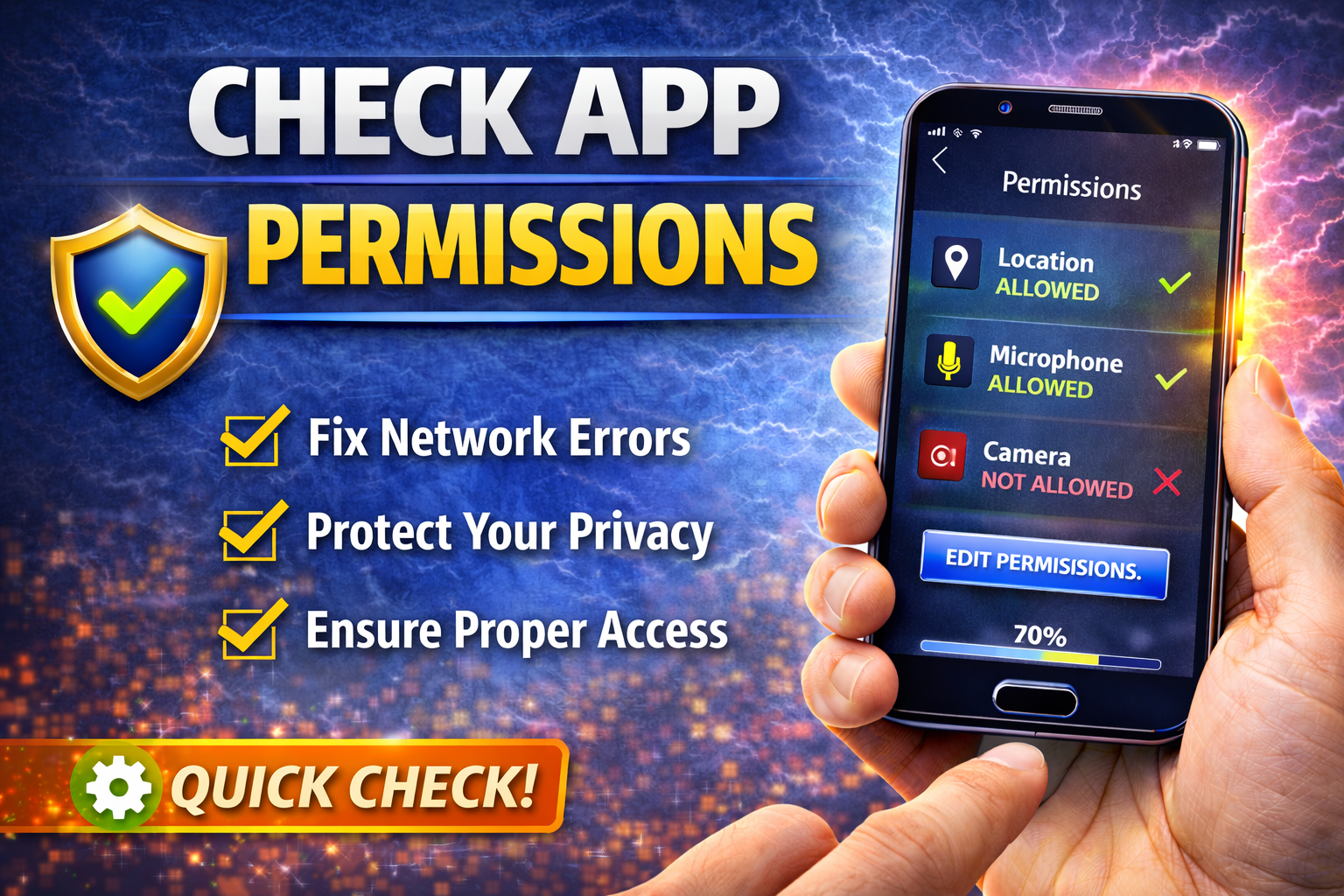
Some apps need network-related permissions.
Steps (Android):
- Go to Settings > Apps
- Select app
- Tap Permissions
- Ensure necessary permissions are enabled
8. Reset Network Settings
If nothing works, this is a powerful fix.
Steps:
- Android:
Settings > System > Reset > Reset Network Settings - iPhone:
Settings > General > Transfer or Reset > Reset Network Settings
⚠️ This will remove saved Wi-Fi passwords.
Advanced Fixes (Optional)
If the problem still persists, try these advanced solutions:
1. Change DNS Settings
Using a faster DNS can improve connectivity.
Recommended DNS:
- Google DNS:
8.8.8.8and8.8.4.4
2. Reinstall the App
This removes all corrupted files.
Steps:
- Uninstall the app
- Restart your phone
- Reinstall from store
3. Check for System Updates
Outdated OS can cause compatibility issues.
- Go to Settings > Software Update
- Install latest updates
4. Check Server Status
Sometimes the issue isn’t on your side.
- Search: “Is [app name] down?”
- Use websites like DownDetector
👉 If servers are down, you just need to wait.
Prevent This Problem in the Future
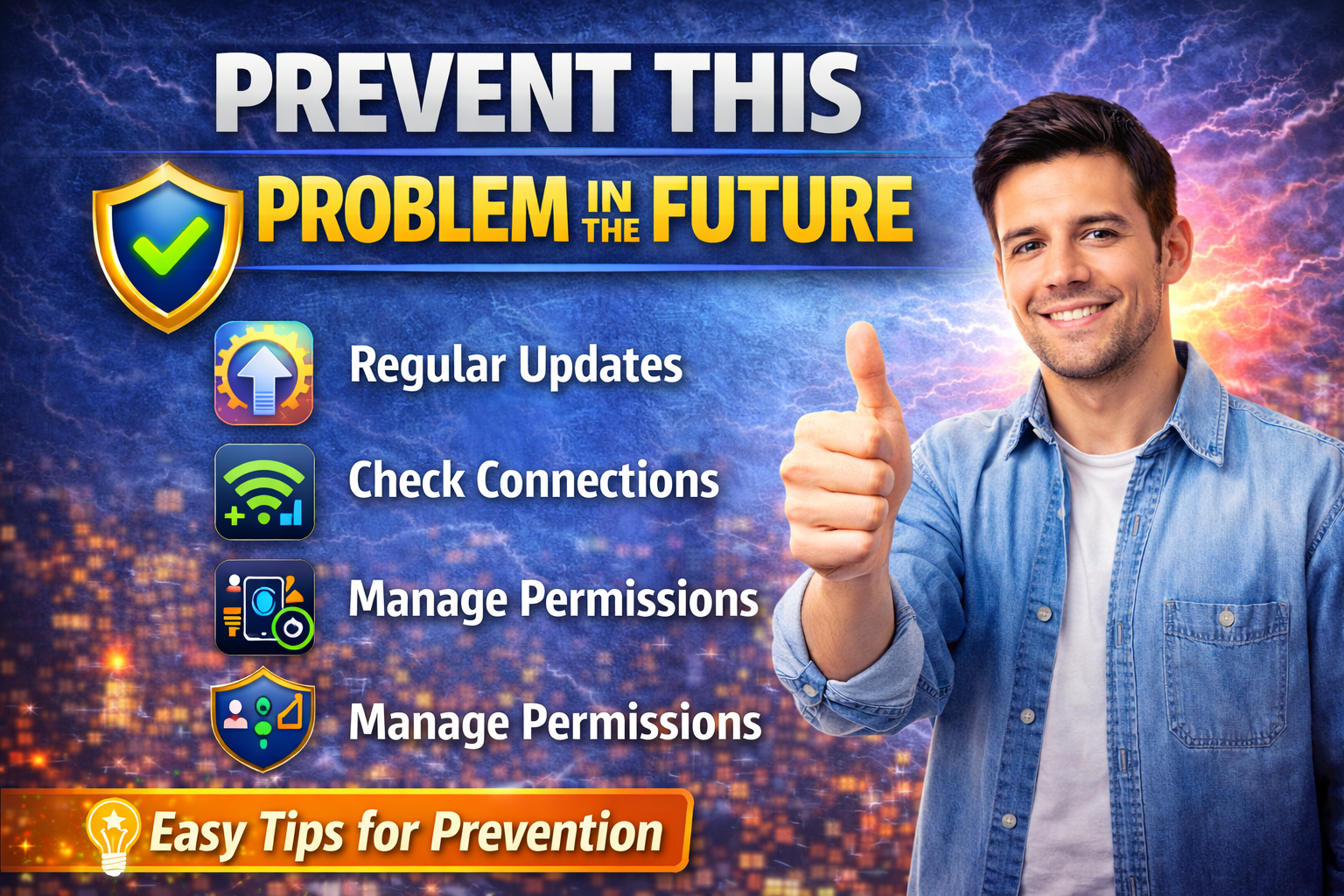
Here’s how to avoid seeing network errors again:
✔ Keep Apps Updated
Always install updates to avoid bugs.
✔ Use Stable Internet
Avoid weak Wi-Fi or unstable networks.
✔ Avoid Too Many Background Apps
Too many apps can slow connectivity.
✔ Clear Cache Regularly
Helps maintain app performance.
✔ Be Careful with VPNs
Use trusted VPN services only.
Common FAQs
1. Why do my apps say network error but internet works?
This usually happens due to app bugs, cache issues, or server problems—not your internet.
2. Does resetting network settings fix this issue?
Yes. It’s one of the most effective solutions if other fixes don’t work.
3. Can VPN cause network errors in apps?
Absolutely. VPNs can block or reroute traffic, causing connection failures.
4. Why only one app shows network error?
That app may have corrupted data, outdated version, or server issues.
5. Is this problem common on Android and iPhone?
Yes. Both platforms can experience this issue.
Conclusion (Here’s What Works)
Dealing with apps showing network errors on mobile can be frustrating—but now you know it’s usually easy to fix.
Quick Recap:
- Check your internet connection
- Restart your phone
- Clear cache and update apps
- Disable VPN and reset network settings
👉 Start with the simple fixes first—you’ll often solve it in minutes.
If this guide helped you, consider sharing it with others facing the same issue. And if you still have problems, drop a comment or explore more of our App Problems guides for deeper solutions.
