How to Fix Apps Not Receiving Messages iPhone (Easy Guide)
Introduction
You’re not alone—missing important messages on your iPhone can be incredibly frustrating. Whether it’s WhatsApp, Messenger, iMessage, or email apps, not receiving messages can disrupt communication, work, and daily life.
If you’re wondering how to fix apps not receiving messages iPhone, this guide will walk you through simple, effective solutions that actually work. From quick fixes to advanced troubleshooting, we’ve got you covered.
Table of Contents
- What is the Problem?
- Why Does This Problem Happen?
- How to Fix Apps Not Receiving Messages iPhone
- Advanced Fixes (Optional)
- Prevent This Problem in the Future
- Common FAQs
- Conclusion
What is the Problem?
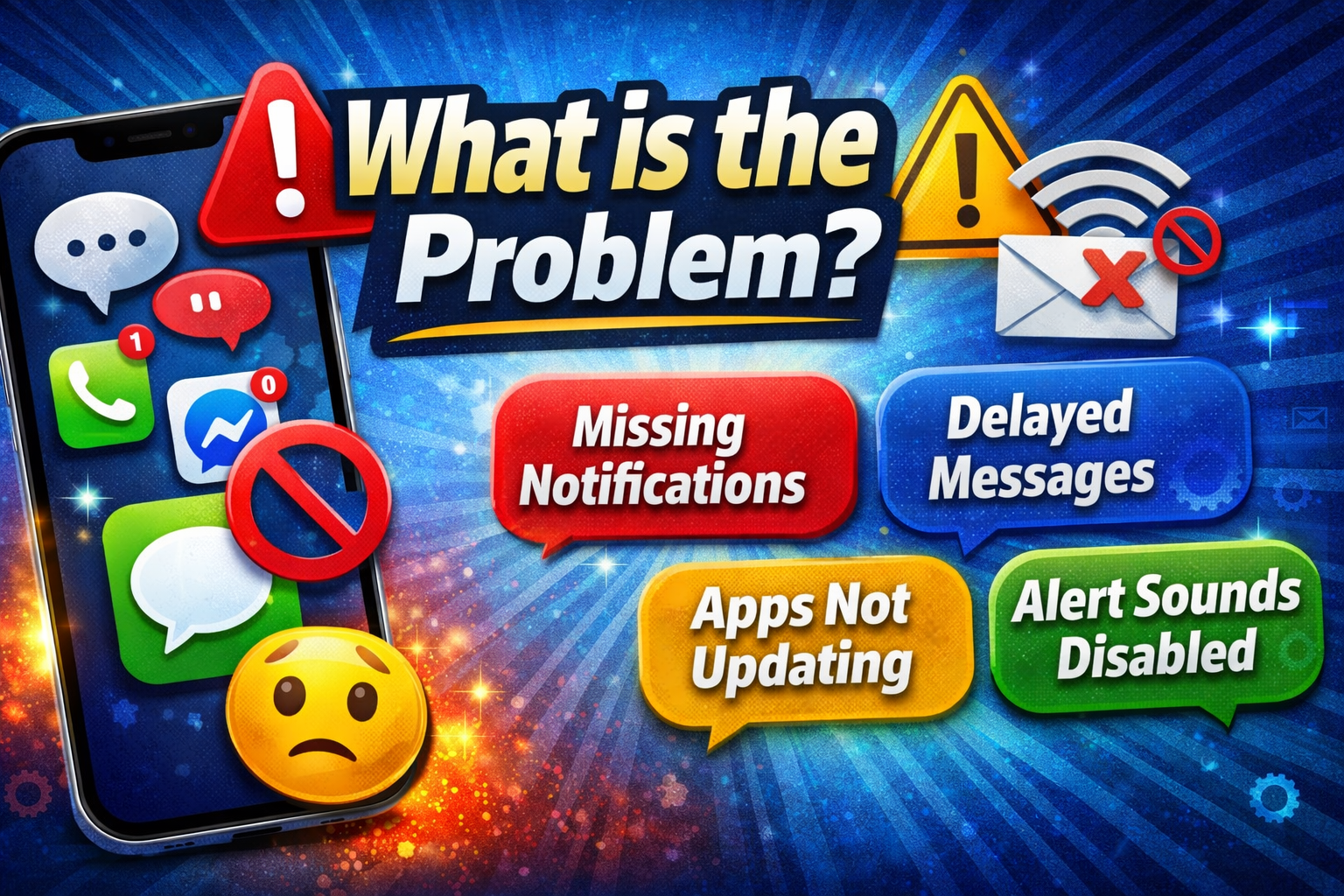
When apps are not receiving messages on your iPhone, it means notifications or incoming messages fail to appear in real time—or at all.
Common Symptoms:
- No notifications from messaging apps
- Messages only appear when you open the app
- Delayed message delivery
- Missing iMessage or SMS texts
- Apps like WhatsApp or Telegram not updating
This issue can affect both Apple apps and third-party apps.
Why Does This Problem Happen?
Understanding the cause helps you fix it faster. Here are the most common reasons:
1. Notification Settings Disabled
If notifications are turned off, messages won’t show up.
2. Poor Internet Connection
Messaging apps rely on Wi-Fi or mobile data.
3. Background App Refresh Disabled
Apps won’t update in the background.
4. Focus Mode or Do Not Disturb
These modes silence notifications.
5. App or iOS Bugs
Software glitches can block messages.
6. Low Power Mode
Limits background activity to save battery.
7. Account Sync Issues
Apps may fail to sync messages properly.
How to Fix Apps Not Receiving Messages iPhone
Here’s what works—follow these steps in order for the best results.
1. Check Notification Settings (Quick Fix)
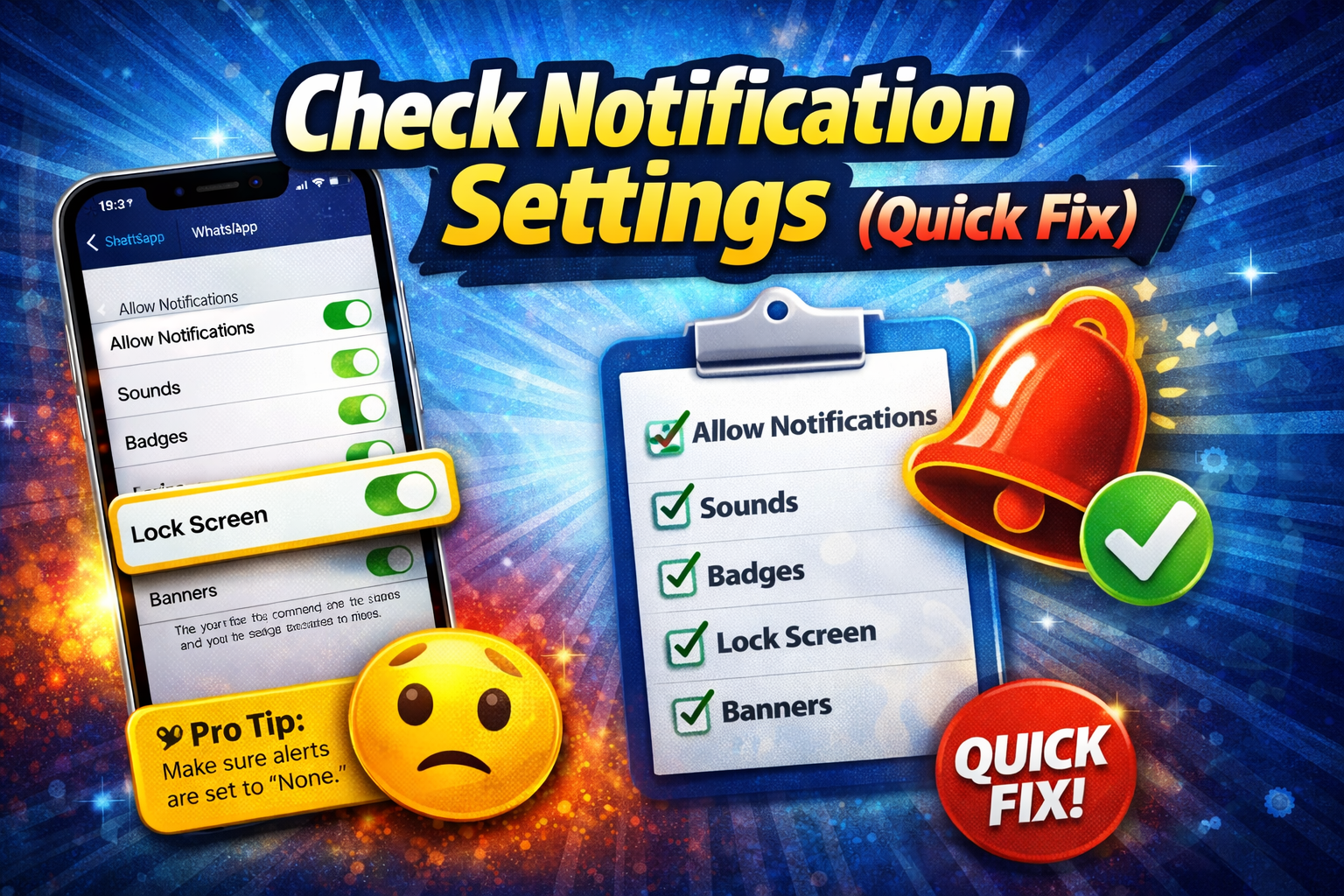
This is the most common issue.
Steps:
- Go to Settings
- Tap Notifications
- Select the affected app
- Enable:
- Allow Notifications
- Sounds
- Badges
- Lock Screen & Banner alerts
👉 Pro Tip: Make sure alerts are not set to “None.”
2. Check Internet Connection
Messaging apps need a stable connection.
What to do:
- Switch between Wi-Fi and mobile data
- Turn Airplane Mode ON → OFF
- Restart your router if needed
👉 Here’s what works: A simple network reset often fixes delayed messages.
3. Enable Background App Refresh
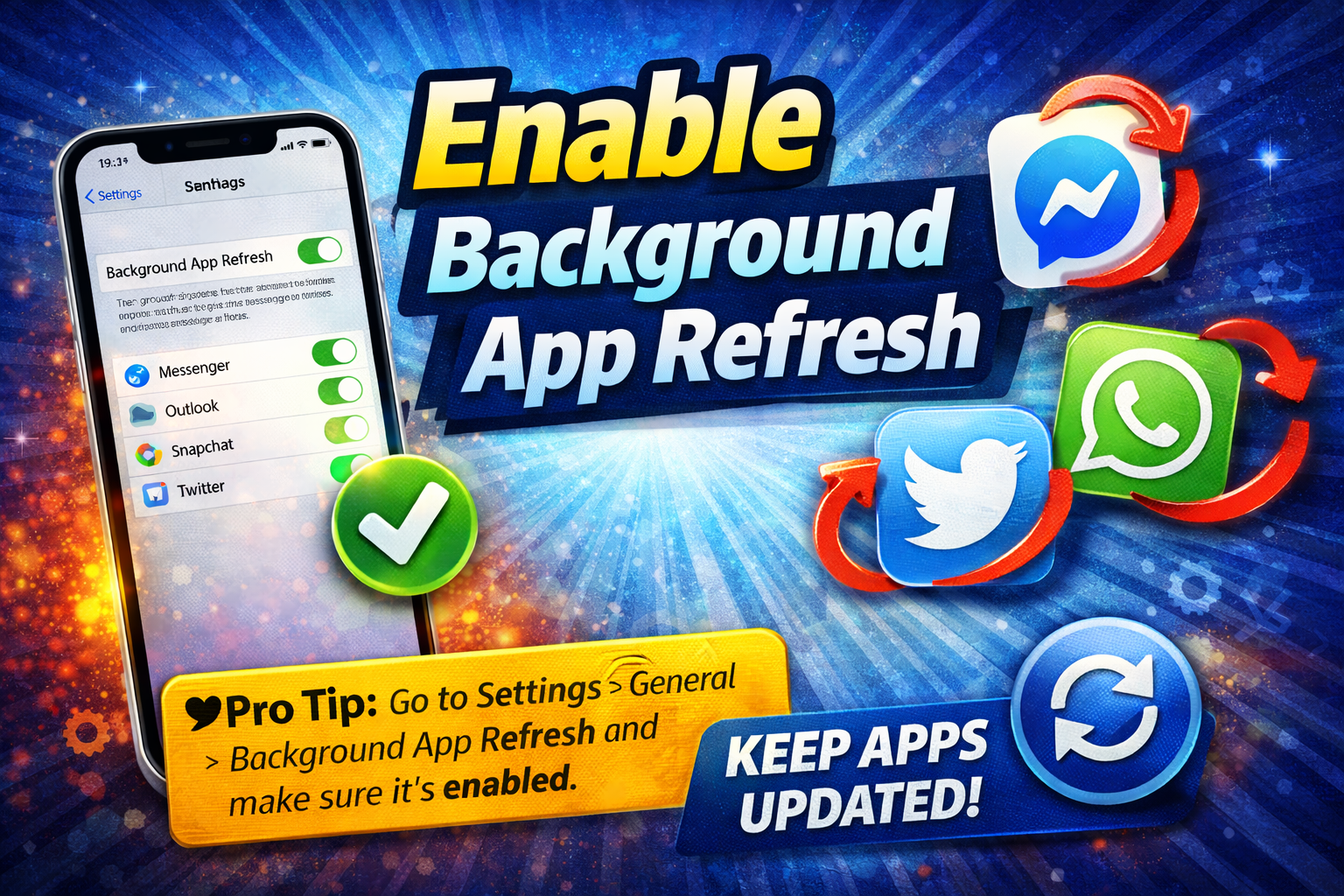
Without this, apps won’t receive messages in real time.
Steps:
- Go to Settings
- Tap General → Background App Refresh
- Turn it ON
- Enable it for your messaging apps
4. Turn Off Focus Mode / Do Not Disturb
Focus modes can silently block notifications.
Steps:
- Go to Settings → Focus
- Tap Do Not Disturb (or any active mode)
- Turn it OFF
👉 Or swipe down Control Center and disable Focus quickly.
5. Restart Your iPhone
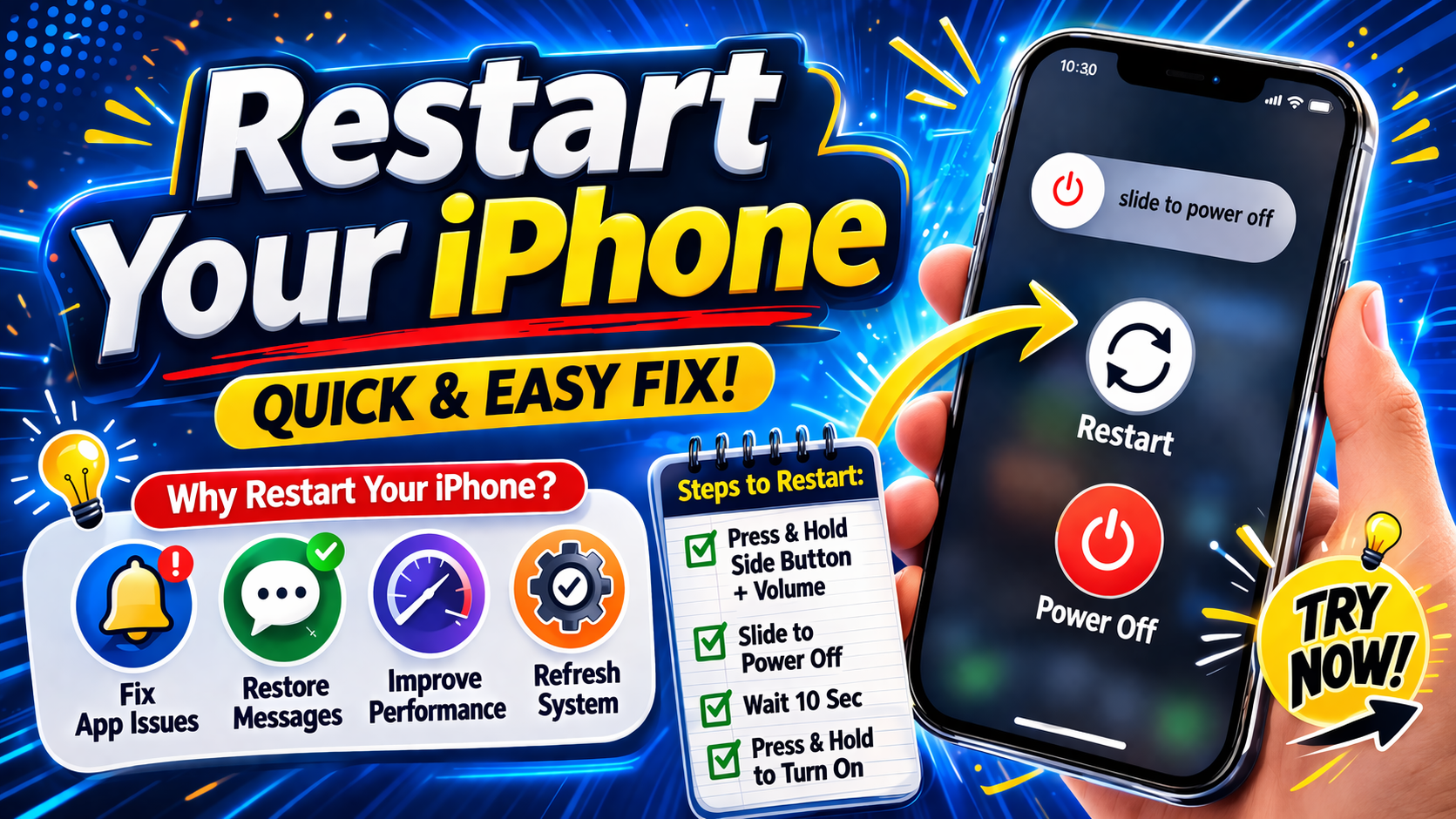
It sounds simple—but it works surprisingly often.
Steps:
- Press and hold Power + Volume button
- Slide to power off
- Turn it back on after 30 seconds
6. Update Apps and iOS
Outdated software can cause bugs.
Steps:
- Open App Store → Update All apps
- Go to Settings → General → Software Update
👉 Warning: Always update iOS to avoid compatibility issues.
7. Disable Low Power Mode
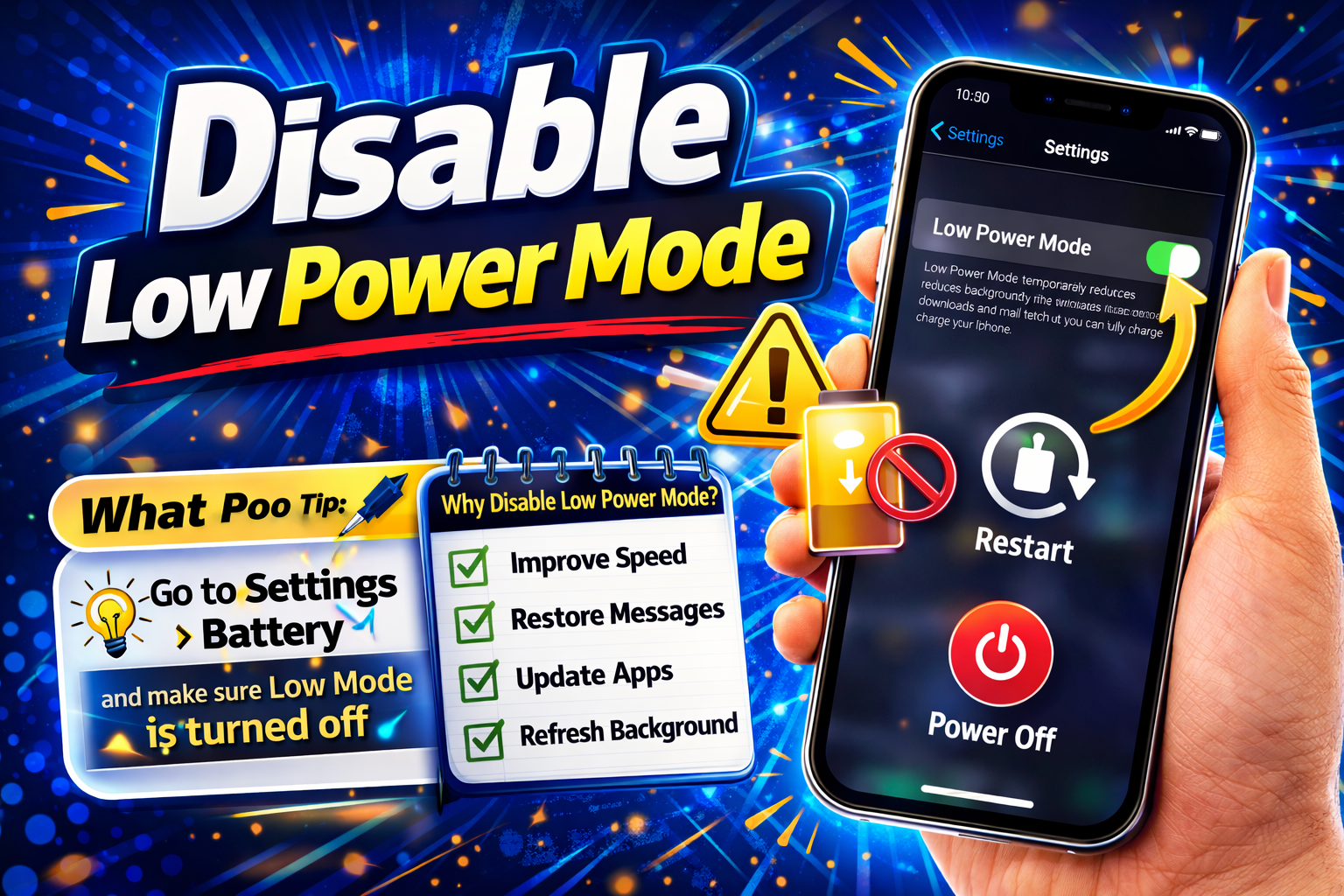
Low Power Mode limits background processes.
Steps:
- Go to Settings → Battery
- Turn OFF Low Power Mode
8. Log Out and Back Into the App
This refreshes syncing issues.
Steps:
- Open the app (e.g., WhatsApp)
- Log out
- Log back in
👉 This is especially useful for email and social apps.
Advanced Fixes (Optional)
If the problem still exists, try these deeper solutions.
1. Reset Network Settings
This clears all network-related issues.
Steps:
- Go to Settings → General → Transfer or Reset iPhone
- Tap Reset → Reset Network Settings
⚠️ Note: This will remove saved Wi-Fi passwords.
2. Check iMessage Settings (For Apple Messages)
If iMessage isn’t working:
Steps:
- Go to Settings → Messages
- Toggle iMessage OFF → ON
- Tap Send & Receive
- Ensure your number/email is selected
3. Reinstall the App
Sometimes apps become corrupted.
Steps:
- Delete the app
- Restart your iPhone
- Reinstall from App Store
4. Check App Permissions
Apps need proper permissions to function.
Steps:
- Go to Settings → Privacy & Security
- Check:
- Notifications
- Background data
- Cellular access
Prevent This Problem in the Future
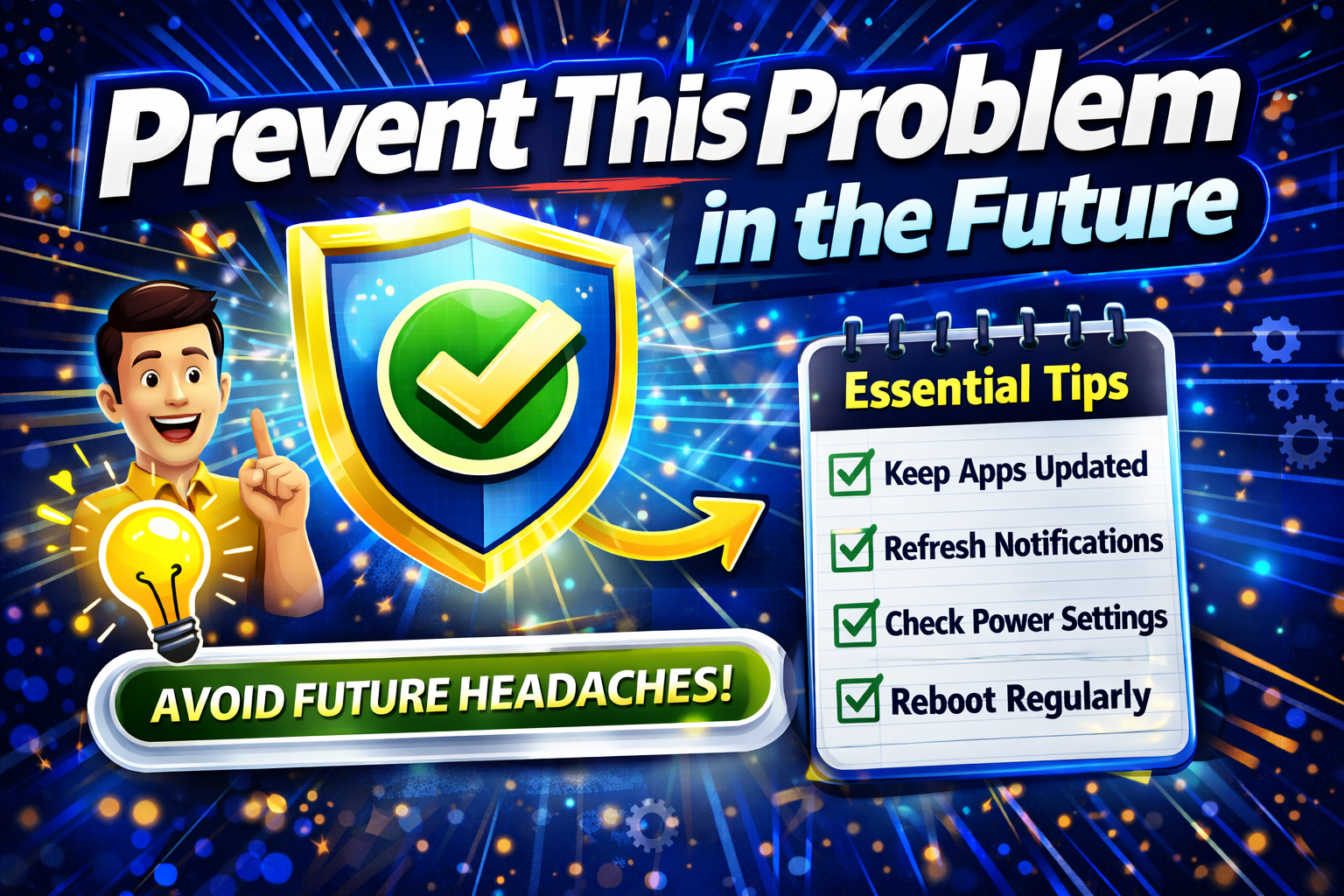
Avoid facing this issue again with these tips:
- Keep iOS and apps updated regularly
- Avoid using too many battery-saving features
- Regularly check notification settings
- Maintain a stable internet connection
- Restart your iPhone occasionally
👉 Pro Insight: Many users unknowingly enable Focus mode—double-check it often.
Common FAQs
1. Why am I not getting messages until I open the app?
This usually happens when Background App Refresh is disabled or Low Power Mode is on.
2. Why are notifications not showing on my iPhone?
Check Notification Settings and ensure Focus mode is turned off.
3. Does Low Power Mode affect messaging apps?
Yes, it limits background activity, which can delay or block messages.
4. Why is iMessage not receiving texts?
It could be due to:
- iMessage being turned off
- Incorrect Send & Receive settings
- Network issues
5. Should I reset my iPhone to fix this?
Not immediately. Try simpler fixes first. Reset only as a last resort.
Conclusion
Dealing with missing messages on your iPhone can be frustrating—but the good news is that most fixes are simple.
To recap, if you’re trying to fix apps not receiving messages iPhone, start with:
- Checking notification settings
- Ensuring a stable internet connection
- Disabling Focus mode
- Updating apps and iOS
These quick fixes solve the problem in most cases.
👉 Now it’s your turn: Try these solutions and restore your messages instantly. If this guide helped, consider sharing it or exploring more of our app problem solutions!
