How to Fix Apps Not Connecting to Server Error (Easy Guide)
Introduction
You open your favorite app, ready to browse, chat, or stream—and suddenly you see the dreaded message: “App not connecting to server.” Frustrating, right? You’re not alone. This is one of the most common app issues users face on both Android and iPhone.
The good news? Most of the time, it’s not a serious problem—and you can fix it yourself in minutes.
In this guide, you’ll learn how to fix apps not connecting to server error using simple, proven solutions. Whether it’s a network glitch, server issue, or app bug, we’ll walk you through everything step-by-step.
Table of Contents
- What is the Problem?
- Why Does This Problem Happen?
- How to Fix Apps Not Connecting to Server Error
- Advanced Fixes
- Prevent This Problem in the Future
- Common FAQs
- Conclusion
What is the Problem?
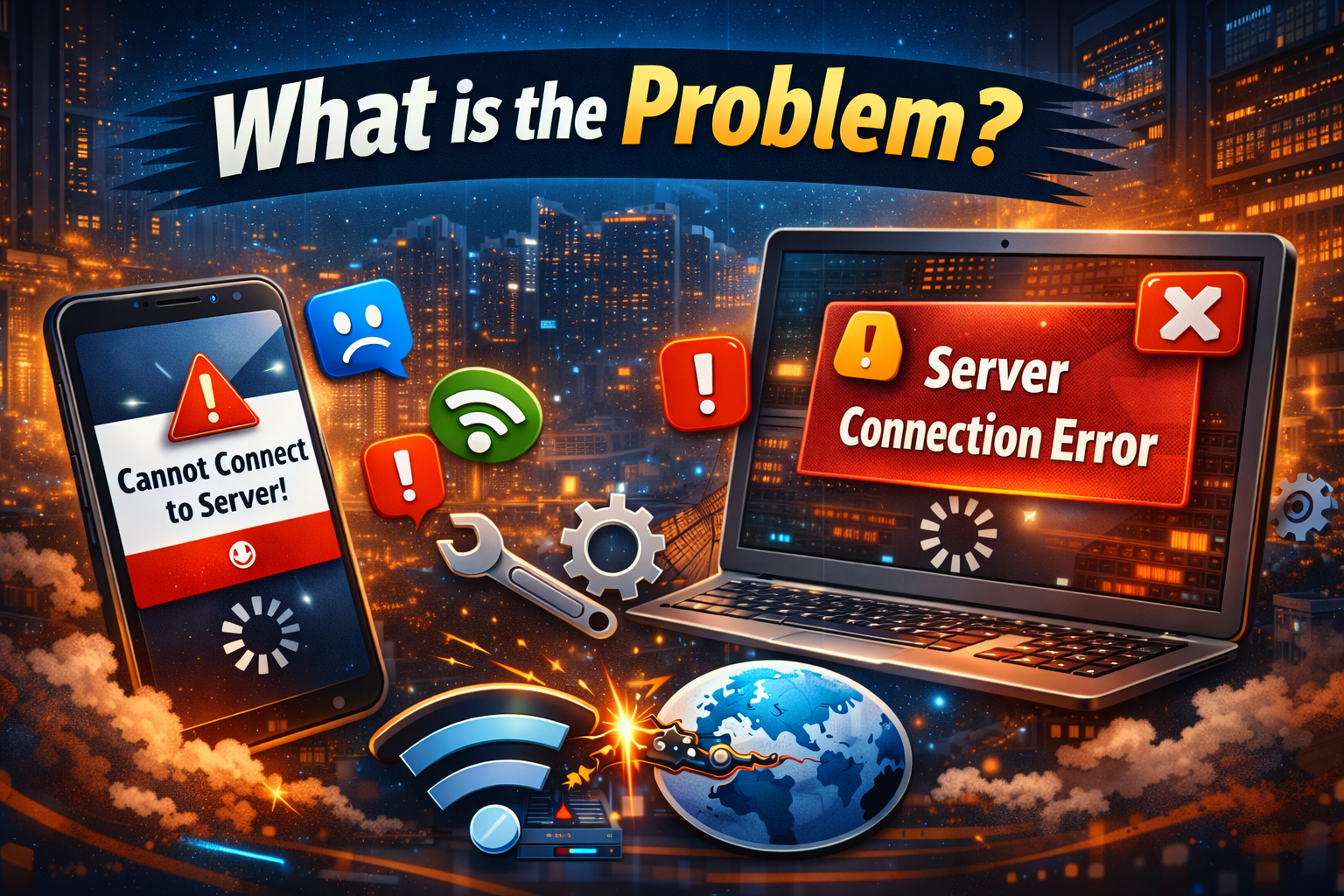
The apps not connecting to server error occurs when your app fails to communicate with its online server. This prevents it from loading content, syncing data, or performing basic functions.
Common Symptoms
- App shows “Cannot connect to server” message
- Endless loading or spinning screen
- Features not working (messages, login, uploads)
- App crashes when trying to connect
- Works on Wi-Fi but not mobile data (or vice versa)
This issue can happen in apps like WhatsApp, Facebook, Instagram, games, banking apps, and more.
Why Does This Problem Happen?
Understanding the cause helps you fix the problem faster. Here are the most common reasons:
1. Poor Internet Connection
- Weak Wi-Fi or unstable mobile data
- Network interruptions
2. Server Downtime
- App servers may be temporarily down
- Maintenance or outages
3. App Bugs or Glitches
- Outdated app version
- Temporary software errors
4. Incorrect Date & Time Settings
- Mismatch can prevent secure server connections
5. VPN or Proxy Interference
- VPNs may block or reroute connections incorrectly
6. Cache or Data Corruption
- Temporary files can become corrupted
7. Firewall or Security Restrictions
- Device or network blocking access
How to Fix Apps Not Connecting to Server Error
Here’s what works—follow these steps in order for the best results.
1. Check Your Internet Connection (Quick Fix)
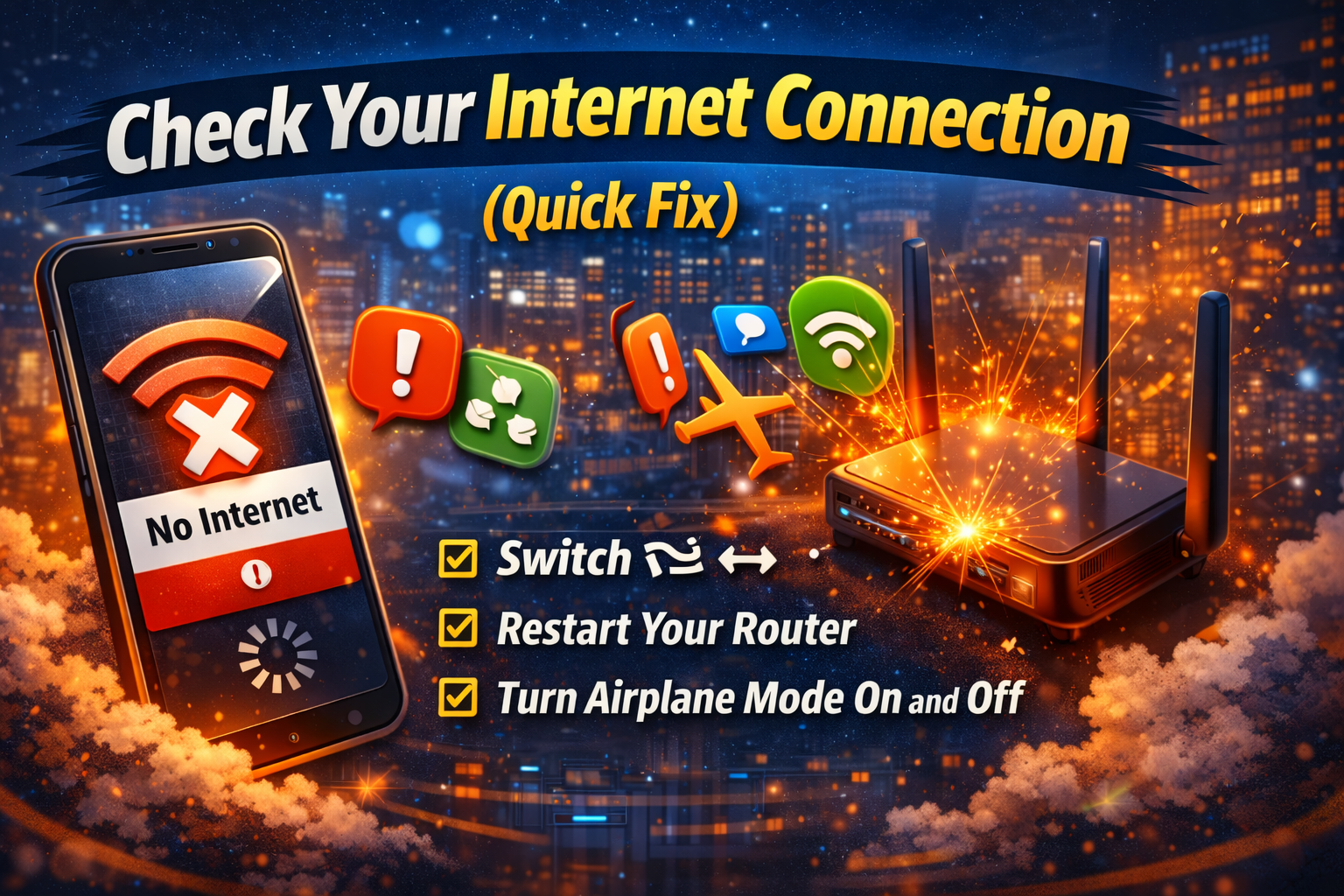
This is the most common cause.
What to do:
- Switch between Wi-Fi and mobile data
- Restart your router
- Turn Airplane Mode ON and OFF
👉 Pro Tip: Open a website in your browser. If it doesn’t load, the issue is your internet—not the app.
2. Restart Your Device
A simple restart can fix temporary glitches.
Steps:
- Turn off your phone
- Wait 30 seconds
- Turn it back on
✔️ This clears background processes and refreshes connections.
3. Check If the App Server is Down
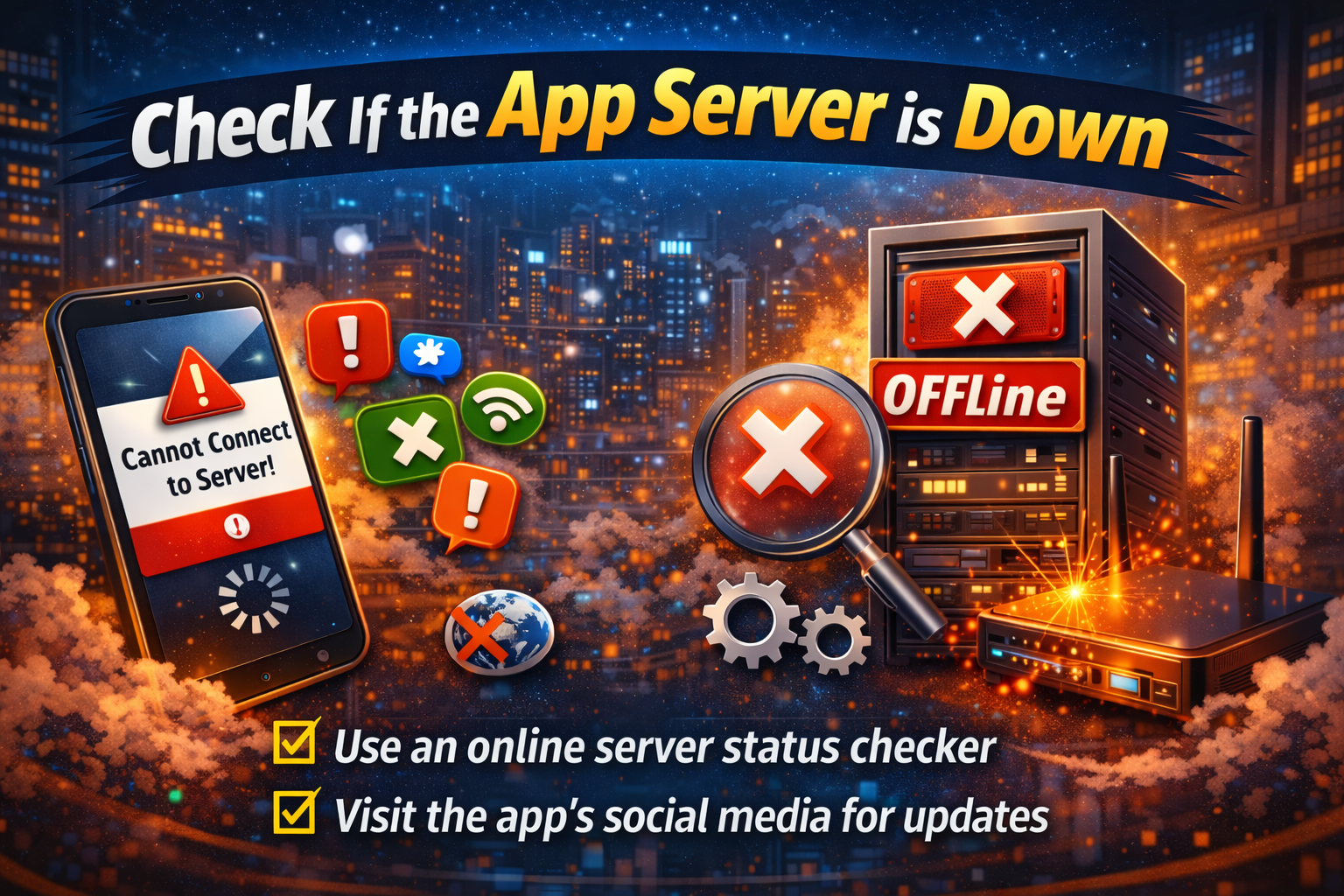
Sometimes the issue isn’t on your side.
What to do:
- Search: “[App name] server status”
- Check sites like DownDetector
👉 If servers are down, you’ll need to wait—no fix required.
4. Update the App
Outdated apps often fail to connect to servers.
Steps:
- Go to Google Play Store or App Store
- Search for the app
- Tap Update
✔️ Updates fix bugs and improve server compatibility.
5. Clear App Cache (Android)
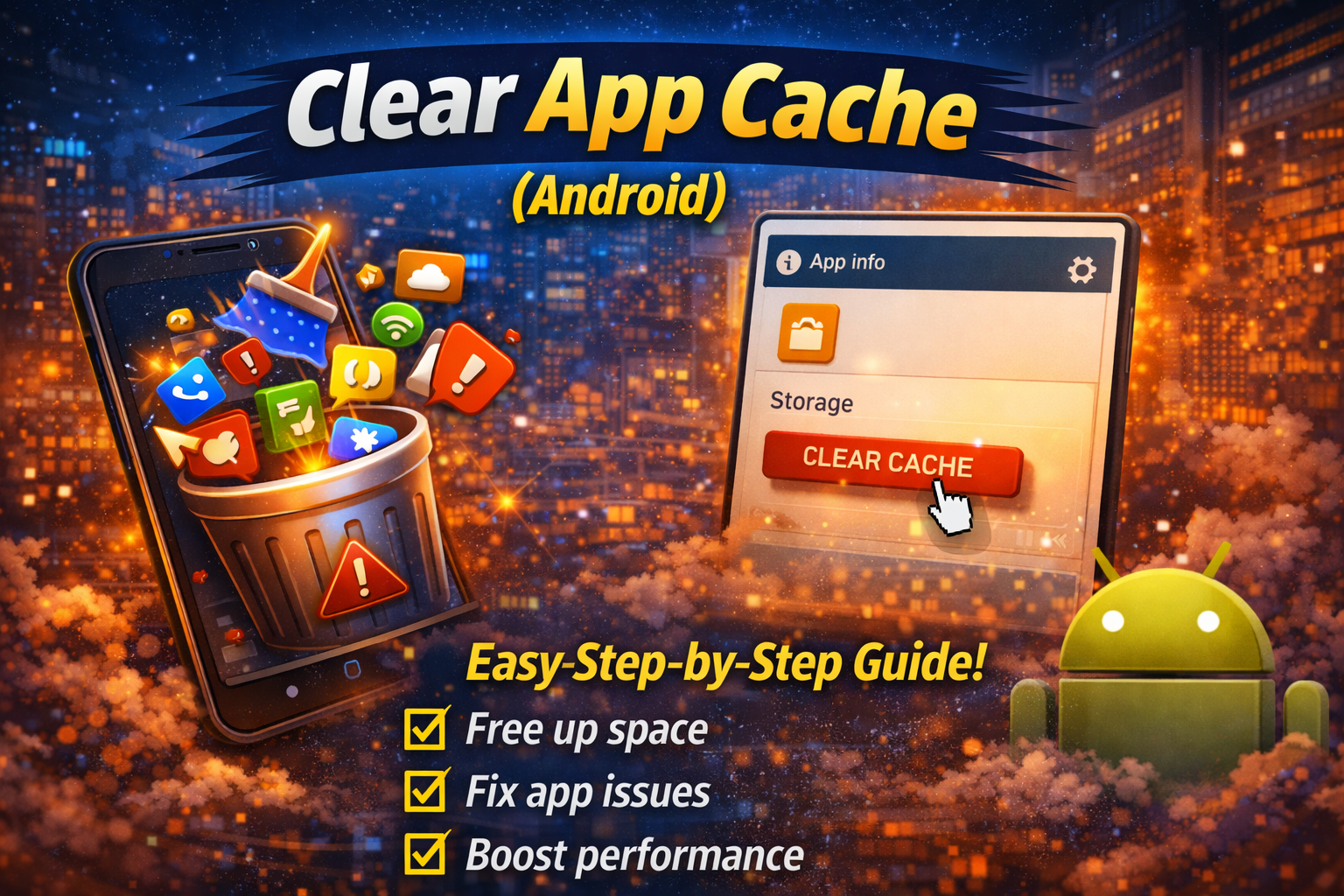
Corrupted cache can cause connection issues.
Steps:
- Go to Settings > Apps
- Select the app
- Tap Storage
- Tap Clear Cache
👉 Note: On iPhone, reinstalling the app achieves a similar effect.
6. Disable VPN or Proxy
VPNs can interfere with server communication.
Steps:
- Turn off VPN apps
- Disable proxy settings in network settings
✔️ Try reconnecting to the app after disabling.
7. Check Date and Time Settings
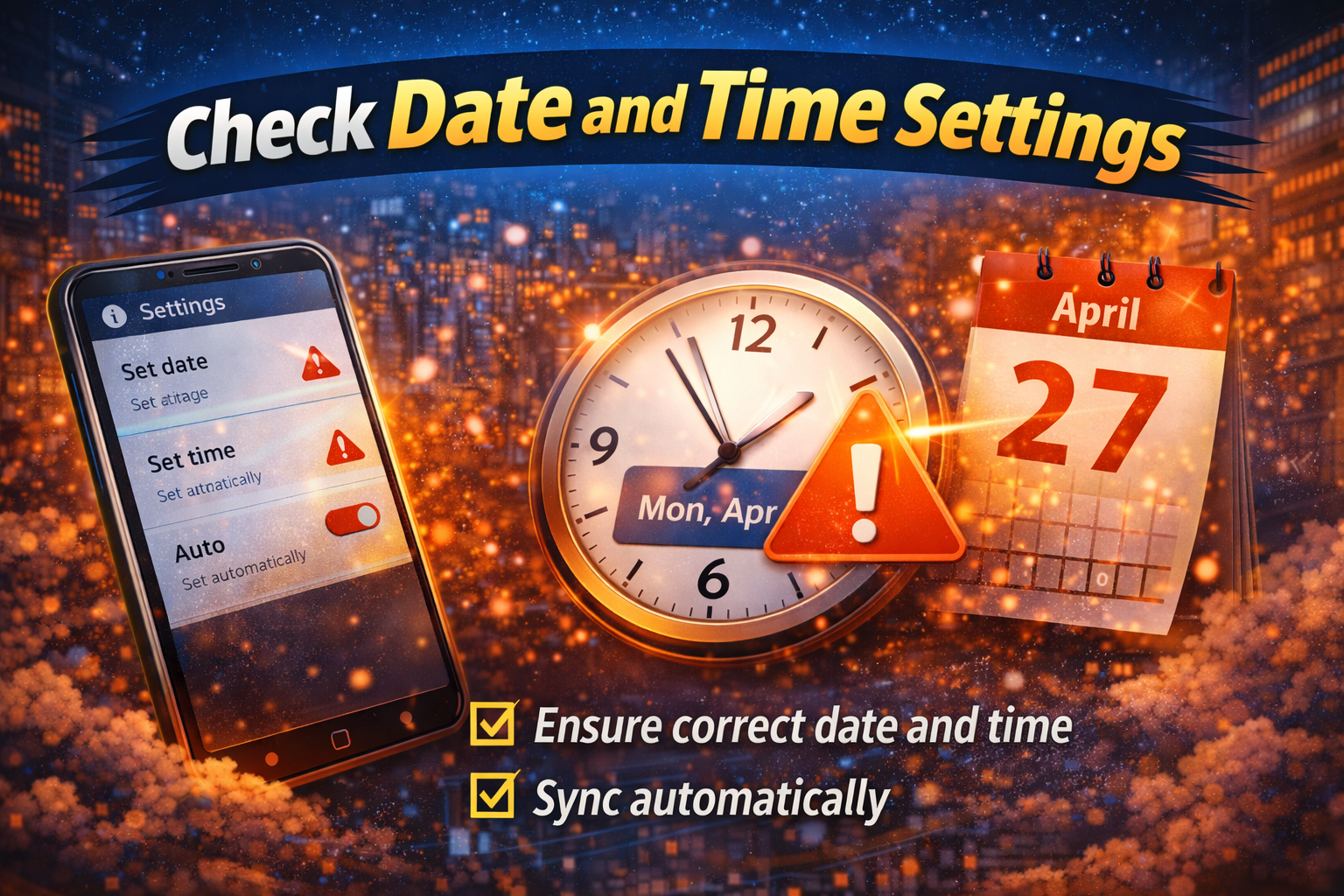
Incorrect time settings can block secure connections.
Steps:
- Go to Settings > Date & Time
- Enable Automatic Date & Time
👉 This ensures proper server authentication.
8. Reinstall the App
If nothing works, reinstalling often fixes deeper issues.
Steps:
- Uninstall the app
- Restart your device
- Reinstall from the app store
✔️ This removes corrupted files completely.
Advanced Fixes (For Technical Users)
If the problem persists, try these advanced solutions:
1. Reset Network Settings
This clears all network-related issues.
Steps:
- Go to Settings > System > Reset > Network Settings
⚠️ Warning: This will remove saved Wi-Fi passwords.
2. Check Firewall or Security Apps
- Disable security apps temporarily
- Ensure the app isn’t blocked
3. Use a Different Network
- Try connecting to another Wi-Fi network
- Or use a mobile hotspot
👉 Helps identify if your network is the problem.
Prevent This Problem in the Future
Want to avoid this issue? Here’s what helps:
- ✅ Keep your apps updated
- ✅ Maintain a stable internet connection
- ✅ Avoid using unreliable VPNs
- ✅ Regularly clear cache (Android users)
- ✅ Keep your device software updated
- ✅ Restart your phone occasionally
👉 Pro Insight: Most connection errors happen due to poor networks—fix that first.
Common FAQs
1. Why does my app say not connecting to server?
It usually happens بسبب weak internet, server downtime, or app bugs. Start by checking your connection.
2. How do I fix server connection error quickly?
Try this quick fix:
- Restart your phone
- Switch network (Wi-Fi ↔ mobile data)
- Update the app
3. Can VPN cause connection errors?
Yes. VPNs can block or reroute traffic, causing apps to fail connecting to servers.
4. Is this problem related to my phone or the app?
It can be either. Test other apps—if all fail, it’s your device or network.
5. Should I reinstall the app?
Yes, if basic fixes don’t work. It often resolves deeper issues.
Conclusion (Here’s What Works)
Dealing with the apps not connecting to server error can be annoying—but now you know exactly how to fix it.
Quick Recap:
- Check your internet connection first
- Restart your device
- Update or reinstall the app
- Disable VPN and fix settings
Most issues can be solved in just a few minutes using these steps.
👉 You’re not alone—this is a common issue, and these fixes really work.
If this guide helped you, feel free to share it with others or explore more of our App Problems solutions for quick fixes and expert tips! 🚀
