How to Fix Apps Not Updating on iPhone iOS 18 (Easy Guide)
Introduction
You’re not alone if your apps refuse to update on iPhone iOS 18. It’s a frustrating problem—especially when you need the latest features, bug fixes, or security updates. You tap “Update,” but nothing happens… or it just keeps spinning forever.
The good news? This issue is common—and fixable.
In this guide, we’ll show you how to fix apps not updating on iPhone iOS 18 using simple, proven methods. Whether it’s a network glitch, storage problem, or App Store bug, here’s what works.
Table of Contents
- What is the Problem?
- Why Does This Problem Happen?
- How to Fix Apps Not Updating on iPhone iOS 18
- Advanced Fixes (Optional)
- Prevent This Problem in the Future
- Common FAQs
- Conclusion
What is the Problem?
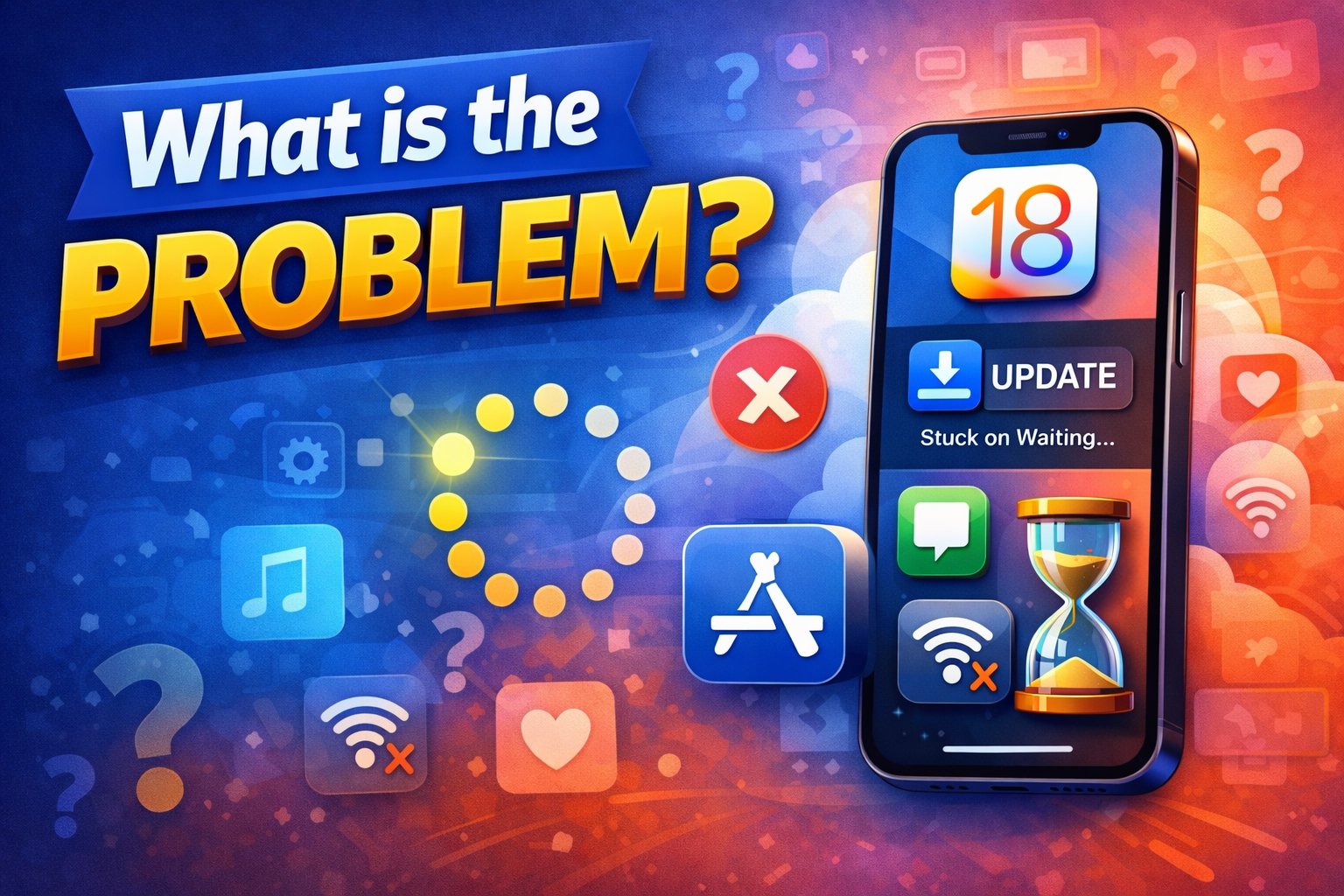
When apps fail to update on iPhone iOS 18, it means your device cannot download or install the latest version of apps from the App Store.
Common Symptoms
- Apps stuck on “Waiting” or “Loading”
- Update button not responding
- Apps showing “Update” but not installing
- Download progress stuck halfway
- App Store not refreshing updates
This issue can affect any app, including Instagram, WhatsApp, Facebook, or even system apps.
Why Does This Problem Happen?
There are several reasons why apps won’t update on iPhone iOS 18:
1. Poor Internet Connection
- Weak Wi-Fi or unstable mobile data can interrupt downloads
2. App Store Glitches
- Temporary bugs in the App Store can stop updates
3. Insufficient Storage
- Not enough space prevents apps from installing updates
4. Apple ID Issues
- Problems with your account authentication
5. Background App Restrictions
- Low Power Mode or settings may limit updates
6. iOS 18 Bugs
- New updates can sometimes introduce temporary issues
How to Fix Apps Not Updating on iPhone iOS 18
Here’s what works. Try these step-by-step solutions:
1. Check Your Internet Connection (Quick Fix)
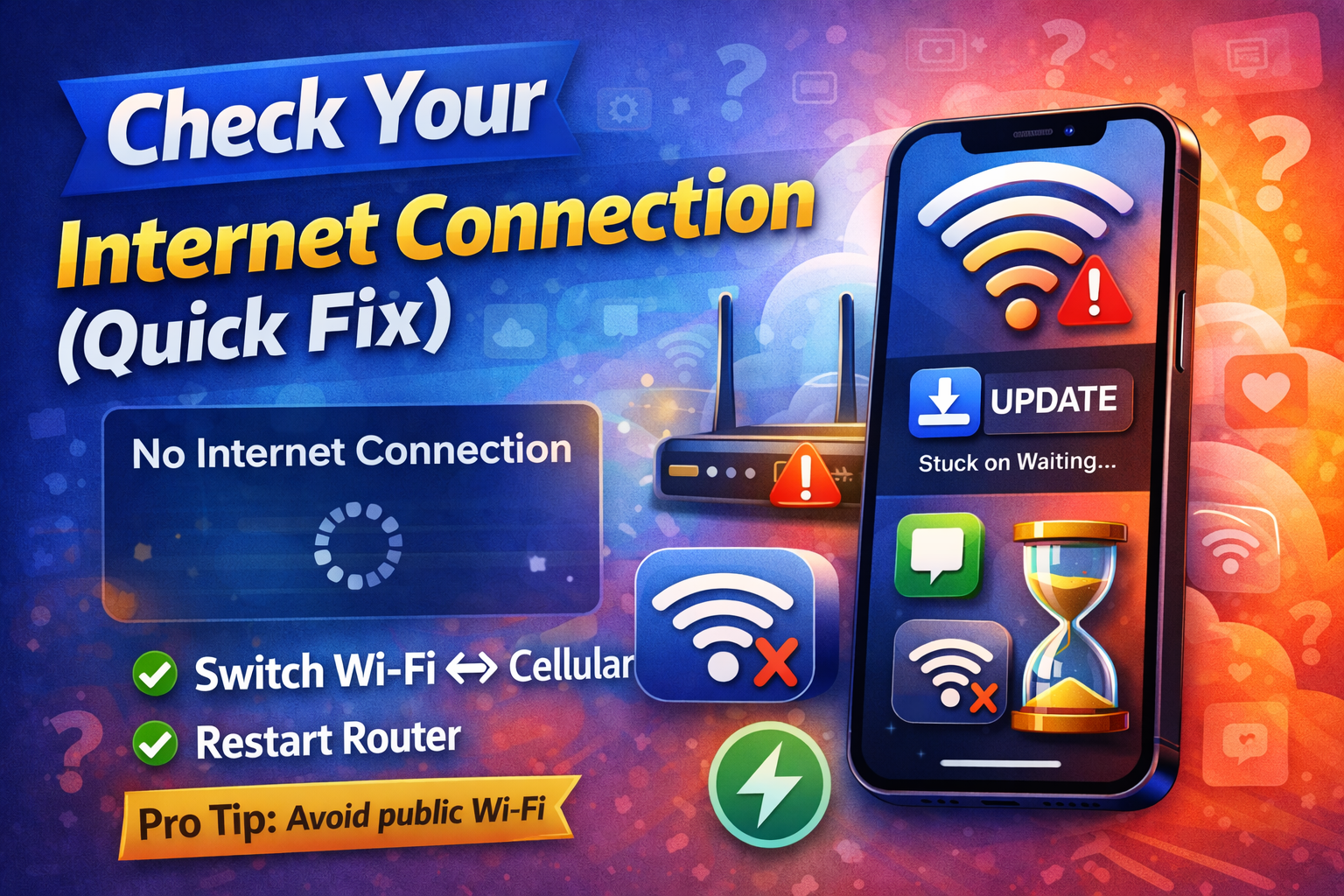
A stable connection is essential.
Steps:
- Open Safari and load a website
- If slow, switch between Wi-Fi and mobile data
- Restart your router if needed
👉 Pro Tip: Avoid public Wi-Fi—it often blocks App Store downloads.
2. Restart Your iPhone
Sometimes, a simple restart solves everything.
Steps:
- Press and hold Power + Volume button
- Slide to power off
- Turn it back on after 30 seconds
👉 This clears temporary glitches affecting updates.
3. Pause and Resume App Updates
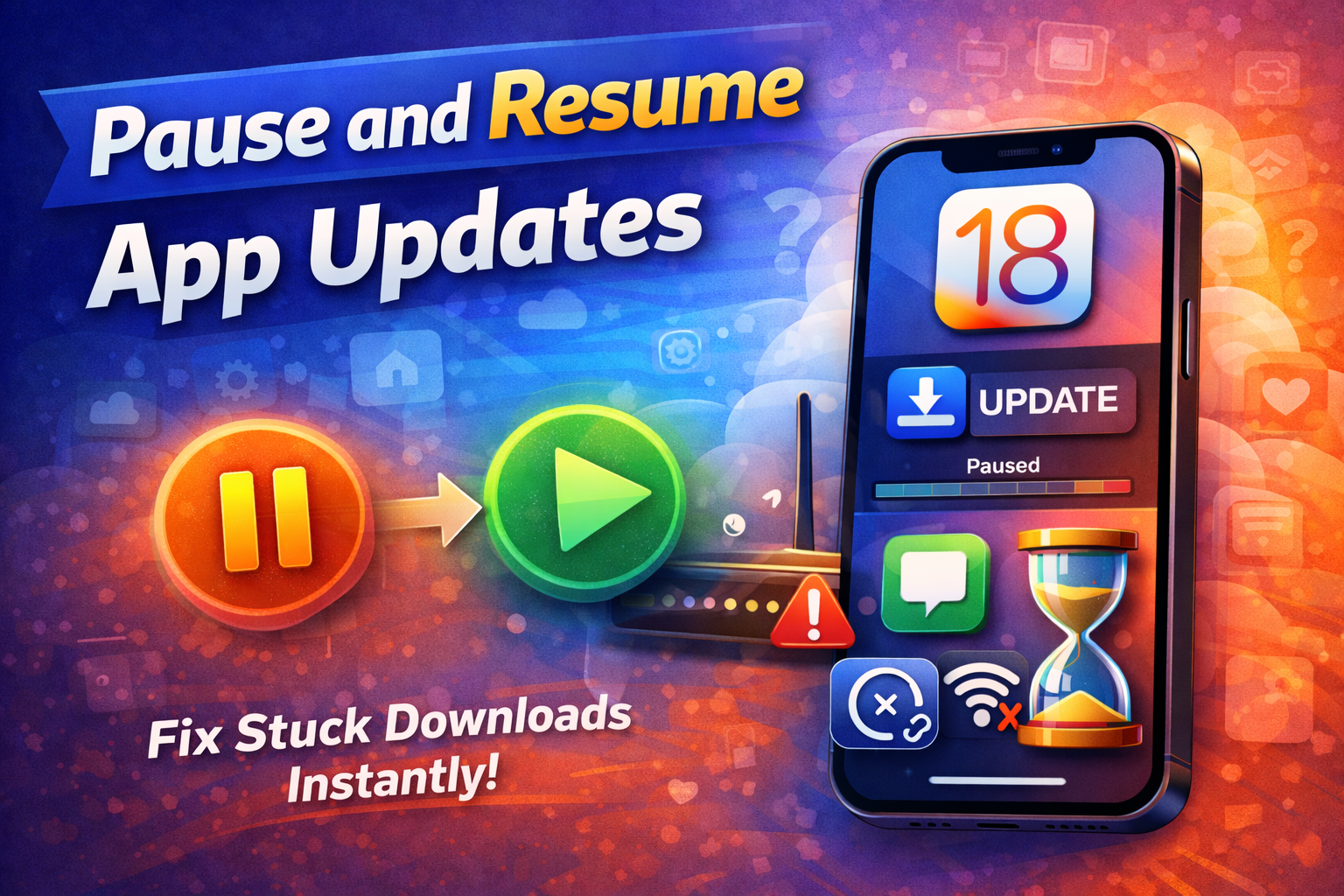
Apps can get stuck mid-download.
Steps:
- Go to the App Store
- Tap your profile icon
- Tap “Pause” and then “Resume”
👉 Or long-press the app icon and tap “Pause Download”
4. Check Available Storage
Low storage is a common cause.
Steps:
- Go to Settings > General > iPhone Storage
- Ensure you have at least 1–2 GB free
- Delete unused apps or files
👉 Warning: Updates may fail silently if storage is full.
5. Sign Out and Back into App Store
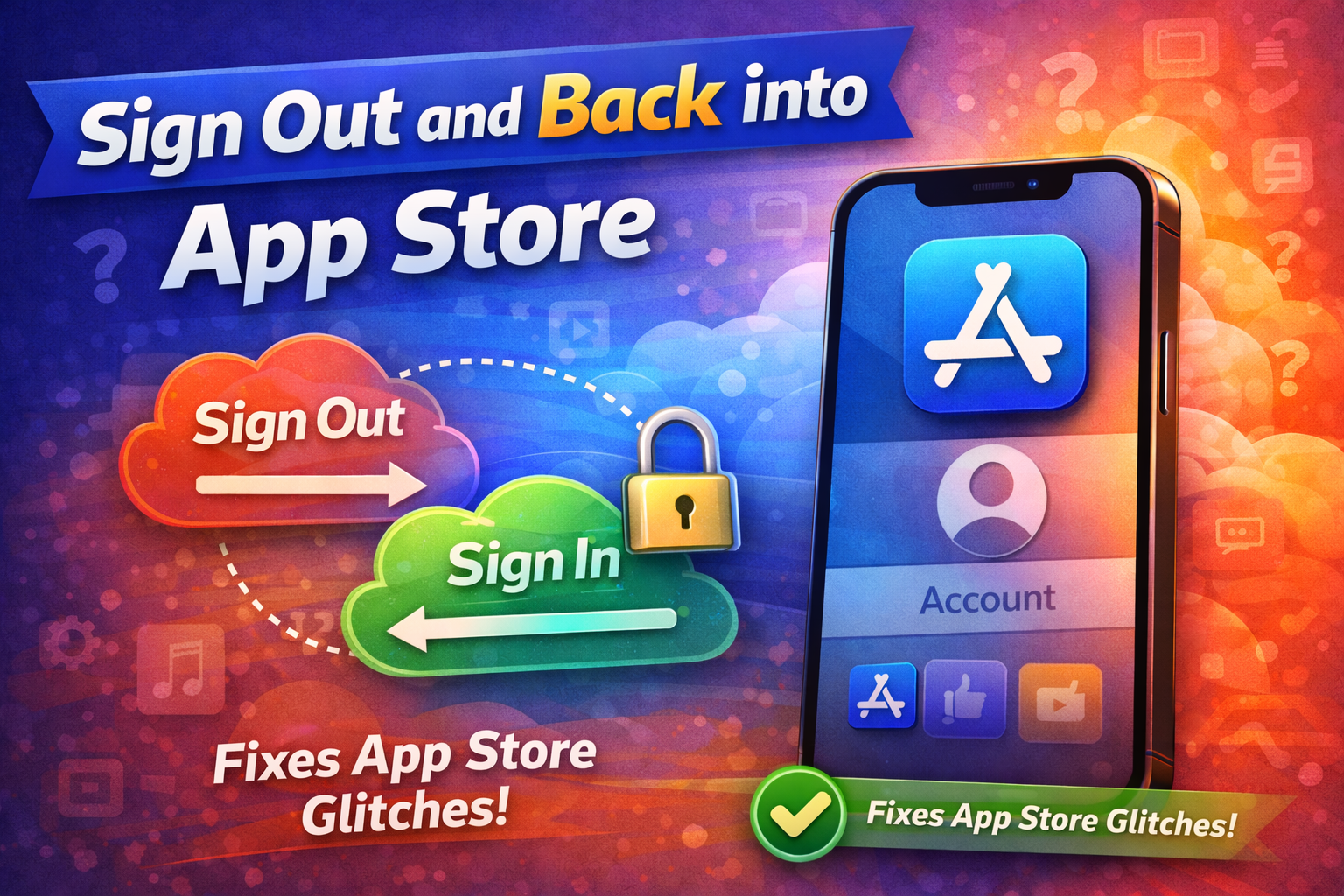
This refreshes your Apple ID session.
Steps:
- Go to Settings
- Tap your name (Apple ID)
- Scroll down → Tap Sign Out
- Restart your phone
- Sign back in
👉 This fixes account-related update issues.
6. Disable Low Power Mode
Low Power Mode can pause updates.
Steps:
- Go to Settings > Battery
- Turn off Low Power Mode
👉 Updates usually resume automatically.
7. Update iOS 18 to Latest Version
Apple often releases bug fixes.
Steps:
- Go to Settings > General > Software Update
- Install any available updates
👉 Here’s what works: Always stay on the latest iOS version.
8. Reset Network Settings
If network issues persist:
Steps:
- Go to Settings > General > Transfer or Reset iPhone
- Tap Reset > Reset Network Settings
- Enter passcode and confirm
👉 This removes Wi-Fi passwords but fixes connection bugs.
Advanced Fixes (Optional)
For more technical users:
1. Force Restart Your iPhone
- Quickly press Volume Up → Volume Down → Hold Power button
2. Reset All Settings
- Go to Settings > General > Reset > Reset All Settings
- This keeps your data but resets system settings
3. Use iTunes/Finder
- Connect your iPhone to a computer
- Update or restore using Finder (Mac) or iTunes (Windows)
👉 Use this only if other fixes fail.
Prevent This Problem in the Future
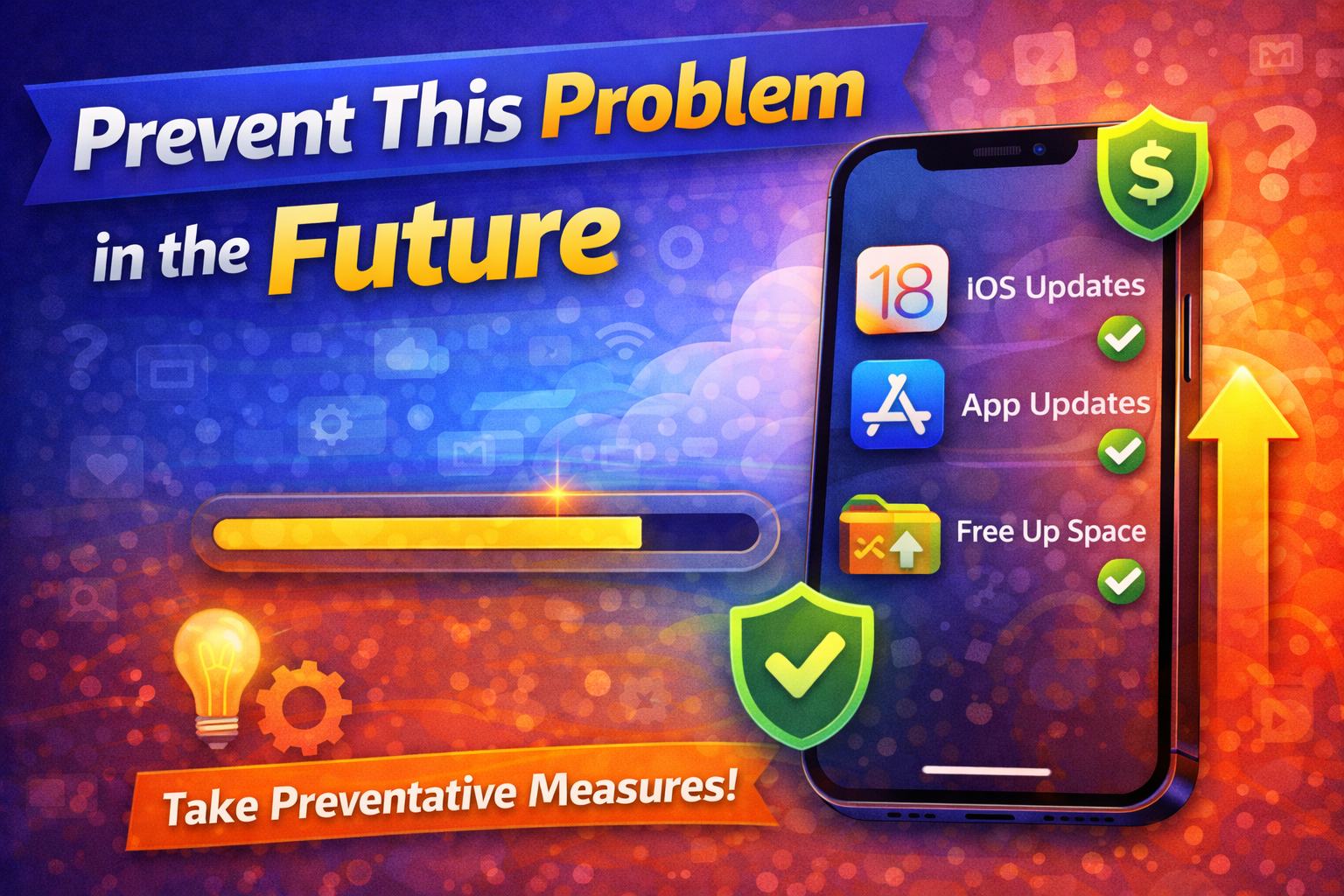
Avoid dealing with this issue again by following these tips:
- ✅ Keep at least 2–5 GB free storage
- ✅ Always update to the latest iOS version
- ✅ Use a stable Wi-Fi connection
- ✅ Avoid interrupting app downloads
- ✅ Keep Low Power Mode off during updates
👉 Pro Insight: Enable automatic updates in
Settings > App Store > App Updates
Common FAQs
1. Why are my apps stuck on “Waiting” in iOS 18?
This usually happens due to poor internet, low storage, or App Store glitches.
2. Can iOS 18 bugs cause apps not updating?
Yes. New iOS versions sometimes introduce temporary issues, but updates usually fix them.
3. Does Low Power Mode stop app updates?
Yes, it can pause downloads to save battery.
4. Why does only one app fail to update?
That app may have a bug or require a newer iOS version.
5. Should I delete and reinstall the app?
Yes, if nothing works. Just make sure you don’t lose important data.
Conclusion
Apps not updating on iPhone iOS 18 can be annoying—but the fix is usually simple.
Start with the Quick Fix methods like checking your internet, restarting your phone, or freeing up storage. If needed, move on to advanced solutions like resetting network settings or updating iOS.
👉 Here’s what works: Most users solve the issue within minutes using these steps.
If this guide helped you, consider sharing it with others—or explore more troubleshooting guides to keep your iPhone running smoothly! 🚀
