How to Fix Apps Not Accessing Storage Android (Easy Guide)
Introduction
You’re not alone—many Android users face a frustrating issue where apps suddenly can’t access storage. Whether you’re trying to upload photos, save files, or open documents, the app simply won’t cooperate.
If you’re searching for how to fix apps not accessing storage Android, you’re in the right place. This guide will walk you through simple, effective solutions that actually work—no technical expertise required.
Let’s fix it step by step.
Table of Contents
- What is the Problem?
- Why Does This Problem Happen?
- How to Fix Apps Not Accessing Storage Android
- Advanced Fixes
- Prevent This Problem in the Future
- Common FAQs
- Conclusion
What is the Problem?
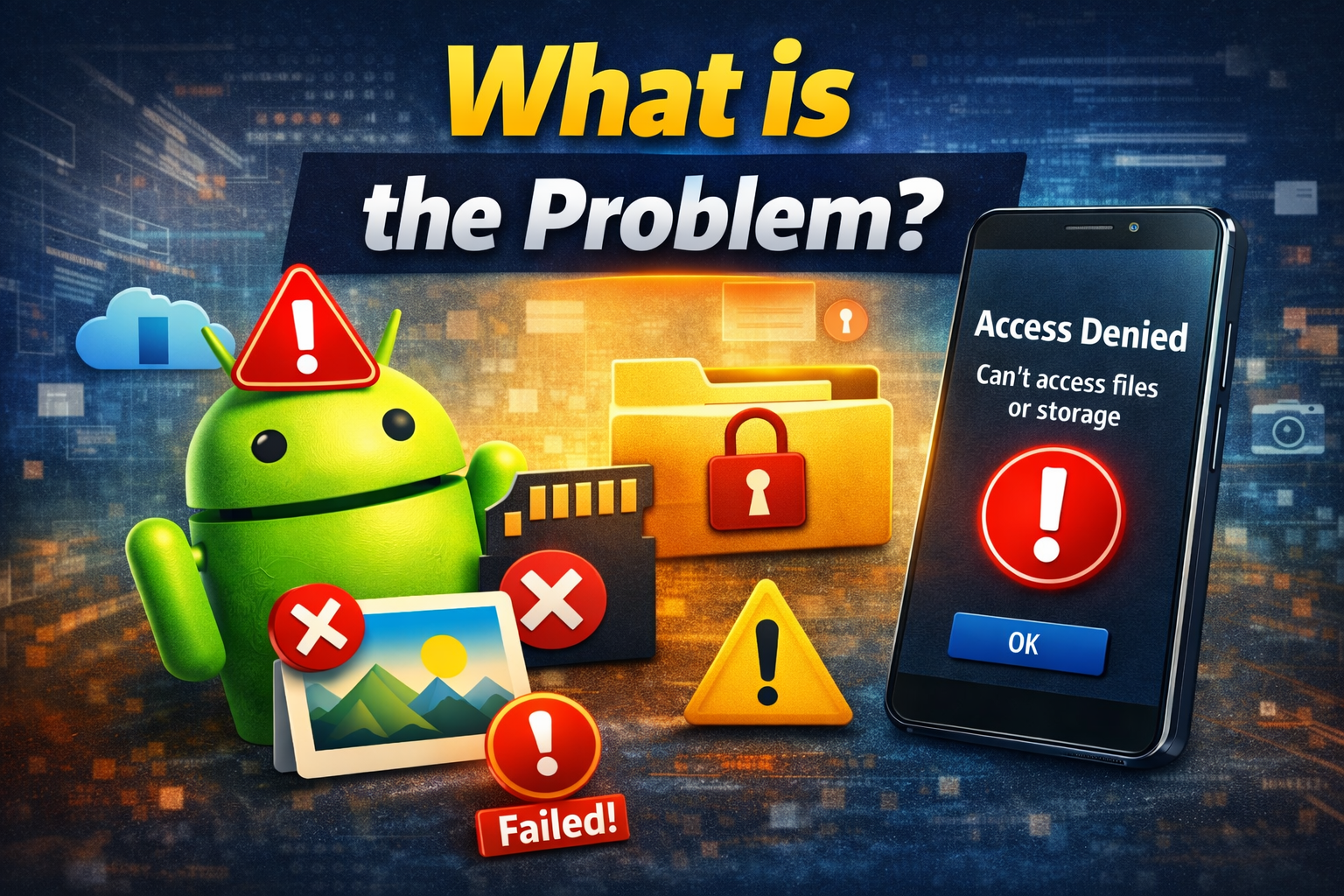
The issue occurs when an app cannot read, write, or access files stored on your Android device.
Common Symptoms:
- App cannot upload photos or videos
- “Storage permission denied” error
- Files not दिखाई or loading inside the app
- App crashes when accessing storage
- Downloads or saves fail
This problem affects apps like WhatsApp, Facebook, Instagram, file managers, and even camera apps.
Why Does This Problem Happen?
There are several reasons why apps fail to access storage on Android:
1. Permission Issues
Apps may not have the required storage permissions.
2. Android Security Changes
Newer Android versions (Android 11+) use Scoped Storage, limiting file access.
3. Corrupted App Data
Cache or app data may become corrupted.
4. System Bugs or Updates
A recent update may introduce bugs.
5. Storage Restrictions
Limited storage or restricted file access settings.
6. SD Card Problems
If using external storage, the SD card might be corrupted or not mounted.
How to Fix Apps Not Accessing Storage Android
Here’s what works—follow these steps one by one:
1. Grant Storage Permissions (Quick Fix)
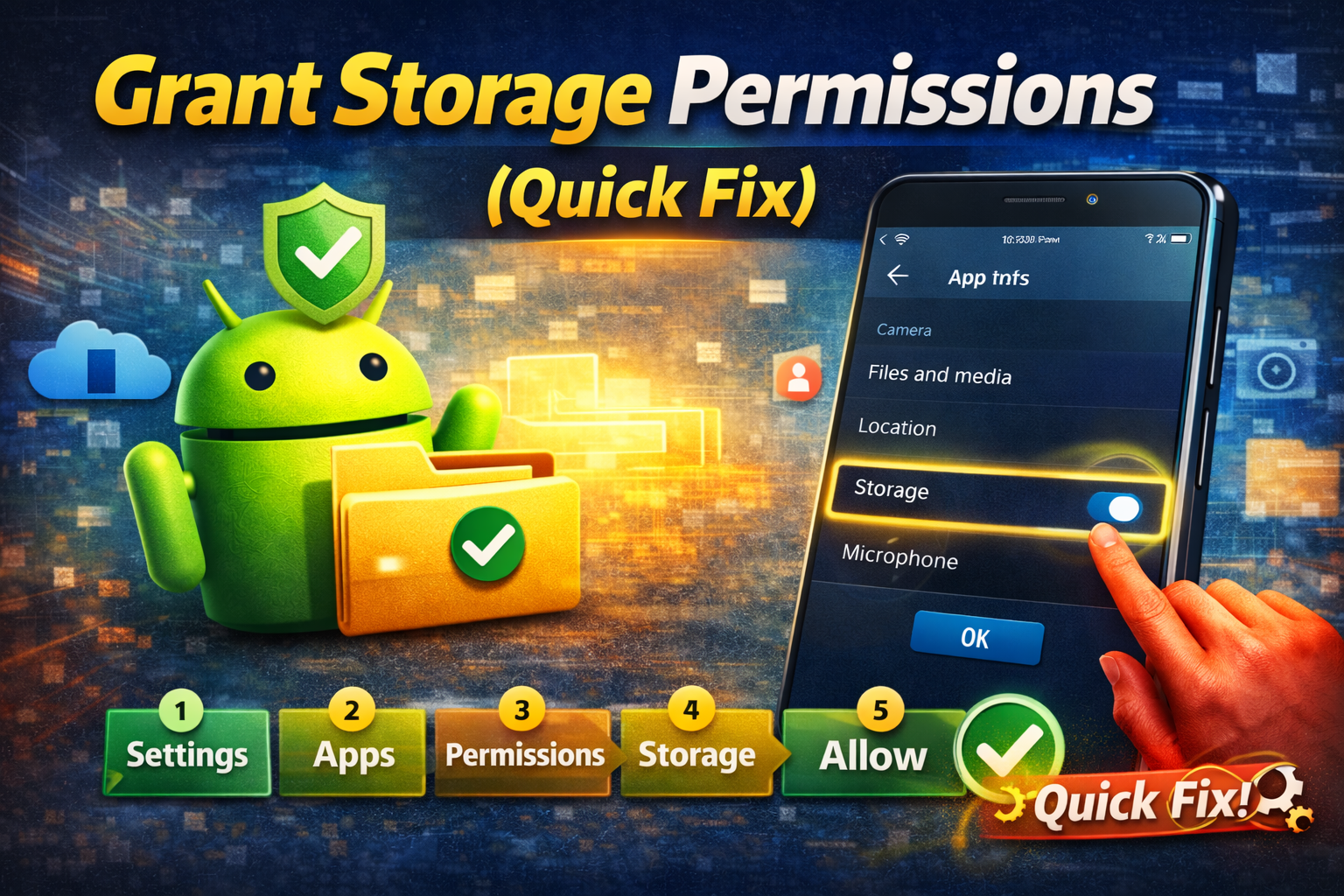
This is the most common solution.
Steps:
- Go to Settings
- Tap Apps
- Select the problematic app
- Tap Permissions
- Enable Storage or Files & Media
✅ Pro Tip: On Android 13+, choose “Allow access to all files” if available.
2. Restart Your Device
A simple restart can fix temporary glitches.
Steps:
- Press and hold the power button
- Tap Restart
👉 This refreshes system processes and resolves minor bugs.
3. Clear App Cache and Data
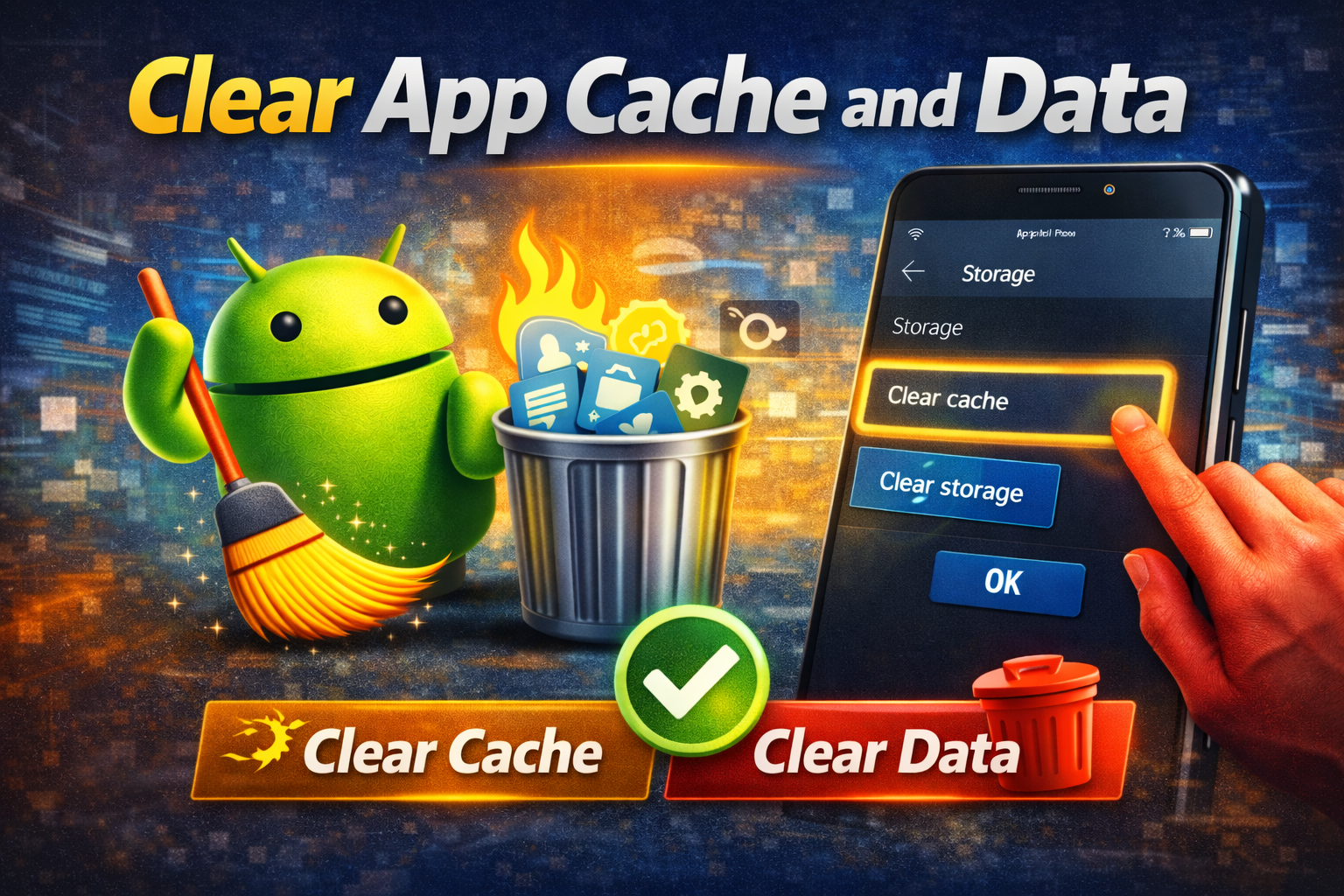
Corrupted cache can block storage access.
Steps:
- Go to Settings > Apps
- Select the app
- Tap Storage & Cache
- Tap Clear Cache
- Then tap Clear Data
⚠️ Warning: Clearing data may log you out of the app.
4. Check Storage Space
Low storage can cause access issues.
Steps:
- Go to Settings > Storage
- Ensure you have at least 1–2 GB free
💡 Delete unused apps, videos, or large files if needed.
5. Update the App
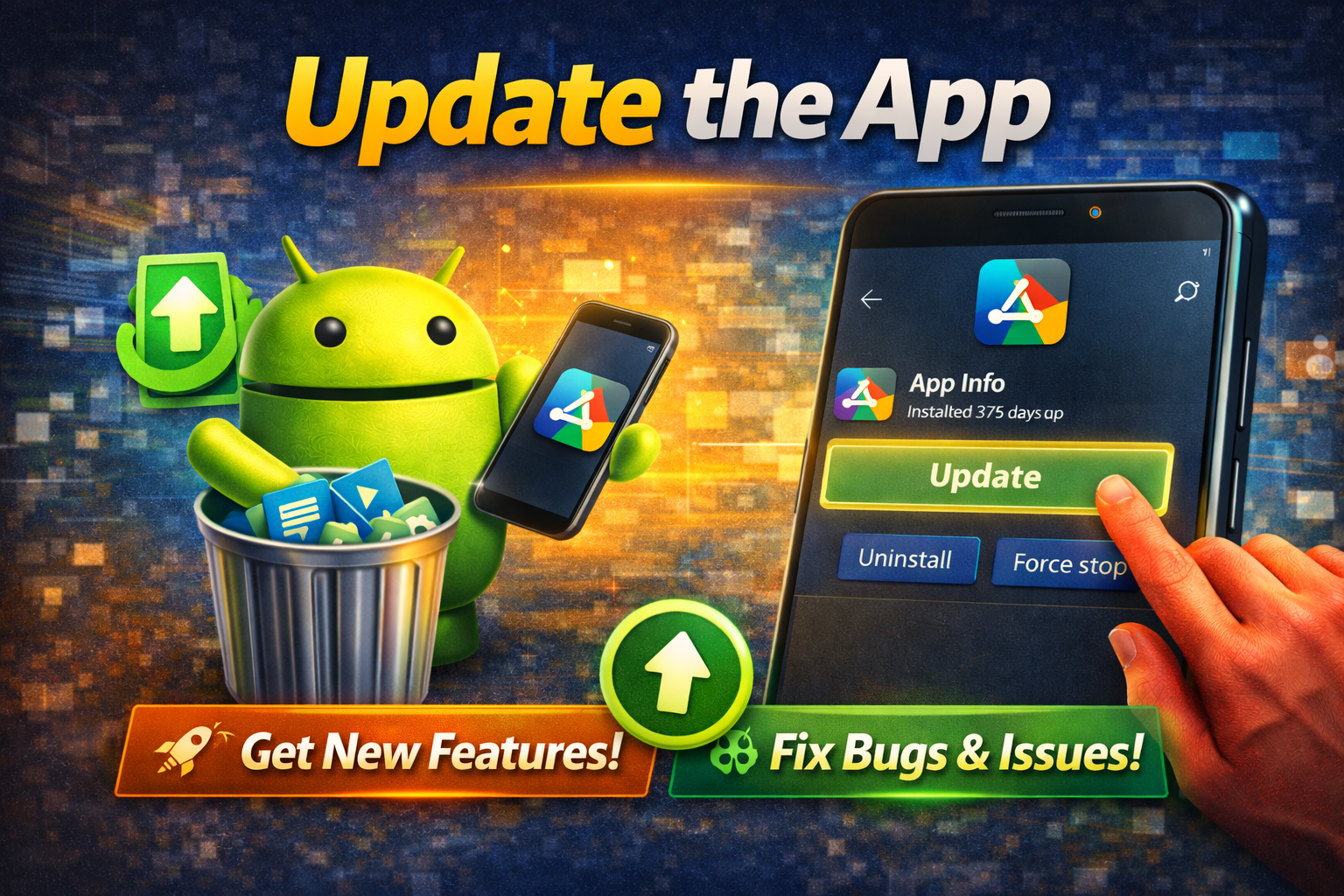
Outdated apps may not work properly with newer Android versions.
Steps:
- Open Google Play Store
- Search for the app
- Tap Update
6. Update Android System
System bugs are often fixed in updates.
Steps:
- Go to Settings > Software Update
- Tap Download and Install
7. Check File Access Settings (Scoped Storage)
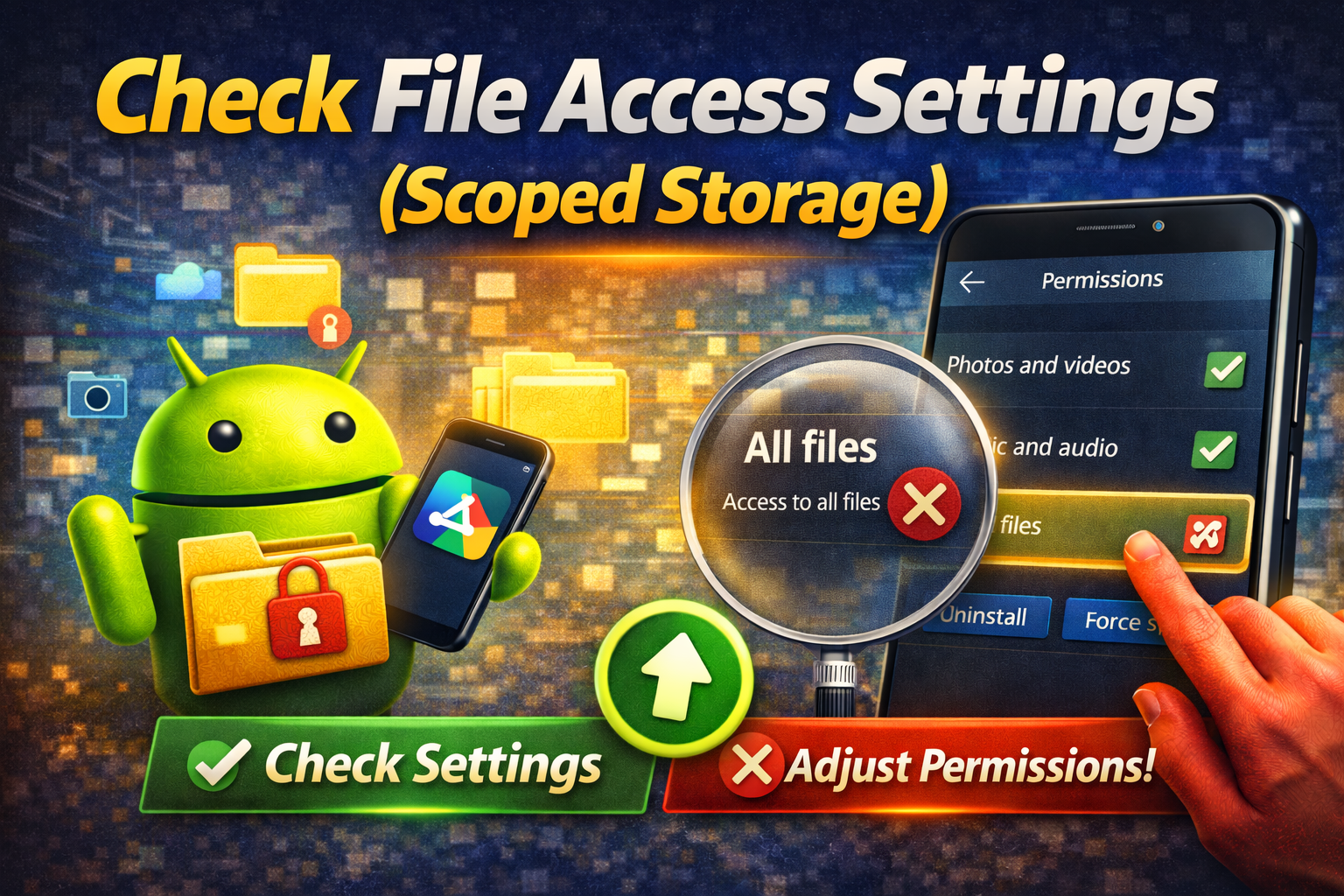
On newer Android versions, apps need special access.
Steps:
- Go to Settings > Privacy
- Tap Permission Manager
- Select Files and Media
- Allow access for the app
8. Reinstall the App
If nothing works, reinstalling can reset everything.
Steps:
- Uninstall the app
- Restart your phone
- Reinstall from Play Store
Advanced Fixes (Optional)
For more technical users:
1. Reset App Preferences
- Go to Settings > Apps
- Tap 3-dot menu
- Select Reset App Preferences
This restores default permissions without deleting data.
2. Check SD Card (If Used)
If your app uses external storage:
- Remove and reinsert SD card
- Test it on another device
- Format it if corrupted (backup first!)
3. Use File Manager Access
Some apps need manual file access:
- Open a file manager
- Navigate to storage
- Grant permissions when prompted
Prevent This Problem in the Future
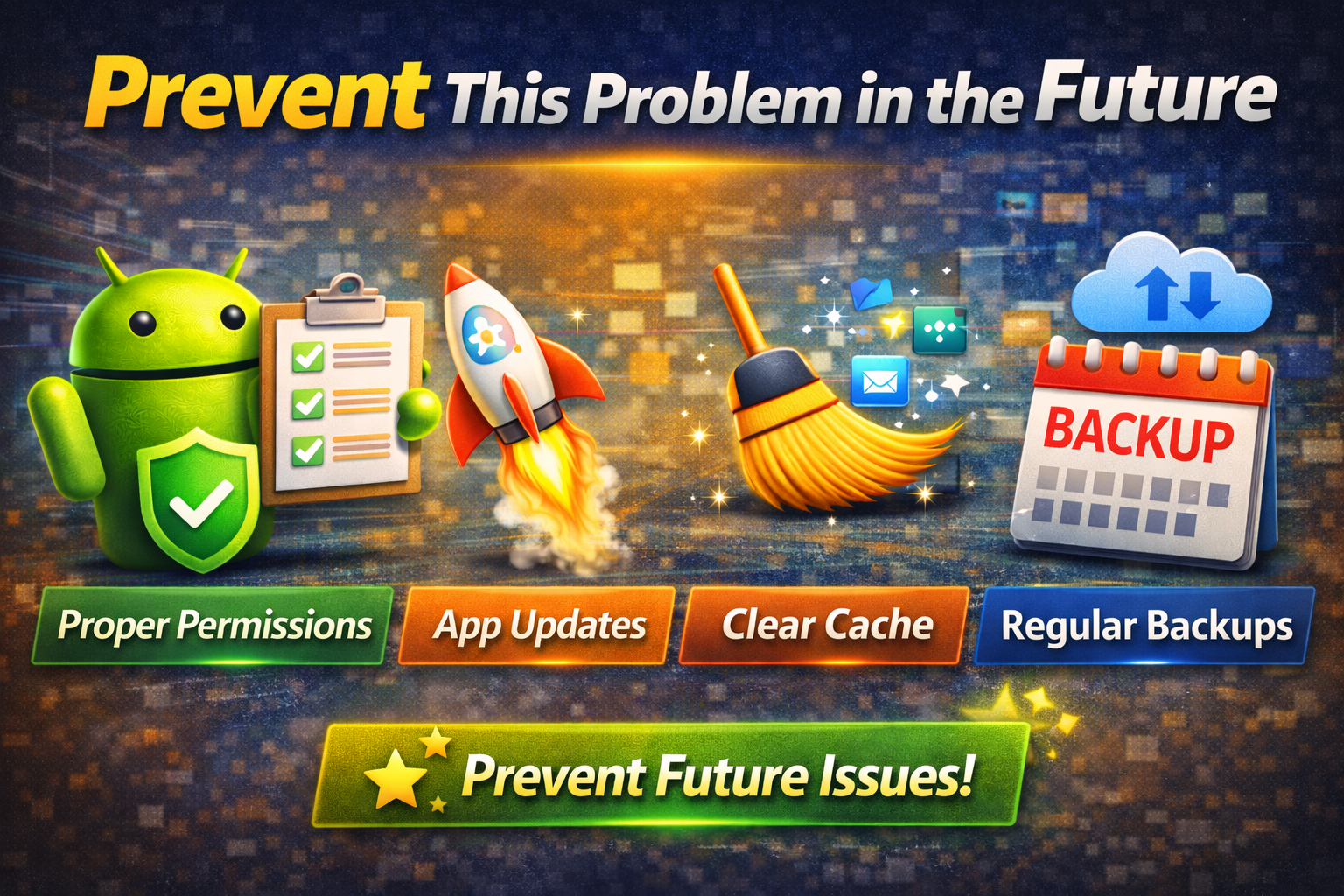
Here’s how to avoid facing this issue again:
- ✅ Always grant permissions when installing apps
- ✅ Keep apps and Android updated
- ✅ Avoid installing apps from unknown sources
- ✅ Regularly clear cache
- ✅ Maintain enough free storage
- ✅ Use trusted apps only
💡 Pro Insight: Android security is getting stricter, so permission management is more important than ever.
Common FAQs
1. Why are my apps not accessing storage on Android?
Usually due to missing permissions, system restrictions, or corrupted app data.
2. How do I allow apps to access files on Android?
Go to Settings > Apps > Permissions and enable Files & Media access.
3. Does Android 13 restrict storage access?
Yes. Android 11+ uses Scoped Storage, limiting how apps access files.
4. Will clearing app data fix storage issues?
Yes, in many cases. It removes corrupted data causing the problem.
5. Why can’t apps access my SD card?
The SD card may be corrupted, unmounted, or restricted by permissions.
Conclusion
Dealing with apps that can’t access storage on Android can be frustrating—but the good news is that it’s usually easy to fix.
Start with the Quick Fix (permissions), then move through the steps like clearing cache, updating apps, and checking storage. In most cases, one of these solutions will solve the issue fast.
👉 Here’s what works: Permissions + updates + storage checks.
If this guide helped you, consider sharing it with others facing the same issue. And don’t forget to explore more App Problems solutions for quick fixes to everyday tech issues!
