How to Fix Apps Stuck on Waiting in App Store (Fast Guide)
Introduction
You tap “Get” or “Update” on an app, and instead of downloading, it just sits there… stuck on “Waiting”. Frustrating, right?
You’re not alone—this is one of the most common App Store issues iPhone users face. The good news? It’s usually easy to fix.
In this guide, we’ll show you how to fix apps stuck on waiting in App Store using simple, practical steps that actually work. Whether it’s a network issue, storage problem, or system glitch—here’s what works.
Table of Contents
- What is the Problem?
- Why Does This Problem Happen?
- How to Fix Apps Stuck on Waiting in App Store
- Advanced Fixes (Optional)
- Prevent This Problem in the Future
- Common FAQs
- Conclusion
What is the Problem?
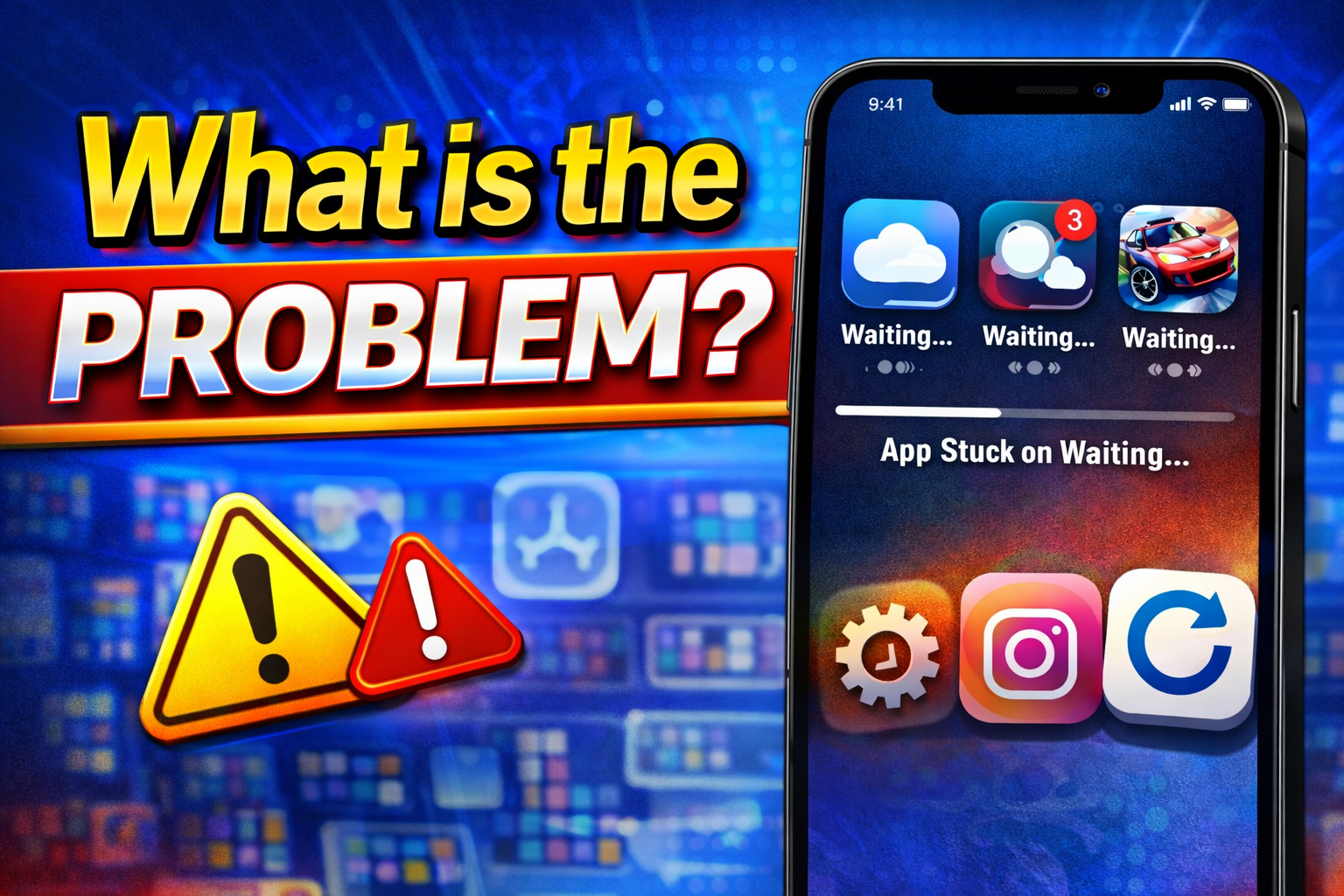
When apps are stuck on “Waiting” in the App Store, it means the download or update hasn’t started properly.
Common Symptoms
- App icon shows “Waiting…” but never progresses
- Multiple apps stuck in queue
- Downloads pause automatically
- Apps won’t install even after tapping
This issue can happen on both iPhone and iPad, especially during updates or multiple downloads.
Why Does This Problem Happen?
There are several reasons why apps get stuck on waiting in App Store:
1. Poor Internet Connection
- Slow Wi-Fi or unstable mobile data
- Network interruptions
2. Low Storage Space
- Not enough space to install the app
3. App Store Glitches
- Temporary bugs in iOS
- App Store not refreshing properly
4. Apple ID Issues
- Signed out account
- Payment or authentication problems
5. Background App Conflicts
- Too many apps downloading at once
6. System Bugs or iOS Issues
- Outdated software
- Minor system errors
How to Fix Apps Stuck on Waiting in App Store
Here are quick and effective solutions to fix the issue:
1. Check Your Internet Connection (Quick Fix)
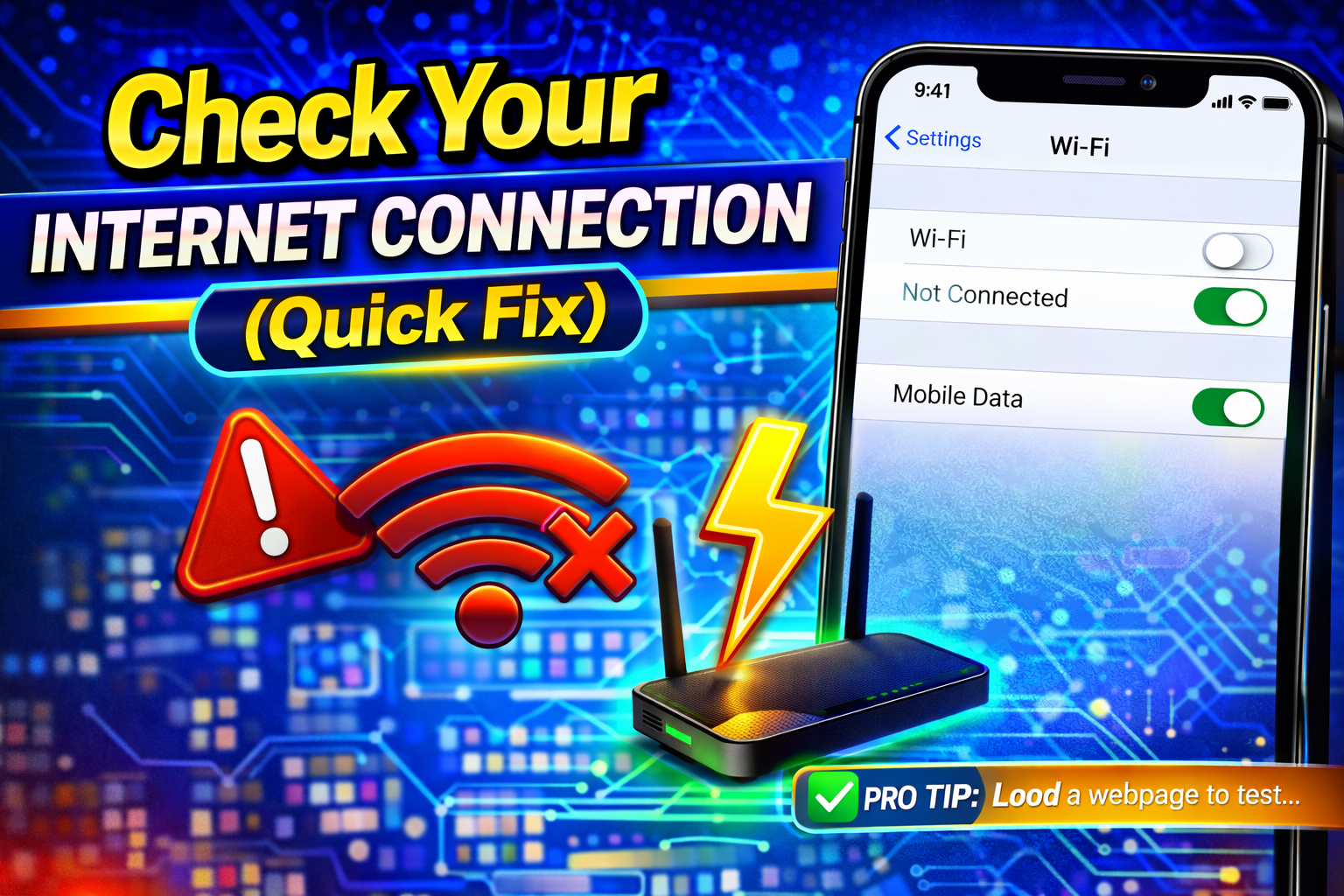
A weak connection is the most common cause.
Steps:
- Turn Wi-Fi off and on
- Switch to mobile data (or vice versa)
- Restart your router
👉 Pro Tip: Try loading a webpage to confirm your internet is working.
2. Pause and Resume the Download
Sometimes the download just needs a reset.
Steps:
- Tap the app icon
- Wait a few seconds
- Tap again to resume
3. Restart Your iPhone
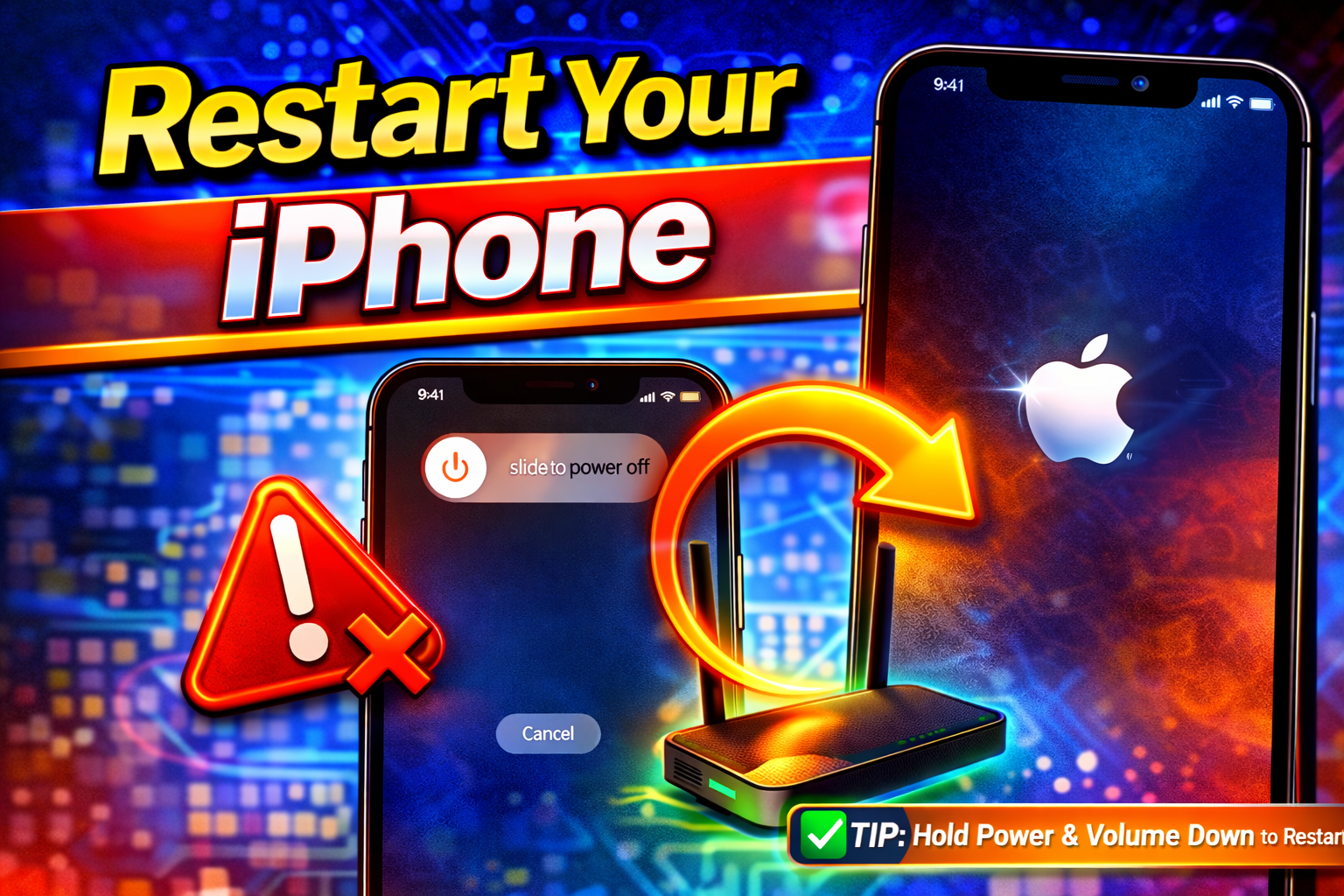
This simple trick fixes many bugs.
Steps:
- Press and hold the power button
- Slide to power off
- Turn your device back on
👉 You’d be surprised how often this works.
4. Check Storage Space
If your device is full, apps won’t download.
Steps:
- Go to Settings > General > iPhone Storage
- Check available space
- Delete unused apps or files
5. Sign Out and Back Into App Store
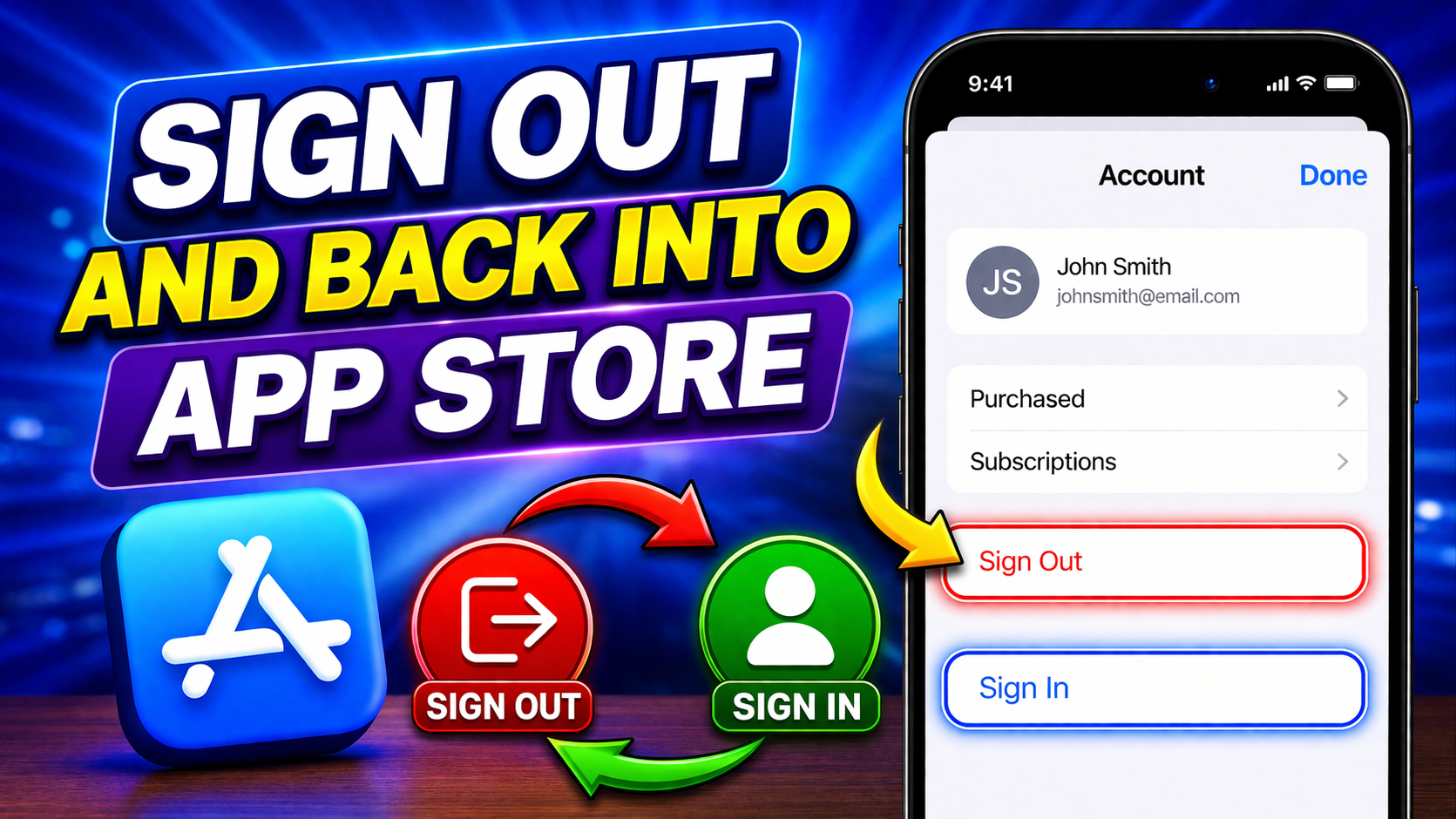
This fixes account-related issues.
Steps:
- Go to Settings > [Your Name]
- Tap Sign Out
- Restart your phone
- Sign back in
6. Update iOS
Outdated software can cause App Store bugs.
Steps:
- Go to Settings > General > Software Update
- Install any available updates
7. Reset Network Settings
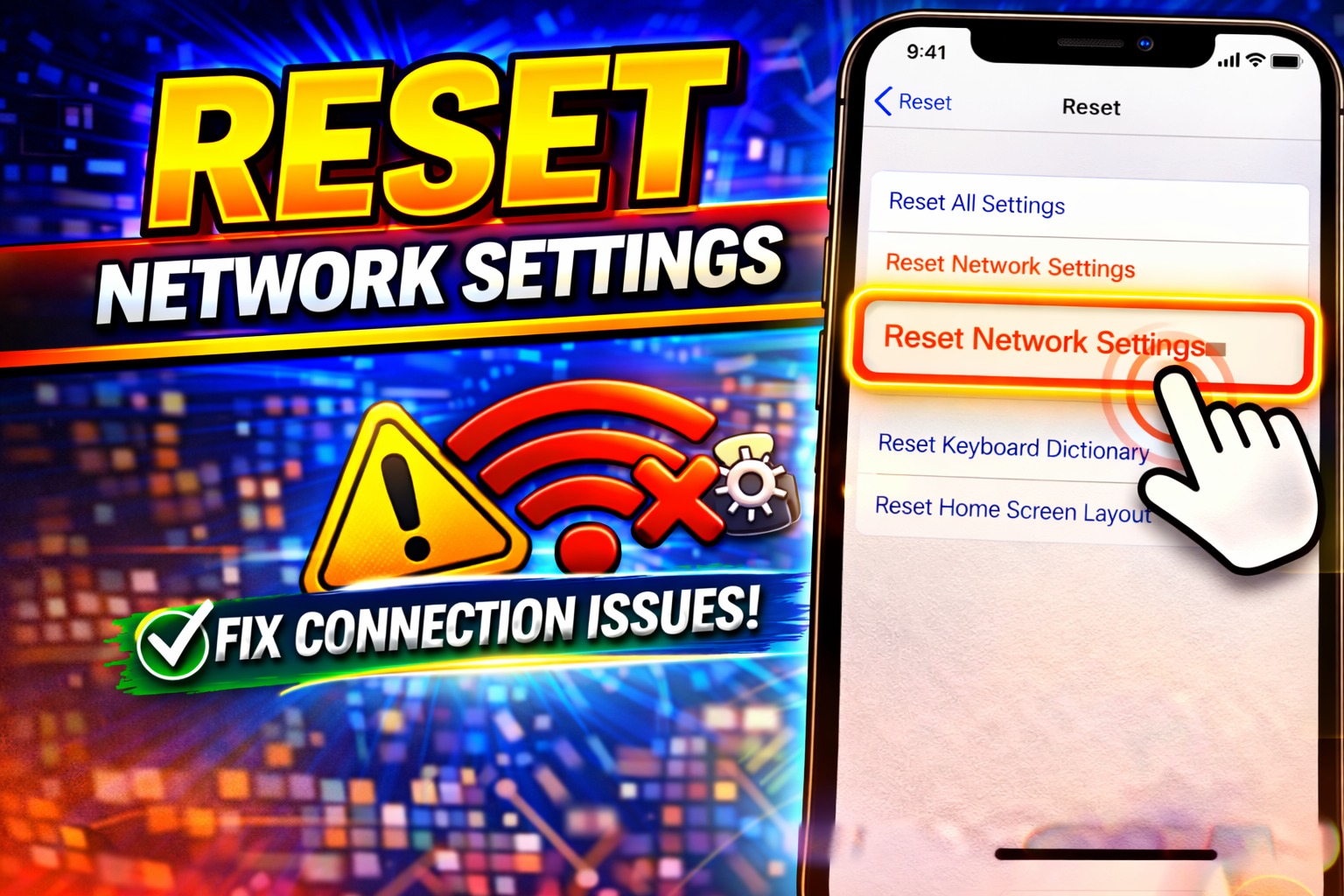
If the issue is network-related, this helps.
Steps:
- Go to Settings > General > Transfer or Reset iPhone
- Tap Reset > Reset Network Settings
⚠️ Warning: This will remove saved Wi-Fi passwords.
8. Force Close the App Store
Refreshing the App Store can fix stuck downloads.
Steps:
- Swipe up to open app switcher
- Swipe away the App Store
- Reopen it and try again
Advanced Fixes (Optional)
If the problem still persists, try these:
1. Reset All Settings
This resets system settings without deleting data.
Steps:
- Go to Settings > General > Reset > Reset All Settings
2. Check Apple System Status
Sometimes the issue is on Apple’s side.
- Visit Apple System Status page
- Check if App Store services are down
3. Restore iPhone (Last Resort)
If nothing works:
- Backup your data
- Use iTunes or Finder to restore your device
Prevent This Problem in the Future
Avoid this issue with these tips:
- ✅ Keep your iOS updated
- ✅ Maintain enough storage space
- ✅ Use stable internet connection
- ✅ Avoid downloading too many apps at once
- ✅ Restart your device occasionally
👉 Small habits can prevent big headaches.
Common FAQs
1. Why are my apps stuck on waiting in App Store?
Usually due to poor internet, low storage, or App Store glitches.
2. How do I force an app to download?
Tap the app icon to pause and resume, or restart your device.
3. Can Apple ID issues cause this problem?
Yes, signing out and back in often fixes it.
4. Does resetting network settings help?
Yes, especially if the issue is related to connectivity.
5. What if nothing works?
Try resetting settings or restoring your iPhone as a last option.
Conclusion
Apps stuck on “Waiting” in the App Store can be annoying—but the fix is usually simple.
From checking your internet connection to restarting your device, these solutions are proven to work. Start with the quick fixes first, then move to advanced options if needed.
👉 Remember: You’re not alone—this is a common issue with easy solutions.
If this guide helped you, consider sharing it or exploring more of our App Problems solutions to keep your device running smoothly 🚀
