Fix Apps Not Opening Links on iPhone (Easy Guide)
Introduction
You tap a link on your iPhone… and nothing happens. 😩
Or worse, the app opens—but the link doesn’t load.
If this sounds familiar, you’re not alone. Many iPhone users face the frustrating issue of apps not opening links properly—whether it’s Safari, Instagram, Gmail, or other apps.
The good news? This guide will show you how to fix apps not opening links on iPhone using simple, proven solutions that work fast.
Table of Contents
- What is the Problem?
- Why Does This Problem Happen?
- How to Fix Apps Not Opening Links on iPhone
- Advanced Fixes
- Prevent This Problem in the Future
- Common FAQs
- Conclusion
What is the Problem?
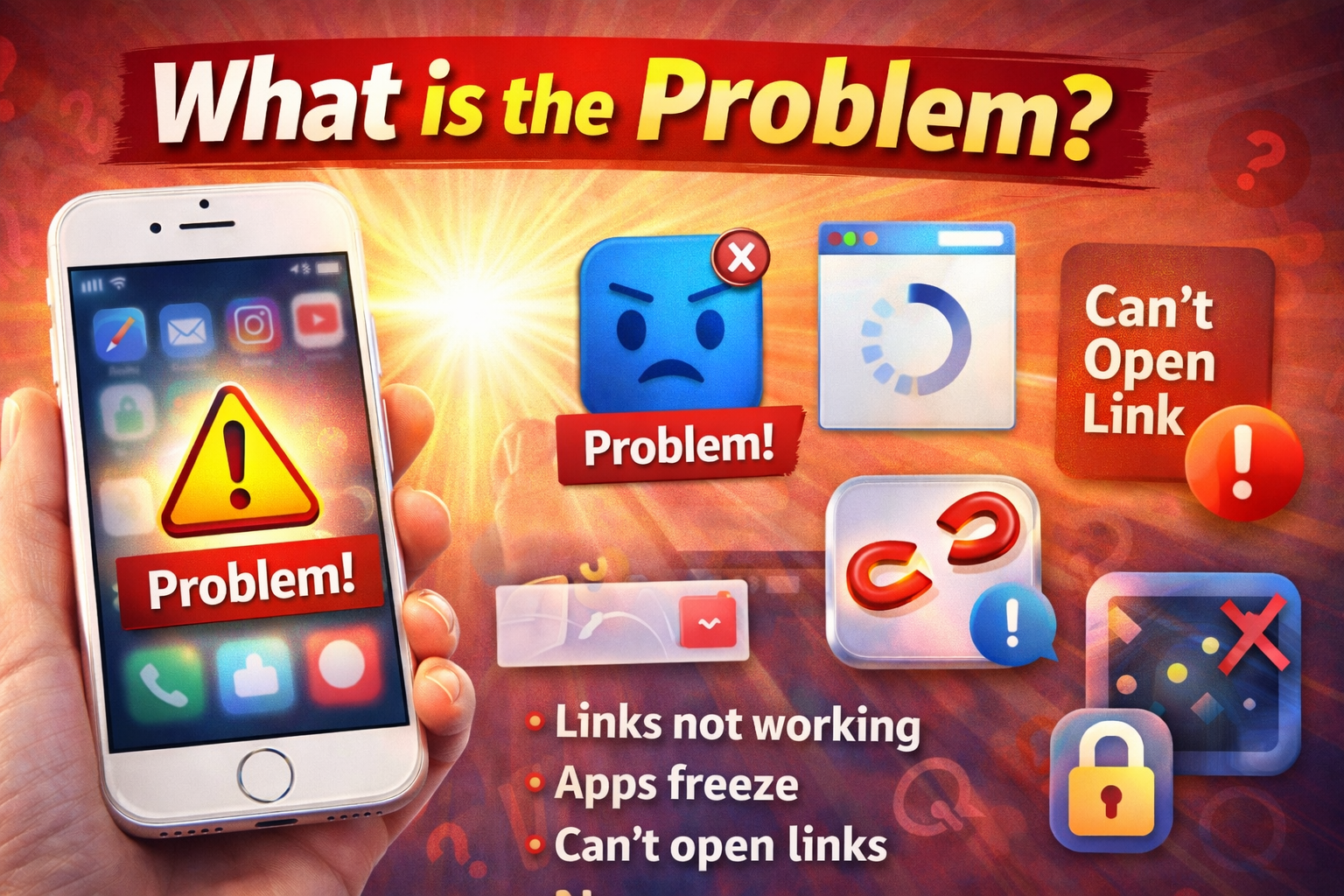
The issue occurs when your iPhone fails to open links inside apps or redirects incorrectly.
Common Symptoms:
- Links do nothing when tapped
- Apps freeze when opening links
- Links open in the wrong app
- Safari or browser doesn’t load URLs
- “Cannot open page” errors
This can affect apps like:
- Facebook / Instagram
- Safari / Chrome
- Gmail
Why Does This Problem Happen?
There isn’t just one cause. Here’s what usually triggers it:
1. Software Bugs
iOS updates sometimes introduce glitches that affect link handling.
2. App Conflicts
Multiple apps competing to open the same type of link can cause issues.
3. Corrupted Cache/Data
Temporary files can break link functionality.
4. Network Issues
Poor internet connection may prevent links from loading.
5. Incorrect Settings
Restrictions or disabled permissions can block links.
6. Outdated Apps or iOS
Older versions may not support certain link protocols.
How to Fix Apps Not Opening Links on iPhone
Here’s what works 👇
1. Quick Fix: Restart Your iPhone
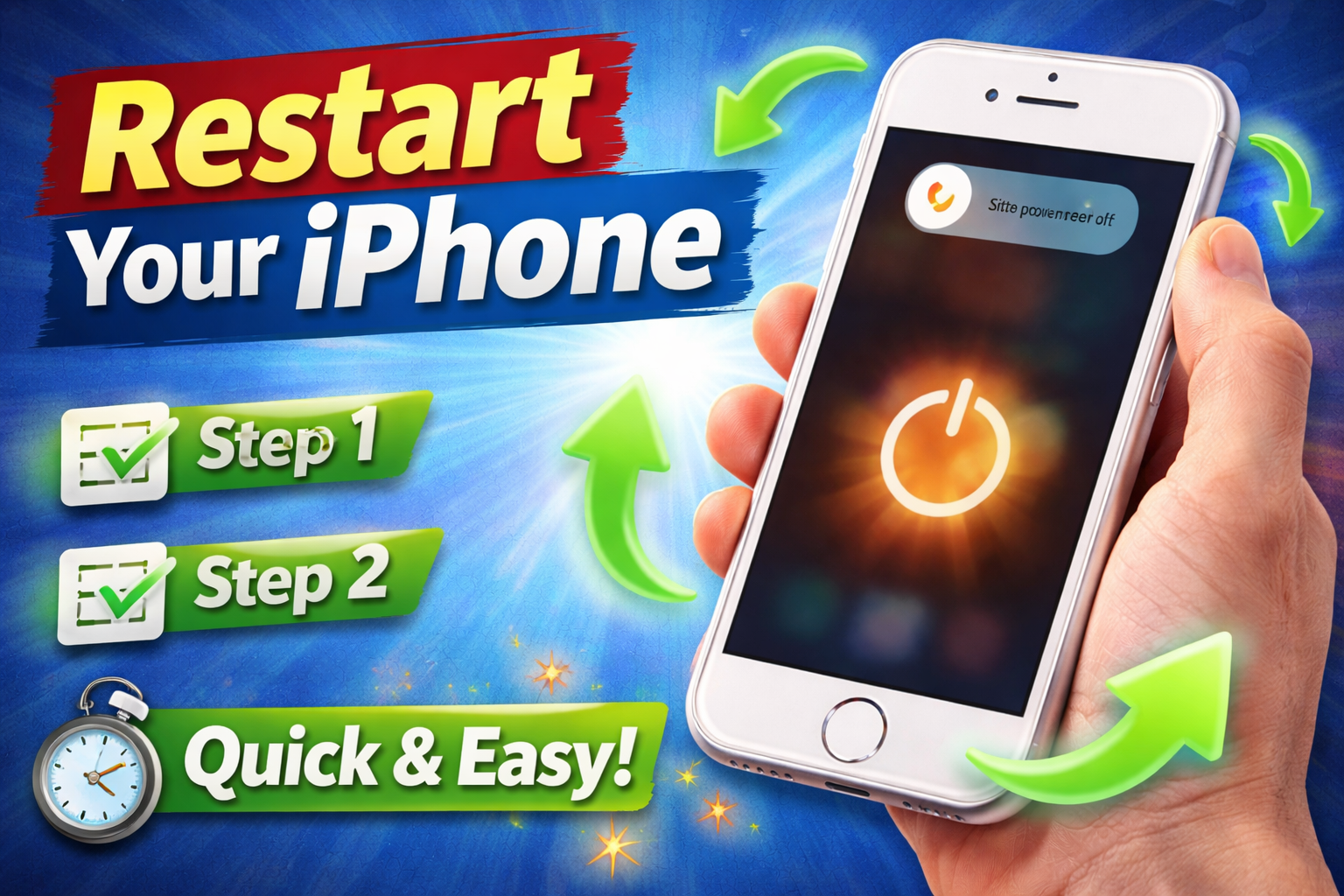
This solves many temporary glitches.
Steps:
- Press and hold the Power button
- Slide to power off
- Turn it back on after 10 seconds
👉 Quick Fix: This alone fixes many link issues.
2. Check Your Internet Connection
Links won’t open without a stable connection.
Try this:
- Switch between Wi-Fi and mobile data
- Turn Airplane Mode ON and OFF
- Restart your router
3. Update iOS
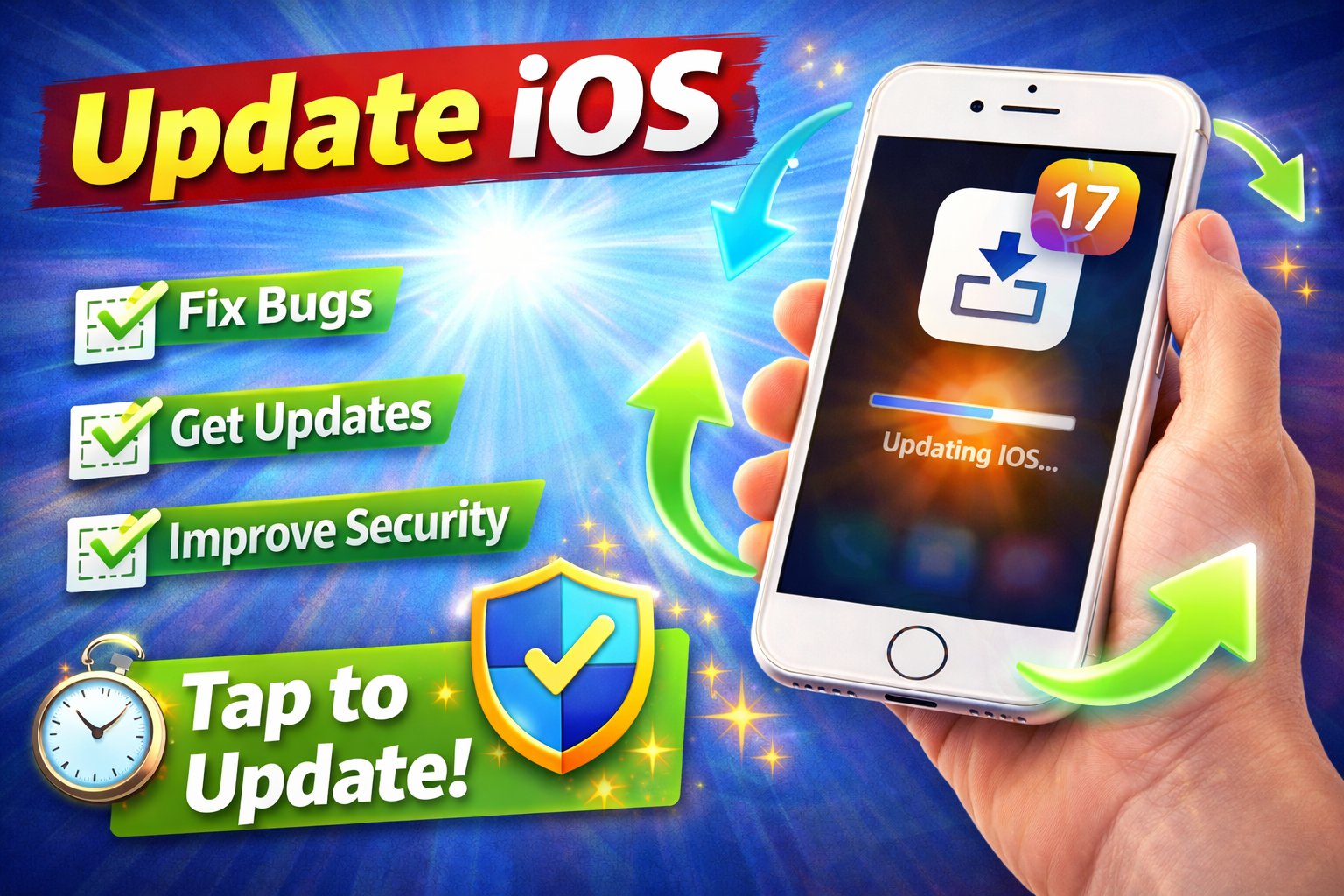
Apple often fixes bugs in updates.
Steps:
- Go to Settings > General > Software Update
- Install any available update
💡 Pro Tip: Always keep your iPhone updated.
4. Update the Problematic App
Outdated apps can break link handling.
Steps:
- Open the App Store
- Tap your profile
- Update the app
5. Reset Default Browser/App Settings
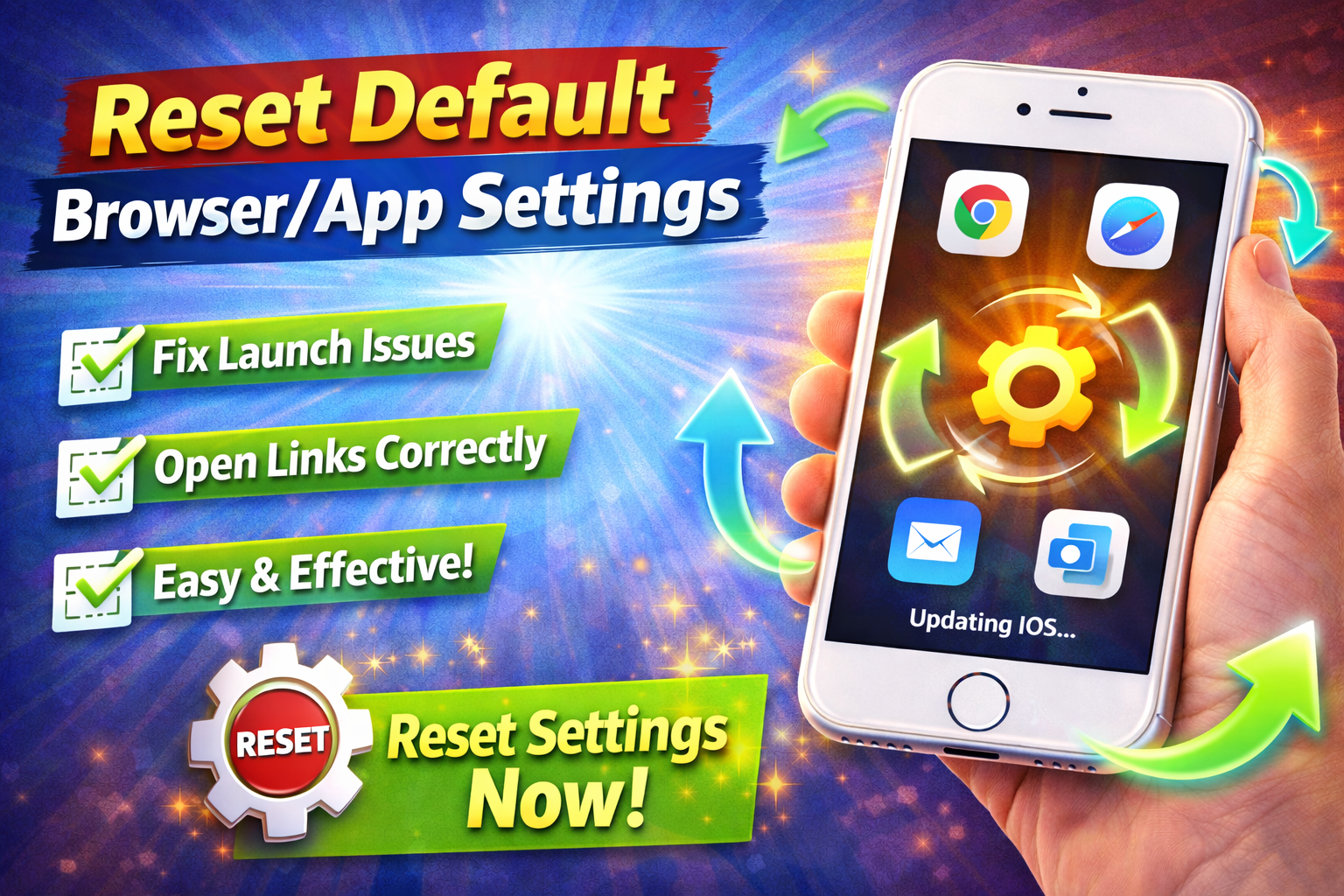
Sometimes links don’t open because the wrong app is set.
Steps:
- Go to Settings > Safari
- Check default browser settings
- Reset if needed
6. Clear Safari Data
If links open via Safari, cached data may be the problem.
Steps:
- Go to Settings > Safari
- Tap Clear History and Website Data
⚠️ Warning: This will log you out of websites.
7. Reinstall the App
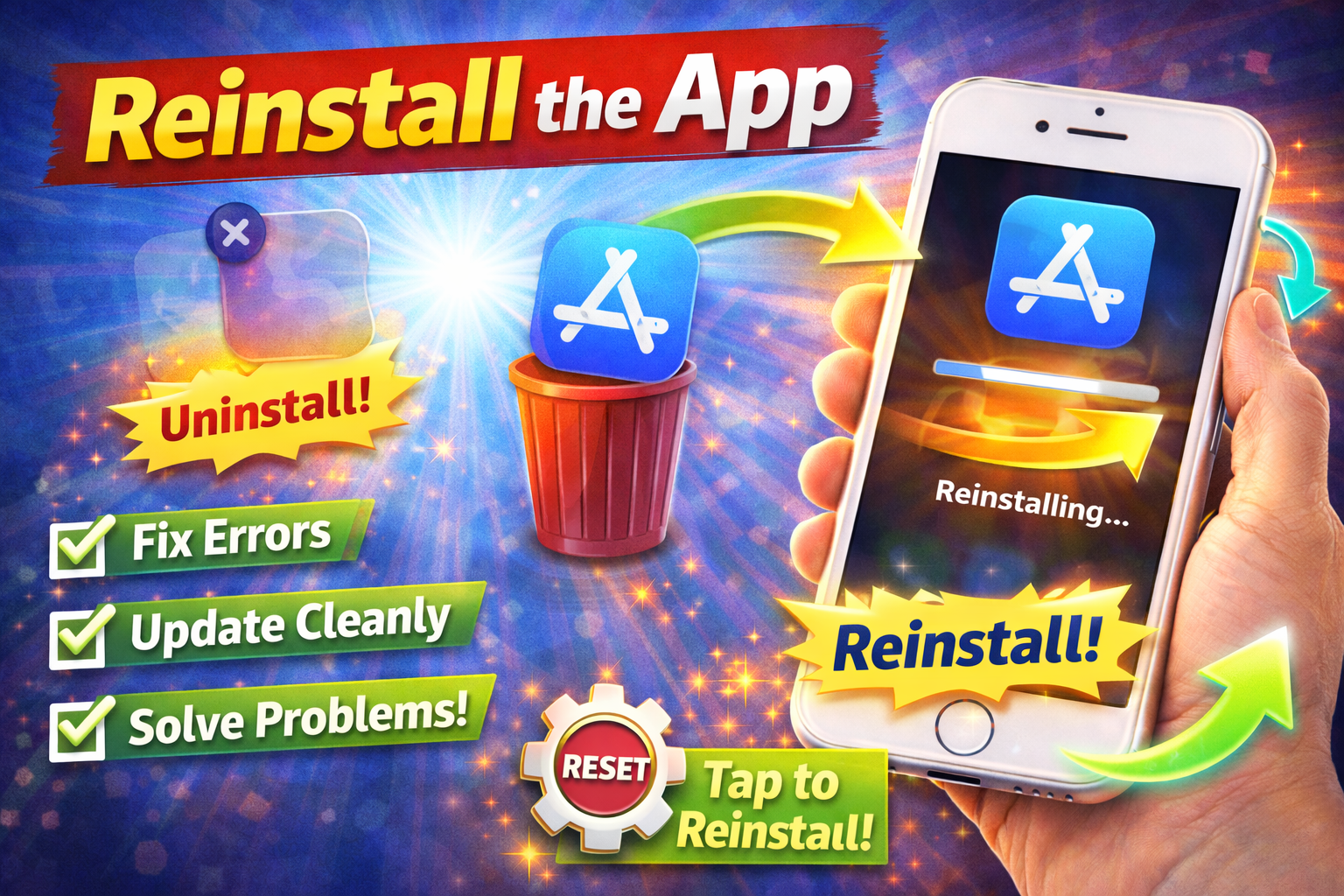
If one specific app is the problem, reinstall it.
Steps:
- Delete the app
- Restart your iPhone
- Reinstall from App Store
👉 Here’s what works: This often fixes deep app issues.
8. Check Screen Time Restrictions
Restrictions can block link opening.
Steps:
- Go to Settings > Screen Time
- Tap Content & Privacy Restrictions
- Disable or adjust settings
Advanced Fixes (For Technical Users)
If basic fixes don’t work, try these:
1. Reset All Settings
This won’t delete your data but resets system settings.
Steps:
- Go to Settings > General > Transfer or Reset iPhone
- Tap Reset > Reset All Settings
2. Disable Content Blockers
Some blockers interfere with links.
Steps:
- Go to Settings > Safari > Extensions
- Disable blockers temporarily
3. Check App Permissions
Apps may need permissions to open links.
Steps:
- Go to Settings > [App Name]
- Enable necessary permissions
4. Force Close Apps
Apps stuck in background can cause issues.
Steps:
- Swipe up from bottom
- Close the app
- Reopen it
Prevent This Problem in the Future
Want to avoid this issue again? Follow these tips:
- ✅ Keep iOS and apps updated
- ✅ Avoid installing too many similar apps
- ✅ Clear cache regularly
- ✅ Use trusted apps only
- ✅ Restart your iPhone weekly
💡 Pro Insight: Most link issues come from outdated apps or system bugs.
Common FAQs
1. Why are links not clickable on my iPhone?
This usually happens due to app bugs, network issues, or incorrect settings.
2. Why won’t Safari open links?
Safari may have corrupted cache or restrictions enabled.
3. Do I need to reset my iPhone?
Not usually. Try simpler fixes first like restarting or updating apps.
4. Why do links open in the wrong app?
This happens when default app settings are misconfigured.
5. Is this a common issue?
Yes—you’re not alone. Many users experience this after updates.
Conclusion
Dealing with apps not opening links on your iPhone can be frustrating—but it’s usually easy to fix.
Key Takeaways:
- Start with simple fixes like restarting your device
- Keep apps and iOS updated
- Clear cache and check settings
- Use advanced fixes only if needed
👉 Now that you know how to fix apps not opening links on iPhone, try these solutions and get your apps working smoothly again.
If this guide helped you, share it or explore more troubleshooting tips to keep your iPhone running perfectly! 🚀
