How to Fix Apps Crashing When Uploading Files (Easy Guide)
Introduction
You’re trying to upload a photo, video, or document—and suddenly, the app crashes. Frustrating, right? You’re not alone. This is a common issue across many apps like WhatsApp, Instagram, Google Drive, and more.
In this guide, we’ll show you how to fix apps crashing when uploading files using simple, effective solutions. Whether you’re using Android or iPhone, these steps will help you get things working again—fast.
Table of Contents
- What is the Problem?
- Why Does This Problem Happen?
- How to Fix Apps Crashing When Uploading Files
- Advanced Fixes (Optional)
- Prevent This Problem in the Future
- Common FAQs
- Conclusion
What is the Problem?
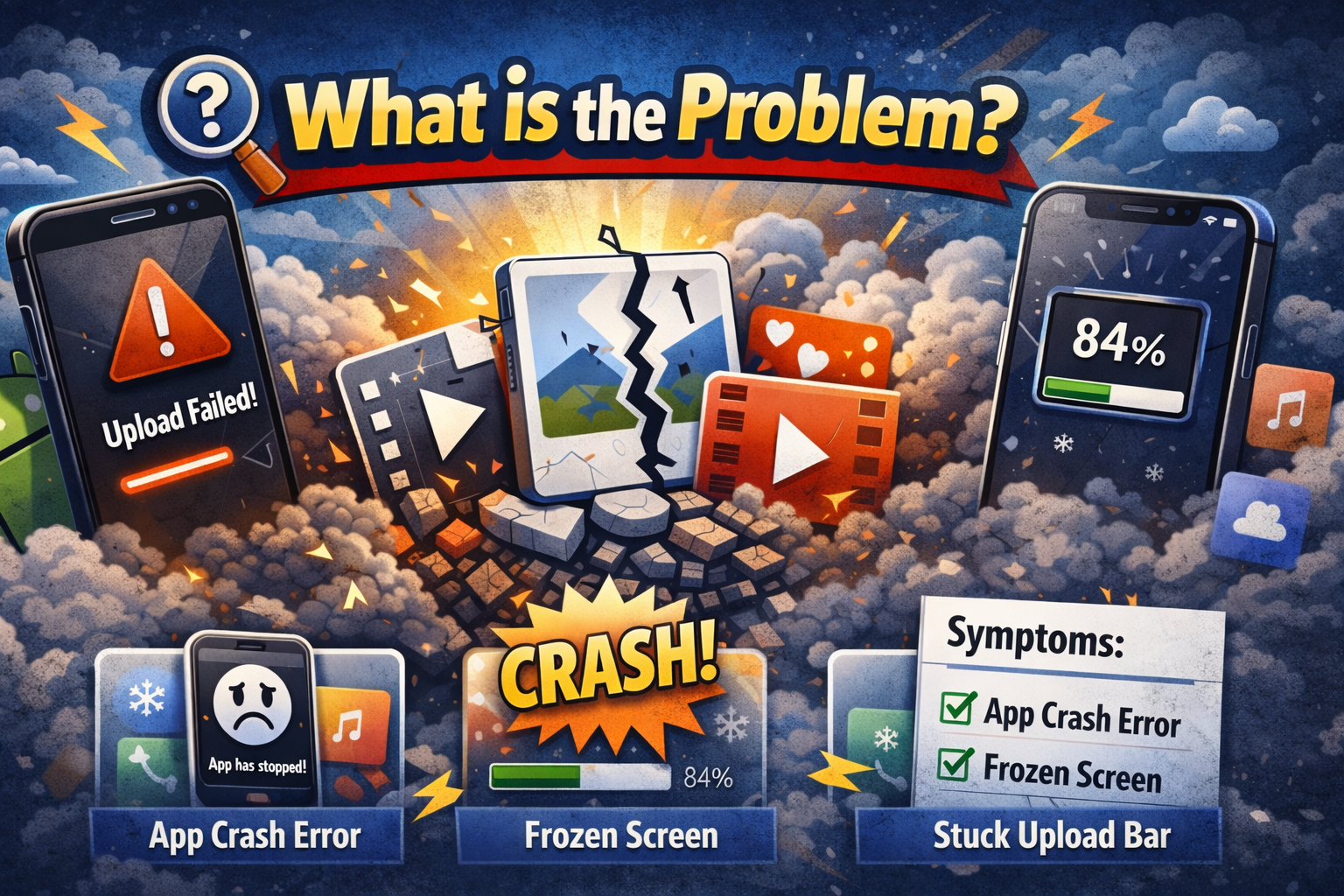
Apps crashing during file uploads is a common issue where an app suddenly closes or freezes when you try to upload files such as:
- Photos or videos
- Documents (PDF, Word, etc.)
- Audio files
Common Symptoms
- App closes instantly after selecting a file
- Upload process stops midway
- Screen freezes or turns black
- Error messages like “App has stopped” or “Something went wrong”
This problem can happen on both Android and iPhone devices—and across many popular apps.
Why Does This Problem Happen?
There are several reasons why apps crash when uploading files. Here are the most common ones:
1. App Bugs or Outdated Version
Older versions of apps may have bugs that cause crashes during uploads.
2. Insufficient Storage
If your device storage is full, apps may fail to process uploads.
3. Poor Internet Connection
Unstable Wi-Fi or mobile data can interrupt uploads and crash the app.
4. Corrupted Cache or Data
Temporary files (cache) can become corrupted and cause issues.
5. File Size or Format Issues
Uploading very large or unsupported files can overload the app.
6. Permission Problems
If the app doesn’t have access to storage, camera, or files, uploads may fail.
7. System or OS Glitches
Sometimes, the issue comes from your phone’s operating system.
How to Fix Apps Crashing When Uploading Files
Here’s what works. Follow these step-by-step solutions to fix the problem quickly.
1. Restart Your Device (Quick Fix)
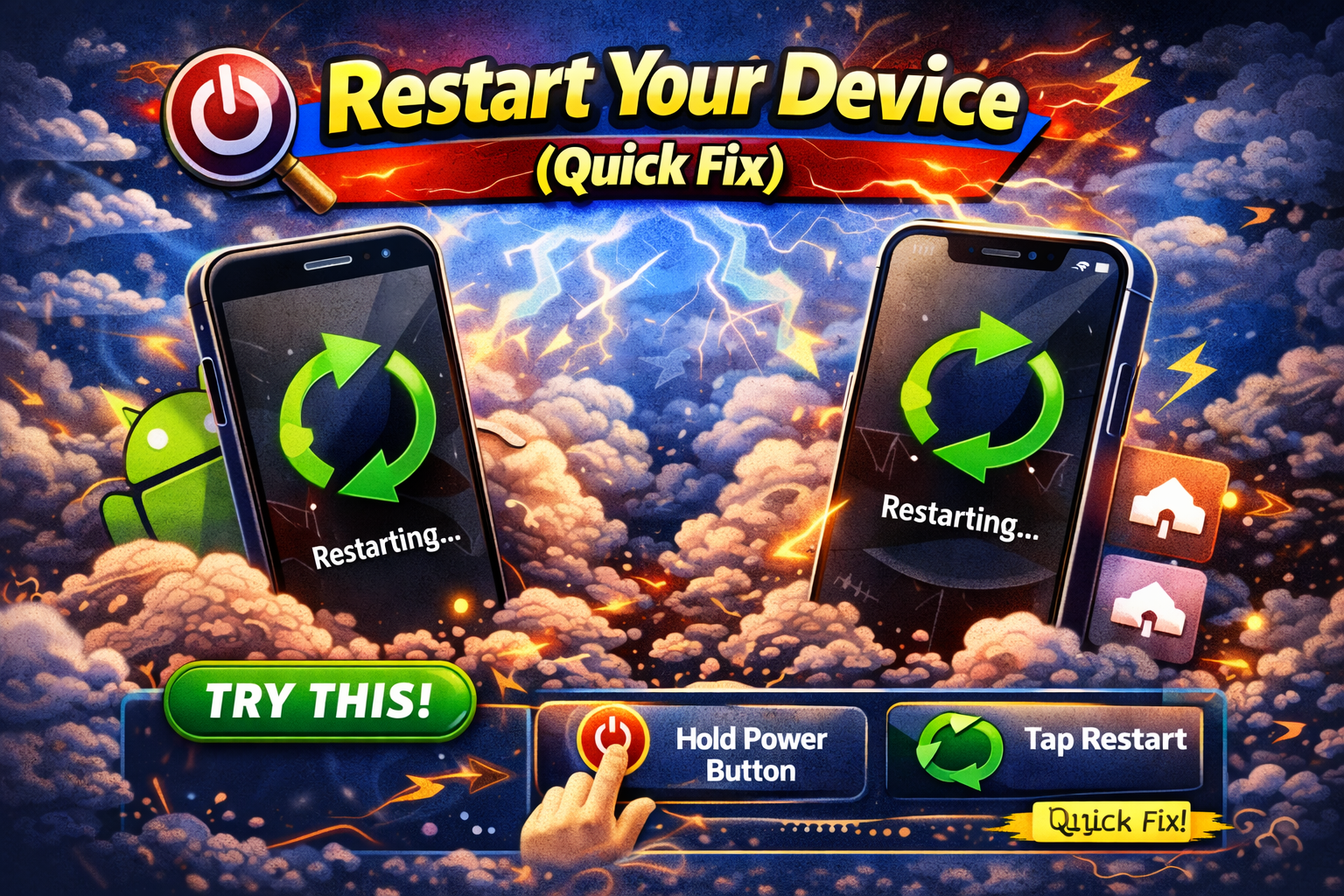
This simple trick can fix many temporary issues.
Steps:
- Press and hold the power button
- Tap Restart
- Open the app and try uploading again
👉 Quick Fix: This clears temporary system glitches instantly.
2. Check Your Internet Connection
A weak connection can cause upload failures.
Try this:
- Switch between Wi-Fi and mobile data
- Restart your router
- Move to a stronger signal area
👉 Pro Tip: Upload large files only on stable Wi-Fi.
3. Update the App

Outdated apps often crash due to bugs.
Steps:
- Open Google Play Store or App Store
- Search for the app
- Tap Update
👉 Here’s what works: Developers release updates to fix crash issues regularly.
4. Clear App Cache (Android Only)
Corrupted cache is a major cause of crashes.
Steps:
- Go to Settings > Apps
- Select the app
- Tap Storage
- Tap Clear Cache
⚠️ Warning: Don’t tap “Clear Data” unless necessary—it may delete login info.
5. Check App Permissions

If the app lacks permission, uploads won’t work.
Steps:
- Go to Settings > Apps > [App Name]
- Tap Permissions
- Enable access to:
- Storage / Files
- Photos / Media
👉 Important: Without proper permissions, uploads will fail or crash.
6. Free Up Storage Space
Low storage can crash apps during uploads.
What to do:
- Delete unused apps
- Remove old photos/videos
- Clear downloads folder
👉 Pro Insight: Keep at least 1–2GB free space for smooth performance.
7. Try a Smaller File
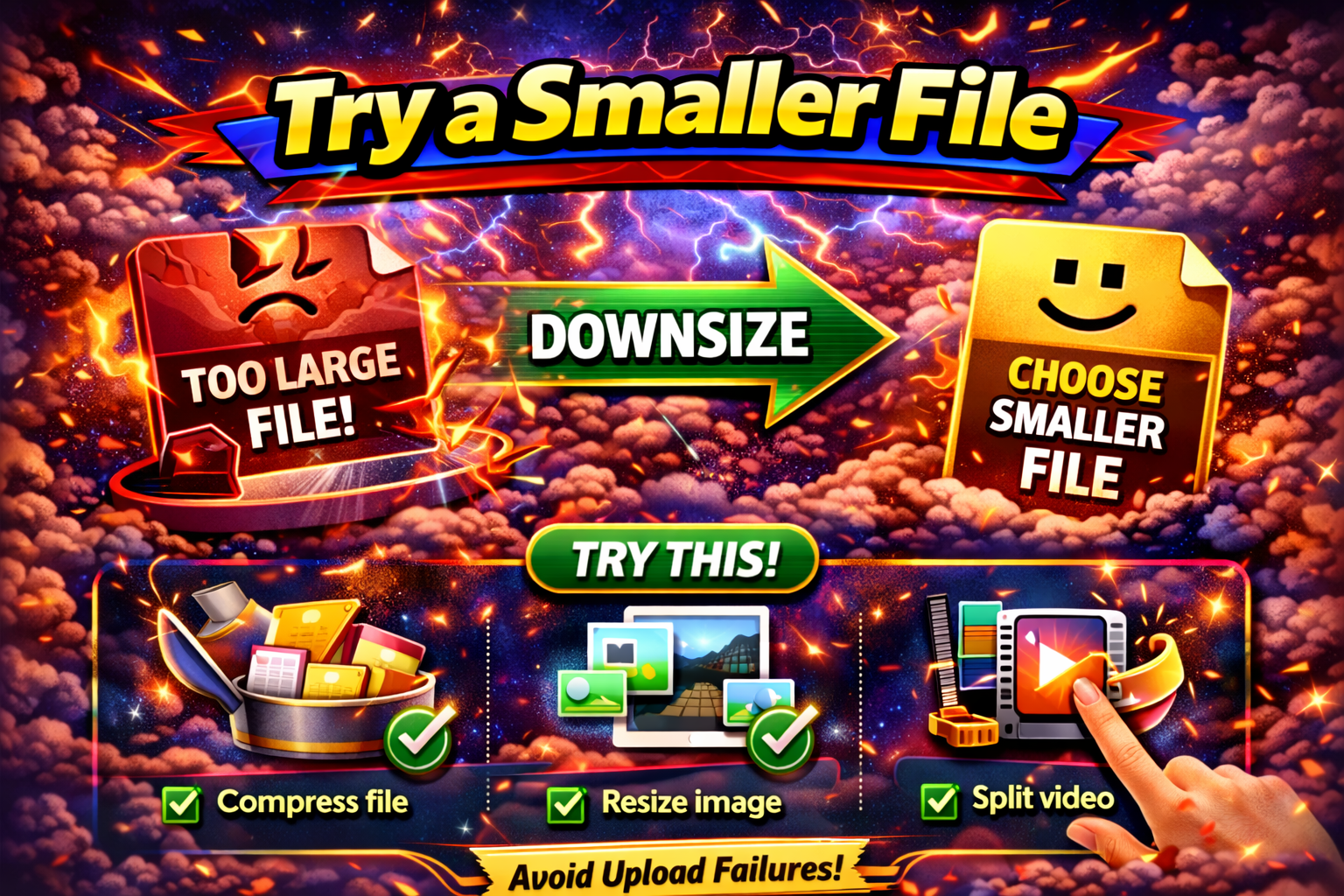
Large files can overwhelm apps.
Solution:
- Compress files before uploading
- Reduce video quality
- Use smaller file formats
👉 Example: Instead of a 4K video, upload a 720p version.
8. Reinstall the App
If nothing works, reinstalling can fix deeper issues.
Steps:
- Uninstall the app
- Restart your phone
- Reinstall from Play Store or App Store
👉 Here’s what works: This removes corrupted files and installs a clean version.
Advanced Fixes (Optional)
If you’re still facing issues, try these advanced solutions.
1. Update Your Device OS
An outdated system can cause compatibility problems.
- Go to Settings > Software Update
- Install the latest version
2. Disable Background Apps
Too many apps running can overload your device.
- Close unused apps
- Free up RAM
3. Reset App Preferences (Android)
This resets permissions without deleting data.
Steps:
- Go to Settings > Apps
- Tap Reset App Preferences
Prevent This Problem in the Future
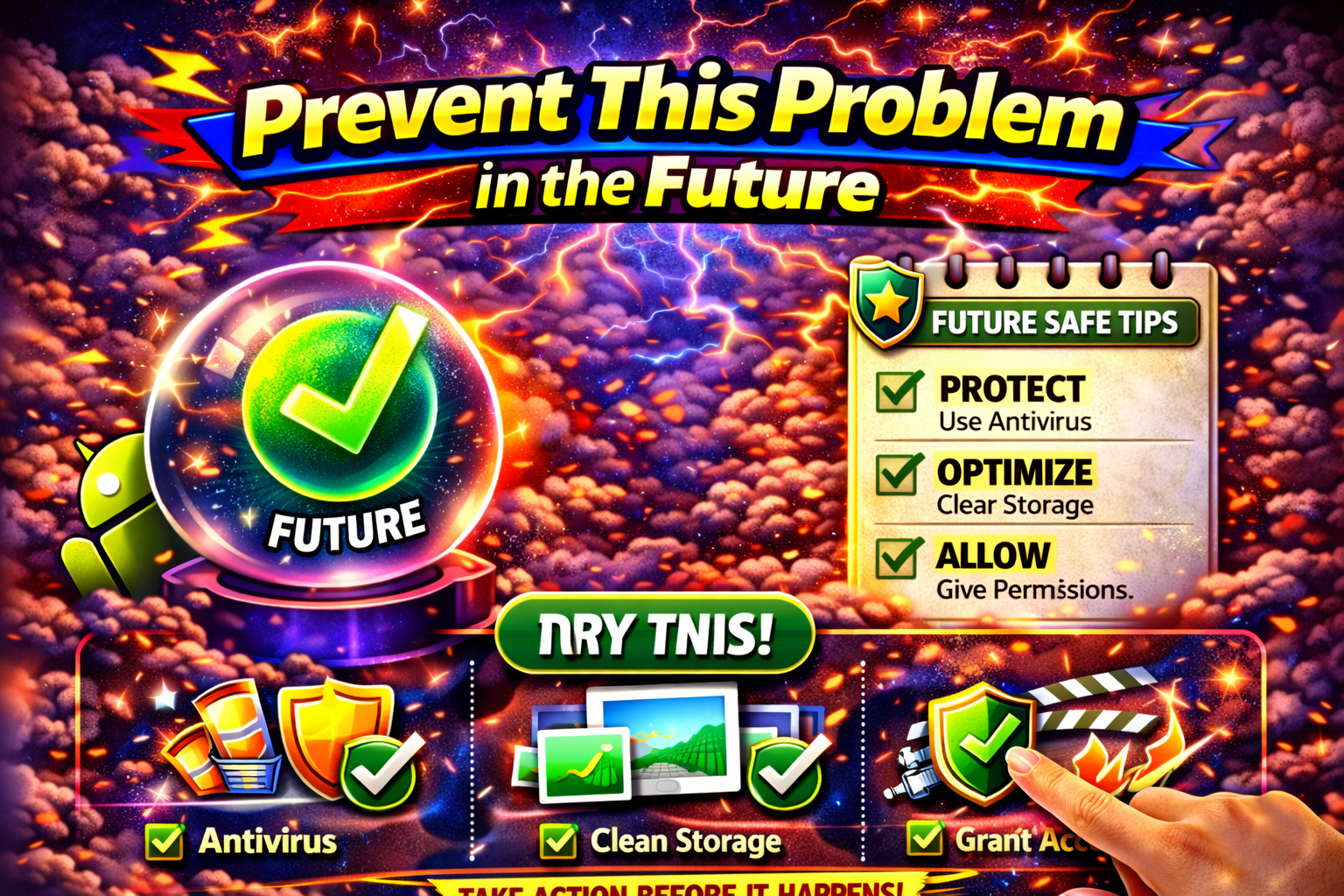
Want to avoid this issue again? Follow these tips:
- ✅ Keep apps updated regularly
- ✅ Maintain enough storage space
- ✅ Use stable internet connections
- ✅ Avoid uploading unsupported file formats
- ✅ Restart your phone occasionally
👉 You’re not alone: Most users face this issue due to simple causes that are easy to fix.
Common FAQs
1. Why do apps crash when I upload large files?
Large files use more memory and processing power, which can cause apps to crash—especially on low-end devices.
2. Does clearing cache delete my data?
No, clearing cache only removes temporary files. Your personal data remains safe.
3. Why does only one app crash during uploads?
It’s likely due to app-specific bugs, outdated versions, or permission issues.
4. Can poor internet cause app crashes?
Yes, unstable connections can interrupt uploads and trigger crashes.
5. Is reinstalling the app safe?
Yes, but you may need to log in again after reinstalling.
Conclusion
Apps crashing during file uploads can be annoying—but the good news is, it’s usually easy to fix. From restarting your device to clearing cache and updating apps, these solutions work for most users.
If you’re dealing with this issue, start with the quick fixes and move step-by-step. In most cases, you’ll solve the problem within minutes.
👉 Now it’s your turn: Try these solutions and see what works for you.
If this guide helped, share it with others—or explore more of our “App Problems” guides for quick solutions!
