How to Fix Apps Not Detecting GPS Location (Easy Guide)
Introduction
You open your favorite app—Google Maps, Uber, or a delivery app—and suddenly… it can’t detect your location. Frustrating, right? You’re not alone. Many users face issues where apps fail to detect GPS location, making navigation, tracking, and even social apps unusable.
In this guide, we’ll show you how to fix apps not detecting GPS location with simple, step-by-step solutions that actually work. Whether you’re using Android or iPhone, this guide will help you restore accurate GPS functionality fast.
Table of Contents
- What is the Problem?
- Why Does This Problem Happen?
- How to Fix Apps Not Detecting GPS Location
- Advanced Fixes (Optional)
- Prevent This Problem in the Future
- Common FAQs
- Conclusion
What is the Problem?
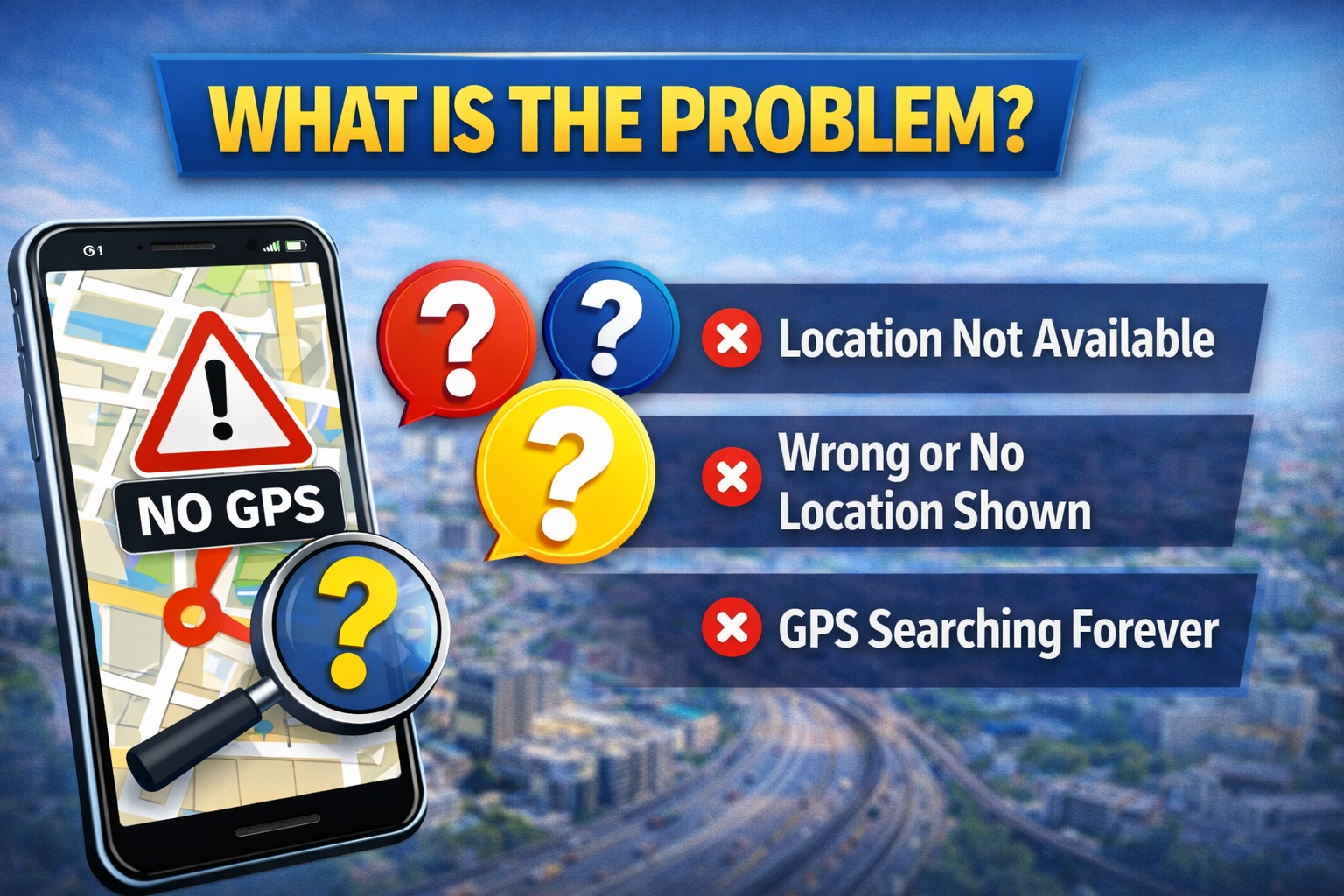
When apps are not detecting GPS location, it means your device cannot accurately determine your position using location services.
Common Symptoms
- Maps showing incorrect or no location
- Ride-hailing apps (Uber, Grab) can’t find your location
- Weather apps displaying wrong city
- “Location not available” or “Searching for GPS” message
- Location stuck in one place
This issue can happen on both Android and iPhone devices, and it often disrupts essential apps.
Why Does This Problem Happen?
There are several reasons why apps fail to detect GPS location. Here are the most common causes:
1. Location Services Disabled
If GPS or location services are turned off, apps can’t access your location.
2. App Permissions Not Granted
Some apps need explicit permission to use your location.
3. Weak GPS Signal
Indoor environments or tall buildings can block GPS signals.
4. Software Bugs or Glitches
System or app bugs can interfere with location tracking.
5. Battery Saver Mode
Power-saving features may limit GPS functionality.
6. Incorrect Location Settings
Low accuracy mode can reduce GPS precision.
7. Outdated Software
Old system versions may cause compatibility issues.
How to Fix Apps Not Detecting GPS Location (Step-by-Step)
Here’s what works—follow these solutions one by one.
1. Turn On Location Services (Quick Fix)
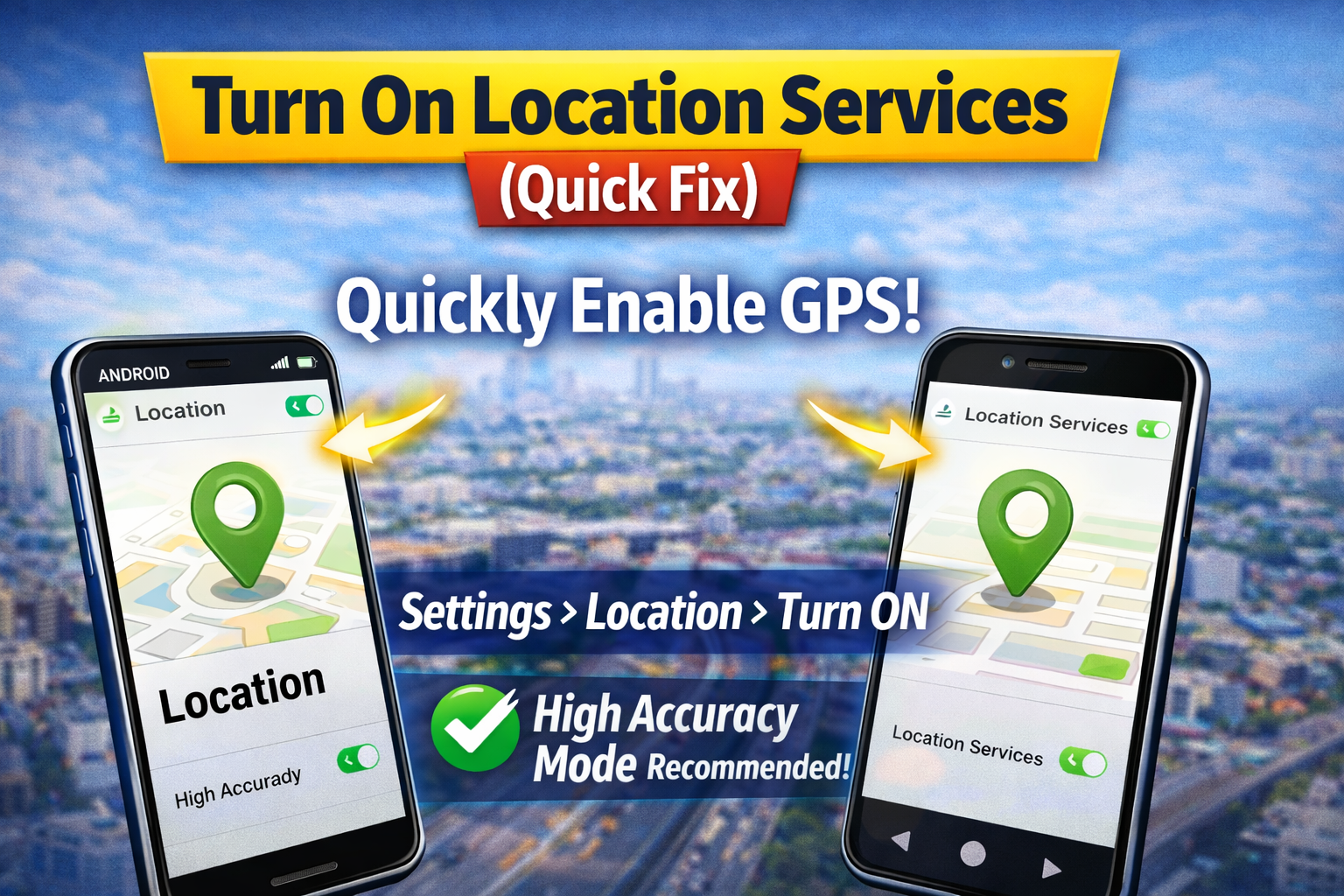
This is the first thing to check.
On Android:
- Go to Settings > Location
- Toggle Location ON
On iPhone:
- Go to Settings > Privacy & Security > Location Services
- Turn it ON
👉 Pro Tip: Always use “High Accuracy” mode if available.
2. Check App Location Permissions
Apps won’t detect GPS without permission.
Steps:
- Go to Settings > Apps
- Select the app (e.g., Maps, Uber)
- Tap Permissions > Location
- Choose Allow while using the app or Always allow
⚠️ Warning: Setting it to “Deny” or “Never” will block GPS completely.
3. Enable High Accuracy Mode (Android Only)
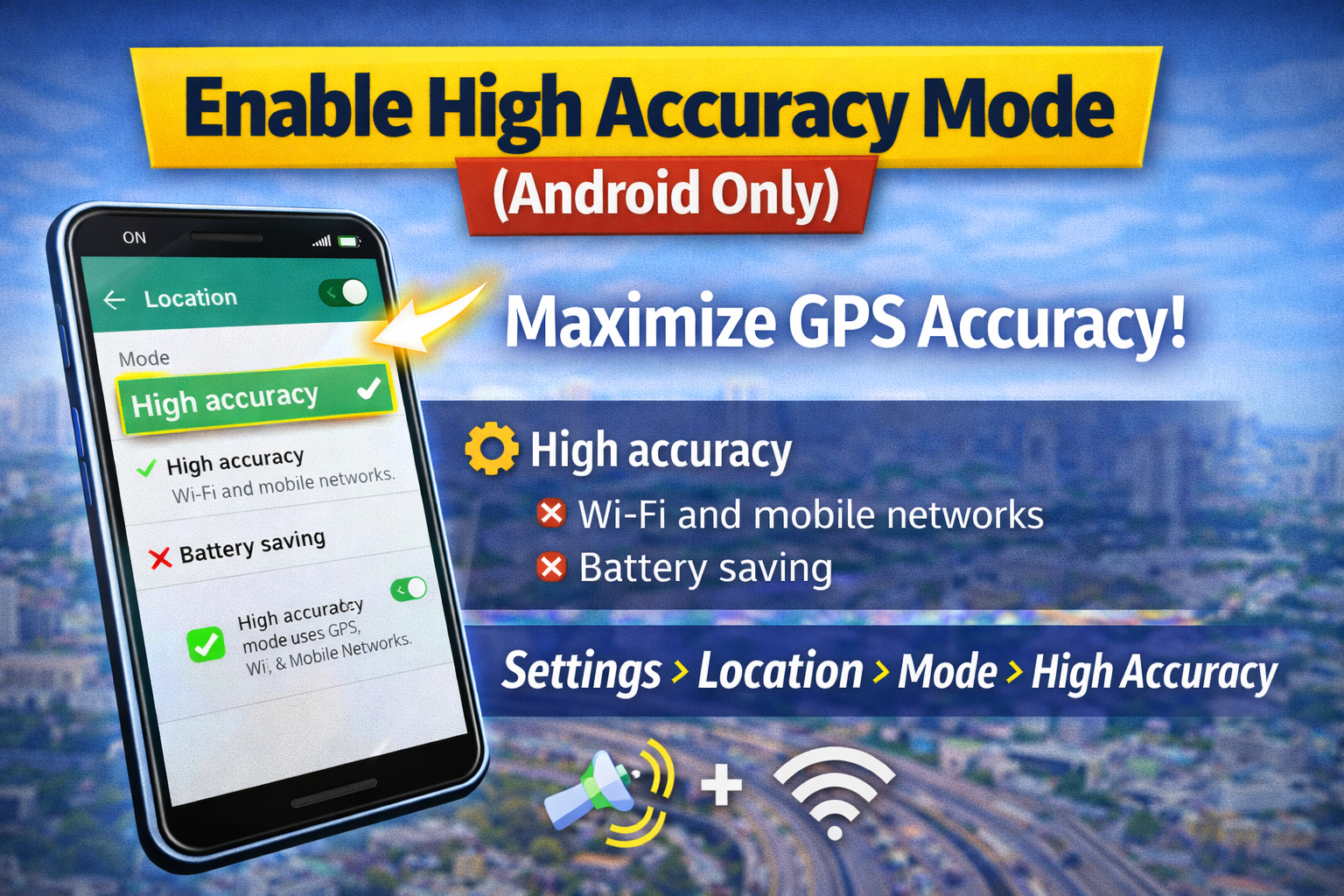
Low accuracy mode uses Wi-Fi only, not GPS.
Steps:
- Go to Settings > Location > Location Services
- Tap Location Mode
- Select High Accuracy
👉 This combines GPS, Wi-Fi, and mobile networks for better results.
4. Restart Your Device
Sometimes, a simple restart fixes temporary glitches.
Steps:
- Hold the power button
- Tap Restart
- Wait for your phone to reboot
✔️ This clears background bugs affecting GPS.
5. Turn Off Battery Saver Mode
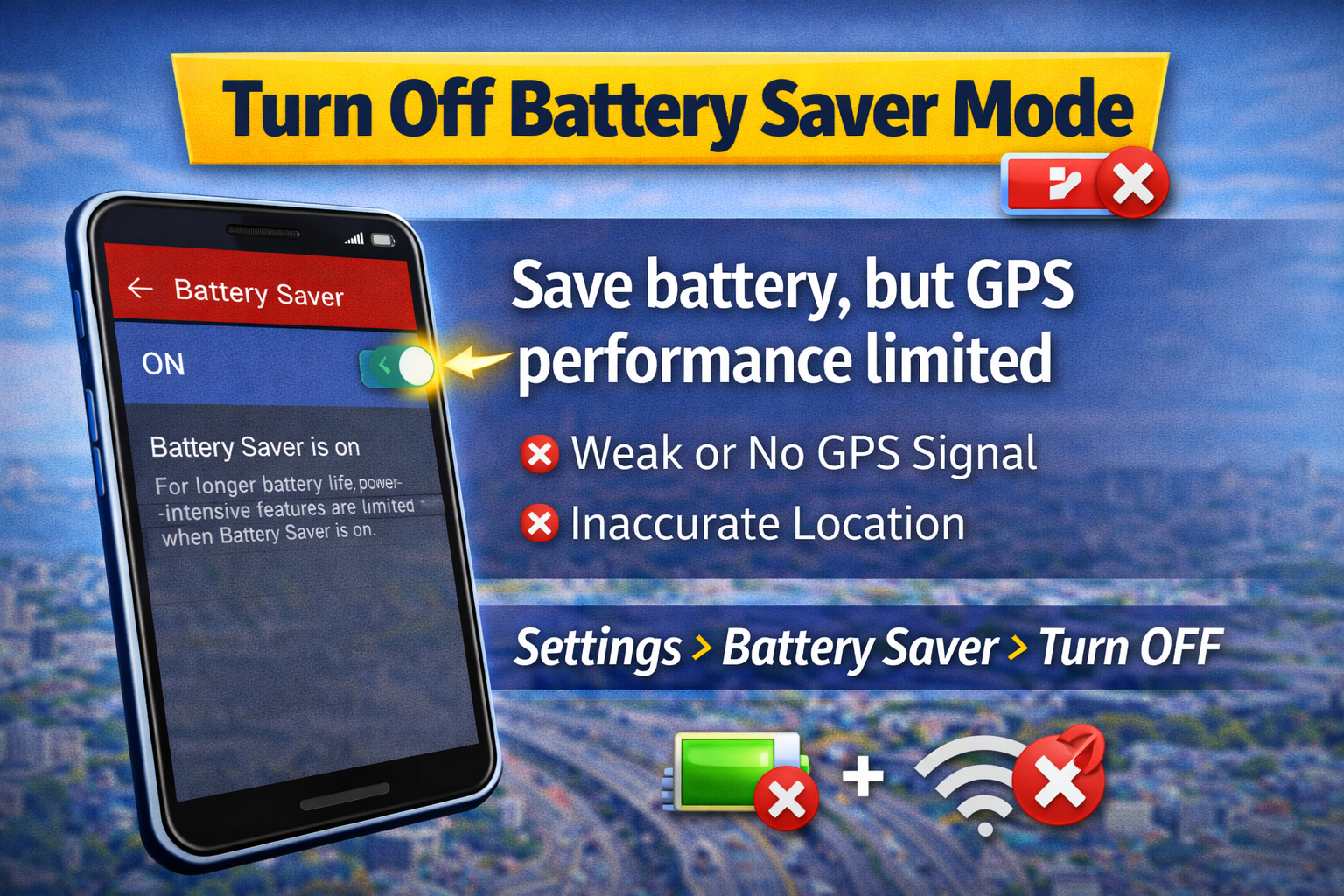
Battery saver can restrict GPS usage.
Steps:
- Go to Settings > Battery
- Disable Battery Saver / Low Power Mode
💡 Here’s what works: GPS needs more power to function accurately.
6. Check Internet Connection
Some apps rely on both GPS and internet.
- Switch between Wi-Fi and mobile data
- Ensure your connection is stable
📍 Apps like Google Maps need internet for better accuracy.
7. Calibrate Your GPS
If your location is inaccurate, calibration helps.
Steps (Android):
- Open Google Maps
- Move your phone in a figure-8 motion
- Wait until accuracy improves
On iPhone:
- Go to Settings > Privacy > Location Services > System Services
- Enable Compass Calibration
8. Update Your Apps and System
Outdated software can cause GPS issues.
Steps:
- Go to Play Store / App Store
- Update all apps
- Check Settings > Software Update
✔️ Updates fix bugs and improve compatibility.
Advanced Fixes (Optional)
If basic fixes don’t work, try these advanced solutions.
1. Reset Location Settings
On Android:
- Go to Settings > System > Reset Options
- Tap Reset Wi-Fi, mobile & Bluetooth
On iPhone:
- Go to Settings > General > Transfer or Reset iPhone
- Tap Reset Location & Privacy
2. Clear App Cache (Android)
Steps:
- Go to Settings > Apps
- Select the app
- Tap Storage > Clear Cache
📌 This removes corrupted data causing GPS issues.
3. Check for Hardware Issues
If GPS never works:
- Test with multiple apps
- Use GPS test apps
⚠️ If all fail, your phone’s GPS hardware might be damaged.
Prevent This Problem in the Future
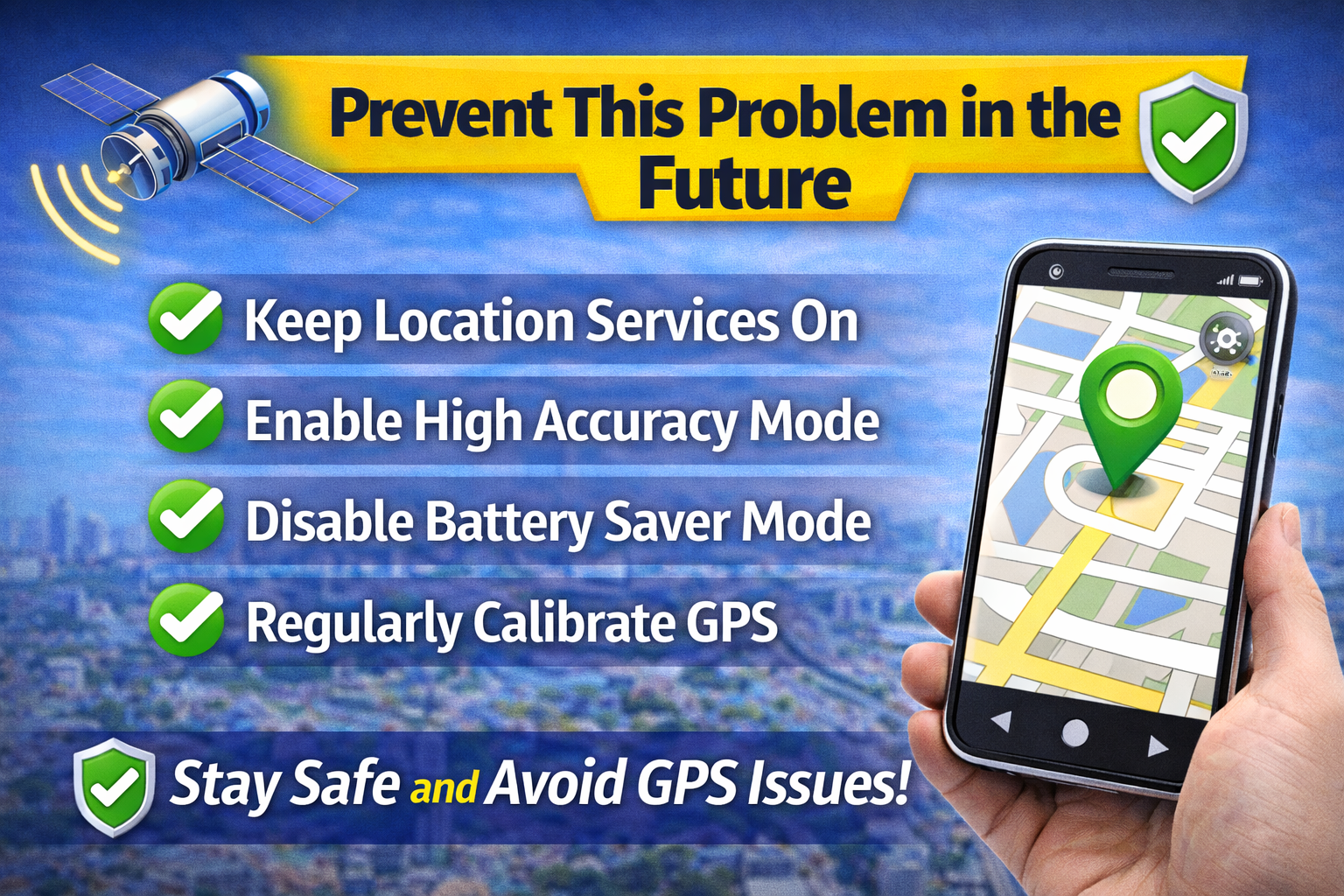
Avoid dealing with GPS issues again by following these tips:
- Keep location services always enabled
- Regularly update apps and system
- Avoid using aggressive battery saver modes
- Grant proper location permissions
- Use apps in open areas for better signal
💡 Pro Insight: Restart your phone once a week to prevent system glitches.
Common FAQs
1. Why is my GPS not working even with location ON?
It could be due to poor signal, app permission issues, or battery saver mode restricting GPS.
2. How do I improve GPS accuracy on my phone?
Enable High Accuracy mode, calibrate GPS, and ensure a strong internet connection.
3. Do apps need internet for GPS to work?
GPS works offline, but many apps need internet for better accuracy and maps.
4. Why does my location show the wrong place?
This happens due to weak signals, uncalibrated GPS, or incorrect settings.
5. Can a software update fix GPS issues?
Yes, updates often fix bugs affecting GPS performance.
Conclusion
Dealing with apps not detecting GPS location can be frustrating—but the good news is that most issues are easy to fix. From enabling location services to updating your device, these solutions cover everything you need.
Start with the quick fixes, then move to advanced steps if needed. In most cases, your GPS should be working perfectly again in minutes.
👉 Now it’s your turn: Try these solutions and see what works for you. If this guide helped, share it with others or explore more troubleshooting tips to keep your apps running smoothly!
