How to Fix Apps Not Appearing on Home Screen iPhone (Easy Guide)
Introduction
You’re not alone—many iPhone users face the frustrating issue where apps suddenly disappear from the Home Screen. You know the app is installed, but it’s nowhere to be found. Annoying, right?
If you’re searching for how to fix apps not appearing on Home Screen iPhone, this guide will walk you through simple, proven solutions. Whether it’s a hidden app, a settings glitch, or something else, here’s what works.
Table of Contents
- What is the Problem?
- Why Does This Problem Happen?
- How to Fix Apps Not Appearing on Home Screen iPhone
- Advanced Fixes
- Prevent This Problem in the Future
- Common FAQs
- Conclusion
What is the Problem?
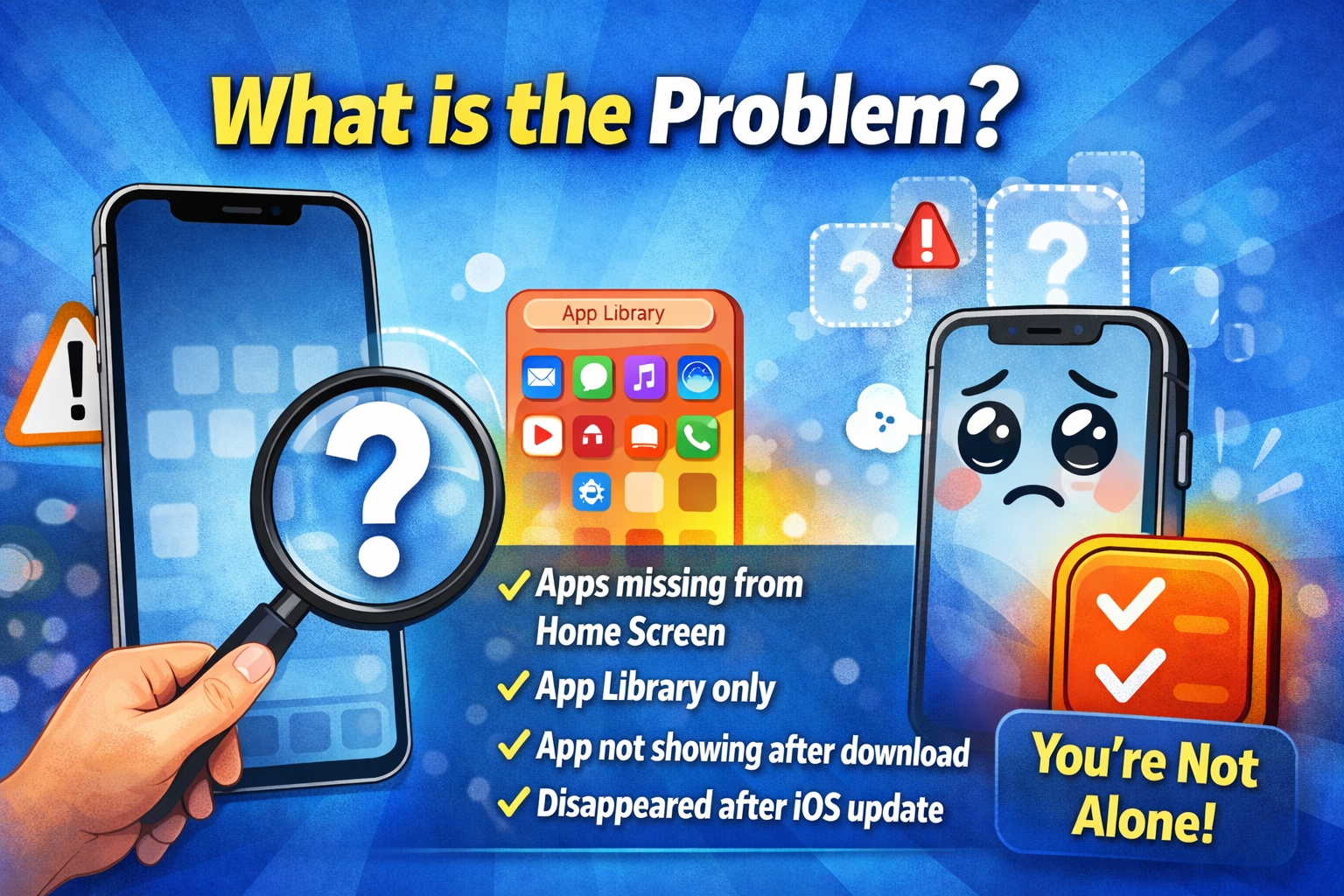
The issue occurs when apps installed on your iPhone do not show up on the Home Screen, even though they are still on your device.
Common Symptoms:
- Apps missing from the Home Screen
- App visible in App Library but not on Home Screen
- Installed apps not showing after download
- Apps disappearing after iOS update
- Search finds the app, but you can’t see it on Home Screen
This problem can be confusing, especially if you rely on quick access to your favorite apps.
Why Does This Problem Happen?
There are several reasons why apps may not appear on your iPhone Home Screen:
1. App Library Settings
iOS allows apps to be installed directly into the App Library instead of the Home Screen.
2. Hidden Home Screen Pages
You may have accidentally hidden a Home Screen page.
3. App Restrictions
Screen Time settings can hide certain apps.
4. App Removed from Home Screen
Apps can be removed from the Home Screen without being deleted.
5. iOS Bugs or Glitches
Software issues can sometimes cause apps to disappear.
6. Focus Mode Settings
Focus modes can hide specific Home Screen pages.
How to Fix Apps Not Appearing on Home Screen iPhone (Step-by-Step)
Here’s the quick fix checklist you should try first 👇
1. Search for the App and Add It Back
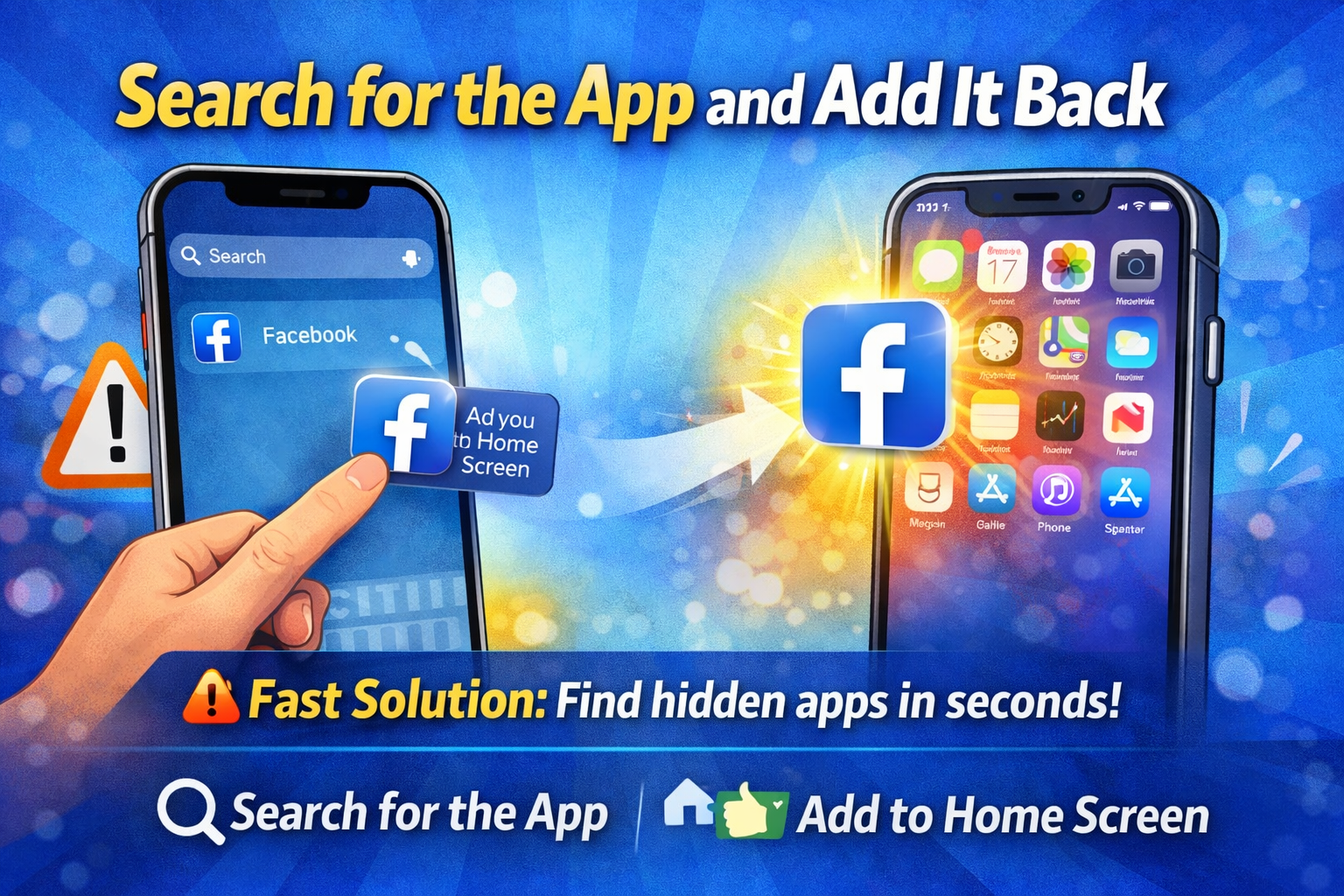
Sometimes the app is still installed but hidden.
Steps:
- Swipe down on the Home Screen
- Type the app name in Search
- Press and hold the app icon
- Tap “Add to Home Screen”
✅ Quick Fix: This is the fastest way to restore missing apps.
2. Check the App Library
Your app might be stored in the App Library.
Steps:
- Swipe left until you reach the App Library
- Find the app
- Press and hold it
- Tap “Add to Home Screen”
3. Unhide Home Screen Pages
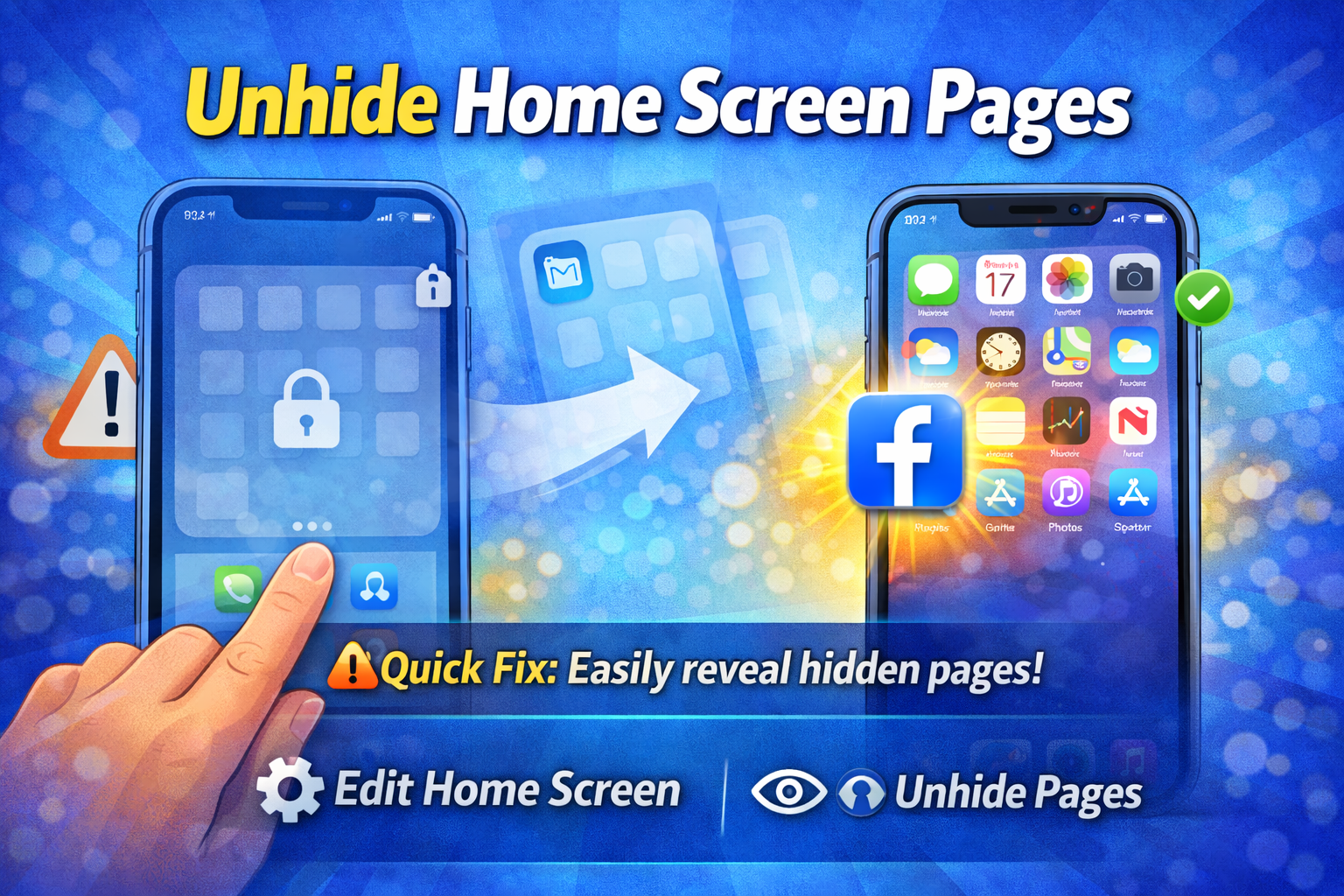
You may have accidentally hidden a page.
Steps:
- Long-press on an empty area of the Home Screen
- Tap the page dots at the bottom
- Check all pages you want visible
- Tap Done
💡 Pro Tip: Hidden pages are a common reason apps “disappear.”
4. Change App Installation Settings
Ensure apps are added to the Home Screen automatically.
Steps:
- Go to Settings
- Tap Home Screen
- Select “Add to Home Screen”
This ensures new apps appear where you expect them.
5. Check Screen Time Restrictions
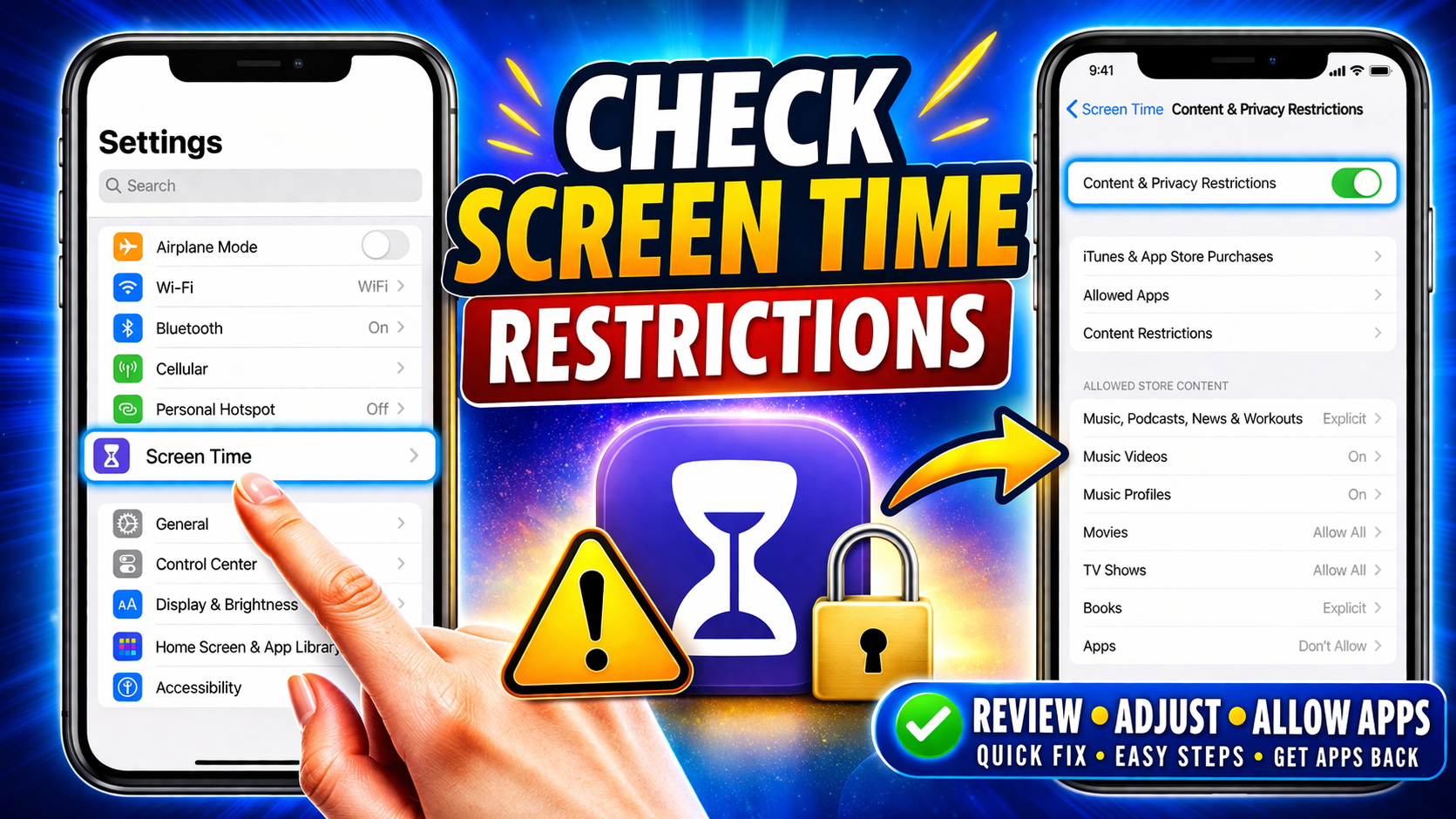
Apps may be hidden due to restrictions.
Steps:
- Go to Settings > Screen Time
- Tap Content & Privacy Restrictions
- Select Allowed Apps
- Make sure your app is enabled
6. Disable Focus Mode
Focus modes can hide Home Screen pages.
Steps:
- Go to Settings > Focus
- Select the active Focus mode
- Tap Home Screen
- Disable Custom Pages
7. Restart Your iPhone
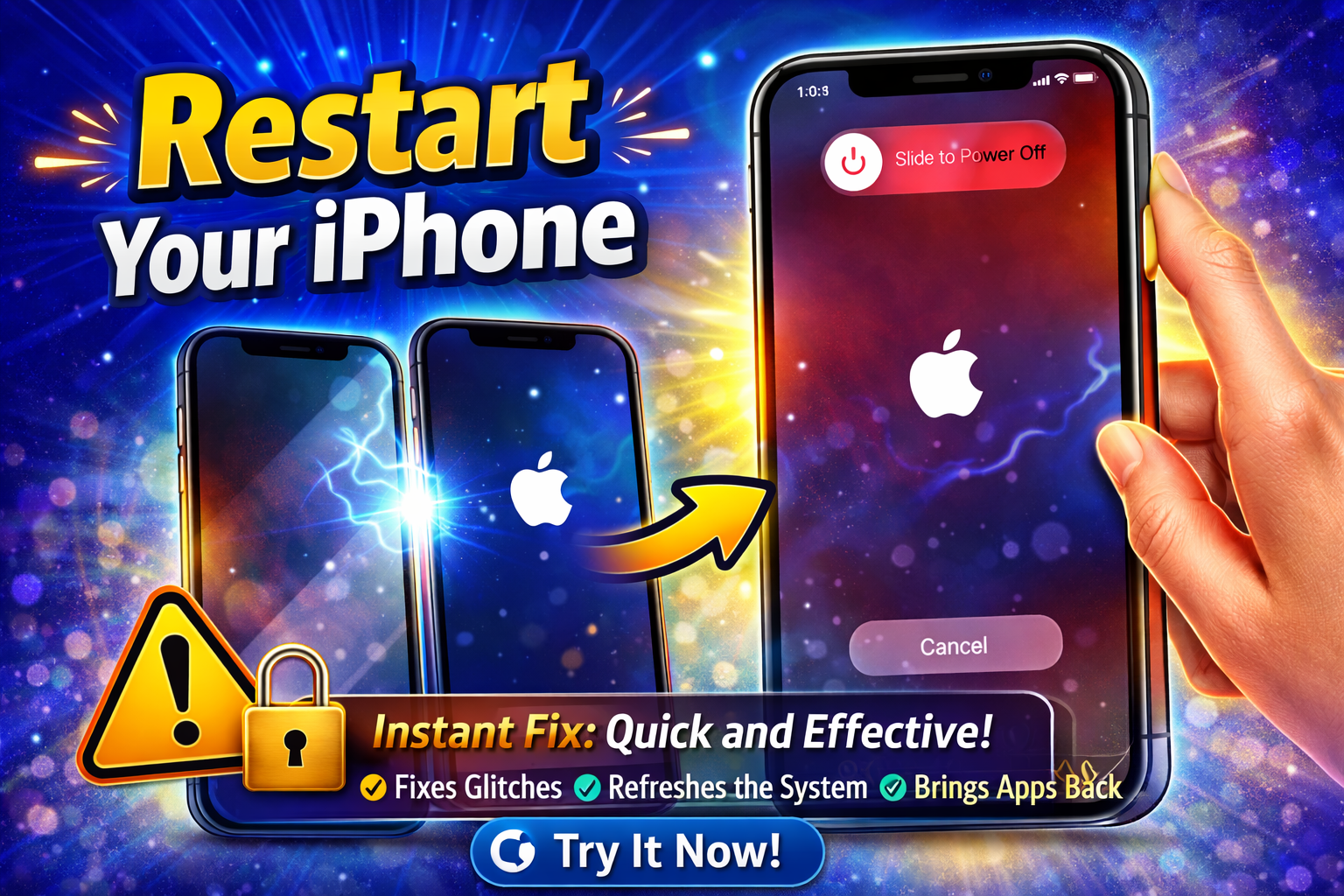
Sometimes a simple restart fixes the issue.
Steps:
- Press and hold the power button
- Slide to power off
- Turn your iPhone back on
⚡ Quick Fix: This resolves temporary glitches instantly.
8. Reinstall the App
If nothing works, reinstall the app.
Steps:
- Delete the app
- Open the App Store
- Reinstall it
⚠️ Warning: Make sure your data is backed up before deleting.
Advanced Fixes (Optional)
If the problem persists, try these more technical solutions.
1. Reset Home Screen Layout
This will restore your default layout.
Steps:
- Go to Settings > General
- Tap Transfer or Reset iPhone
- Select Reset > Reset Home Screen Layout
2. Update iOS
Outdated software can cause display issues.
Steps:
- Go to Settings > General > Software Update
- Install any available updates
3. Reset All Settings
This won’t delete your data but resets system settings.
Steps:
- Go to Settings > General
- Tap Transfer or Reset iPhone
- Select Reset All Settings
Prevent This Problem in the Future
Here’s how to avoid this issue going forward:
- Always select “Add to Home Screen” in settings
- Avoid hiding Home Screen pages accidentally
- Regularly update your iPhone
- Be cautious with Focus mode settings
- Organize apps to prevent confusion
💡 Pro Insight: Keeping your Home Screen organized helps you quickly spot missing apps.
Common FAQs
1. Why are my apps installed but not showing on iPhone?
They may be in the App Library, hidden, or restricted by Screen Time settings.
2. How do I find hidden apps on iPhone?
Use Spotlight Search or check the App Library.
3. Can iOS updates cause apps to disappear?
Yes, sometimes updates can rearrange or hide apps temporarily.
4. Why can’t I add apps back to the Home Screen?
It could be due to restrictions, Focus mode, or system glitches.
5. Will resetting my iPhone delete apps?
Resetting settings won’t delete apps, but a full reset will.
Conclusion
Fixing the issue of apps not appearing on Home Screen iPhone is easier than it seems. In most cases, it’s simply a hidden app, a settings tweak, or a quick restart away from being solved.
Start with the quick fixes like searching for the app or checking the App Library—these work for most users. If the issue persists, move on to advanced solutions like resetting settings or updating iOS.
👉 Give these solutions a try and get your apps back where they belong.
If this guide helped you, consider sharing it or exploring more troubleshooting tips for your iPhone!
