Fix Apps Not Working in Background iPhone (Easy Guide)
Introduction
You open an app, switch to another one, and suddenly… it refreshes, restarts, or stops working completely. Sound familiar? You’re not alone.
Many iPhone users struggle with apps not working in background, especially when multitasking. Whether it’s music stopping, downloads pausing, or messaging apps not updating, this issue can be frustrating.
In this guide, you’ll learn how to fix apps not working in background iPhone with simple, effective solutions. From quick fixes to advanced tweaks, here’s what works.
Table of Contents
- What is the Problem?
- Why Does This Problem Happen?
- How to Fix Apps Not Working in Background iPhone
- Advanced Fixes
- Prevent This Problem in the Future
- Common FAQs
- Conclusion
What is the Problem?
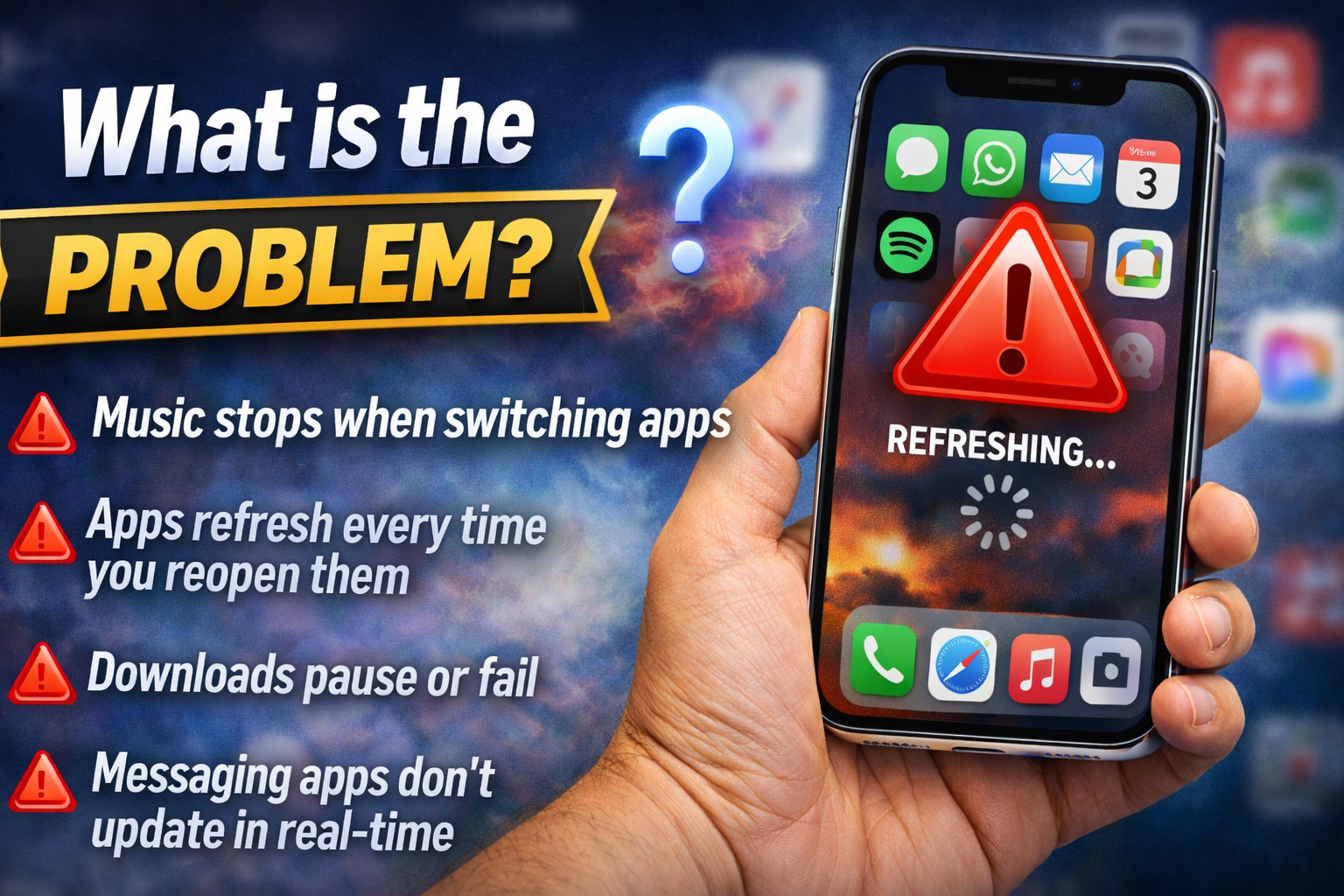
The issue of apps not working in background iPhone occurs when apps fail to continue functioning after you leave them.
Common Symptoms:
- Music stops when switching apps
- Apps refresh every time you reopen them
- Downloads pause or fail
- Messaging apps don’t update in real-time
- Navigation apps stop tracking
This problem affects both built-in apps and third-party apps like Spotify, WhatsApp, or YouTube.
Why Does This Problem Happen?
There isn’t just one cause. Several factors can lead to background app issues.
1. Background App Refresh Disabled
If this feature is off, apps can’t update in the background.
2. Low Power Mode
iPhones limit background activity to save battery.
3. Poor Internet Connection
Background processes rely on stable connectivity.
4. App Restrictions or Permissions
Some apps don’t have permission to run in the background.
5. Software Bugs or iOS Glitches
Temporary system issues can interrupt app behavior.
6. Outdated Apps or iOS
Older versions may not function properly with newer systems.
7. Memory Management (RAM Limits)
iOS may close apps automatically to free memory.
How to Fix Apps Not Working in Background iPhone
Here’s what works. Follow these steps one by one.
1. Enable Background App Refresh (Quick Fix)
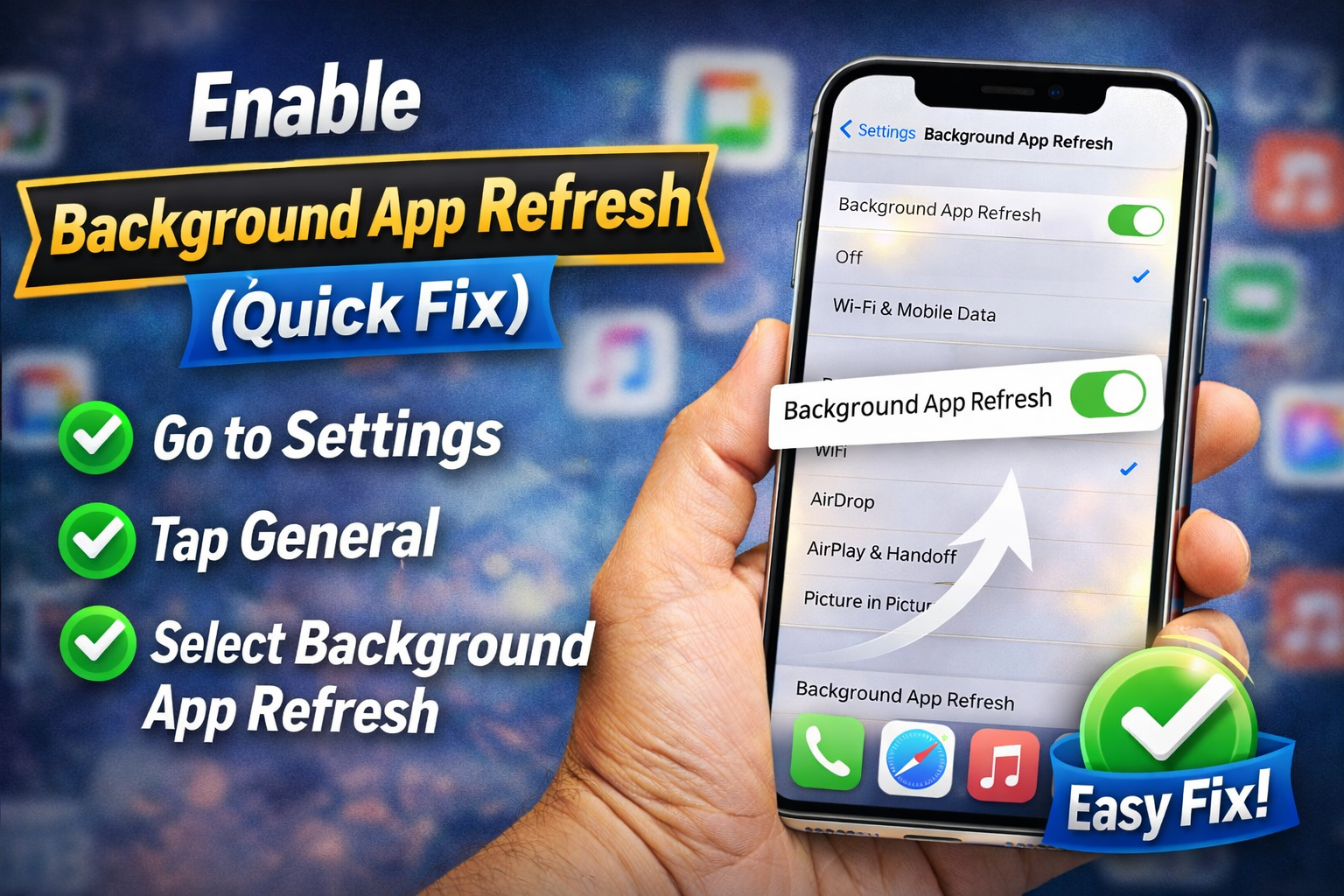
This is the most common reason apps stop working.
Steps:
- Go to Settings
- Tap General
- Select Background App Refresh
- Turn it ON
- Choose Wi-Fi & Mobile Data
Also, ensure it’s enabled for specific apps.
2. Turn Off Low Power Mode
Low Power Mode restricts background processes.
Steps:
- Open Settings
- Tap Battery
- Toggle OFF Low Power Mode
💡 Pro Tip: This is a quick fix if your apps suddenly stopped working.
3. Check App Permissions
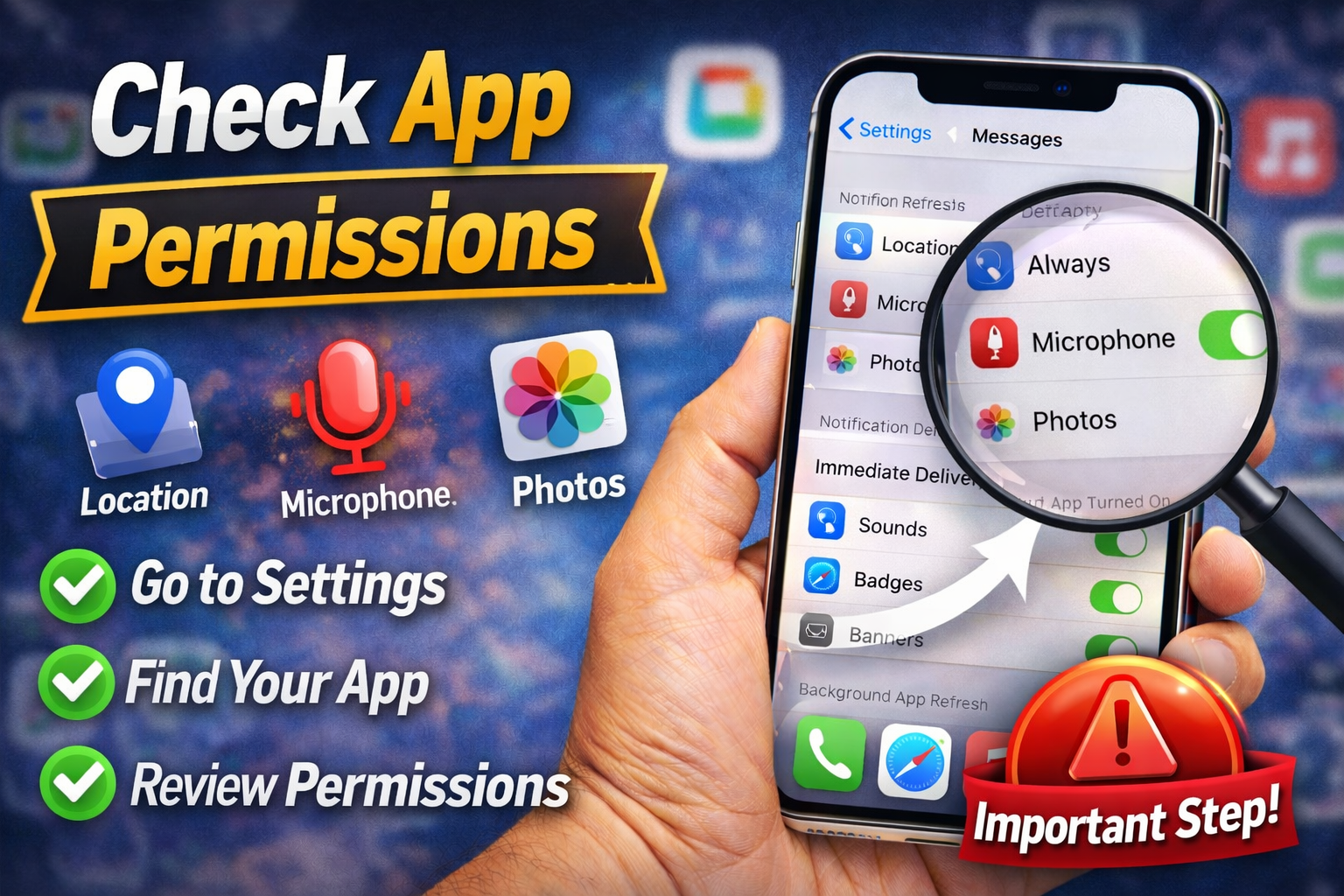
Some apps need special permissions to function properly.
Steps:
- Go to Settings
- Scroll to the app (e.g., Spotify)
- Ensure permissions like:
- Background data
- Notifications
- Location (if needed)
4. Update Apps and iOS
Outdated software often causes bugs.
Steps to update apps:
- Open App Store
- Tap your profile
- Update all apps
Steps to update iOS:
- Go to Settings > General
- Tap Software Update
- Install the latest version
5. Force Close and Reopen the App
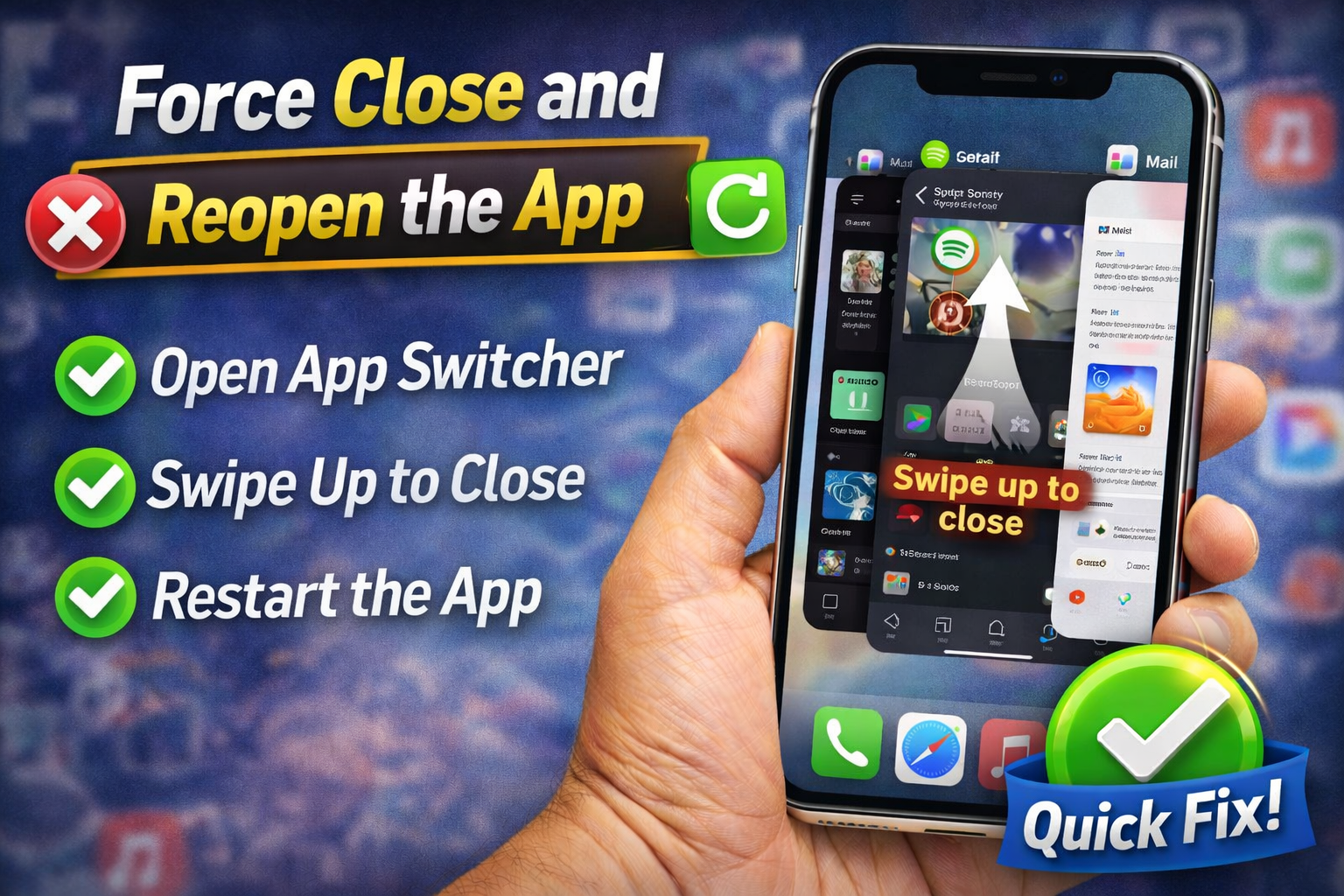
Sometimes apps just glitch.
Steps:
- Swipe up from the bottom
- Find the app
- Swipe it away to close
- Reopen it
⚠️ Don’t do this constantly—it can actually reduce performance if overused.
6. Check Internet Connection
Background tasks often rely on internet access.
Try this:
- Switch between Wi-Fi and mobile data
- Restart your router
- Enable/disable Airplane Mode
7. Restart Your iPhone
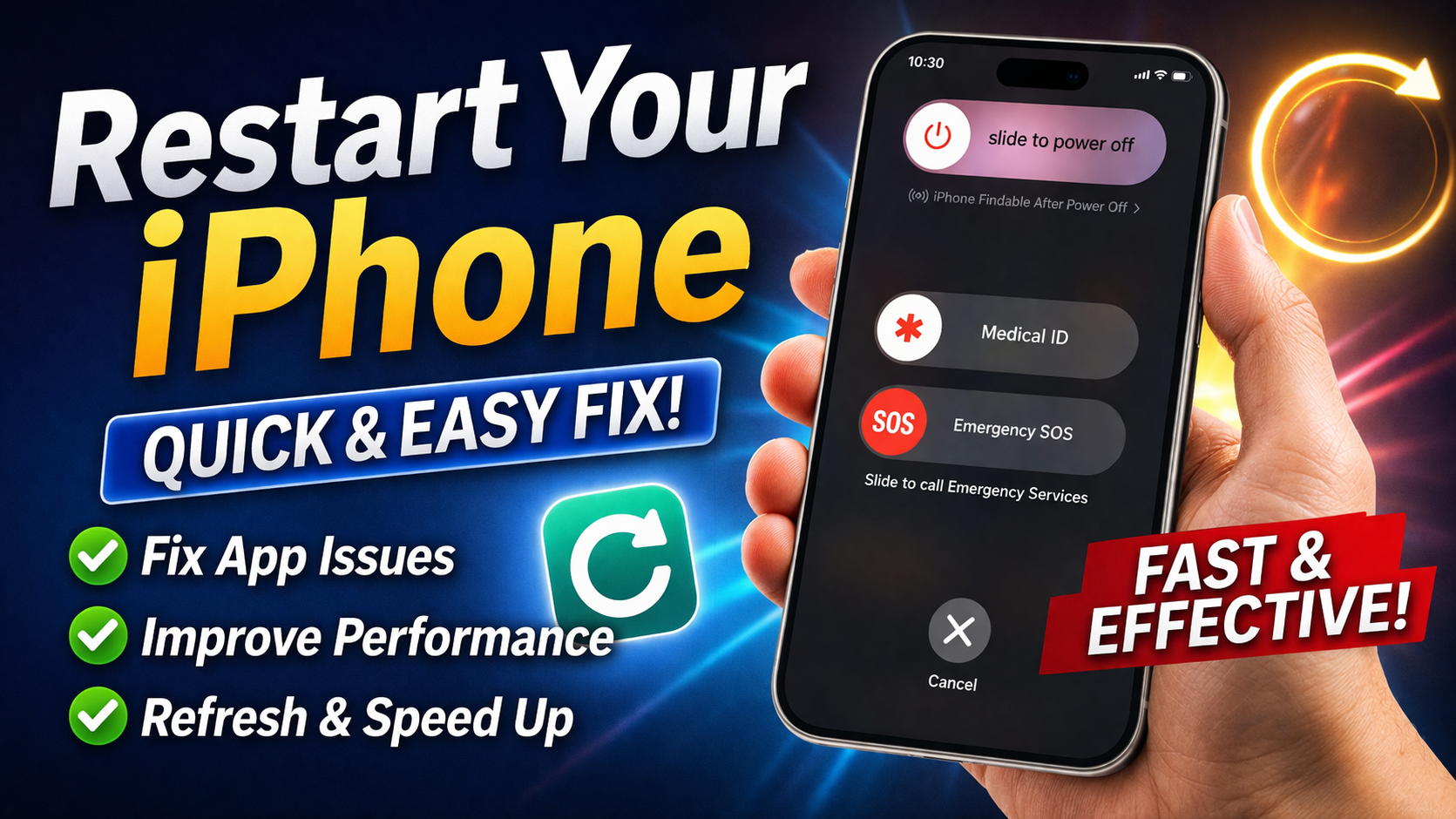
Simple but effective.
Steps:
- Hold the power button + volume button
- Slide to power off
- Turn it back on
💡 This clears temporary system bugs.
8. Reset All Settings
If nothing works, reset system settings (without deleting data).
Steps:
- Go to Settings
- Tap General
- Select Transfer or Reset iPhone
- Tap Reset > Reset All Settings
⚠️ This will reset Wi-Fi passwords and preferences.
Advanced Fixes
If the problem persists, try these more technical solutions.
1. Reinstall the Problematic App
- Delete the app
- Restart your iPhone
- Reinstall from App Store
2. Check Screen Time Restrictions
- Go to Settings > Screen Time
- Tap Content & Privacy Restrictions
- Ensure no background limitations exist
3. Reset Network Settings
- Go to Settings > General
- Tap Transfer or Reset iPhone
- Select Reset > Reset Network Settings
Prevent This Problem in the Future
Here’s how to avoid dealing with apps not working in background iPhone again.
Best Practices:
- Keep Background App Refresh ON
- Avoid using Low Power Mode constantly
- Update apps regularly
- Don’t manually close apps too often
- Maintain stable internet connection
💡 Pro Insight: iOS is designed to manage apps automatically—over-managing can cause issues.
Common FAQs
1. Why do my apps refresh every time I open them?
This usually happens due to limited RAM or disabled Background App Refresh.
2. Does Low Power Mode stop background apps?
Yes, it limits background activity to save battery.
3. Is it bad to close apps manually on iPhone?
Yes, doing it frequently can reduce efficiency and battery life.
4. Why is Spotify not playing in the background?
Check Background App Refresh, permissions, and Low Power Mode settings.
5. Can iOS updates fix this issue?
Yes, updates often fix bugs affecting background performance.
Conclusion
Dealing with apps not working in background iPhone can be frustrating, but the good news is it’s usually easy to fix.
Start with quick fixes like enabling Background App Refresh or turning off Low Power Mode. If needed, move on to advanced solutions like resetting settings or reinstalling apps.
👉 Here’s what works: Most users solve this issue in just a few minutes with the steps above.
If this guide helped you, consider sharing it with others—or explore more troubleshooting tips to keep your iPhone running smoothly!
