Fix Apps Not Saving Data on Android (Easy Guide)
Introduction
Have you ever opened an app on your Android phone only to realize your progress, settings, or saved data are gone? You’re not alone. Many users face this frustrating issue where apps fail to save data properly.
If you’re searching for how to fix apps not saving data on Android, this guide is exactly what you need. We’ll walk you through simple and effective solutions that actually work — from quick fixes to advanced troubleshooting.
Let’s solve it step by step.
Table of Contents
- What is the Problem?
- Why Does This Problem Happen?
- How to Fix Apps Not Saving Data on Android
- Advanced Fixes
- Prevent This Problem in the Future
- Common FAQs
- Conclusion
What is the Problem?
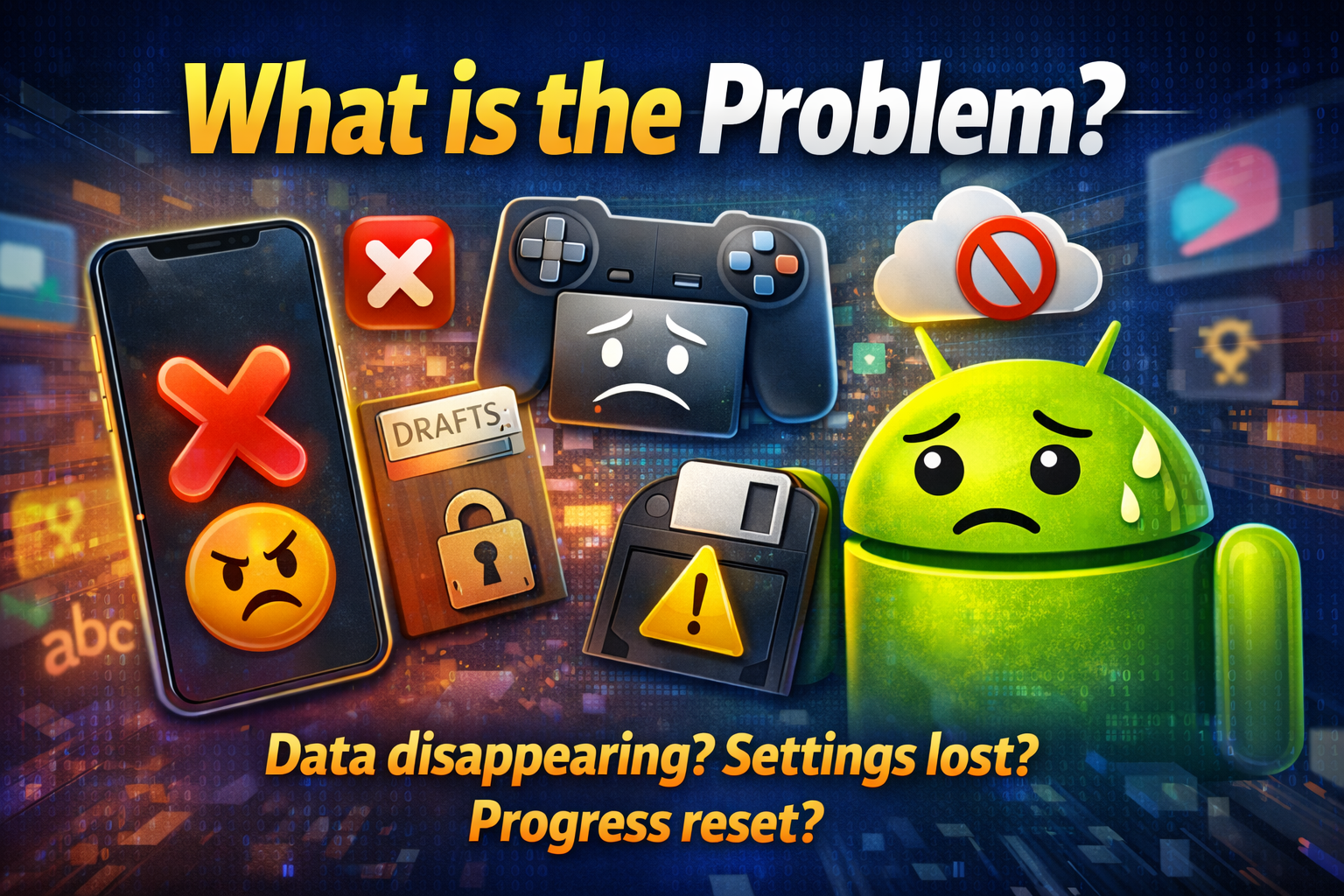
The issue occurs when an app fails to store or retain user data. This could include:
- Login sessions not saved
- Game progress resetting
- App settings reverting to default
- Files or drafts disappearing
- Offline data not being stored
Common Symptoms
- App logs you out every time you open it
- Data disappears after closing the app
- Changes or settings don’t stick
- App behaves like it’s freshly installed
This problem can affect any app — from social media and games to productivity tools.
Why Does This Problem Happen?
There are several reasons why apps may not save data on Android. Understanding these causes helps you fix the issue faster.
1. Storage Issues
- Insufficient internal storage
- Corrupted storage sectors
2. App Permissions Disabled
- Storage permission not granted
- Restricted background activity
3. Cache or Data Corruption
- Broken app cache
- Incomplete app updates
4. Battery Optimization Settings
- Android killing apps in the background
- Restricted data-saving features
5. System Bugs or Outdated Software
- Android OS glitches
- Compatibility issues
6. Third-Party Cleaners
- Apps clearing data automatically
- Aggressive optimization tools
How to Fix Apps Not Saving Data on Android (Step-by-Step)
Here’s what works. Follow these solutions in order for best results.
1. Restart Your Device (Quick Fix)
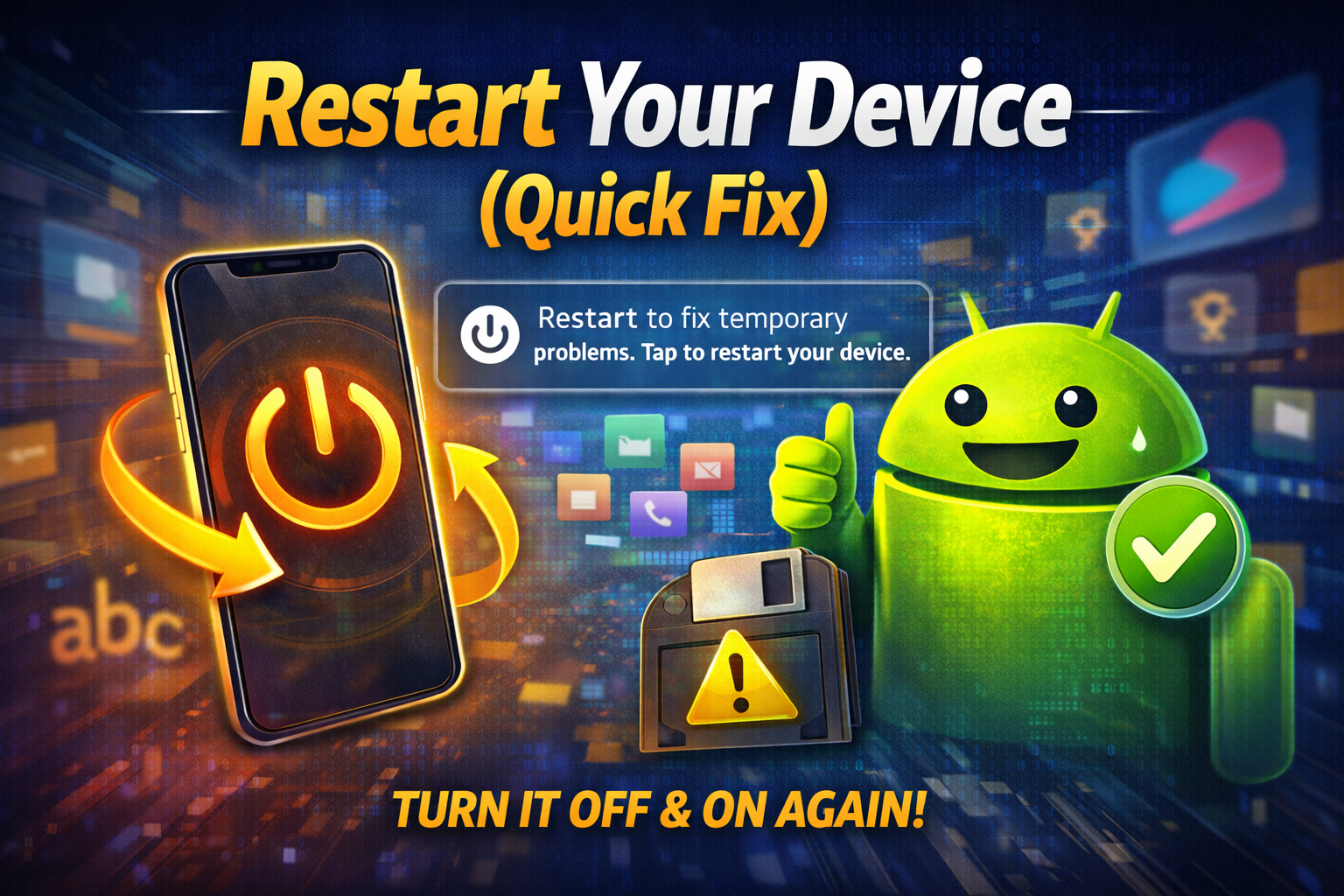
Sometimes the simplest fix works best.
Steps:
- Press and hold the Power button
- Tap Restart
- Reopen the app and check
👉 This clears temporary glitches affecting data saving.
2. Check Storage Space
Apps need space to save data.
Steps:
- Go to Settings > Storage
- Check available space
- Delete unused apps, files, or media
Pro Tip: Keep at least 1–2GB free for smooth performance.
3. Enable App Storage Permissions
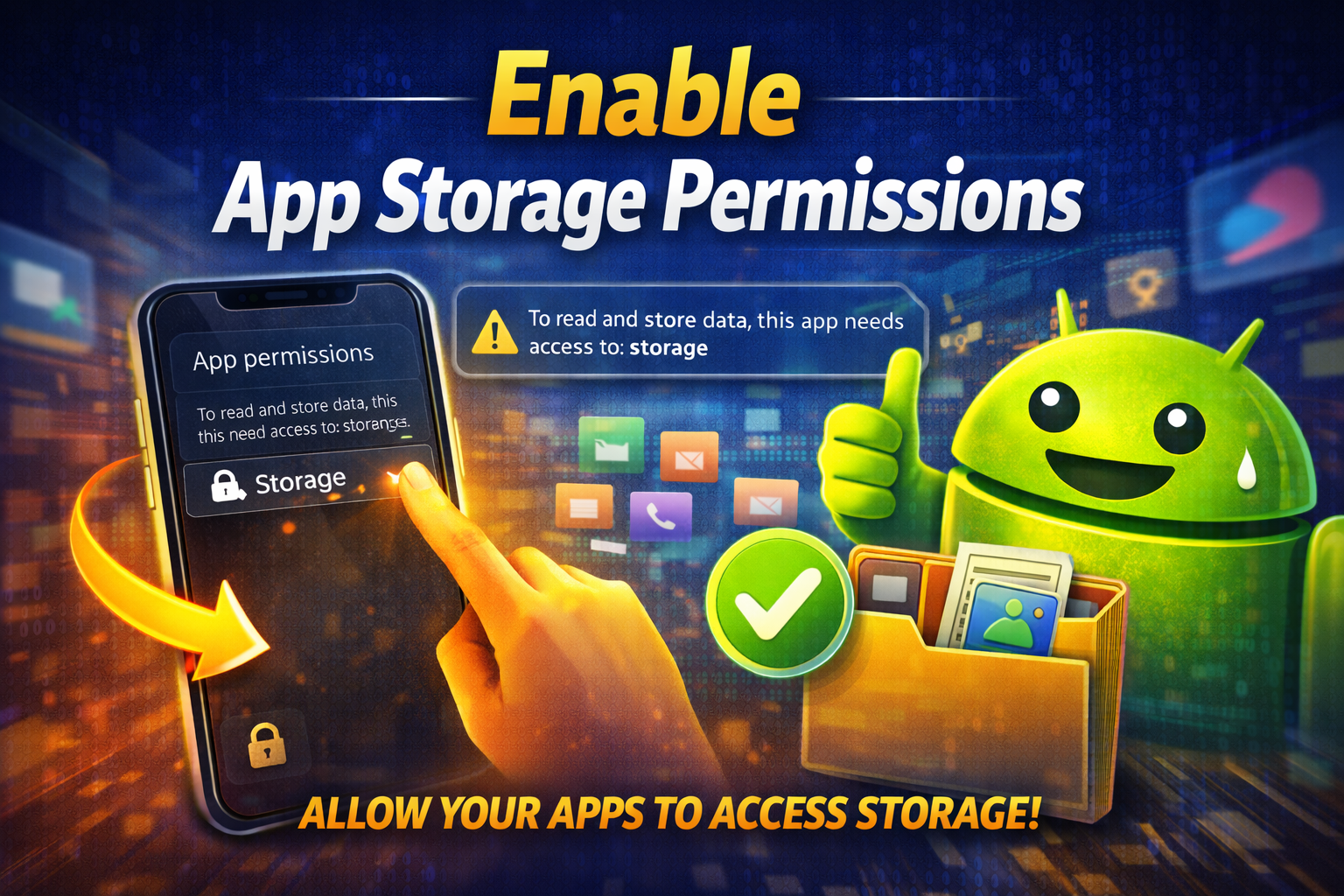
If permissions are off, apps can’t save data.
Steps:
- Go to Settings > Apps
- Select the problematic app
- Tap Permissions
- Enable Storage (or Files & Media)
👉 This is one of the most common causes.
4. Clear App Cache (Not Data)
Corrupted cache can block proper saving.
Steps:
- Go to Settings > Apps
- Select the app
- Tap Storage
- Tap Clear Cache
⚠️ Avoid “Clear Data” unless necessary — it resets the app.
5. Disable Battery Optimization
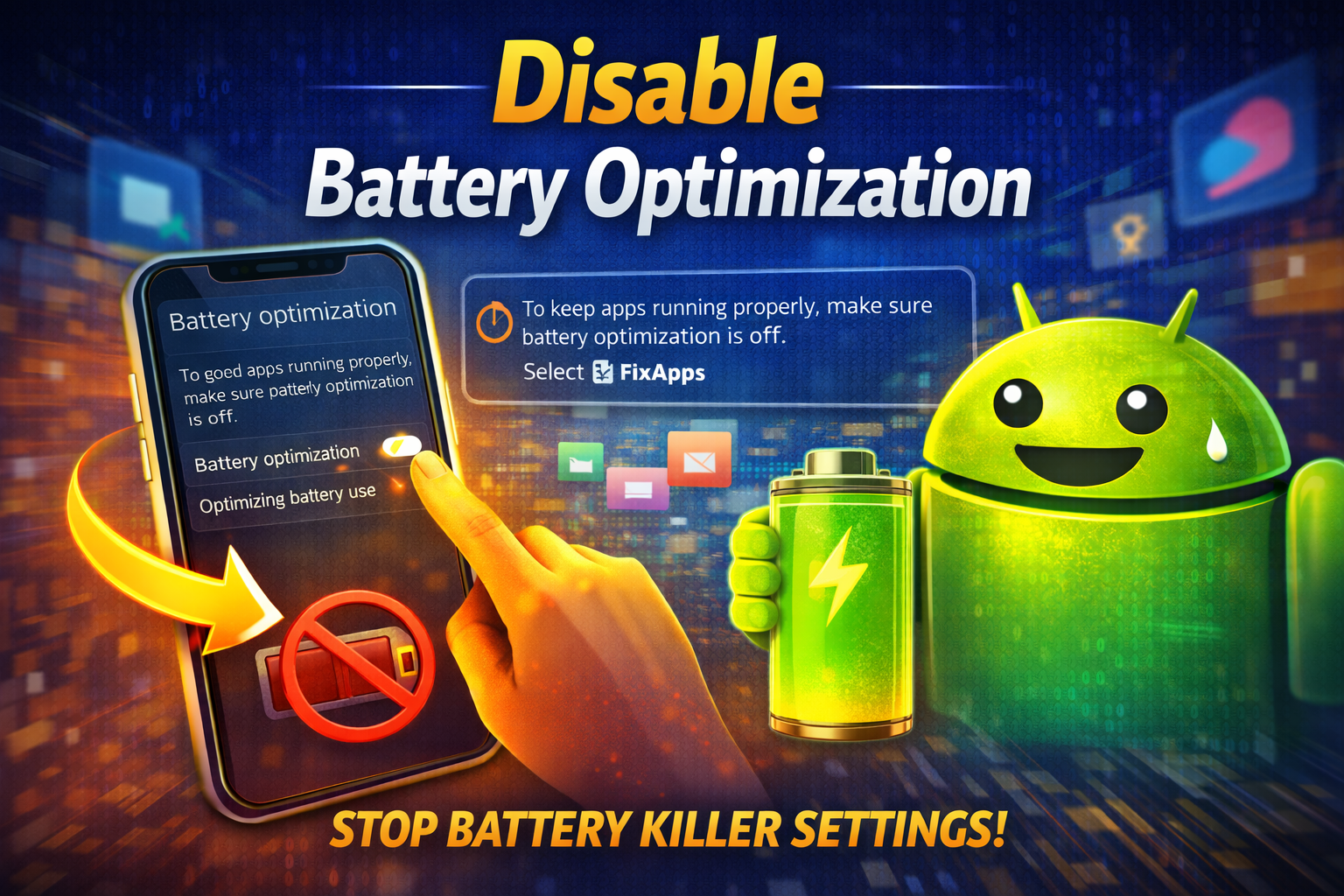
Android may restrict apps from saving data in the background.
Steps:
- Go to Settings > Battery
- Tap Battery Optimization
- Select the app
- Choose Don’t Optimize
👉 Especially important for messaging, notes, and cloud apps.
6. Update the App
Outdated apps often have bugs.
Steps:
- Open Google Play Store
- Search for the app
- Tap Update
👉 Developers frequently fix data-saving issues in updates.
7. Reinstall the App
If nothing works, reinstalling can fix corrupted files.
Steps:
- Uninstall the app
- Restart your phone
- Reinstall from Play Store
⚠️ Make sure to back up important data before uninstalling.
8. Check Data Saver & Background Data
Restricted data usage can prevent syncing.
Steps:
- Go to Settings > Network & Internet
- Tap Data Saver
- Disable it or allow the app
Also:
- Go to Apps > Data Usage
- Enable Background Data
Advanced Fixes (Optional)
For more technical users, try these deeper solutions.
1. Check for Android System Updates
Steps:
- Go to Settings > System > Software Update
- Install any pending updates
👉 Fixes system-level bugs affecting app behavior.
2. Reset App Preferences
This resets all permissions without deleting data.
Steps:
- Go to Settings > Apps
- Tap the three-dot menu
- Select Reset App Preferences
3. Remove Third-Party Cleaner Apps
Some apps interfere with data saving.
Examples:
- RAM cleaners
- Battery boosters
- Storage cleaners
👉 These can automatically delete app data in the background.
4. Check SD Card Issues (If Used)
If apps store data on SD card:
- Remove and reinsert the card
- Check for corruption
- Try switching to internal storage
Prevent This Problem in the Future
Here’s how to avoid this issue going forward.
1. Keep Your Device Updated
Always install Android updates to prevent bugs.
2. Avoid Aggressive Cleaner Apps
They often cause more harm than good.
3. Regularly Check Permissions
Ensure apps have the access they need.
4. Maintain Free Storage Space
Low storage leads to app failures.
5. Use Trusted Apps Only
Poorly coded apps may not save data correctly.
Common FAQs
1. Why does my app keep resetting data on Android?
This usually happens due to disabled storage permissions, low storage space, or aggressive battery optimization settings.
2. Will clearing cache delete my data?
No, clearing cache only removes temporary files. Your personal data remains safe.
3. Why do apps log me out automatically?
This can happen if the app cannot save session data due to permission restrictions or background limitations.
4. Does reinstalling apps fix data-saving issues?
Yes, reinstalling can fix corrupted app files, but you may lose unsaved data.
5. Can antivirus or cleaner apps cause this issue?
Yes, some third-party apps may delete app data or restrict saving processes.
Conclusion
Dealing with apps that won’t save data can be frustrating — but the good news is, it’s usually easy to fix.
By following this guide on how to fix apps not saving data on Android, you can quickly identify the cause and apply the right solution. Start with quick fixes like restarting your device and checking permissions, then move to advanced steps if needed.
👉 Here’s what works:
- Check storage and permissions
- Disable battery optimization
- Update or reinstall apps
If this guide helped you, consider sharing it with others facing the same issue. Got questions or another problem? Drop a comment or explore more of our app troubleshooting guides!
