How to Fix Apps Not Opening with VPN Enabled (Fast Guide)
Introduction
You’re not alone—many users face the frustrating issue where apps refuse to open when a VPN is enabled. You turn on your VPN for privacy or access, and suddenly your favorite apps stop working. Annoying, right?
In this guide, we’ll show you how to fix apps not opening with VPN enabled using simple, practical steps. Whether you’re using Android or iPhone, these solutions are easy to follow and actually work.
Table of Contents
- What is the Problem?
- Why Does This Problem Happen?
- How to Fix Apps Not Opening with VPN Enabled
- Advanced Fixes
- Prevent This Problem in the Future
- Common FAQs
- Conclusion
What is the Problem?
When a VPN is enabled, some apps fail to open, crash instantly, or get stuck on loading screens. This issue affects both mobile and desktop users.
Common Symptoms
- Apps won’t open at all
- Apps crash immediately after launch
- Endless loading or “Connecting…” screen
- “No internet connection” error
- Certain features not working properly
This problem usually appears after enabling a VPN connection or switching servers.
Why Does This Problem Happen?
Understanding the cause helps you fix the issue faster. Here are the most common reasons:
1. App Blocking VPN Traffic
Some apps (like banking or streaming apps) block VPN connections for security or licensing reasons.
2. Server Compatibility Issues
Not all VPN servers work well with every app. Some servers may be blacklisted.
3. DNS or IP Conflicts
VPNs change your IP address and DNS settings, which can confuse certain apps.
4. Slow or Unstable VPN Connection
A weak VPN connection can prevent apps from loading properly.
5. App or VPN Bugs
Outdated apps or VPN software may have compatibility issues.
6. Firewall or Security Restrictions
Security settings on your device may block VPN-related traffic.
How to Fix Apps Not Opening with VPN Enabled
Here’s what works. Follow these steps one by one:
1. Quick Fix: Restart Your Device

Sometimes, the simplest solution works best.
Steps:
- Turn off your VPN
- Restart your device
- Turn the VPN back on
- Try opening the app again
👉 This clears temporary glitches.
2. Switch VPN Server
Not all servers are equal.
Steps:
- Open your VPN app
- Change to a different country or server
- Reconnect the VPN
- Open the app again
💡 Pro Tip: Choose a nearby server for better speed.
3. Disable VPN for Specific Apps (Split Tunneling)
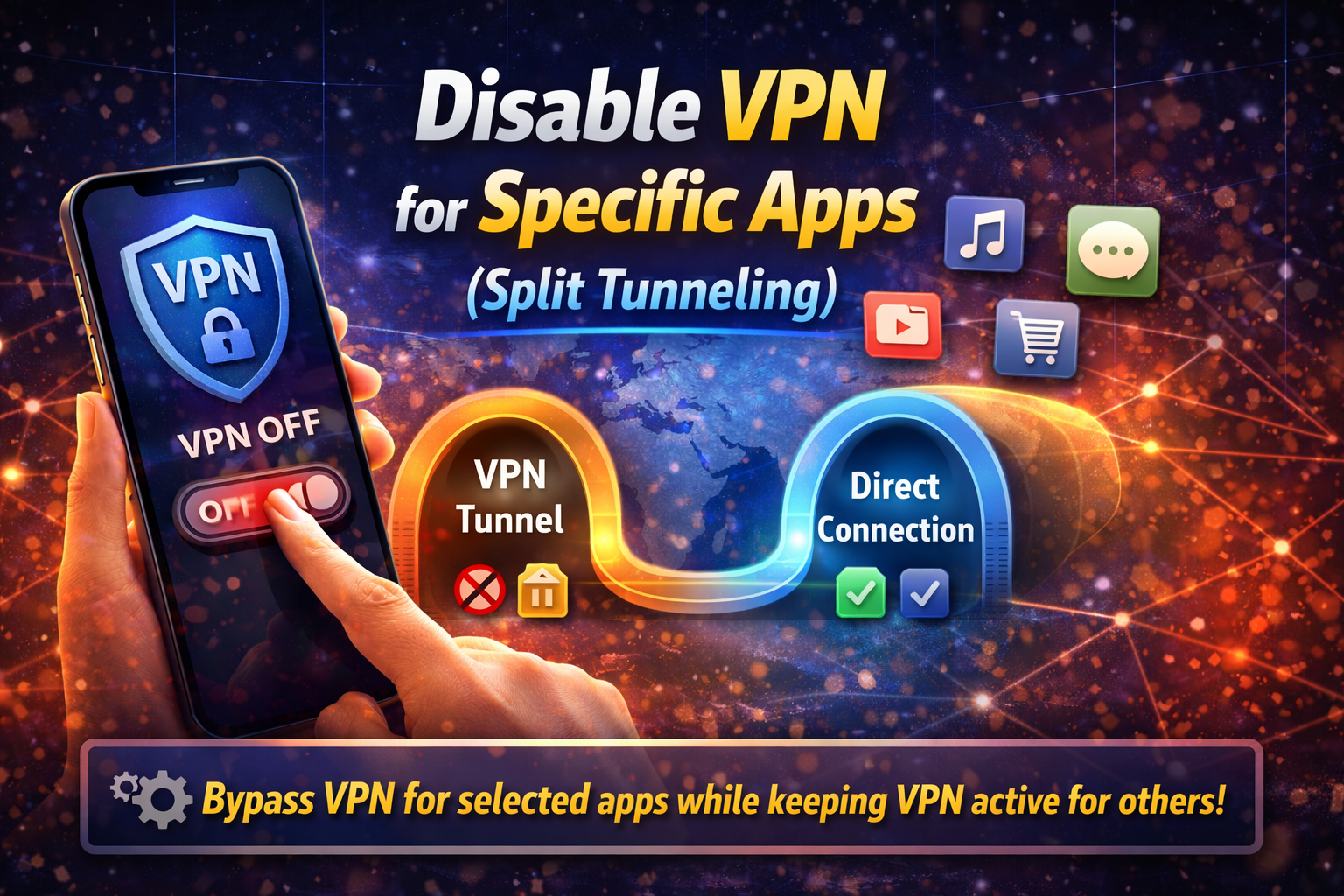
Some VPNs allow you to exclude apps.
Steps:
- Open VPN settings
- Find “Split Tunneling” or “App Exclusions”
- Add the problematic app
- Save changes and restart the app
👉 This allows the app to use your normal internet connection.
4. Clear App Cache (Android)
Corrupted cache can cause issues.
Steps:
- Go to Settings > Apps
- Select the app
- Tap Storage
- Click Clear Cache
⚠️ Avoid “Clear Data” unless necessary.
5. Update the App and VPN
Outdated software often causes compatibility problems.
Steps:
- Update the app from Google Play or App Store
- Update your VPN app
- Restart your device
👉 Here’s what works: Always keep apps updated.
6. Change VPN Protocol
Different protocols affect performance.
Steps:
- Open VPN settings
- Switch protocol (e.g., OpenVPN, WireGuard, IKEv2)
- Reconnect and test the app
💡 WireGuard is usually faster and more stable.
7. Disable Battery Saver or Data Saver
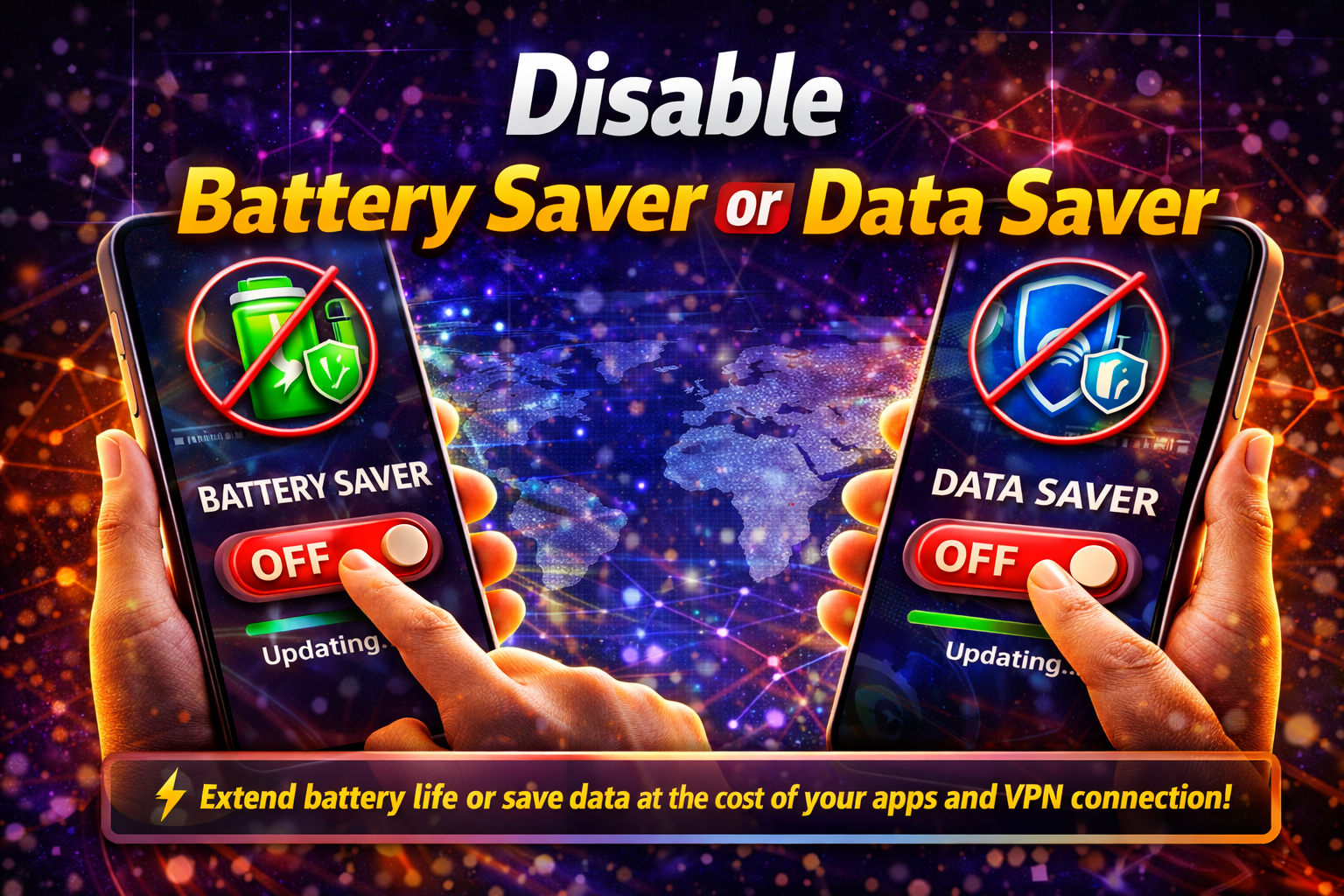
These modes can block background VPN activity.
Steps:
- Turn off Battery Saver
- Disable Data Saver
- Allow VPN to run in the background
8. Reinstall the App
If nothing works, reinstalling can fix corrupted files.
Steps:
- Uninstall the app
- Restart your device
- Reinstall from official store
- Test with VPN enabled
Advanced Fixes (For Technical Users)
If the issue persists, try these advanced solutions:
1. Change DNS Settings
Switch to public DNS like:
- Google DNS: 8.8.8.8 / 8.8.4.4
- Cloudflare DNS: 1.1.1.1
👉 This can resolve connection conflicts.
2. Check Firewall Settings
Ensure your firewall isn’t blocking VPN traffic.
- Allow VPN app through firewall
- Disable strict security temporarily (for testing)
3. Use a Different VPN Provider
Some VPNs are better optimized than others.
💡 If your VPN constantly causes issues, switching providers may solve it.
Prevent This Problem in the Future

Avoid dealing with this issue again by following these tips:
✔ Choose a Reliable VPN
Use trusted VPN services with good app compatibility.
✔ Keep Apps Updated
Regular updates fix bugs and improve compatibility.
✔ Use Split Tunneling Wisely
Exclude apps that don’t work with VPN.
✔ Avoid Overloaded Servers
Pick less crowded or premium servers.
✔ Monitor Permissions
Ensure apps have proper internet access.
Common FAQs
1. Why do some apps not work with VPN?
Some apps block VPNs for security, privacy, or licensing reasons.
2. Is it safe to disable VPN for certain apps?
Yes, using split tunneling is safe if you trust the app.
3. Which VPN protocol is best for apps?
WireGuard is usually the fastest and most stable option.
4. Can a VPN slow down apps?
Yes, especially if the server is far away or overloaded.
5. Should I always use a VPN?
Not always—disable it for apps that don’t support VPN connections.
Conclusion
Dealing with apps that won’t open when a VPN is enabled can be frustrating—but it’s fixable. From switching servers to using split tunneling, there are plenty of simple solutions that work.
Start with the quick fixes, then move to advanced options if needed. Remember, you’re not alone—and now you know exactly how to fix apps not opening with VPN enabled.
👉 If this guide helped you, share it with others or explore more of our App Problems solutions for quick and easy fixes!
