How to Fix Apps Not Working with Bluetooth Enabled (Easy Guide)
Introduction
You’re not alone—many users experience apps suddenly malfunctioning when Bluetooth is enabled. Maybe your music app won’t load, your social apps freeze, or certain features just stop working when connected to a Bluetooth device.
Frustrating, right?
In this guide, we’ll show you how to fix apps not working with Bluetooth enabled using simple, practical steps. Whether you’re using Android or iPhone, these solutions are designed to get your apps running smoothly again—fast.
Table of Contents
- What is the Problem?
- Why Does This Problem Happen?
- How to Fix Apps Not Working with Bluetooth Enabled
- Advanced Fixes
- Prevent This Problem in the Future
- Common FAQs
- Conclusion
What is the Problem?
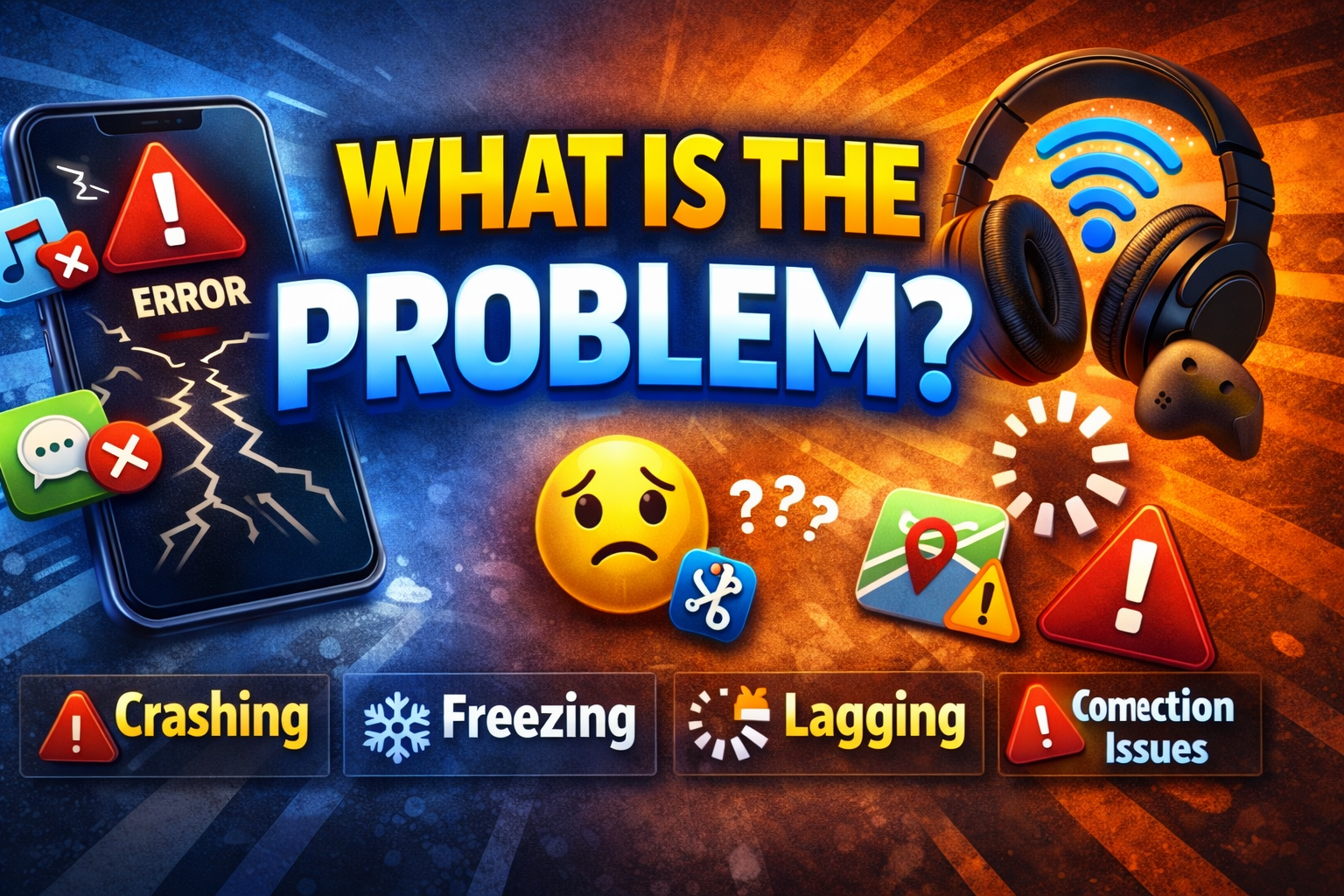
The issue occurs when certain apps stop functioning properly while Bluetooth is turned on. This can affect various types of apps, including:
- Music and audio apps
- Messaging apps
- Navigation apps
- Social media apps
Common Symptoms
- Apps freezing or crashing when Bluetooth is on
- Audio apps not playing through Bluetooth devices
- Apps failing to load or respond
- Delayed or laggy performance
- Features not working properly (e.g., voice input, calls)
If you’ve noticed these signs, chances are your device is experiencing a Bluetooth-related app conflict.
Why Does This Problem Happen?
There isn’t just one cause—this issue can result from several technical and user-related factors.
1. Bluetooth Interference
Nearby devices or weak connections can interfere with app performance.
2. App Bugs or Compatibility Issues
Some apps aren’t optimized for certain Bluetooth devices or OS versions.
3. Outdated Software
Old app versions or system updates can cause conflicts with Bluetooth functionality.
4. Incorrect Permissions
Apps may not have access to Bluetooth or related features like location.
5. Cache and Temporary Data Issues
Corrupted cache files can disrupt how apps interact with Bluetooth.
6. Background Process Conflicts
Multiple apps using Bluetooth simultaneously can overload the system.
How to Fix Apps Not Working with Bluetooth Enabled
Here’s what works. Follow these step-by-step solutions to fix the problem quickly.
1. Turn Bluetooth Off and On (Quick Fix)
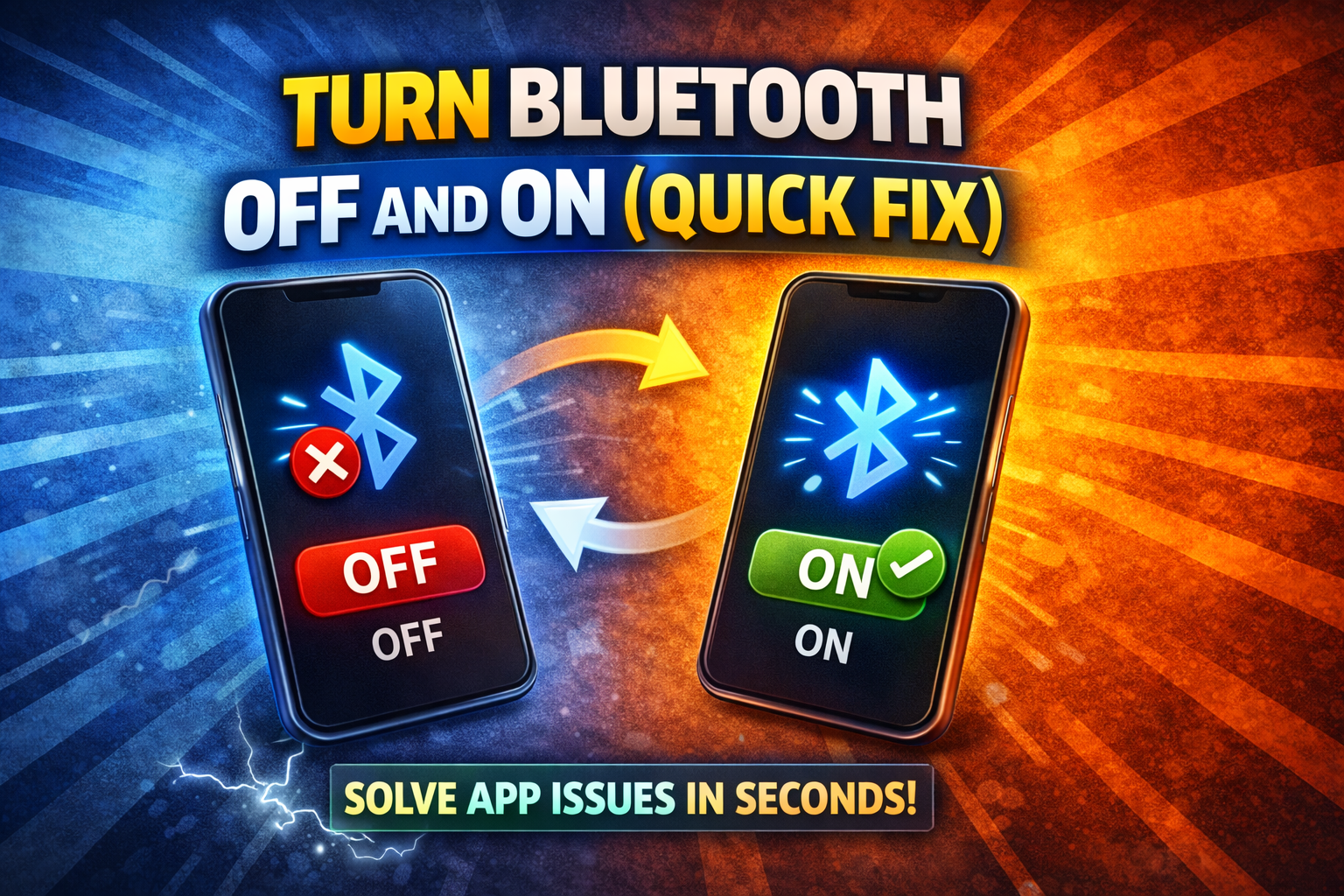
This simple reset often solves temporary glitches.
Steps:
- Go to Settings
- Tap Bluetooth
- Turn it Off, wait 10 seconds
- Turn it On again
👉 Quick Fix: This refreshes the connection and clears minor bugs.
2. Restart Your Device
Restarting clears system errors that may affect Bluetooth and apps.
Steps:
- Hold the power button
- Tap Restart
- Wait for the device to reboot
This is one of the fastest and most effective fixes.
3. Update Apps and System Software
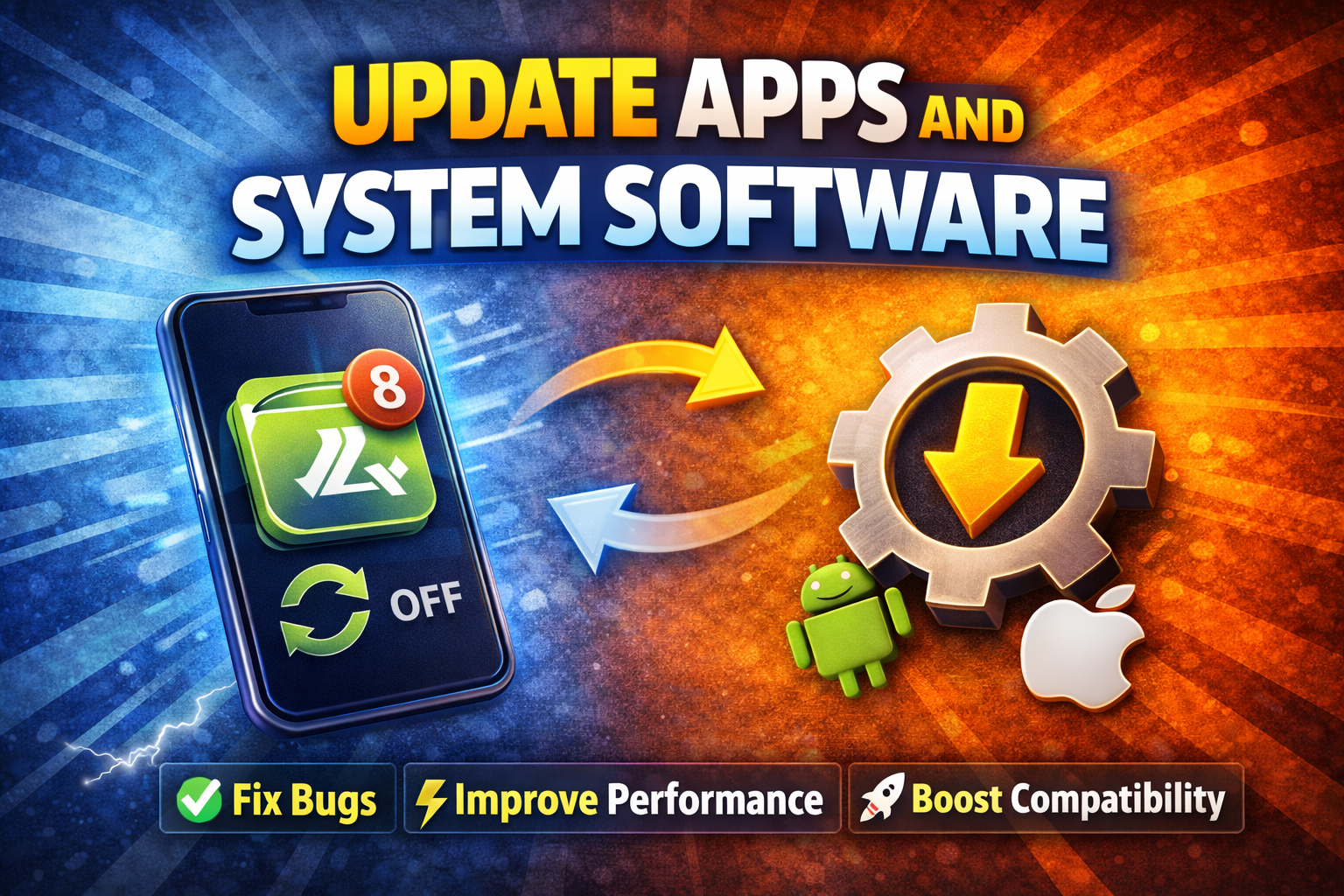
Outdated apps can cause compatibility issues.
Steps:
- Open App Store / Google Play Store
- Update all apps
- Go to Settings > Software Update
- Install any available updates
👉 Pro Tip: Updates often fix hidden bugs affecting Bluetooth performance.
4. Check App Permissions
Apps need proper permissions to function correctly with Bluetooth.
Steps (Android):
- Go to Settings > Apps
- Select the app
- Tap Permissions
- Enable Bluetooth / Nearby Devices / Location
Steps (iPhone):
- Go to Settings
- Scroll to the app
- Enable Bluetooth access
5. Clear App Cache (Android Only)
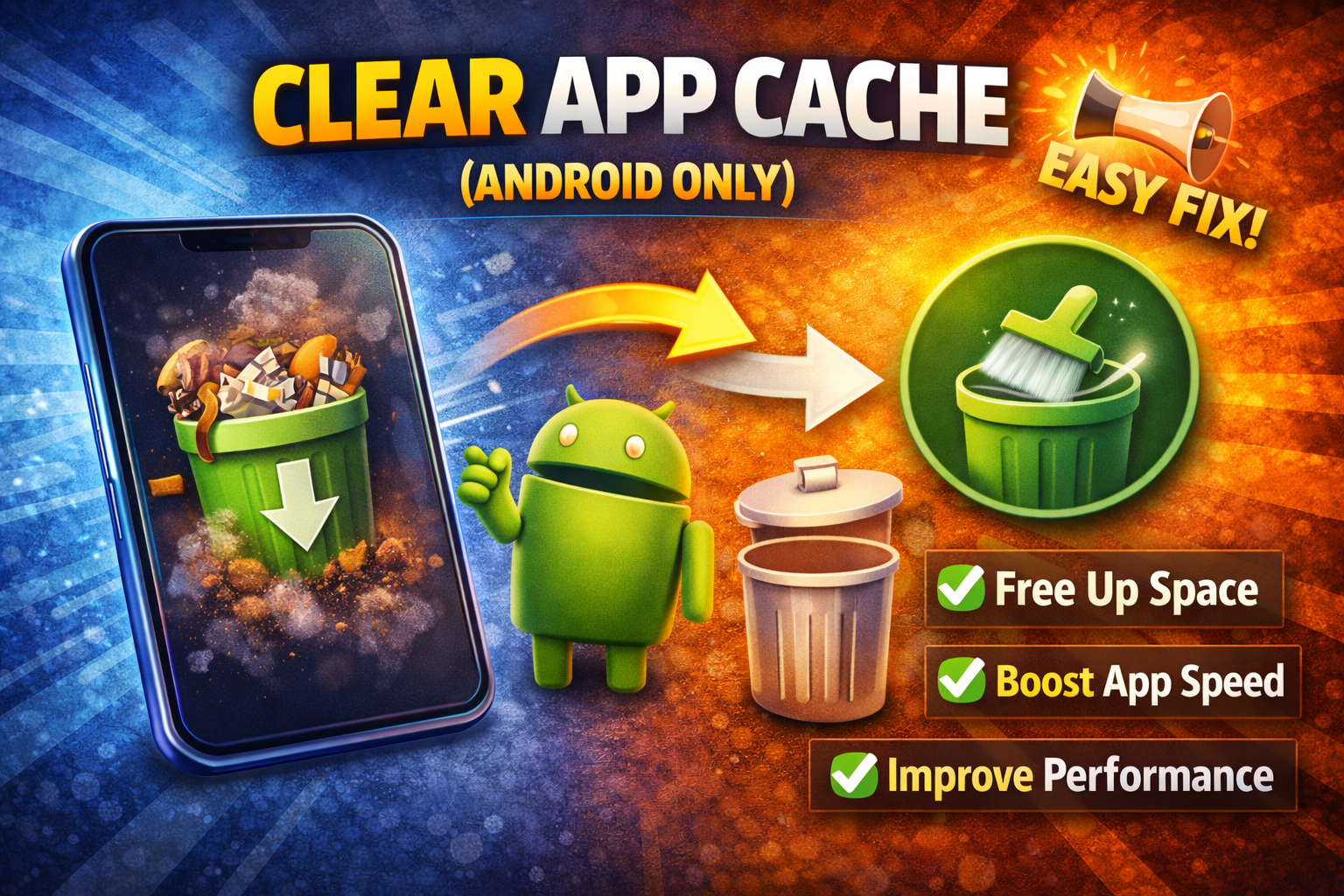
Cache issues can cause apps to malfunction.
Steps:
- Go to Settings > Apps
- Select the affected app
- Tap Storage
- Tap Clear Cache
⚠️ Warning: Don’t clear data unless necessary—it may delete saved info.
6. Disconnect and Reconnect Bluetooth Device
Sometimes the issue lies with the connected device.
Steps:
- Go to Bluetooth settings
- Tap the connected device
- Select Forget / Unpair
- Reconnect the device
This helps eliminate connection errors.
7. Close Background Apps
Too many apps running can interfere with Bluetooth.
Steps:
- Open recent apps
- Close unused apps
- Reopen the affected app
👉 Here’s what works: Freeing up system resources improves performance instantly.
8. Reset Network Settings
If nothing else works, reset network settings.
Steps:
- Go to Settings > General Management / System
- Tap Reset
- Select Reset Network Settings
⚠️ This will remove saved Wi-Fi and Bluetooth connections.
Advanced Fixes (Optional)
If basic solutions don’t work, try these advanced methods.
1. Reset All Settings (iPhone)
- Go to Settings > General > Transfer or Reset iPhone
- Tap Reset All Settings
This won’t delete data but resets configurations.
2. Boot into Safe Mode (Android)
Safe Mode helps identify if a third-party app is causing the issue.
- Hold power button
- Tap and hold Power Off
- Select Safe Mode
If the issue disappears, a third-party app is the cause.
3. Reinstall the Problematic App
- Uninstall the app
- Restart your phone
- Reinstall from the store
This removes corrupted files.
Prevent This Problem in the Future
Avoid dealing with this issue again by following these tips:
- ✅ Keep your apps and OS updated
- ✅ Avoid connecting to too many Bluetooth devices at once
- ✅ Regularly clear app cache
- ✅ Only install trusted apps
- ✅ Turn off Bluetooth when not in use
👉 Pro Insight: Many app issues are caused by poor device management—not just bugs.
Common FAQs
1. Why do apps stop working when Bluetooth is on?
Because of interference, permission issues, or app compatibility problems with Bluetooth connections.
2. Does Bluetooth affect app performance?
Yes, especially if multiple apps are using Bluetooth simultaneously or if the connection is unstable.
3. How do I know if Bluetooth is the problem?
Turn Bluetooth off. If the app works normally again, Bluetooth is likely the cause.
4. Will resetting network settings fix the issue?
In many cases, yes. It clears connection-related bugs affecting Bluetooth.
5. Is this issue common?
Yes—you’re not alone. Many users report similar problems across both Android and iPhone devices.
Conclusion
Dealing with apps that stop working when Bluetooth is enabled can be frustrating—but the good news is, it’s usually easy to fix.
From quick solutions like toggling Bluetooth to more advanced fixes like resetting network settings, there are multiple ways to solve the issue. Start with the simple steps, and you’ll likely see immediate improvement.
👉 Here’s what works: Keep your device updated, manage connections wisely, and regularly clean up your apps.
If this guide helped you, feel free to share it or explore more troubleshooting tips. Got questions? Drop a comment we’re here to help!
