Fix Apps Not Working with Location Services Off (Easy Guide)
Introduction
You open your favorite app—maybe a ride-hailing app, food delivery service, or even a weather app—and suddenly it stops working. It won’t load, crashes, or shows errors. Frustrating, right?
You’re not alone.
This issue often happens when location services are turned off, and many apps rely heavily on location data to function properly. In this guide, we’ll show you how to fix apps not working with location services off using simple, practical steps anyone can follow.
Let’s get your apps working again—fast.
Table of Contents
- What is the Problem?
- Why Does This Problem Happen?
- How to Fix Apps Not Working with Location Services Off
- Advanced Fixes
- Prevent This Problem in the Future
- Common FAQs
- Conclusion
What is the Problem?
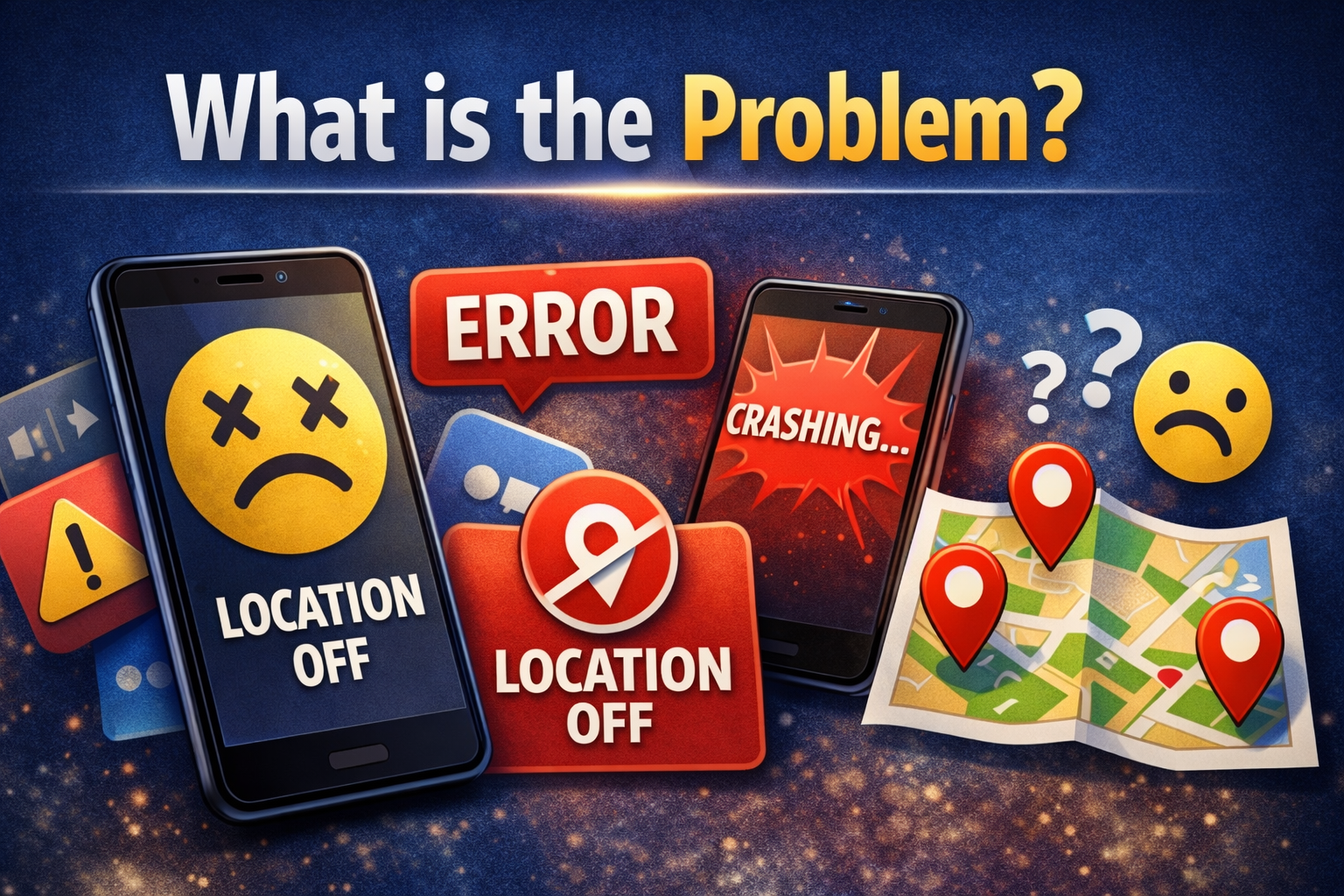
When location services are turned off, some apps may stop functioning correctly or refuse to work entirely.
Common Symptoms
- Apps won’t open or keep crashing
- “Location required” or “Enable GPS” error messages
- Maps or navigation apps not loading
- Ride-sharing or delivery apps not finding your location
- Weather apps showing incorrect or no data
Many modern apps depend on real-time location data. Without it, they simply can’t perform their core functions.
Why Does This Problem Happen?
There are several reasons why apps stop working when location services are off:
1. App Dependency on Location
Apps like Google Maps, Uber, or food delivery apps require GPS to function.
2. Permissions Settings
The app may be restricted from accessing location data, even if GPS is on.
3. Background Restrictions
Some apps need location access in the background, not just when opened.
4. System-Level Settings
Your phone’s global location services might be disabled.
5. App Bugs or Outdated Versions
Older versions of apps may not handle location settings properly.
6. Network Issues
Location often works with Wi-Fi or mobile data—if those are unstable, apps may fail.
How to Fix Apps Not Working with Location Services Off (Step-by-Step)
Here’s what works—follow these steps one by one:
1. Turn On Location Services (Quick Fix)
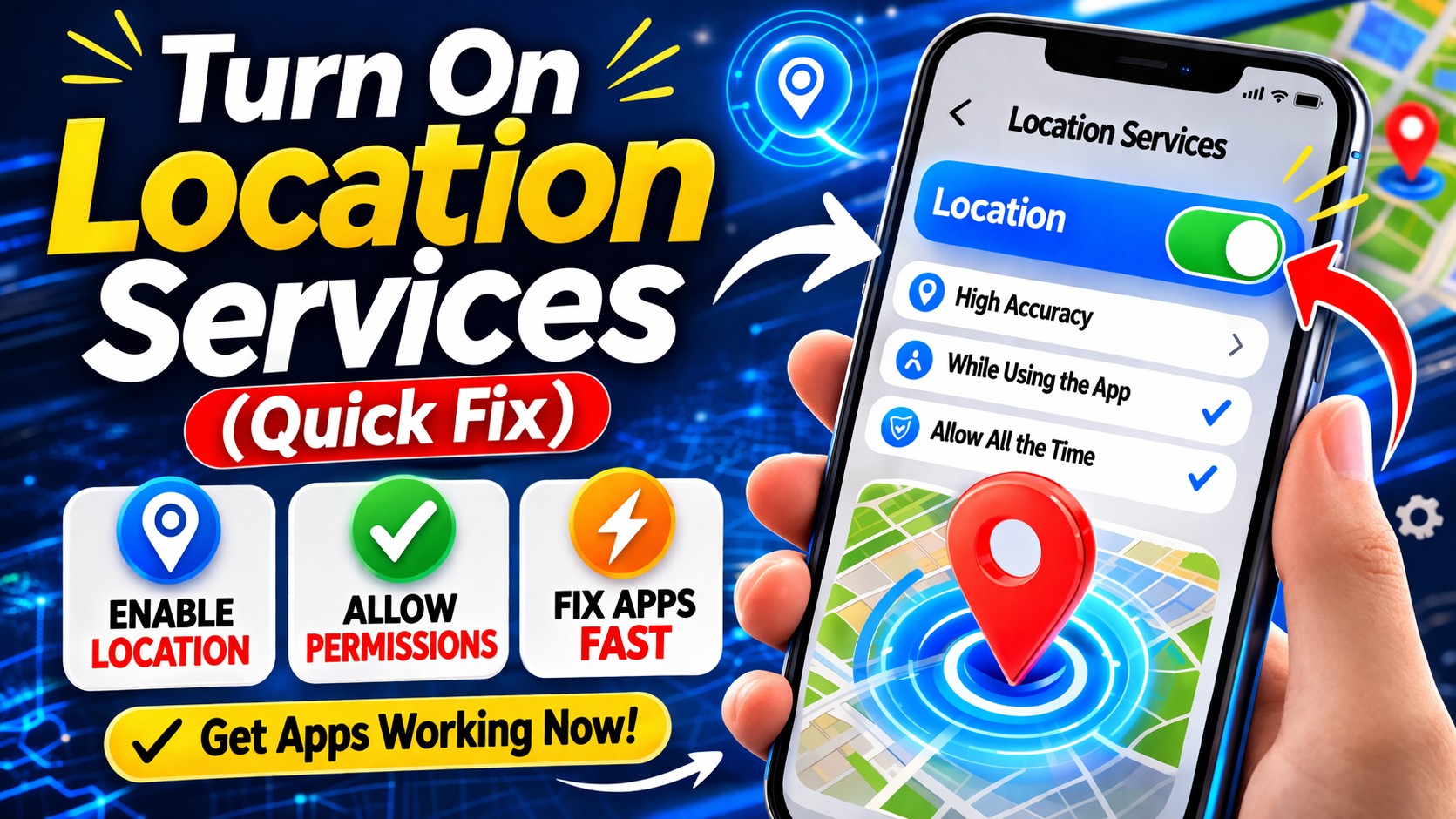
This is the most common solution.
On Android:
- Go to Settings
- Tap Location
- Turn it ON
On iPhone:
- Go to Settings
- Tap Privacy & Security > Location Services
- Enable Location Services
✅ Pro Tip: Set accuracy to “High” for better performance.
2. Enable Location Permission for the App
Even if location is on, the app might not have permission.
Steps:
- Go to Settings > Apps
- Select the app
- Tap Permissions > Location
- Choose:
- Allow all the time (best)
- or While using the app
⚠️ If set to “Deny,” the app won’t work properly.
3. Restart the App
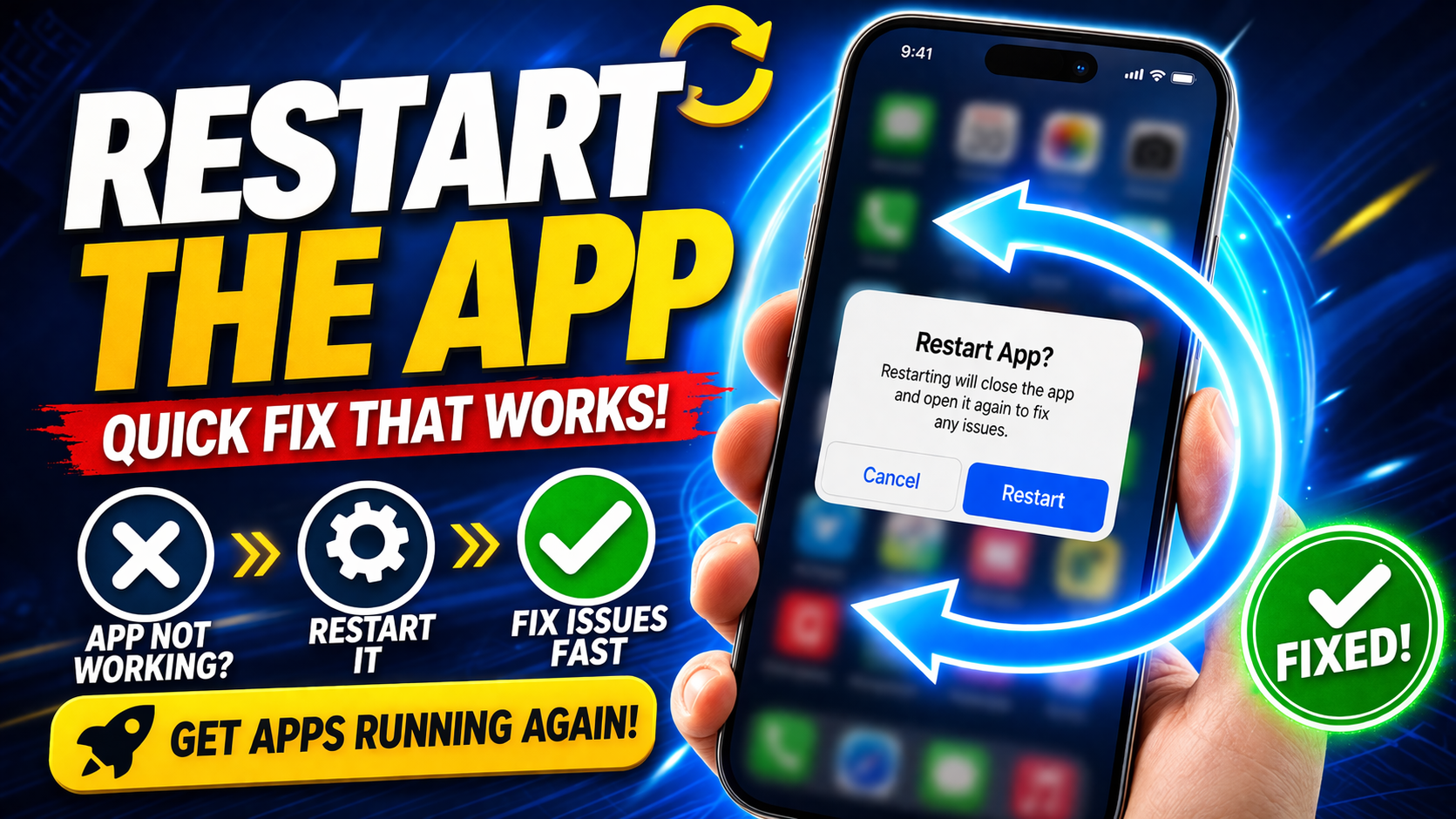
Sometimes apps glitch when location settings change.
- Close the app completely
- Reopen it
✅ This refreshes the app’s connection to GPS services.
4. Restart Your Device
A simple restart can fix hidden system issues.
- Hold the power button
- Tap Restart
💡 This clears temporary bugs affecting location services.
5. Check Internet Connection
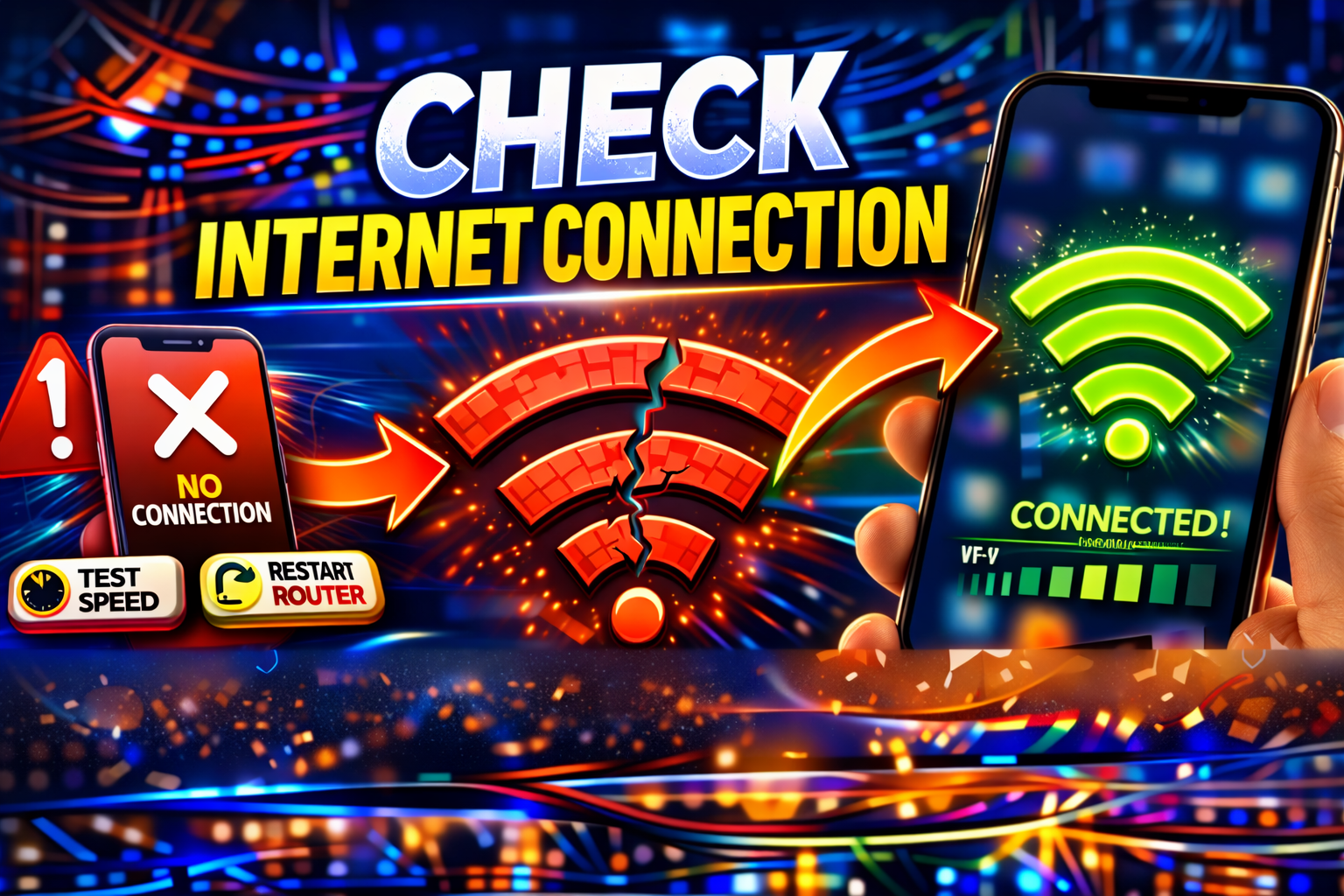
Location-based apps often need internet access.
- Switch between Wi-Fi and mobile data
- Turn Airplane mode ON/OFF
📶 Weak connectivity can break location-based features.
6. Update the App
Outdated apps may not handle location settings correctly.
- Open Google Play Store / App Store
- Search for the app
- Tap Update
🚀 Updated apps fix bugs and improve compatibility.
7. Clear App Cache (Android Only)

Corrupted cache can cause location issues.
Steps:
- Go to Settings > Apps
- Select the app
- Tap Storage
- Click Clear Cache
⚠️ Don’t worry—this won’t delete your data.
8. Reinstall the App
If nothing works, reinstalling is a powerful fix.
- Uninstall the app
- Restart your phone
- Install it again
💡 This resets permissions and removes bugs.
Advanced Fixes (Optional)
For more technical users, try these:
1. Reset Location Settings
On Android:
- Settings > Location > Location Services > Reset
On iPhone:
- Settings > General > Transfer or Reset iPhone > Reset Location & Privacy
2. Check Battery Saver Mode
Battery saver can disable location services.
- Go to Settings > Battery
- Turn off Power Saving Mode
⚡ Many apps won’t work properly in this mode.
3. Enable Google Location Accuracy (Android)
- Go to Settings > Location > Location Services
- Enable Google Location Accuracy
📍 This improves GPS precision using Wi-Fi and mobile data.
Prevent This Problem in the Future

Here’s how to avoid this issue:
- ✅ Keep location services ON for important apps
- ✅ Regularly update apps and OS
- ✅ Avoid aggressive battery-saving settings
- ✅ Allow background location access for essential apps
- ✅ Don’t restrict permissions unnecessarily
💡 Pro Insight: Apps like maps, delivery, and transport apps always need location access to work smoothly.
Common FAQs
1. Can apps work without location services?
Some apps can, but many (like maps or ride apps) require location to function properly.
2. Why does my app crash when location is off?
Because the app depends on GPS data and fails when it can’t access it.
3. Is it safe to keep location services on?
Yes, as long as you manage app permissions and only allow trusted apps.
4. Does turning off location save battery?
Yes, but it may break important app features.
5. Why is my location inaccurate even when it’s on?
It could be due to weak GPS signal, poor internet, or disabled high-accuracy mode.
Conclusion
Dealing with apps not working can be frustrating—especially when it’s caused by something as simple as location settings.
Now you know exactly how to fix apps not working with location services off using quick, effective solutions. From enabling permissions to updating apps, these steps cover everything you need.
👉 Here’s what works:
Start with the basics turn on location, check permissions, and restart your device. If needed, move on to advanced fixes.
If this guide helped you, consider sharing it or exploring more troubleshooting tips. Got questions? Drop them in the comments we’re here to help!
