Fix Apps Not Syncing with Cloud Services (Easy Guide)
Introduction
You open your app expecting your latest data to be there… but it’s missing. No updates, no new files just outdated information. Frustrating, right?
You’re not alone. Many users face this issue where apps fail to sync with cloud services like Google Drive, iCloud, or Dropbox.
In this guide, you’ll learn how to fix apps not syncing with cloud services using simple, effective solutions. Whether you’re using Android, iPhone, or desktop apps, here’s what works.
Table of Contents
- What is the Problem?
- Why Does This Problem Happen?
- How to Fix Apps Not Syncing with Cloud Services
- Advanced Fixes
- Prevent This Problem in the Future
- Common FAQs
- Conclusion
What is the Problem?
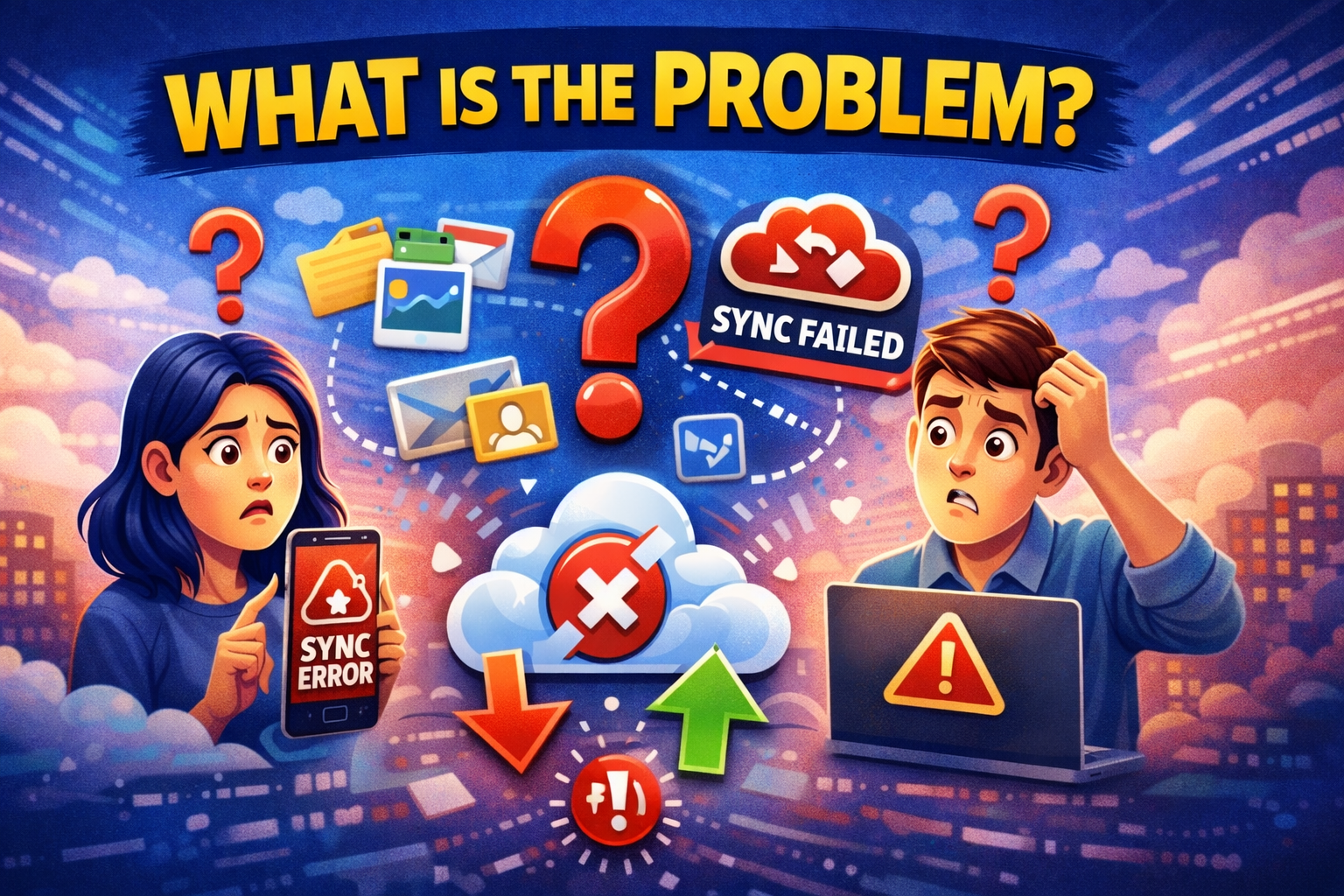
When apps are not syncing with cloud services, it means your data isn’t being updated across devices or servers.
Common Symptoms:
- Changes don’t appear on other devices
- Files not uploading or downloading
- “Sync paused” or “Sync failed” messages
- Missing photos, notes, or documents
- App shows outdated data
This issue can affect apps like:
- Google Drive / Google Photos
- iCloud / Apple Notes
- Dropbox
- WhatsApp backups
- Email apps
Why Does This Problem Happen?
There are several reasons why apps stop syncing with cloud services.
1. Poor or Unstable Internet Connection
Cloud syncing requires a stable connection. Weak Wi-Fi or mobile data can interrupt syncing.
2. Sync Settings Disabled
Sometimes syncing is turned off accidentally in app or device settings.
3. Outdated App or OS
Older versions may have bugs that prevent proper syncing.
4. Account Issues
Wrong login credentials or expired sessions can break sync.
5. Storage Limit Reached
Cloud storage full? Sync will stop until you free space.
6. Background Data Restrictions
Battery saver or data saver modes may block syncing.
7. App Permissions Missing
Apps need access to storage, network, or background activity.
How to Fix Apps Not Syncing with Cloud Services
Here’s the step-by-step guide to fix the issue quickly.
1. Check Your Internet Connection (Quick Fix)
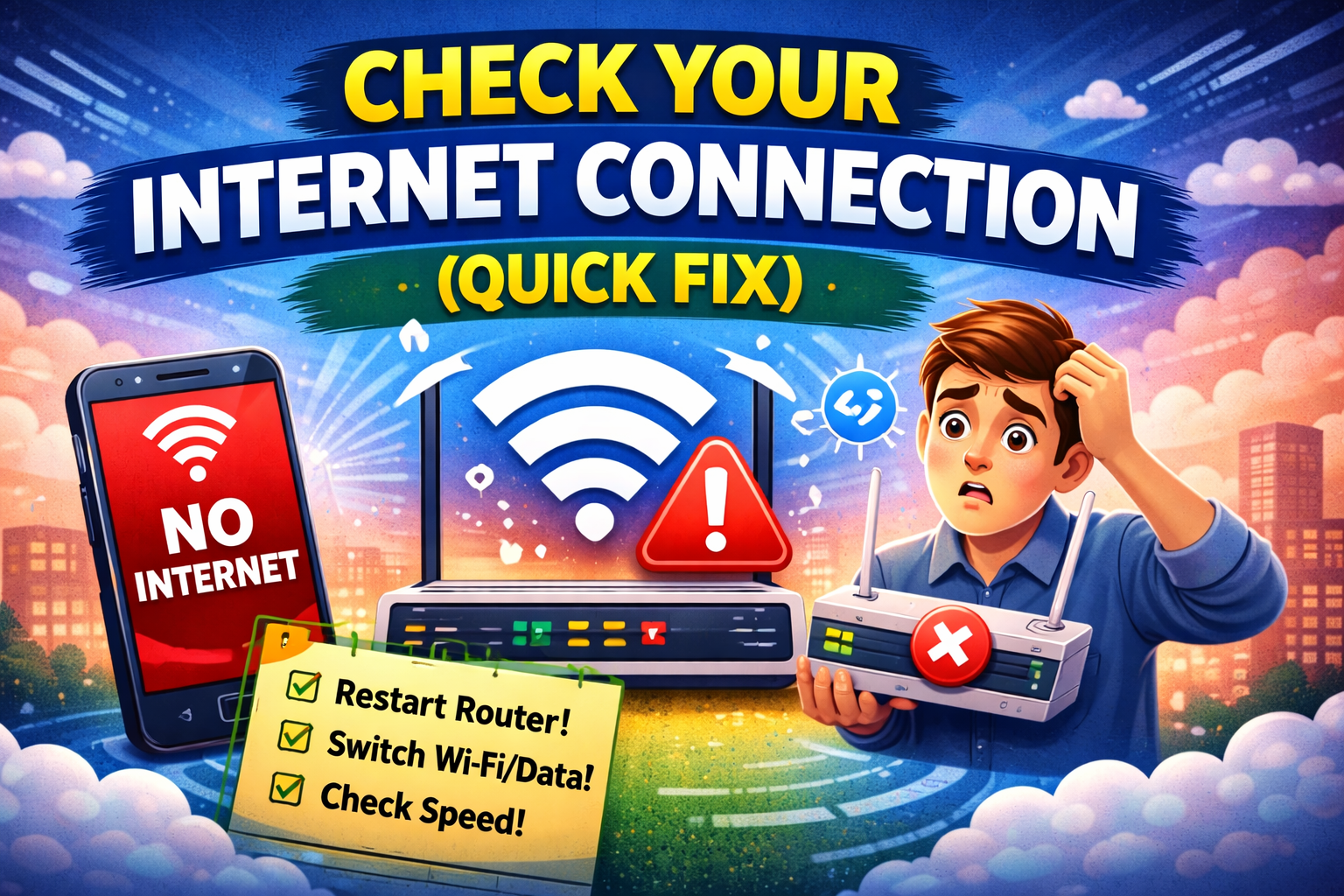
This is the most common cause.
- Switch between Wi-Fi and mobile data
- Restart your router
- Try opening a website or video
👉 Pro Tip: Use a stable Wi-Fi connection for large sync tasks.
2. Enable Sync Settings
Make sure syncing is turned on.
On Android:
- Go to Settings > Accounts
- Select your account (Google, etc.)
- Tap Account Sync
- Enable all necessary sync options
On iPhone:
- Go to Settings > [Your Name] > iCloud
- Turn on apps you want to sync
👉 Many users miss this—double-check it.
3. Restart the App and Device
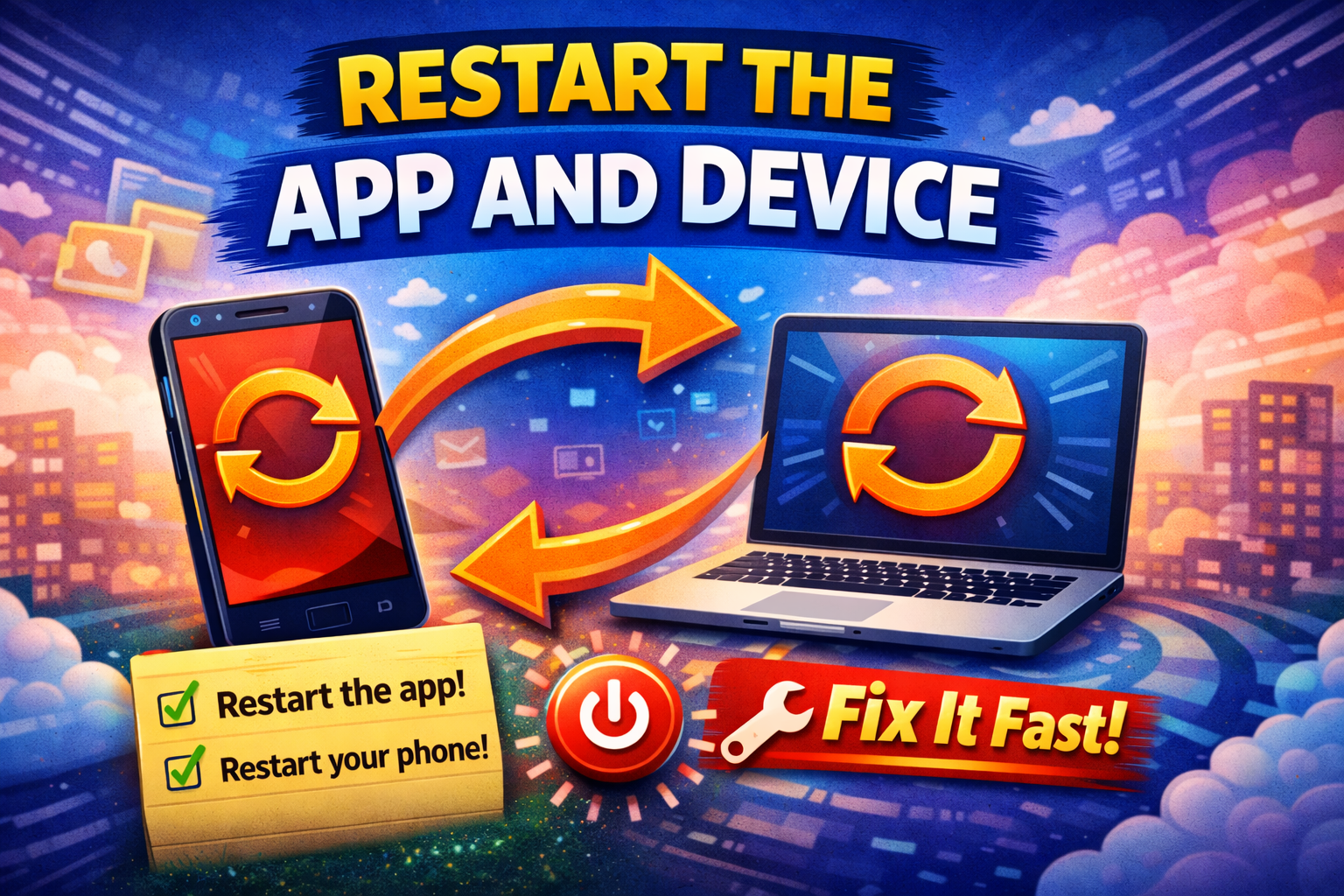
Sometimes, a simple restart solves everything.
- Close the app completely
- Restart your phone or computer
- Open the app again
👉 This refreshes background processes and fixes temporary glitches.
4. Update the App and System
Outdated apps often cause syncing issues.
- Open Google Play Store / App Store
- Update the affected app
- Check for system updates
👉 Here’s what works: Always keep apps updated for smooth syncing.
5. Check Cloud Storage Space
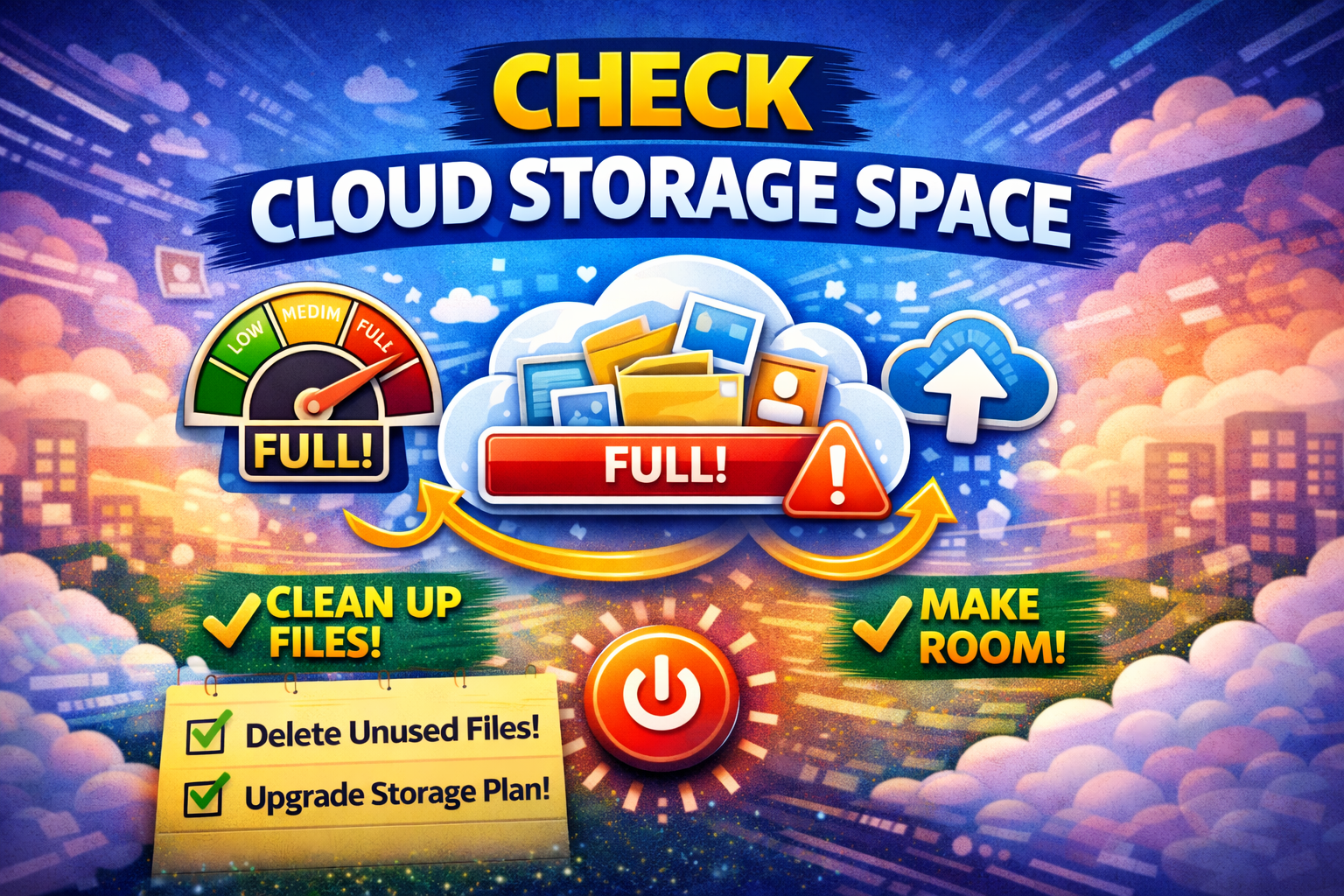
If your storage is full, syncing will stop.
- Google Drive: Check storage in your account
- iCloud: Go to Settings > iCloud Storage
Fix:
- Delete unnecessary files
- Upgrade your storage plan
6. Re-login to Your Account
Account issues can block syncing.
- Log out of the app
- Log back in with correct credentials
👉 This refreshes authentication and often restores sync.
7. Disable Battery/Data Saver Mode

These modes can restrict background syncing.
Fix:
- Turn off Battery Saver
- Disable Data Saver
- Allow background data for the app
👉 Especially important for apps like Google Photos or Dropbox.
8. Clear App Cache (Android Only)
Cache corruption can break syncing.
- Go to Settings > Apps
- Select the app
- Tap Storage > Clear Cache
👉 Avoid clearing data unless necessary (it may log you out).
Advanced Fixes (Optional)
If basic solutions don’t work, try these.
1. Reset Network Settings
This fixes deeper connectivity issues.
- Android: Settings > System > Reset Options > Reset Wi-Fi
- iPhone: Settings > General > Reset > Reset Network Settings
⚠️ You’ll need to reconnect to Wi-Fi afterward.
2. Reinstall the App
- Uninstall the app
- Restart your device
- Reinstall from app store
👉 This removes corrupted files.
3. Check Server Status
Sometimes the problem isn’t you—it’s the service.
- Visit official status pages (Google, Apple, Dropbox)
- Check if there’s a service outage
👉 If servers are down, wait—it will fix automatically.
4. Enable Background App Refresh (iPhone)
- Go to Settings > General > Background App Refresh
- Enable it for your app
Prevent This Problem in the Future
Avoid facing syncing issues again with these tips:
✅ Keep apps updated
✅ Maintain stable internet
✅ Regularly check cloud storage
✅ Avoid aggressive battery saver settings
✅ Use official apps only (avoid modded versions)
✅ Log out and refresh your account occasionally
👉 Pro Insight: Schedule periodic sync checks to ensure everything is working.
Common FAQs
1. Why is my app not syncing even with internet?
It could be due to disabled sync settings, storage limits, or account issues.
2. How do I force sync an app?
Go to account settings and tap “Sync now” (Android) or reopen the app after enabling sync.
3. Does reinstalling an app fix syncing issues?
Yes, it can fix corrupted files and reset sync processes.
4. Why are my photos not syncing to the cloud?
Possible reasons:
- Sync turned off
- Poor internet
- Storage full
5. Can battery saver stop syncing?
Yes, it can restrict background activity and prevent syncing.
Conclusion
Apps not syncing with cloud services can be annoying, but the good news is—it’s usually easy to fix.
Quick recap:
- Check your internet connection
- Enable sync settings
- Update apps and system
- Clear storage and cache
- Re-login or reinstall if needed
👉 Start with the Quick Fix steps, and you’ll likely solve the issue in minutes.
If this guide helped you, feel free to share it, leave a comment, or explore more troubleshooting guides to keep your apps running smoothly 🚀
