How to Fix Apps Not Backing Up Data on Mobile (Easy Guide)
Introduction
You’re not alone—many mobile users face the frustrating issue of apps not backing up data properly. Imagine switching devices or reinstalling an app, only to find your important data missing. That’s stressful.
In this guide, we’ll show you how to fix apps not backing up data on mobile with simple, practical steps. Whether you’re using Android or iPhone, these solutions will help you restore your backups and prevent future data loss.
Table of Contents
- What is the Problem?
- Why Does This Problem Happen?
- How to Fix Apps Not Backing Up Data on Mobile
- Advanced Fixes (Optional)
- Prevent This Problem in the Future
- Common FAQs
- Conclusion
What is the Problem?
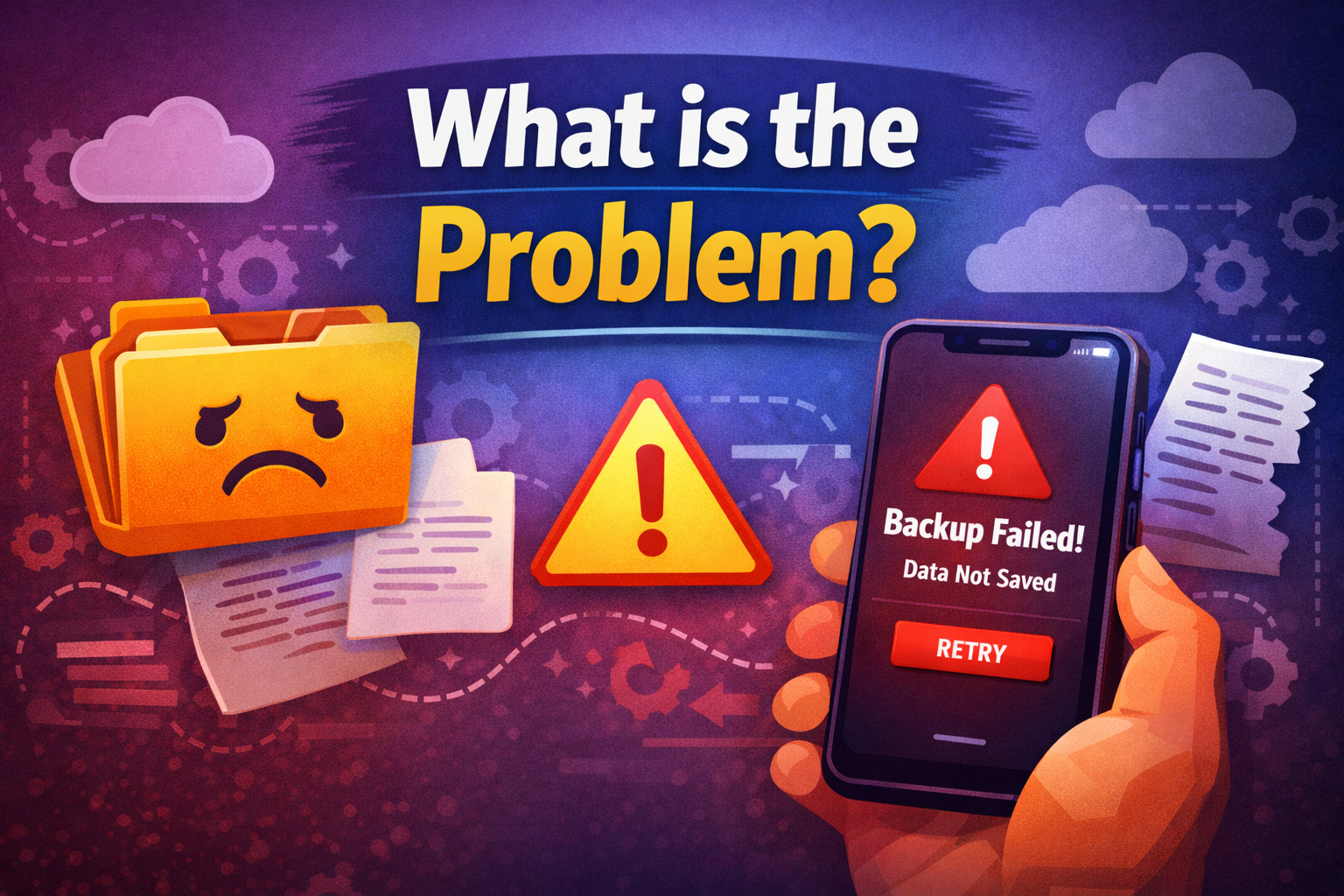
When apps fail to back up data, it means your information (like messages, settings, or files) is not saved to the cloud or storage system.
Common Symptoms
- Data missing after reinstalling an app
- Backup option not working or disabled
- “Backup failed” error messages
- App data not syncing across devices
- Old data appearing instead of updated data
This issue can affect apps like WhatsApp, Google Drive, iCloud apps, or any app with backup functionality.
Why Does This Problem Happen?
There are several reasons why apps fail to back up data on mobile devices.
1. Poor Internet Connection
Backups require a stable connection. Weak Wi-Fi or mobile data can interrupt the process.
2. Backup Settings Disabled
Sometimes backup features are turned off without you realizing it.
3. Insufficient Cloud Storage
If your Google Drive or iCloud storage is full, backups won’t complete.
4. App Permissions Issues
Apps need permission to access storage and network features.
5. Outdated App or OS
Old versions can cause compatibility issues with backup services.
6. Background Restrictions
Battery saver or data saver modes may block backups.
7. Account Sync Problems
If your Google or Apple account isn’t syncing, backups may fail.
How to Fix Apps Not Backing Up Data on Mobile
Here’s what works—follow these step-by-step solutions.
1. Check Your Internet Connection (Quick Fix)
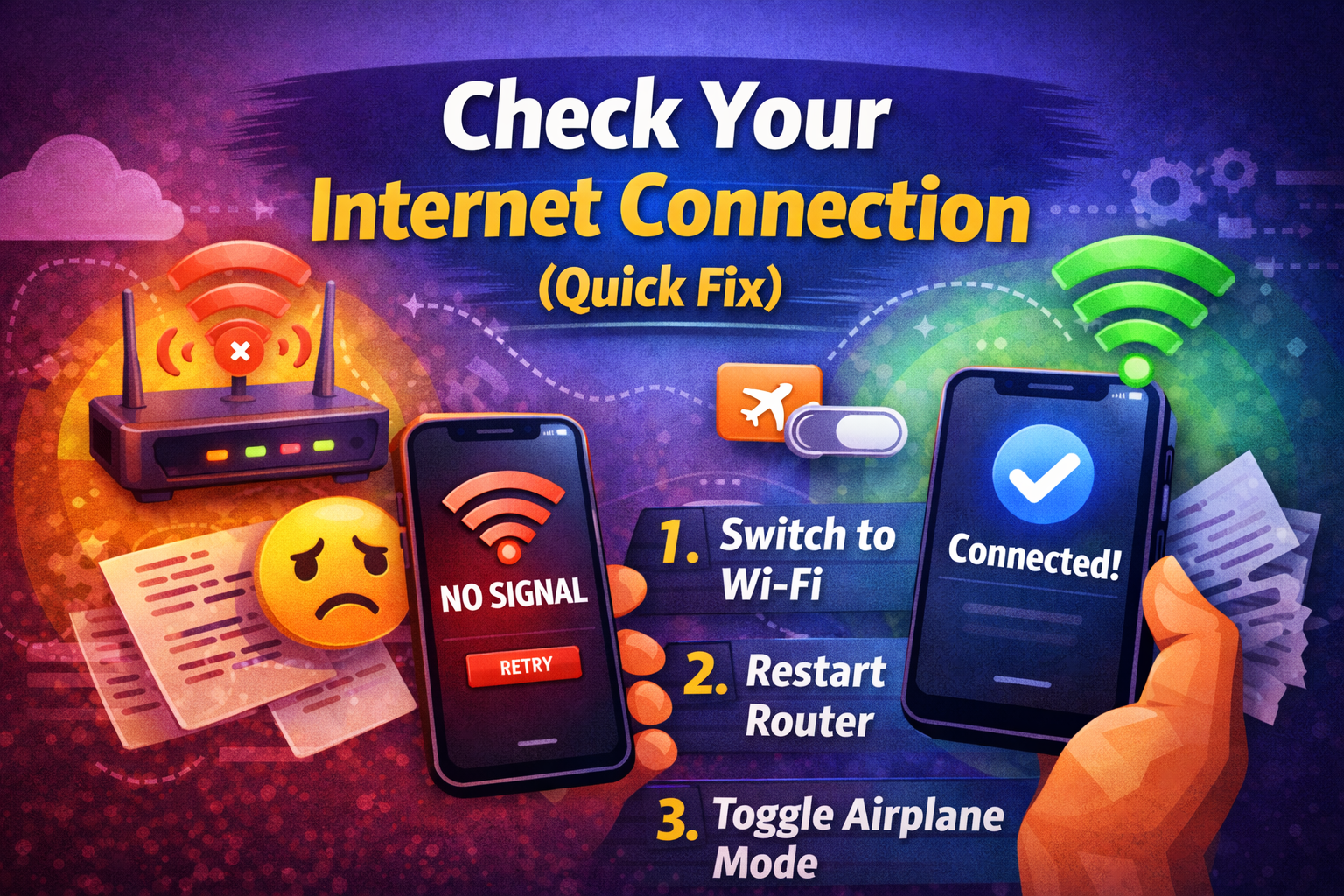
A stable connection is essential.
What to do:
- Switch to a strong Wi-Fi network
- Restart your router
- Turn airplane mode on/off
👉 Pro Tip: Avoid backing up data on slow mobile networks.
2. Enable Backup Settings
Make sure backups are turned on.
On Android:
- Go to Settings > Google > Backup
- Enable Back up to Google Drive
On iPhone:
- Go to Settings > [Your Name] > iCloud > iCloud Backup
- Turn on iCloud Backup
👉 Quick Fix: Toggle backup OFF and ON again to refresh.
3. Check Cloud Storage Space
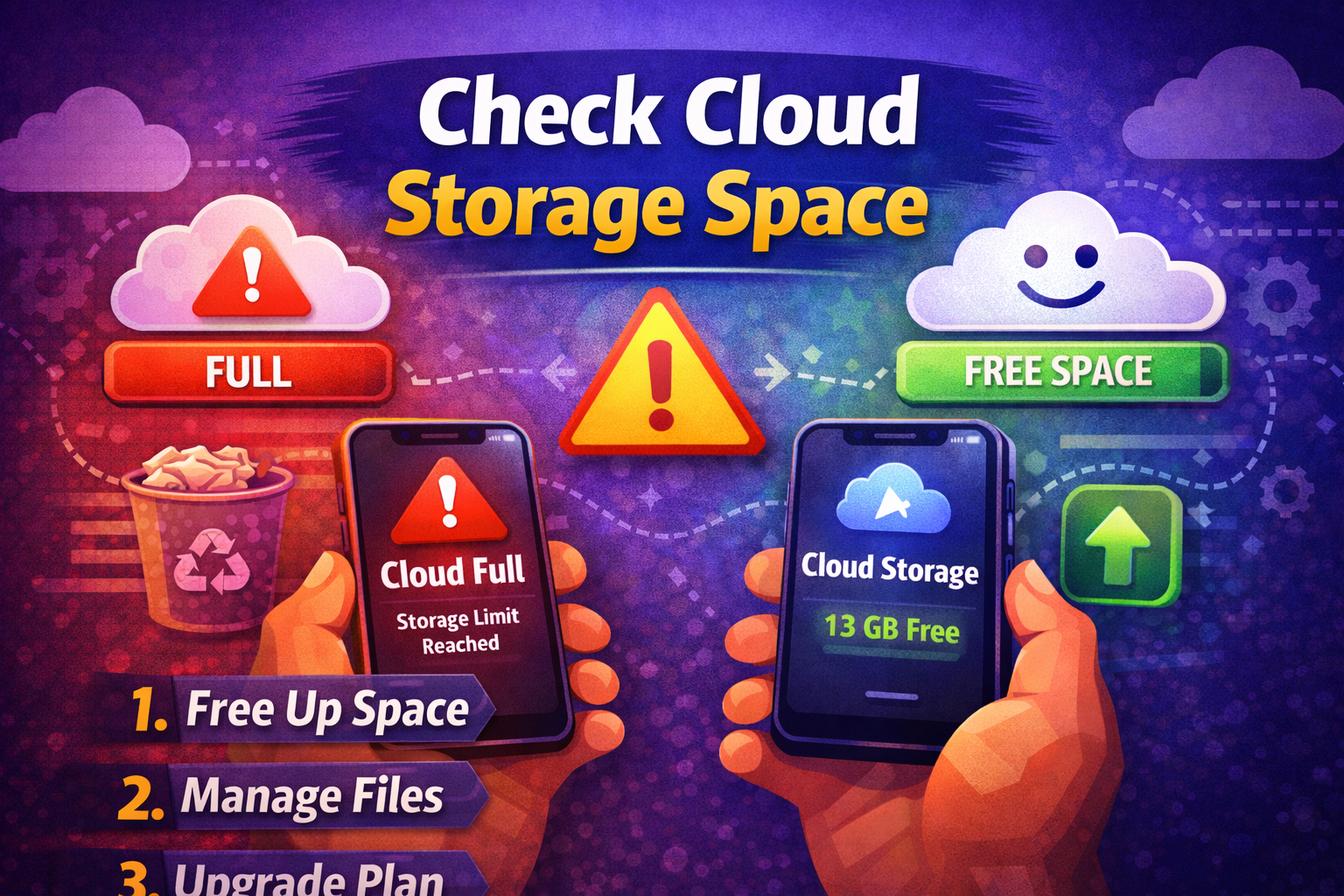
No space = no backup.
What to do:
- Open Google Drive or iCloud storage
- Delete unused files
- Upgrade storage if needed
👉 Warning: Even a small storage shortage can stop backups completely.
4. Update the App and OS
Outdated software often causes backup issues.
Steps:
- Update the app via Play Store or App Store
- Check for system updates in Settings
👉 Pro Insight: Updates often fix hidden bugs affecting backups.
5. Grant Necessary Permissions
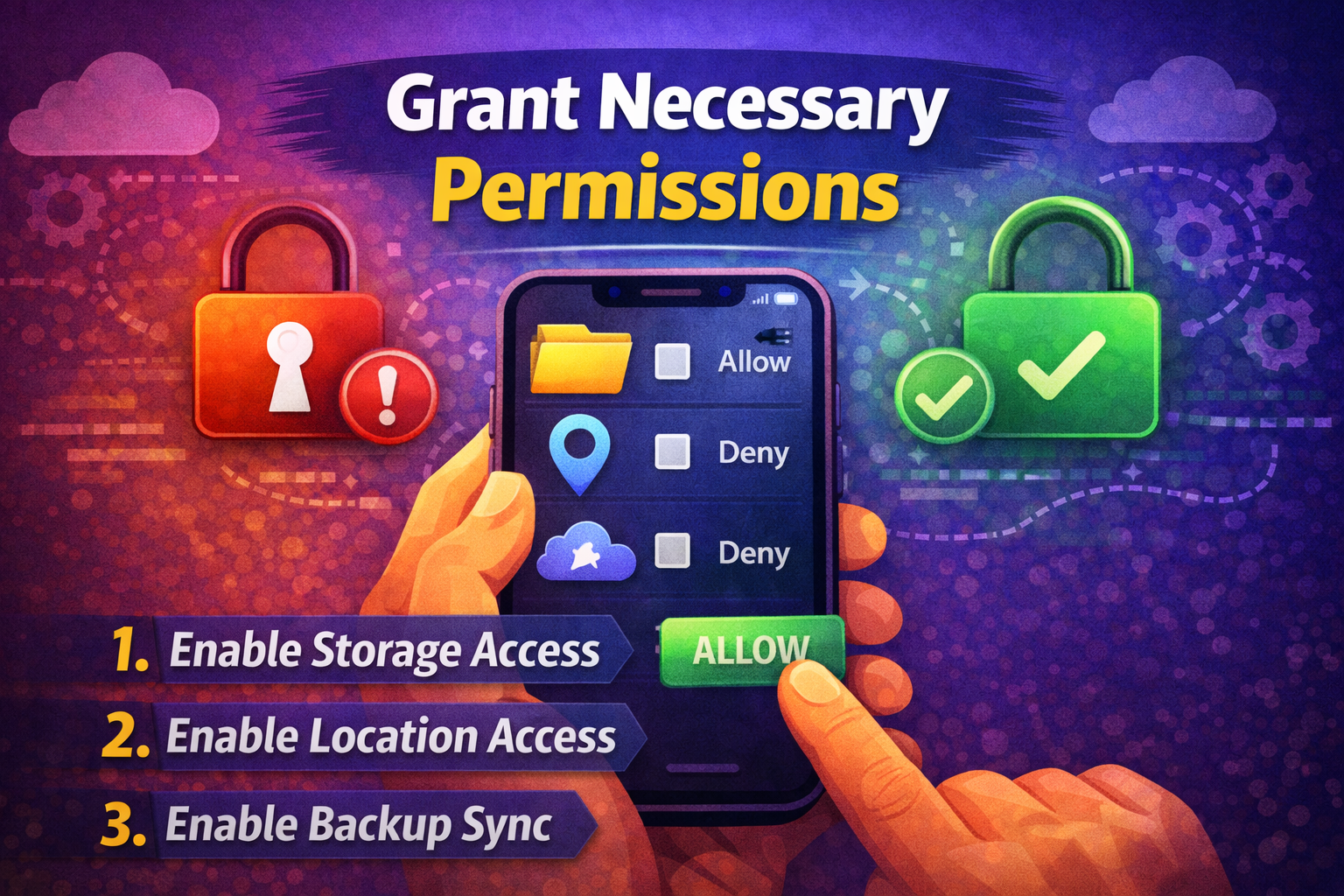
Apps need proper permissions to back up data.
On Android:
- Go to Settings > Apps > [App Name] > Permissions
- Enable Storage and Network access
On iPhone:
- Go to Settings > Privacy
- Ensure the app has required permissions
6. Disable Battery/Data Saver Modes
These modes can block background processes.
What to do:
- Turn off Battery Saver
- Disable Data Saver
- Allow background data usage
👉 Quick Fix: Add the app to “Unrestricted” mode.
7. Re-login to Your Account
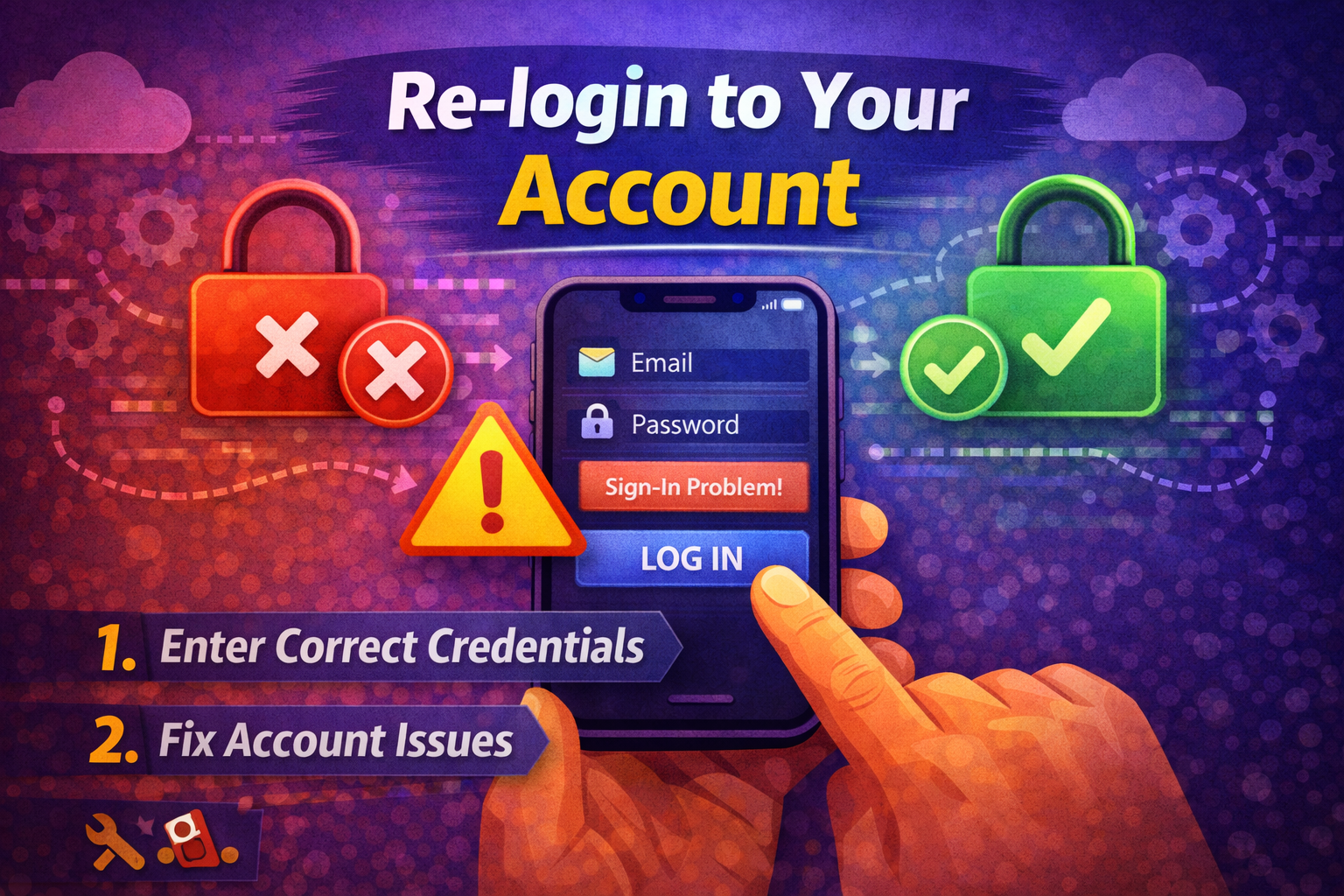
Sometimes syncing issues cause backup failures.
Steps:
- Log out of your Google/Apple account
- Restart your phone
- Log back in
👉 This refreshes the sync connection.
8. Clear App Cache (Android Only)
Corrupted cache can block backup processes.
Steps:
- Go to Settings > Apps > [App Name]
- Tap Storage > Clear Cache
👉 Note: Do NOT clear data unless necessary.
Advanced Fixes (Optional)
If basic solutions don’t work, try these.
1. Reset Network Settings
This fixes hidden connectivity issues.
- Android: Settings > System > Reset > Network Settings
- iPhone: Settings > General > Transfer or Reset > Reset Network
2. Reinstall the App
A fresh install can fix deeper bugs.
Steps:
- Uninstall the app
- Restart your phone
- Reinstall from the store
👉 Warning: Make sure you have existing backup before uninstalling.
3. Check Backup Logs (Advanced Users)
Some apps provide logs or error details.
- Look for error messages
- Identify failed backup attempts
Prevent This Problem in the Future
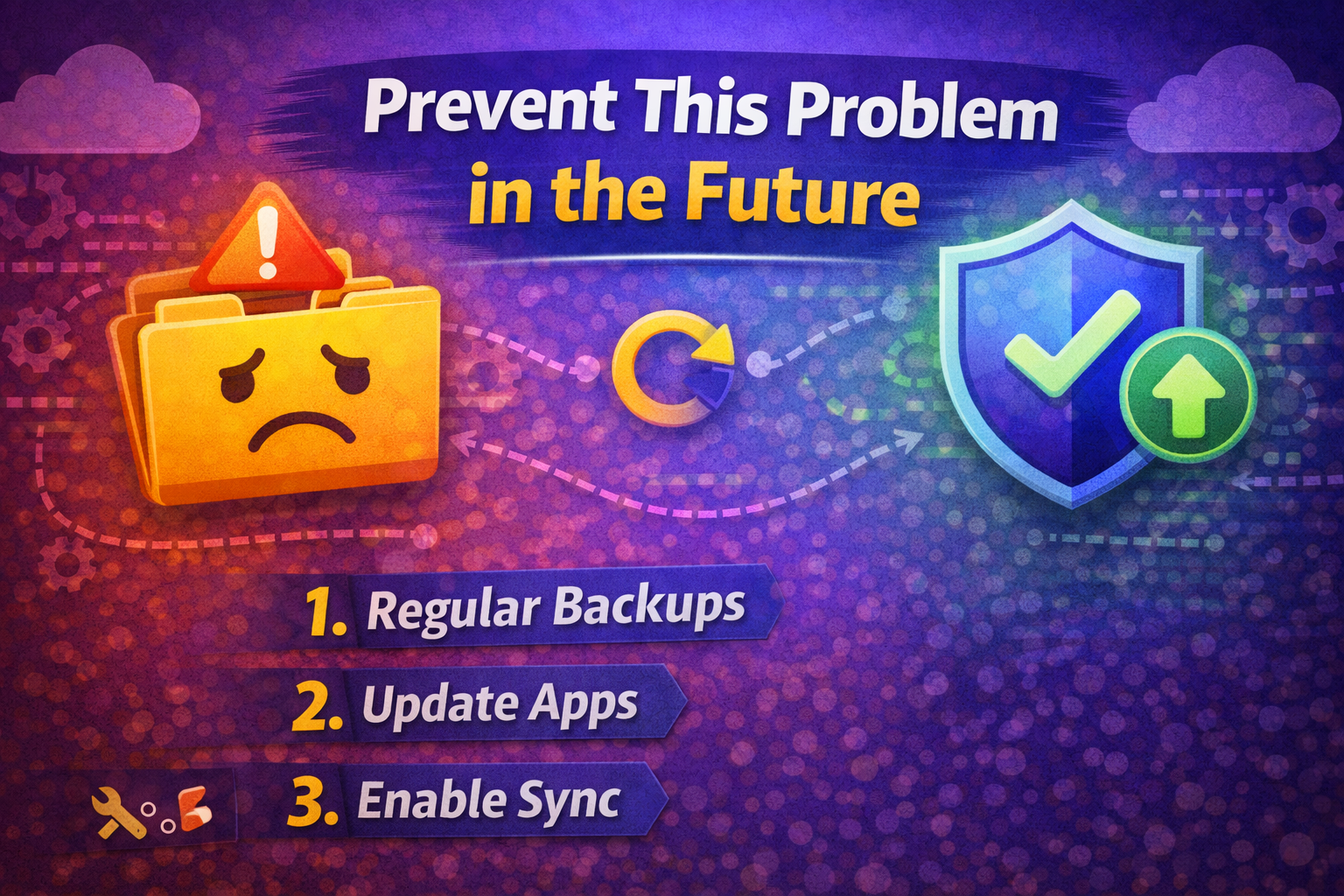
Here’s how to avoid backup issues going forward.
1. Enable Automatic Backups
Set daily or weekly backups in app settings.
2. Maintain Enough Storage
Always keep at least 10–20% free space.
3. Use Stable Wi-Fi
Avoid switching networks during backups.
4. Keep Apps Updated
Regular updates ensure compatibility.
5. Avoid Force Closing Apps
Interrupting backups can corrupt data.
Common FAQs
1. Why is my app not backing up data automatically?
It may be due to disabled backup settings, poor internet, or battery restrictions.
2. Does uninstalling an app delete backup data?
No, if backups are stored in the cloud. But local data may be lost.
3. How long does a mobile backup take?
It depends on data size and internet speed—usually a few minutes to an hour.
4. Can I back up data without Wi-Fi?
Yes, but it’s not recommended due to slower speeds and data usage.
5. Why does backup keep failing even with enough storage?
It could be due to app bugs, outdated software, or sync issues.
Conclusion (Take Action Now)
Fixing apps not backing up data on mobile doesn’t have to be complicated. Most of the time, simple steps like checking your internet, enabling backup settings, or updating your app can solve the problem quickly.
Here’s what works:
- Ensure backups are enabled
- Maintain enough storage
- Keep your apps and system updated
Don’t wait until you lose important data try these fixes today.
👉 If this guide helped you, share it with others or explore more “App Problems” solutions to keep your apps running smoothly!
