How to Fix Apps Not Restoring Data After Reinstall
Introduction
You reinstall an app expecting everything to return—your settings, progress, or saved data—but instead, it feels like starting from scratch. Frustrating, right? You’re not alone.
Many users face the issue of apps not restoring data after reinstall, whether it’s a game losing progress or a productivity app missing important files.
The good news? There are proven solutions that actually work. In this guide, you’ll learn how to fix apps not restoring data after reinstall using simple, step-by-step methods.
Table of Contents
- What is the Problem?
- Why Does This Problem Happen?
- How to Fix Apps Not Restoring Data After Reinstall
- Advanced Fixes
- Prevent This Problem in the Future
- Common FAQs
- Conclusion
What is the Problem?
When apps fail to restore data after reinstalling, it means your previously saved information is not being retrieved—even if backups exist.
Common Symptoms
- App opens like it’s brand new
- Missing saved data, settings, or progress
- Login doesn’t restore previous account data
- Cloud sync not working
- Backup not detected
This issue can happen on both Android and iOS devices and affects many popular apps.
Why Does This Problem Happen?
Understanding the cause helps you fix it faster. Here’s what usually goes wrong:
1. Cloud Backup Not Enabled
If the app wasn’t backing up data before uninstalling, there’s nothing to restore.
2. Wrong Account Logged In
Many apps store data per account. Logging into a different account means different data.
3. Sync Issues
Poor internet or server problems can prevent proper syncing.
4. App Permissions Disabled
Apps may not have access to storage or cloud services.
5. Corrupted Backup
Backup files can become damaged or incomplete.
6. OS or App Bugs
Software glitches sometimes break restore functionality.
7. Data Stored Locally Only
Some apps don’t use cloud backup at all—data is lost when uninstalled.
How to Fix Apps Not Restoring Data After Reinstall
Here’s what works. Follow these steps one by one.
1. Check Your Internet Connection (Quick Fix)
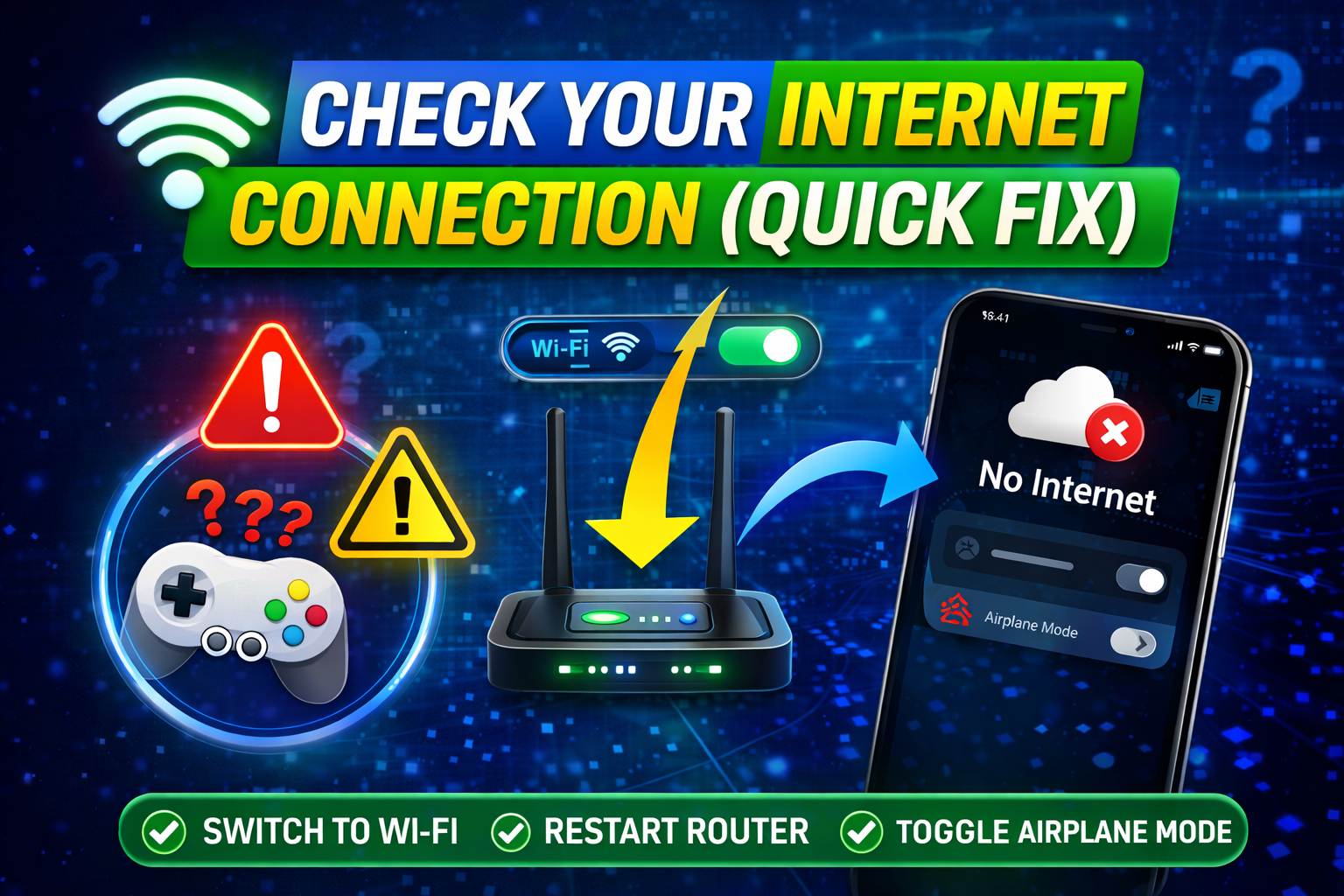
A stable connection is essential for restoring data.
- Switch to Wi-Fi instead of mobile data
- Restart your router
- Turn Airplane mode ON/OFF
👉 Pro Tip: Slow internet can interrupt data sync silently.
2. Log In with the Correct Account
This is one of the most common mistakes.
- Use the same email, Google, Apple ID, or Facebook account
- Double-check spelling and login method
- Try logging out and back in
👉 Here’s what works: Always use the account linked before reinstall.
3. Enable Cloud Backup & Sync
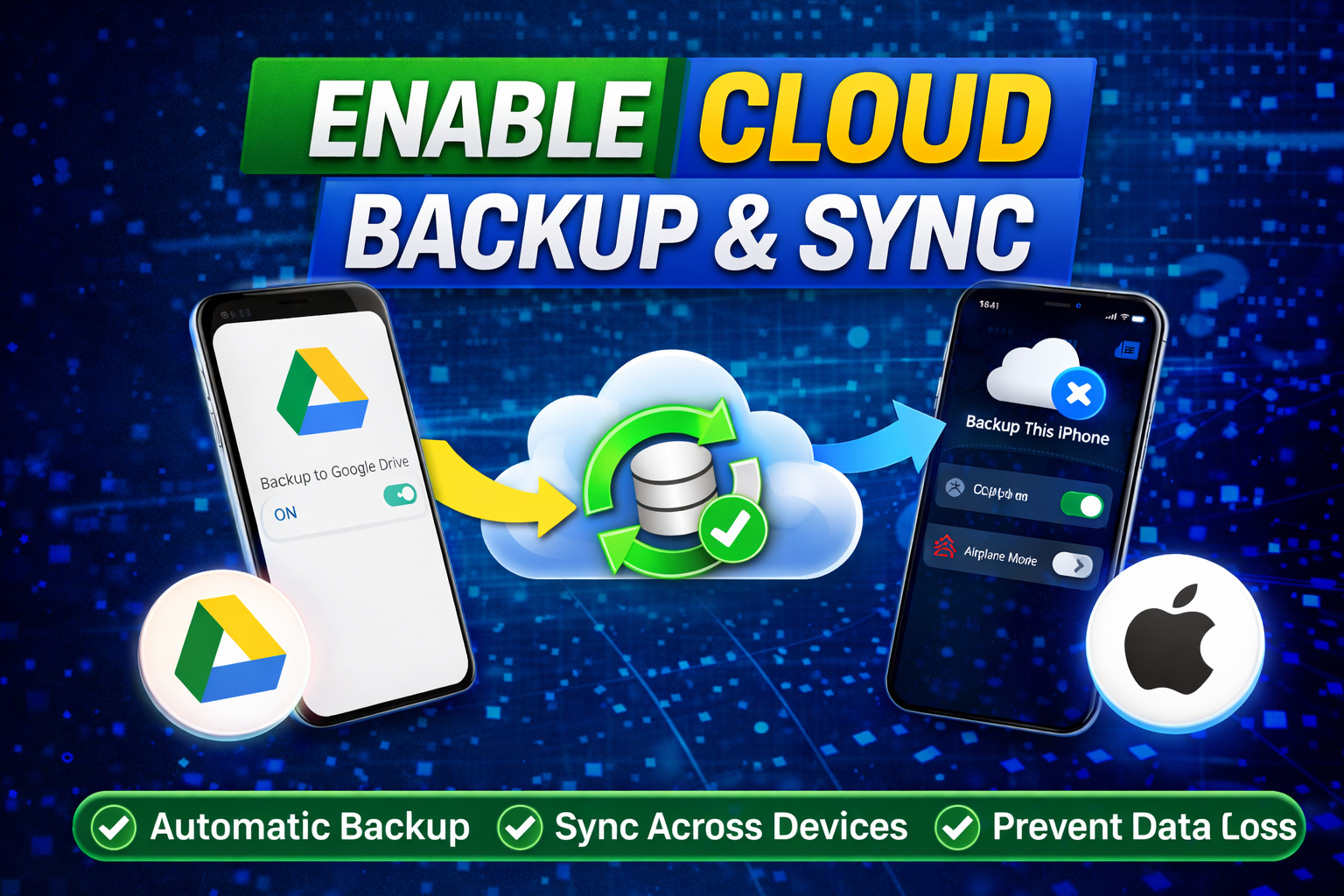
Make sure backups are active.
On Android:
- Go to Settings > Google > Backup
- Turn ON Backup to Google Drive
On iPhone:
- Go to Settings > [Your Name] > iCloud
- Enable iCloud Backup
Also check inside the app:
- Look for “Backup” or “Sync” settings
- Enable auto-sync if available
4. Restore Data Manually (If Available)
Some apps require manual restore.
- Open app settings
- Find “Restore Backup” option
- Select your latest backup
👉 Warning: Not all apps do this automatically.
5. Update the App and OS
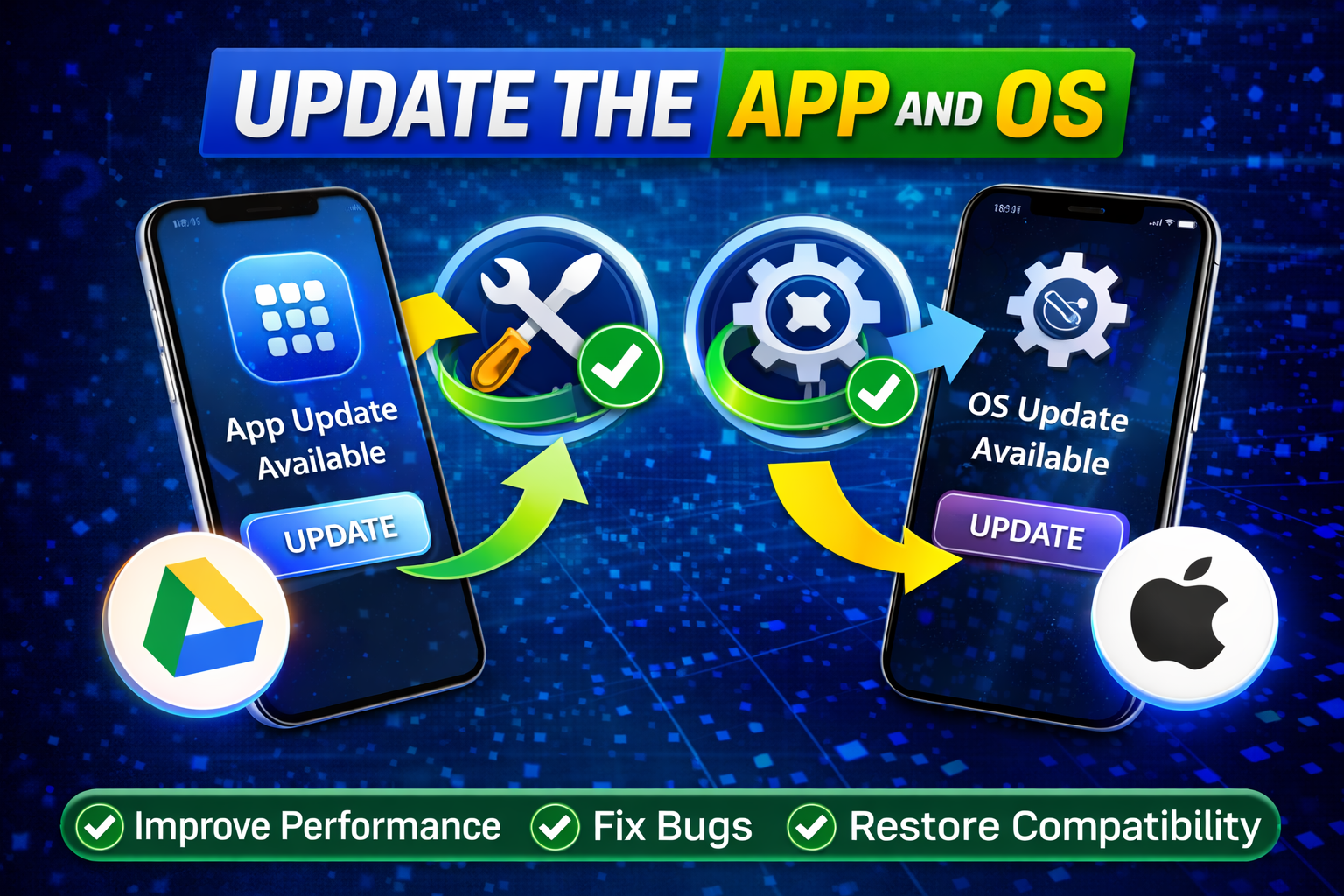
Outdated versions can cause restore failures.
- Update the app from Play Store/App Store
- Update your phone’s OS
👉 Bugs related to apps not restoring data after reinstall are often fixed in updates.
6. Grant All Required Permissions
Apps need access to storage and cloud services.
Check permissions:
- Go to Settings > Apps > [App Name] > Permissions
- Enable:
- Storage
- Files & Media
- Network
👉 Missing permissions = failed data restore.
7. Clear Cache and Reinstall Again
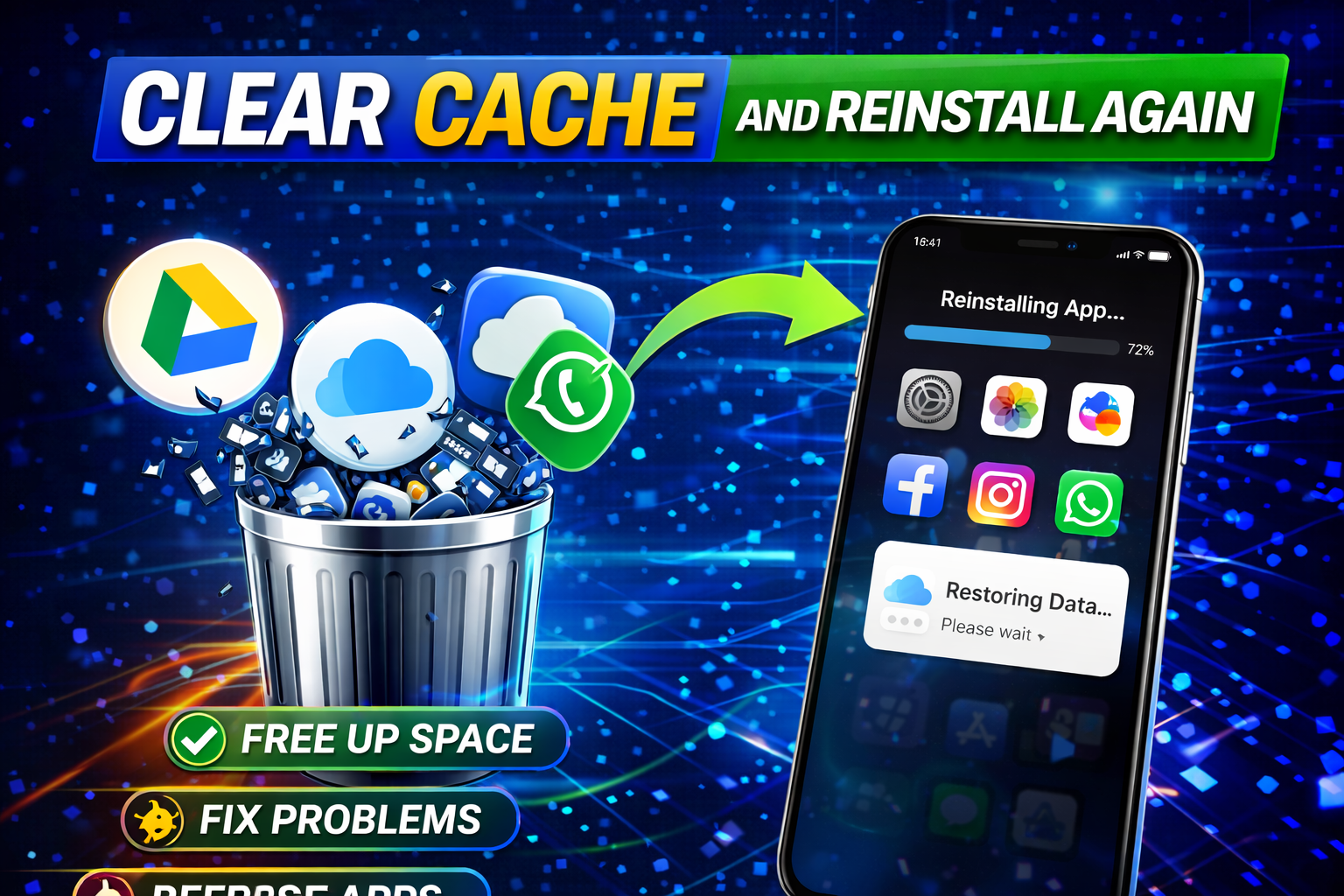
Sometimes reinstalling once isn’t enough.
Steps:
- Go to Settings > Apps
- Select the app
- Tap Clear Cache & Data
- Uninstall the app
- Restart your device
- Reinstall and log in again
👉 This removes corrupted files blocking restore.
8. Check App Server Status
Sometimes the issue isn’t your fault.
- Visit the app’s official website or Twitter
- Check if servers are down
👉 If servers are down, wait—it will fix itself.
Advanced Fixes (For Technical Users)
If basic fixes don’t work, try these:
1. Restore from System Backup
- Android: Use Google backup restore during setup
- iPhone: Restore from iCloud or iTunes backup
👉 This can bring back full app data.
2. Use Data Recovery Tools
- Tools like Dr.Fone, iMobie, or Tenorshare
- Can recover deleted app data
⚠️ Use trusted tools only.
3. Check Local Backup Files
Some apps store backups locally:
- Android:
/Android/data/folder - iOS: App-specific storage
👉 Move files back before reinstalling.
4. Contact App Support
If nothing works:
- Reach out via app support
- Provide account details
- Ask for server-side restore
👉 Many apps can restore data manually.
Prevent This Problem in the Future
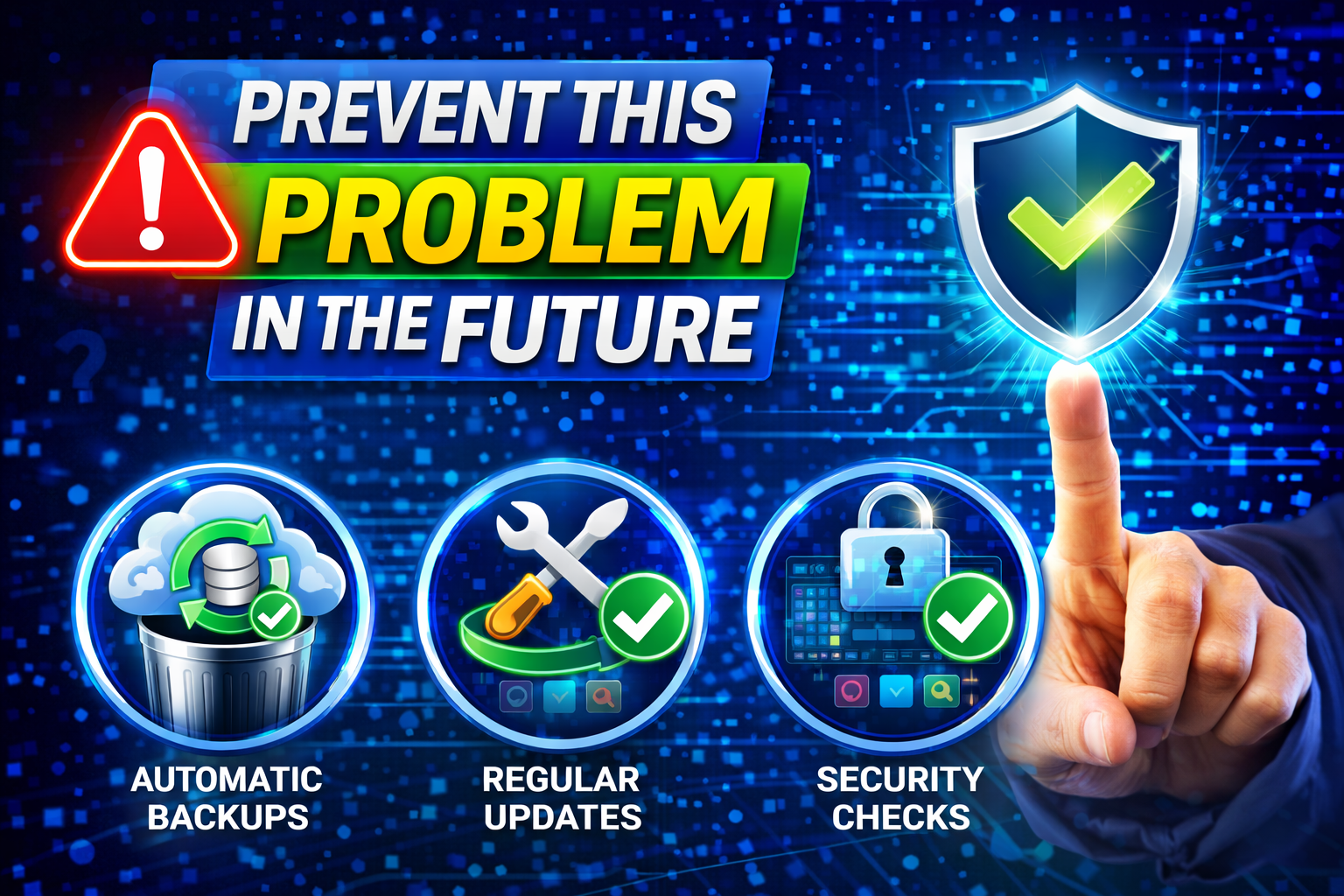
Avoid losing data again with these tips:
✅ Enable Auto Backup
Always keep backup turned ON.
✅ Use Cloud-Based Apps
Prefer apps that sync data online.
✅ Link Your Account
Avoid using apps without login options.
✅ Regularly Check Backup Status
Make sure backups are recent and complete.
✅ Avoid Uninstalling Without Backup
Double-check before removing apps.
Common FAQs
1. Why is my app data gone after reinstall?
Because the app didn’t back up your data or you logged into a different account.
2. Can I recover data after uninstalling an app?
Yes, if a backup exists (cloud or local). Otherwise, recovery is difficult.
3. Do all apps support data restore?
No. Some apps store data locally only, which is deleted after uninstall.
4. How do I know if my app is backed up?
Check app settings or cloud backup settings (Google Drive/iCloud).
5. What if restore still doesn’t work?
Try advanced fixes or contact app support for help.
Conclusion
Dealing with apps not restoring data after reinstall can be stressful—but it’s usually fixable.
Let’s recap what works:
- Check your internet connection
- Log in with the correct account
- Enable cloud backup and sync
- Update apps and grant permissions
- Try reinstalling properly
👉 Quick Fix Reminder: Most issues happen wrong account or disabled backup.
Don’t give up your data might still be recoverable.
If this guide helped you, consider sharing it or exploring more app troubleshooting tips. Got questions? Drop them in the comments we’re here to help!
