Fix APK Not Installing on Android (Easy Guide)
Introduction
You’re not alone—many Android users face the frustrating issue of APK files not installing on their devices. You download the file, tap install, and… nothing happens or an error pops up.
If you’ve been wondering how to fix apps not installing APK files Android, this guide is exactly what you need. Whether it’s a parsing error, “App not installed” message, or silent failure, we’ll walk you through proven solutions that actually work.
Let’s fix it—quickly and easily.
Table of Contents
- What is the Problem?
- Why Does This Problem Happen?
- How to Fix Apps Not Installing APK Files Android
- Advanced Fixes
- Prevent This Problem in the Future
- Common FAQs
- Conclusion
What is the Problem?
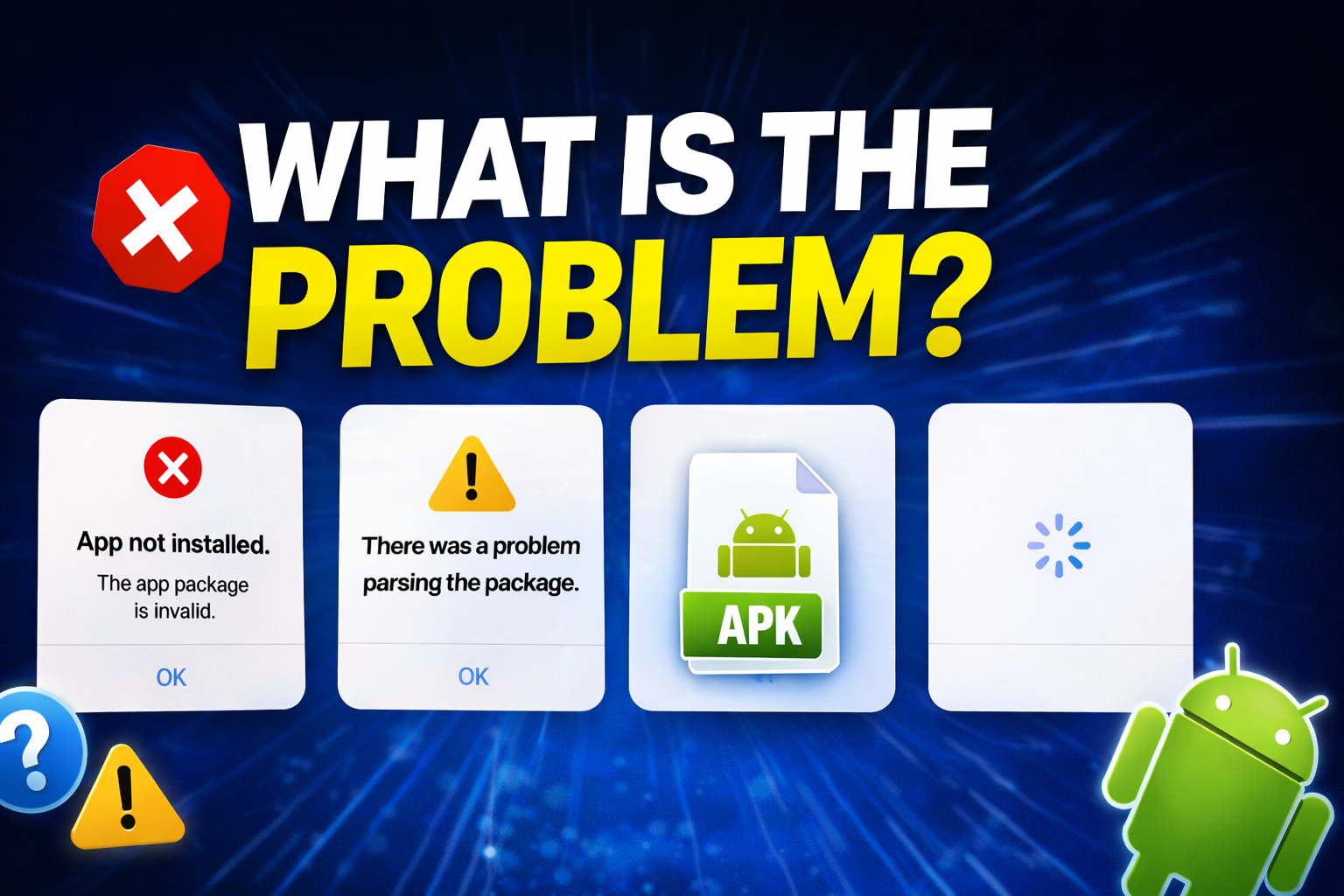
The issue occurs when you try to install an APK file manually, but Android refuses to install it.
Common Symptoms:
- “App not installed” error
- “Parsing error” message
- Installation stuck or frozen
- APK opens but won’t install
- No error, but nothing happens
This problem can affect any Android device, including Samsung, Xiaomi, Oppo, and others.
Why Does This Problem Happen?
Before jumping into fixes, it helps to understand the causes.
Common Reasons:
- Unknown Sources Disabled
Android blocks installations from outside the Play Store by default. - Corrupted APK File
The file may be incomplete or damaged. - Incompatible App Version
APK may not support your Android version or device. - Insufficient Storage
Not enough space to install the app. - App Signature Conflict
Trying to install a different version over an existing app. - Security Restrictions
Google Play Protect or device policies blocking installation. - File Manager Issues
Some file managers can interfere with installation.
How to Fix Apps Not Installing APK Files Android
Here’s what works—follow these step-by-step fixes.
1. Enable Unknown Sources (Quick Fix)
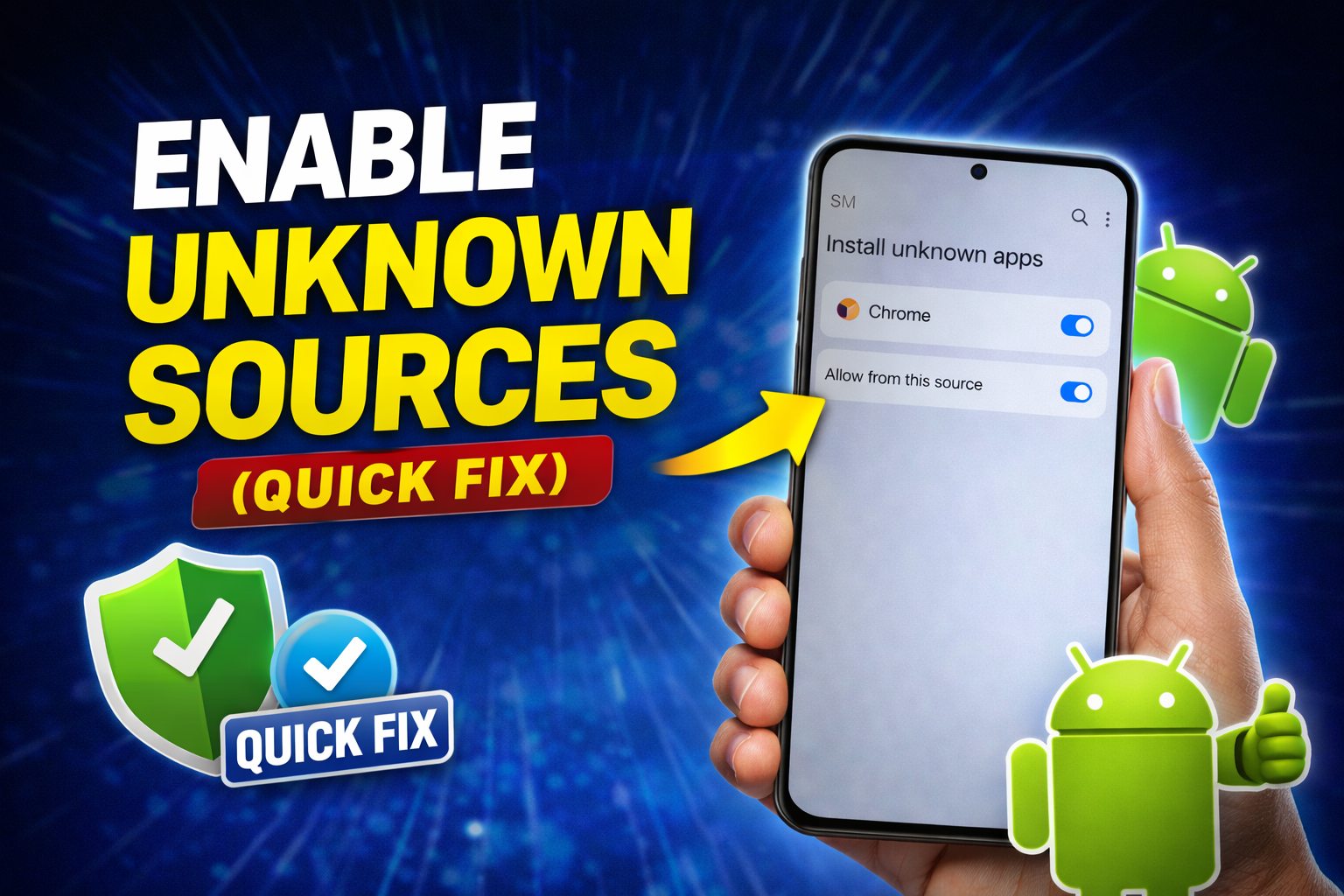
This is the most common reason.
Steps:
- Go to Settings
- Tap Security or Privacy
- Select Install unknown apps
- Choose your browser or file manager
- Enable Allow from this source
✅ Try installing the APK again.
2. Check APK File Integrity
A broken file won’t install—simple as that.
What to do:
- Re-download the APK from a trusted site
- Avoid modified or cracked versions
- Check file size matches the source
💡 Pro Tip: Always download from reputable platforms like APKMirror.
3. Free Up Storage Space
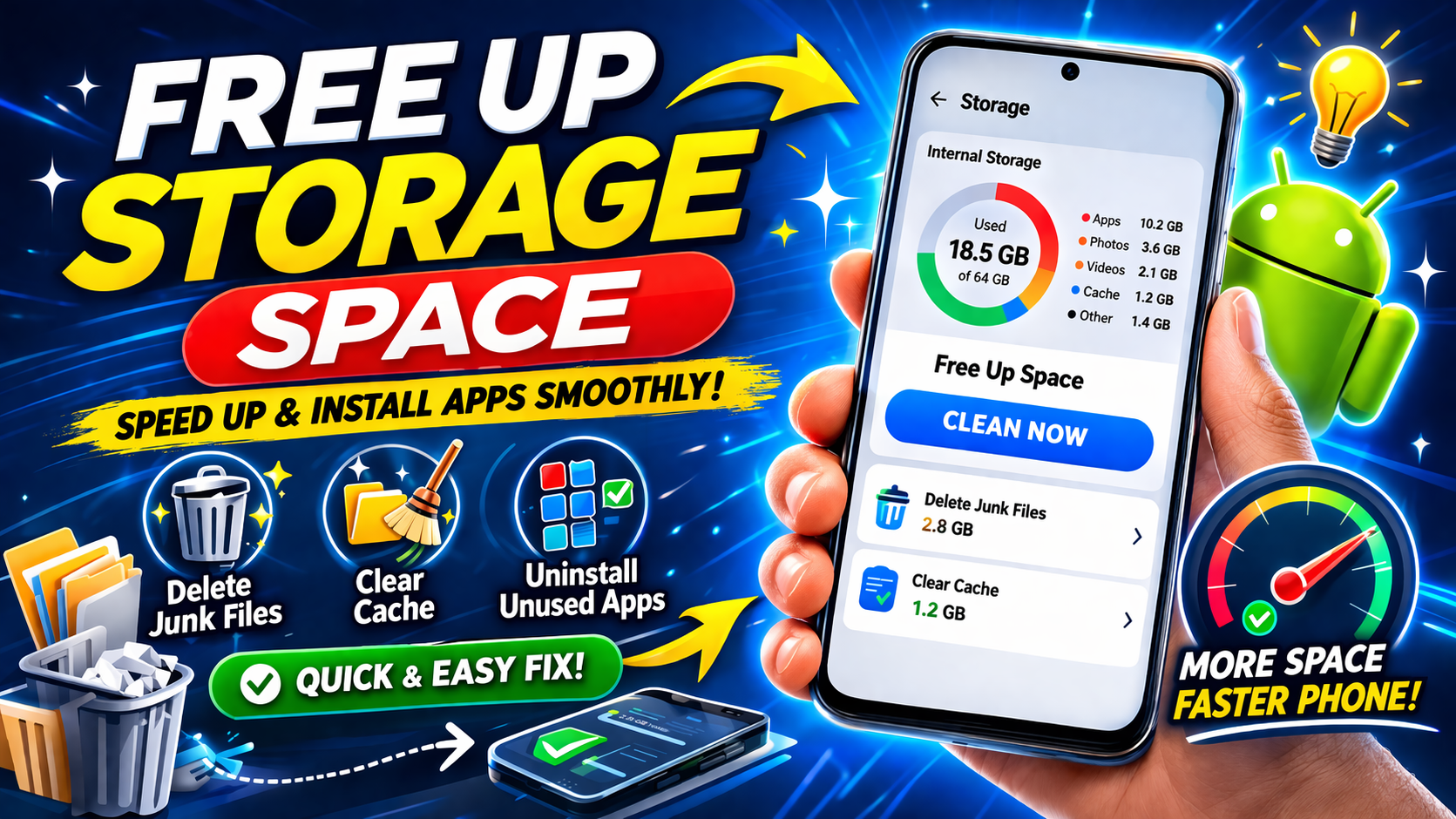
Low storage can silently block installations.
Steps:
- Go to Settings → Storage
- Delete unused apps, photos, or files
- Ensure at least 500MB–1GB free space
✅ Retry installation.
4. Check App Compatibility
Not all APKs work on all devices.
Things to verify:
- Android version compatibility
- CPU architecture (ARM, ARM64, x86)
- Minimum OS requirement
💡 Installing the wrong version = guaranteed failure.
5. Uninstall Existing App (If Any)
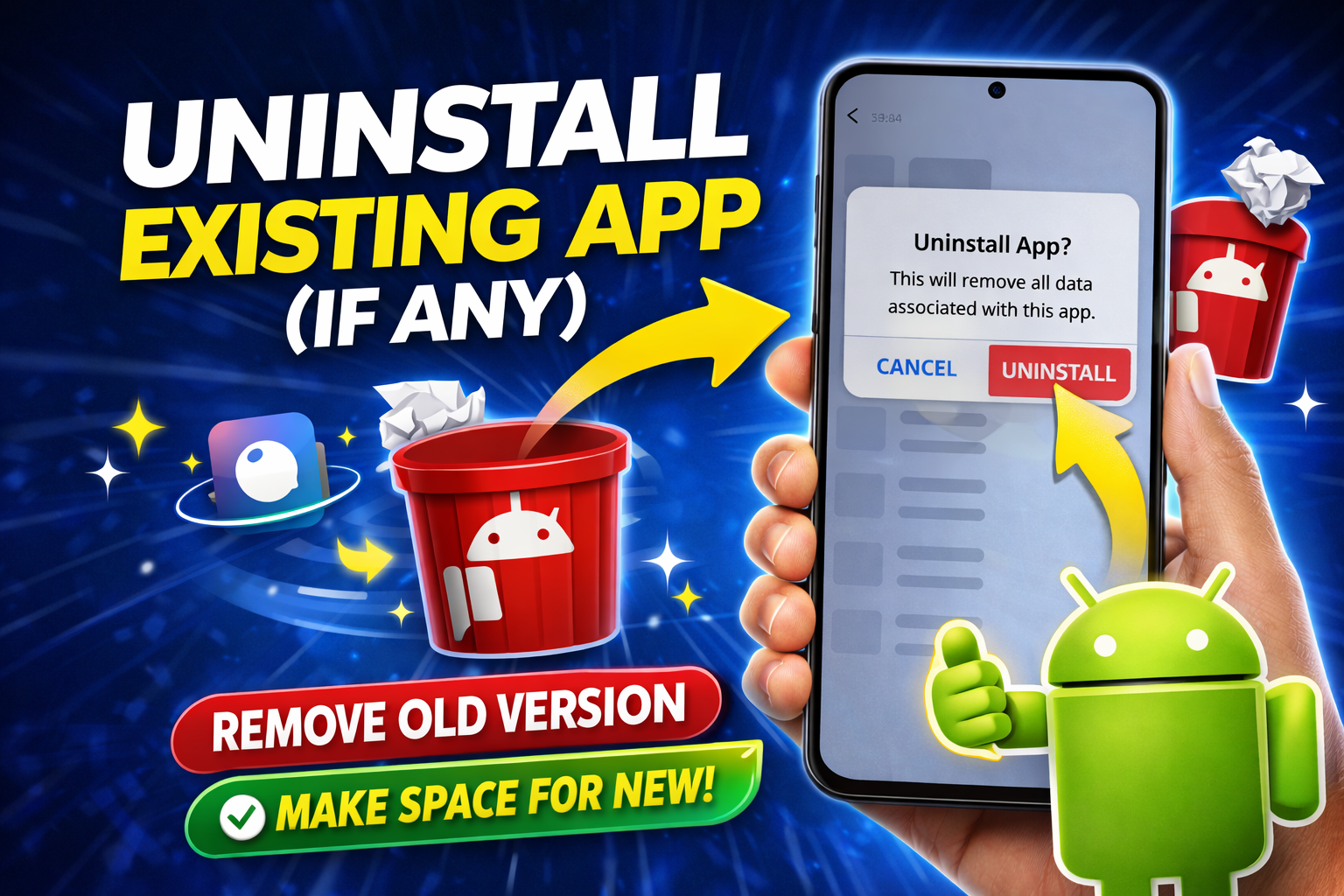
If the app already exists, conflicts can occur.
Steps:
- Go to Settings → Apps
- Find the app
- Tap Uninstall
Then install the APK again.
⚠️ Warning: You may lose app data.
6. Disable Play Protect Temporarily
Sometimes Android’s security blocks installations.
Steps:
- Open Google Play Store
- Tap your profile icon
- Go to Play Protect
- Tap Settings
- Turn off Scan apps with Play Protect
✅ Try installing again.
7. Use a Different File Manager
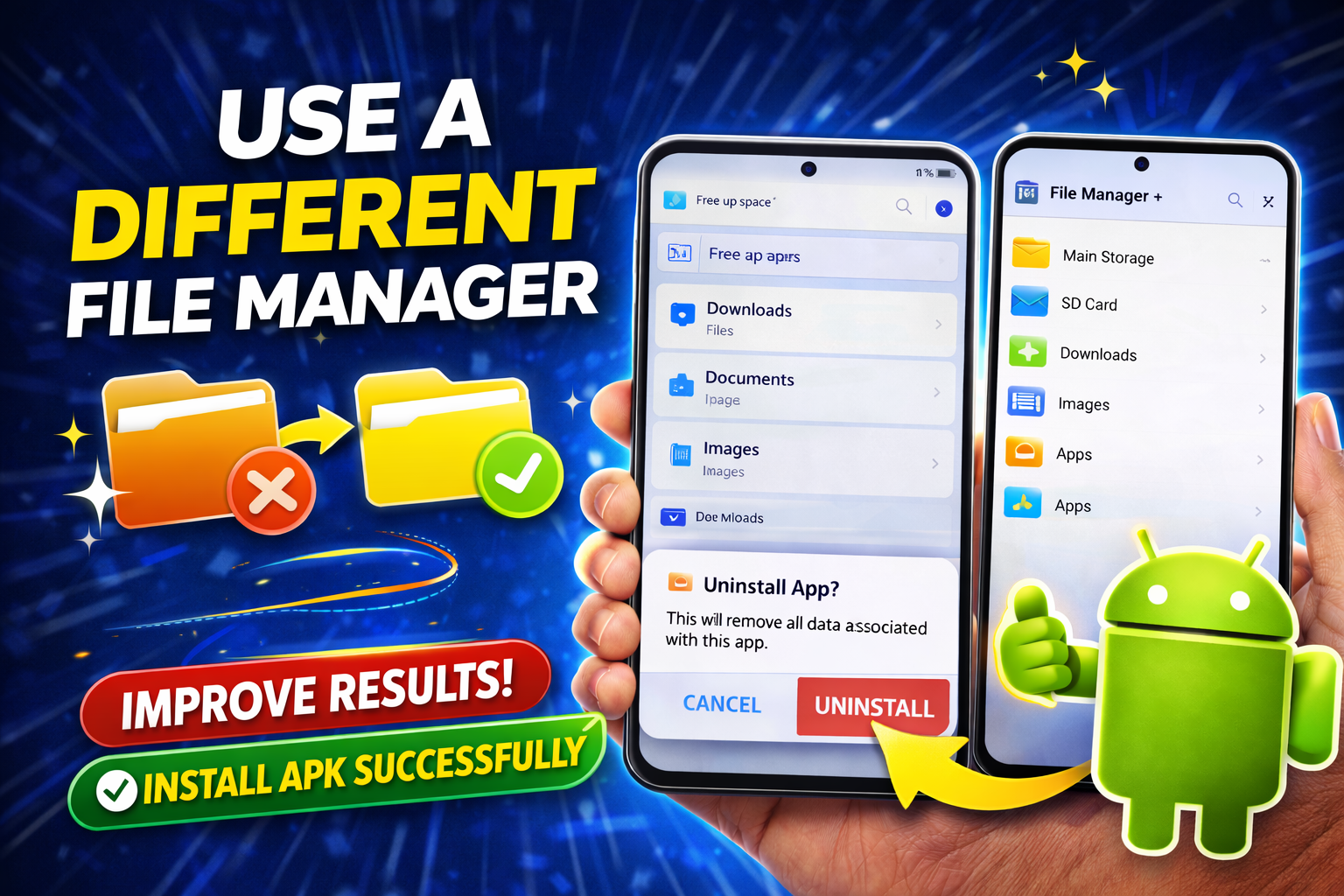
Some file managers don’t handle APKs properly.
Try this:
- Use Files by Google
- Or install directly via browser download
💡 This simple switch often solves hidden issues.
8. Clear Package Installer Cache
System glitches can block installations.
Steps:
- Go to Settings → Apps
- Tap Show system apps
- Find Package Installer
- Tap Storage
- Select Clear Cache
Then retry installing.
Advanced Fixes (For Technical Users)
If basic solutions don’t work, try these.
1. Install via ADB (Android Debug Bridge)
This bypasses many system restrictions.
Steps:
- Enable Developer Options
- Turn on USB Debugging
- Connect phone to PC
- Run command:
adb install yourfile.apk
💡 Useful for stubborn installation failures.
2. Check App Signature Conflicts
If you’re installing a modded APK:
- It must match the original app’s signature
- Otherwise, uninstall original first
3. Reset App Preferences
Steps:
- Go to Settings → Apps
- Tap Reset app preferences
This resets permissions and restrictions.
Prevent This Problem in the Future
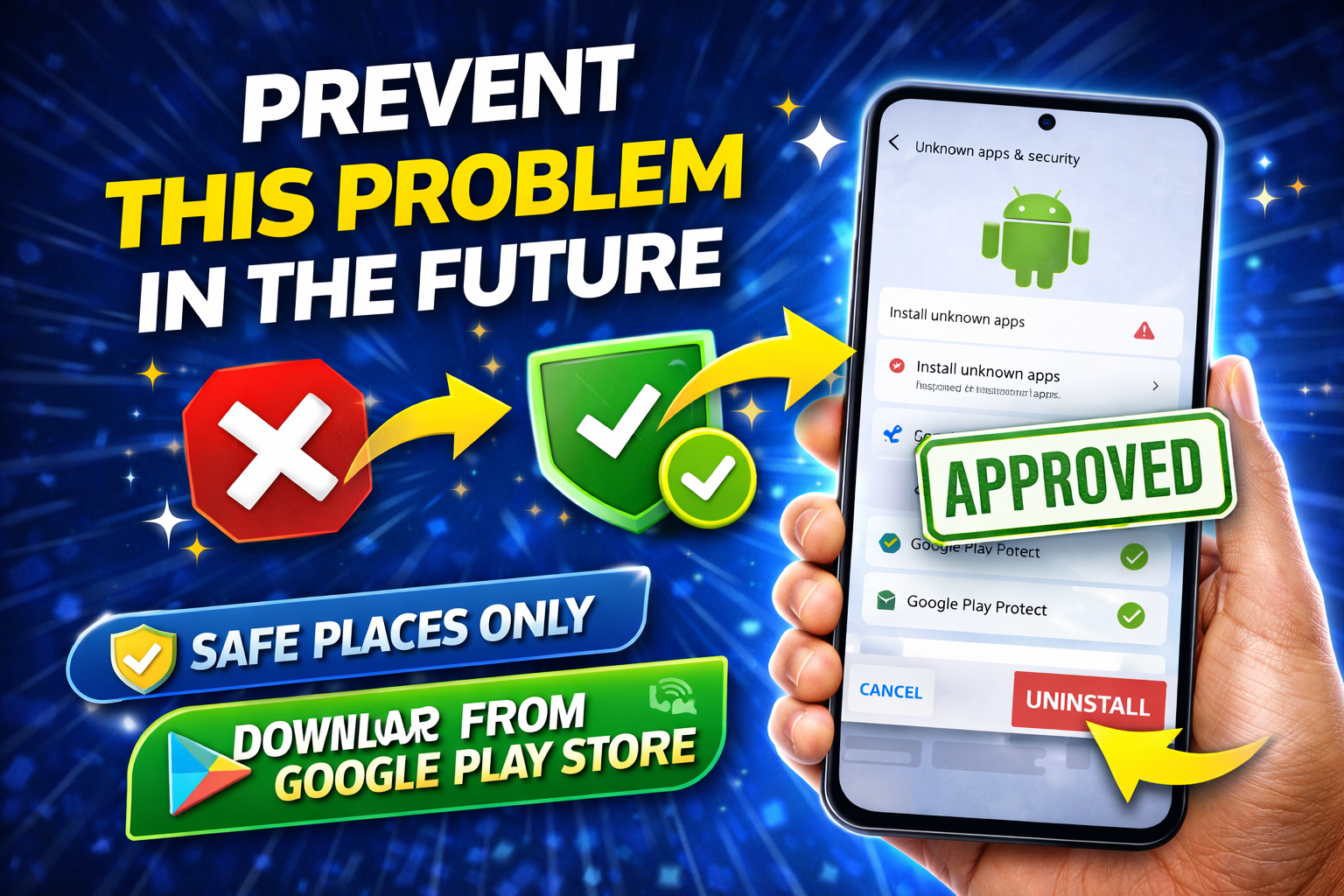
Here’s how to avoid APK installation issues going forward:
Best Practices:
- ✅ Download APKs from trusted sources only
- ✅ Keep your Android system updated
- ✅ Maintain enough storage space
- ✅ Avoid installing modified or cracked apps
- ✅ Regularly clear cache and junk files
💡 Pro Insight: Most installation errors come from unsafe or incompatible APK files.
Common FAQs
1. Why does my APK say “App not installed”?
This usually happens due to compatibility issues, existing app conflicts, or corrupted APK files.
2. Is it safe to install APK files on Android?
Yes—if downloaded from trusted sources. Avoid unknown or modified APKs.
3. Why is APK parsing error showing?
It means the file is corrupted or not compatible with your Android version.
4. Can low storage prevent APK installation?
Absolutely. Android needs sufficient space to install and run apps.
5. Do I need to disable Play Protect permanently?
No. Only disable it temporarily for testing, then turn it back on for safety.
Conclusion
Dealing with APK installation issues can be frustrating—but now you know exactly how to fix apps not installing APK files Android.
Key Takeaways:
- Enable unknown sources
- Use verified APK files
- Check compatibility and storage
- Clear cache and remove conflicts
Start with the Quick Fixes, and if needed, move to advanced solutions.
👉 Here’s what works: Most users fix the issue by enabling permissions and using the correct APK version.
If this guide helped you, consider sharing it or exploring more Android troubleshooting tips. Got questions? Drop them in the comments we’re here to help!
