How to Fix Apps Not Compatible with Your Device (Easy Guide)
Introduction
You’re not alone—seeing the message “This app is not compatible with your device” can be frustrating, especially when you really need that app. Whether it’s a game, social media app, or productivity tool, being blocked from installing it feels like hitting a dead end.
The good news? There are several easy and effective ways to fix apps not compatible with your device. In this guide, you’ll learn exactly why this happens and how to fix it step-by-step—even if you’re not tech-savvy.
Let’s solve this problem fast.
Table of Contents
- What is the Problem?
- Why Does This Problem Happen?
- How to Fix Apps Not Compatible with Your Device
- Advanced Fixes
- Prevent This Problem in the Future
- Common FAQs
- Conclusion
What is the Problem?
The error “App not compatible with your device” usually appears when trying to install an app from the Google Play Store or App Store.
Common Symptoms
- You can’t install the app from the store
- The install button is missing or disabled
- You see messages like:
- “This app isn’t available for your device”
- “Your device isn’t compatible with this version”
- The app installs but crashes immediately
This issue is especially common on older Android devices, budget phones, or devices with outdated software.
Why Does This Problem Happen?
There are several reasons why apps may not be compatible with your device.
1. Outdated Operating System
Apps require newer versions of Android or iOS to run properly.
2. Hardware Limitations
Your device may lack:
- Enough RAM
- Required CPU architecture
- Graphics support
3. Developer Restrictions
Some apps are limited to:
- Specific countries
- Certain device models
4. Google Play Store Filters
The Play Store automatically hides incompatible apps based on your device specs.
5. Rooted or Modified Devices
If your phone is rooted or running custom ROMs, compatibility issues may occur.
6. Screen Size or Resolution
Some apps are designed only for tablets or specific screen sizes.
How to Fix Apps Not Compatible with Your Device
Here’s what works. Follow these steps one by one.
1. Quick Fix: Restart Your Device
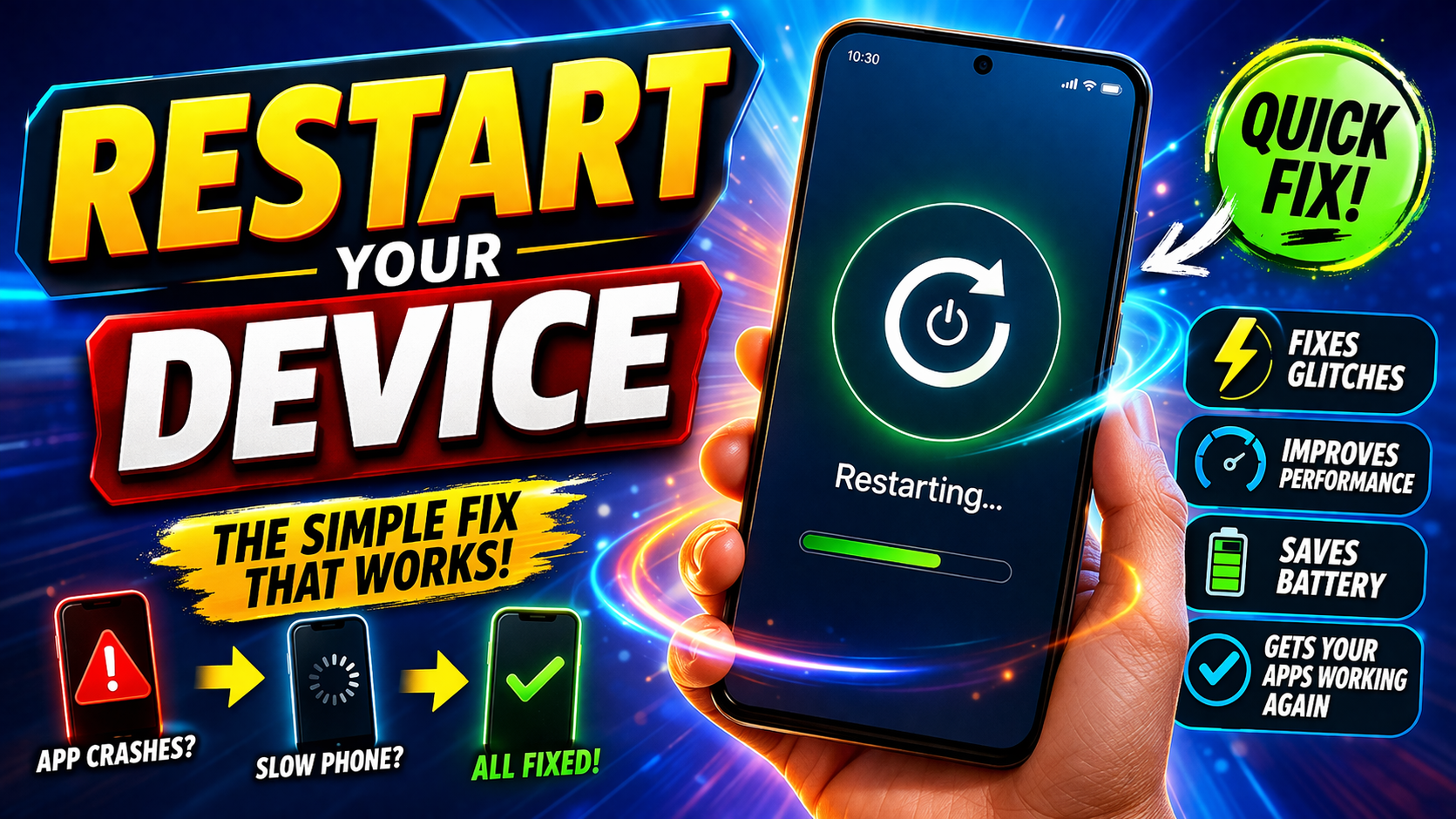
Before trying anything complex, restart your phone.
Why it works:
- Clears temporary glitches
- Refreshes system processes
👉 Simple, but surprisingly effective.
2. Update Your Operating System
An outdated OS is one of the biggest causes.
Steps:
- Go to Settings
- Tap Software Update
- Download and install updates
Pro Tip:
Apps often require the latest OS version to function properly.
3. Clear Google Play Store Cache (Android)
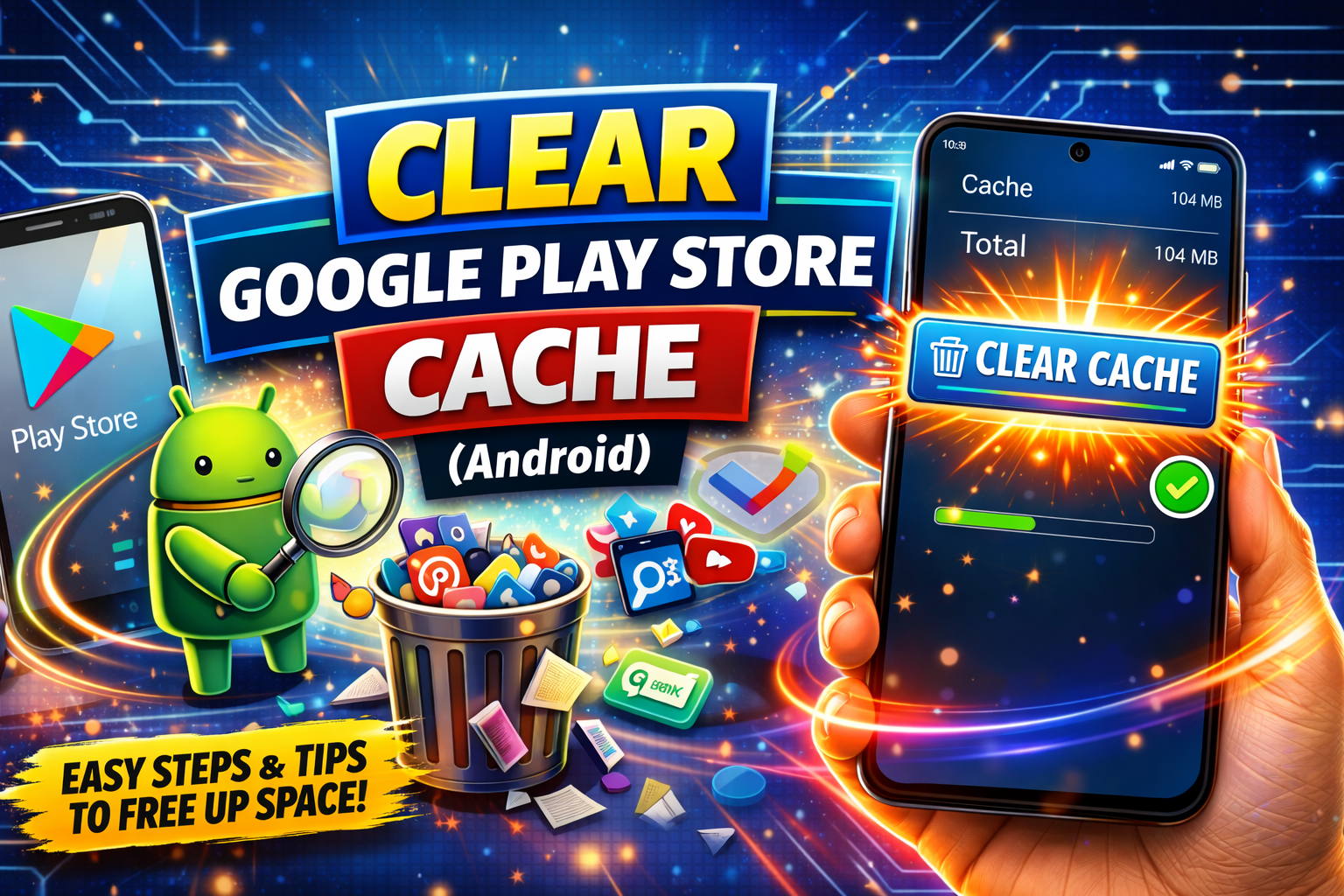
Sometimes the Play Store itself causes the issue.
Steps:
- Go to Settings > Apps
- Find Google Play Store
- Tap Storage
- Select Clear Cache
👉 This refreshes compatibility checks.
4. Use APK Files (Android Only)
If the Play Store blocks installation, you can install the app manually.
Steps:
- Download APK from a trusted source (e.g., APKMirror)
- Enable Install Unknown Apps
- Install the APK file
⚠️ Warning:
Only download from trusted websites to avoid malware.
5. Try an Older Version of the App
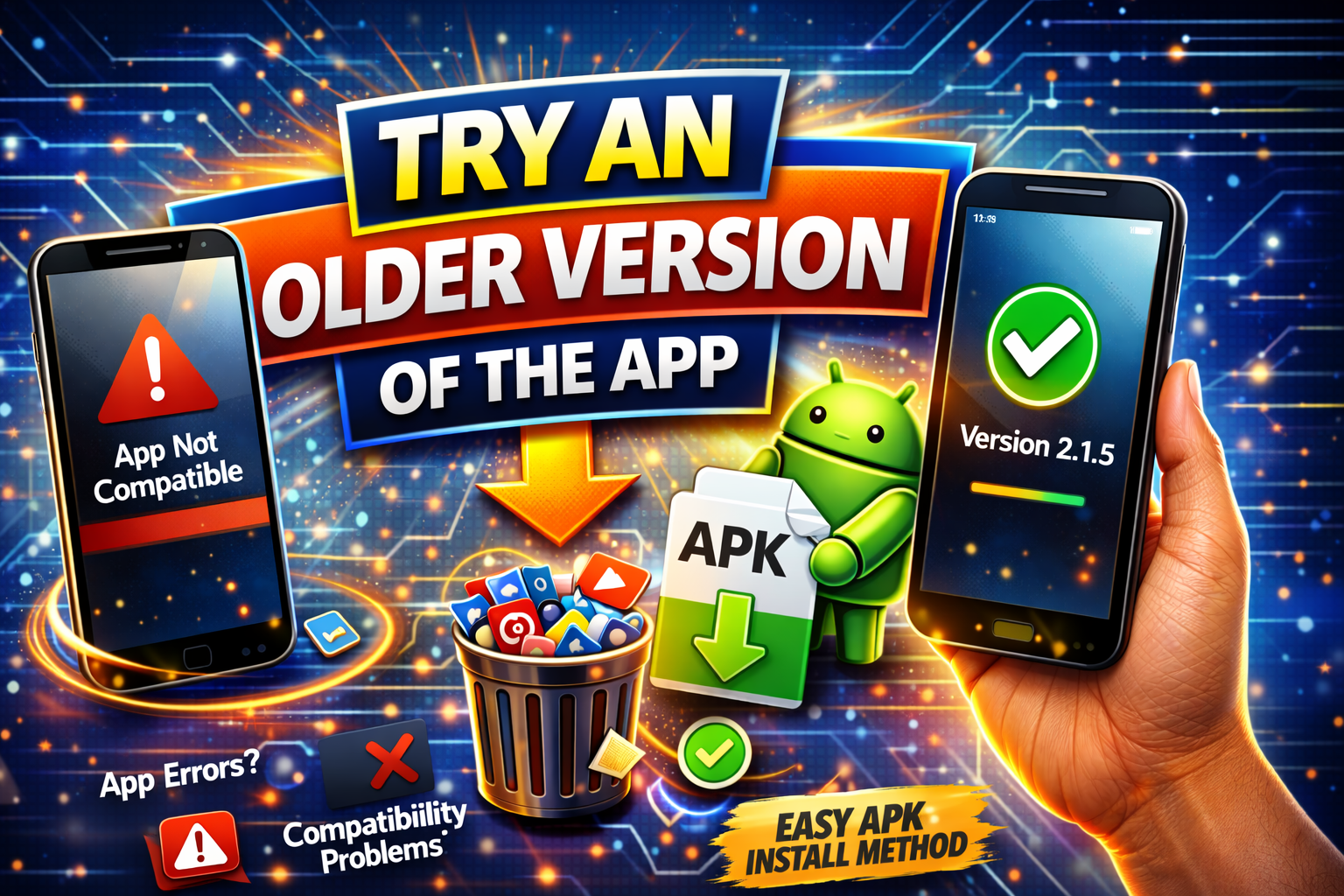
New versions may not support your device.
What to do:
- Search for an older APK version
- Install a version compatible with your OS
👉 This is a hidden trick that works for many users.
6. Change Device Model (Advanced Play Store Trick)
You can “trick” the Play Store into thinking you’re using a different device.
Tools:
- BuildProp Editor (root required)
⚠️ This is more advanced and risky—only try if you understand Android system files.
7. Use a Custom ROM
If your device is old, installing a newer Android version can solve compatibility issues.
Benefits:
- Access to newer features
- Improved app support
👉 Popular ROMs:
- LineageOS
- Pixel Experience
8. Use Alternative Apps
Sometimes the best fix is a workaround.
Examples:
- Use Lite versions (Facebook Lite, YouTube Go)
- Find similar apps with lower requirements
👉 Smart users always have a backup option.
Advanced Fixes (For Tech Users)
If basic solutions don’t work, try these:
1. Root Your Device
- Gives full control over system
- Allows compatibility tweaks
⚠️ Risky and voids warranty.
2. Modify DPI Settings
Some apps require specific screen densities.
- Use developer tools to adjust DPI
- Restart device after changes
3. Install GApps Manually
If using custom ROM:
- Install Google Apps package manually
- Ensures Play Store compatibility
Prevent This Problem in the Future
Avoid facing this issue again with these tips:
✔ Keep Your Device Updated
Always install OS updates when available.
✔ Check App Requirements Before Installing
Look at:
- Required Android/iOS version
- Device compatibility
✔ Avoid Cheap or Unsupported Devices
Low-end devices often face compatibility issues.
✔ Use Trusted App Sources
Avoid modified or unofficial apps.
✔ Don’t Ignore Storage and Performance
Apps need enough space and memory to run smoothly.
Common FAQs
1. Why is an app not compatible with my device?
Because your device may not meet the app’s requirements like OS version, hardware, or region restrictions.
2. Can I force install incompatible apps?
Yes, using APK files—but it may not work properly or could crash.
3. Is it safe to install APK files?
Only if downloaded from trusted sources. Otherwise, it can harm your device.
4. Will updating my phone fix compatibility issues?
Yes, in most cases. Updating your OS improves compatibility with newer apps.
5. What if my device is too old?
You can:
- Use older app versions
- Install a custom ROM
- Switch to lighter apps
Conclusion
Dealing with the “app not compatible with your device” error can be frustrating, but now you know exactly how to fix it.
Here’s what works:
- Update your device
- Clear Play Store cache
- Install APK files
- Try older app versions
- Use alternative apps
Whether you go for a quick fix or advanced solution, there’s always a way around this problem.
👉 Now it’s your turn: Try these solutions and see what works best for you.
If this guide helped, feel free to share it or explore more app troubleshooting tips!
