How to Fix Apps Not Uploading Photos on iPhone (Easy Guide)
Introduction
You’re trying to upload a photo on Instagram, WhatsApp, or another app—but nothing happens. The upload fails, gets stuck, or just won’t start. Frustrating, right?
You’re not alone. Many iPhone users face this issue where apps fail to upload photos properly.
In this guide, we’ll show you how to fix apps not uploading photos on iPhone using simple, practical steps that actually work. Whether it’s a network issue, app bug, or settings problem—we’ve got you covered.
Table of Contents
- What is the Problem?
- Why Does This Problem Happen?
- How to Fix Apps Not Uploading Photos on iPhone
- Advanced Fixes (Optional)
- Prevent This Problem in the Future
- Common FAQs
- Conclusion
What is the Problem?
The issue occurs when apps on your iPhone fail to upload photos or media files. This can affect apps like:
- Snapchat
- Email apps
Common Symptoms
- Upload stuck on loading
- “Upload failed” error message
- Photos won’t attach or send
- App freezes during upload
- Only some photos fail to upload
This problem can happen randomly or after an update, making it confusing for users.
Why Does This Problem Happen?
There are several reasons why apps are not uploading photos on iPhone:
1. Poor Internet Connection
- Weak Wi-Fi or unstable mobile data can interrupt uploads.
2. App Permissions Disabled
- The app may not have access to your Photos.
3. iCloud Sync Issues
- Photos stored in iCloud may not be fully downloaded.
4. App Bugs or Glitches
- Temporary bugs can stop uploads.
5. Outdated iOS or App Version
- Compatibility issues can break features.
6. Low Storage Space
- iPhone needs space to process uploads.
7. Background App Restrictions
- Some apps may not function properly in the background.
How to Fix Apps Not Uploading Photos on iPhone
Here’s what works 👇
1. Check Your Internet Connection (Quick Fix)
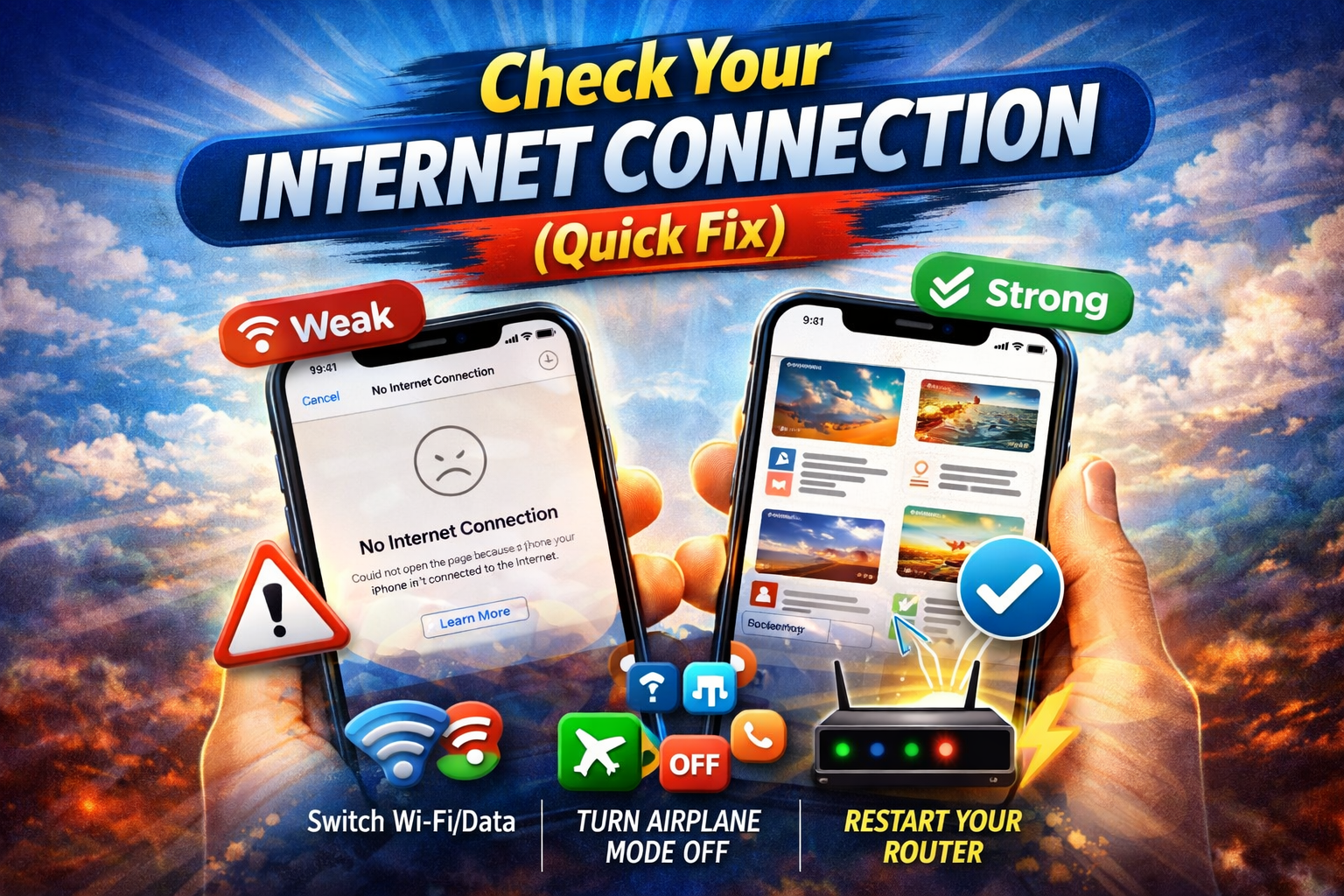
A weak connection is the most common cause.
What to do:
- Switch between Wi-Fi and mobile data
- Restart your router
- Turn Airplane Mode ON and OFF
👉 Pro Tip: Try opening a website—if it loads slowly, your internet is the issue.
2. Allow Photo Access for the App
If the app doesn’t have permission, it can’t upload photos.
Steps:
- Go to Settings
- Tap Privacy & Security → Photos
- Select the app
- Choose All Photos
👉 This is one of the most effective fixes.
3. Restart Your iPhone
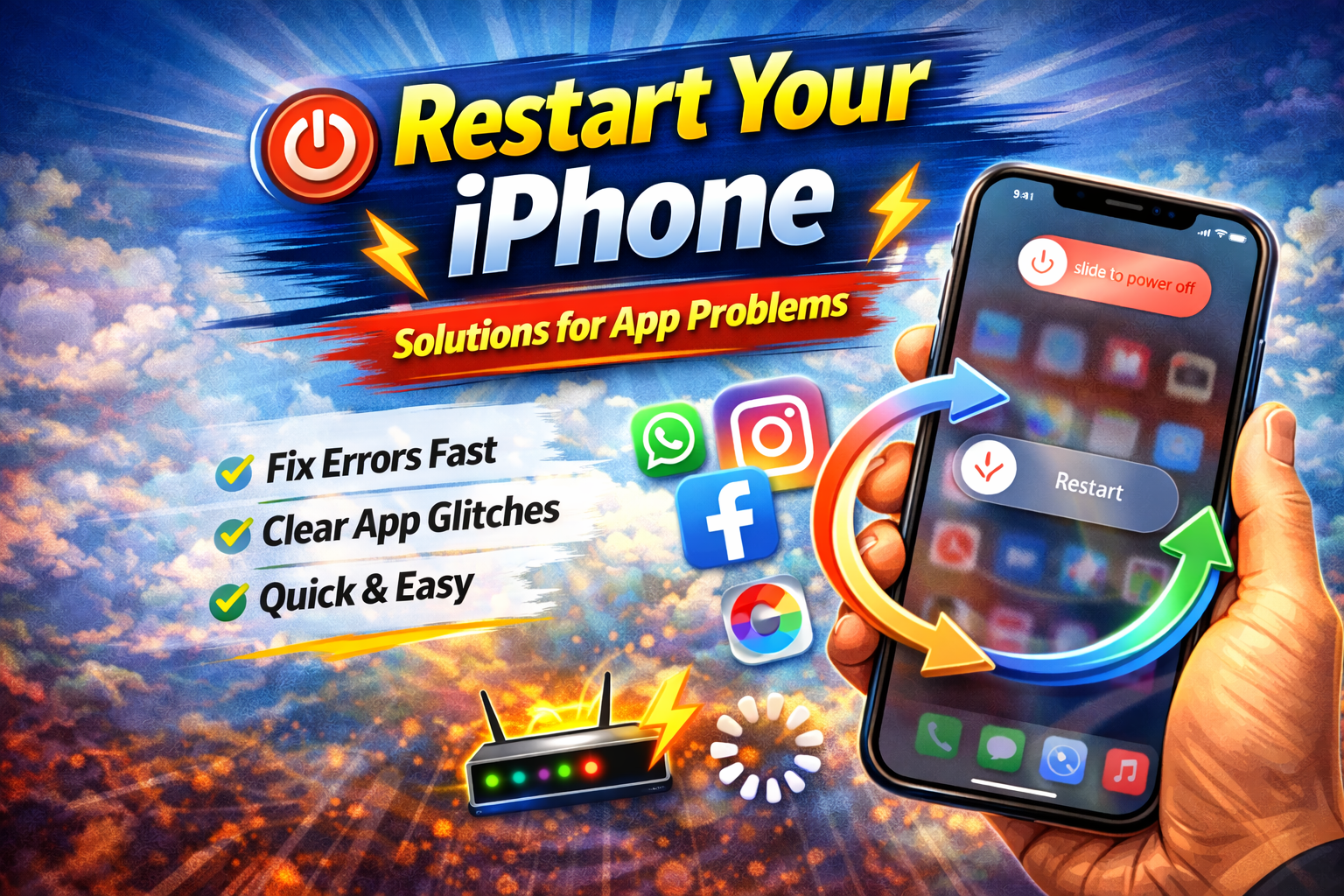
A simple restart can fix temporary glitches.
Steps:
- Press and hold the power button
- Slide to power off
- Turn it back on
👉 Quick Fix: This often resolves upload issues instantly.
4. Update the App
Outdated apps can cause bugs.
Steps:
- Open App Store
- Tap your profile icon
- Update the app
👉 Developers frequently release fixes for upload problems.
5. Update iOS
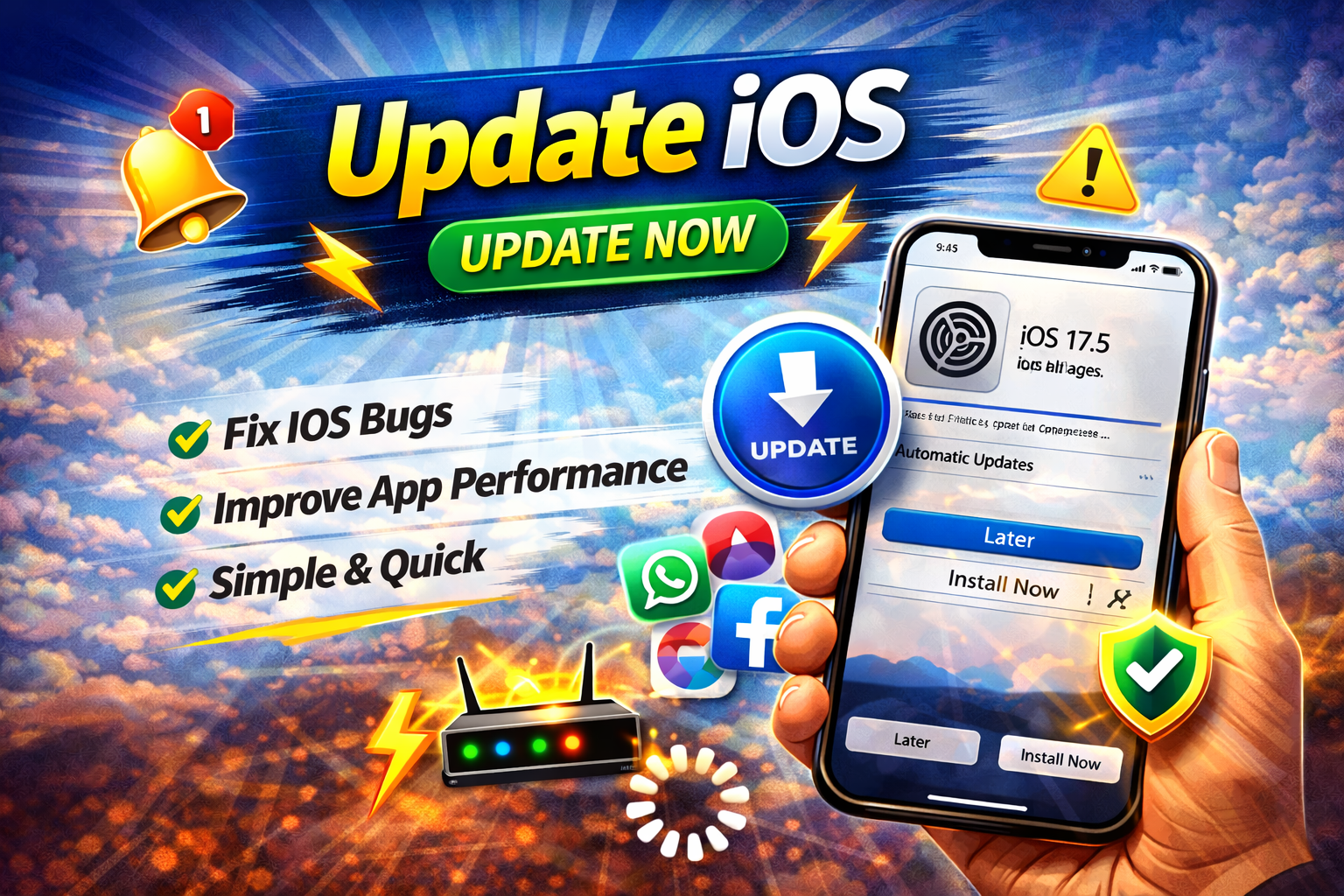
System bugs can also affect app performance.
Steps:
- Go to Settings → General → Software Update
- Install the latest version
👉 Warning: Always back up your data before updating.
6. Check iPhone Storage
Low storage can block uploads.
Steps:
- Go to Settings → General → iPhone Storage
- Free up space if needed
Tips:
- Delete unused apps
- Remove duplicate photos
- Clear large videos
7. Download Photos from iCloud
If your photos are in iCloud, they may not be fully downloaded.
Steps:
- Open the Photos app
- Tap the photo
- Wait for it to fully load
👉 Upload won’t work until the photo is downloaded locally.
8. Reinstall the App
If nothing works, reinstalling can fix deep issues.
Steps:
- Delete the app
- Restart your iPhone
- Reinstall from App Store
👉 This clears corrupted data and resets settings.
Advanced Fixes (Optional)
For more technical users:
1. Reset Network Settings
Steps:
- Go to Settings → General → Transfer or Reset iPhone → Reset → Network Settings
👉 This will remove saved Wi-Fi passwords.
2. Disable Low Data Mode
Low Data Mode can restrict uploads.
Steps:
- Go to Settings → Mobile Data → Mobile Data Options
- Turn OFF Low Data Mode
3. Check Screen Time Restrictions
Sometimes restrictions block app access.
Steps:
- Go to Settings → Screen Time → Content & Privacy Restrictions
Prevent This Problem in the Future
Here’s how to avoid this issue:
- Keep apps and iOS updated regularly
- Always allow proper app permissions
- Maintain stable internet connection
- Avoid full storage on your iPhone
- Regularly restart your device
👉 Pro Insight: Most upload problems come from permissions + network issues.
Common FAQs
1. Why won’t my iPhone upload photos to apps?
Usually due to poor internet, disabled permissions, or iCloud sync issues.
2. How do I fix upload failed on iPhone apps?
Check your connection, enable photo access, and restart your device.
3. Can low storage stop photo uploads?
Yes. If your iPhone is full, apps may fail to upload photos.
4. Why do only some photos fail to upload?
They may not be downloaded from iCloud or could be corrupted.
5. Does reinstalling apps fix upload problems?
Yes, it can resolve bugs and corrupted app data.
Conclusion
Dealing with apps not uploading photos on iPhone can be frustrating—but the good news is, it’s usually easy to fix.
Here’s what works best:
- Check your internet connection
- Enable photo permissions
- Update apps and iOS
- Free up storage
- Restart or reinstall apps
Try these solutions step by step, and your uploads should be back to normal in no time.
👉 If this guide helped you, consider sharing it or exploring more App Problems solutions to keep your device running smoothly!
